kimyen commented on issue #18317:
URL: https://github.com/apache/airflow/issues/18317#issuecomment-924377251
> What I'm after is a way to insert multiple dag-runs for historical dates in bulk from the UI, possibly with some tasks already marked as complete/skipped, as well as clearing tasks/dagruns between certain dates. @thejens without knowing the explicit use case, seeing all the things you listed here prompt me to this doc I wrote. I think that there are already multiple ways to "backfill" using the scheduler. See Manual Backfill > Airflow builtin options. *Notes that the "backfill request view" in the below doc is for the first backfill tool I mentioned above.* # How to backfill your DAG ## Background There are multiple ways to backfill a DAG in Airflow. We will attempt to describe when to use each option. ### Use case 1: New DAG A new DAG is created on April 4th, 2020 and we want the DAG to start collecting data since March 1st, 2020. To achieve this, while writing the DAG definition, we can set `catchup=True` and `"start_date": datetime(2020, 3, 1)` in the DAG's `default_args`. When the code is deployed to production, the backfill (from March 1st to current time) is automatically started by the scheduler. ### Use case 2: Extend DAG runs further in the past An existing DAG has DAG runs starting from March 1st, 2020. We want to extend it to January 1st, 2020. We can achieve this by: - ensuring that the DAG has `catchup=True`, and - change the start date to January 1st, 2020 When the code is deployed to production, the backfill (from January 1st to March 1st) is automatically started by the scheduler. **If there are any successful DAG runs after the start date, Airflow is not going to `catchup`. See [Start from Dag Runs view](#start-from-dag-runs-view) to delete the successful DAG run and trigger the catchup process.** This can also be achieved by manually backfilling the DAG from January 1st to March 1st. See [manual backfill section](#manual-backfill). ### Use case 3: DAG logic change An existing DAG was used to calculated some metrics. However, the calculations need to be updated, and all past successful DAG runs need to be rerun to update the resulting data for those days. For example, the change was deployed to production on May 1st, 2020. The May 1st DAG run is then scheduled to run and uses the new DAG logic. However, all prior DAG runs from January 1st, 2020 to April 30th, 2020 need to be re-run. In this case, a manual backfill needs to be triggered. See [manual backfill section](#manual-backfill). ### Use case 4: New Task A new task is added to an existing DAG. Regardless if your DAG has `catchup=True`, since the existing DAG runs have been completed, the scheduler will not automatically trigger backfill runs for the new task. In this case, a manual backfill needs to be triggered. See [manual backfill section](#manual-backfill). ## Manual backfill ### Understand backfill and scheduler [This page](https://airflow.apache.org/docs/stable/scheduler.html) describes how the Airflow scheduler, catchup, backfill, and external triggers works. We highly recommend that you understand these concepts before performing a manual backfill. ### Things to check before starting a manual backfill Answer to these questions will also help to choose a more fit option to perform backfill. - What: Backfill the entire DAG or a specific task(s) - When: Time range you want to run the backfill - Pre-condition: Are there dependencies for your DAG/task? If so, have the dependencies been met or the pre-conditions been satisfied? - How: - Are there existing DAG runs for the period you want to backfill? If so, do you want to re-run or skip them? - If you want to backfill a specific task, can the upstream task(s) be ignored? - Impact: - What data does this backfill change? - Would it result in duplicated data? ### Airflow built in options Airflow has multiple built in options to trigger a backfill manually. #### Start from Tree view The tree view option is best fit if you only want to backfill a handful of specific tasks. **Only use this option if the task's dependencies has been met.** Go to your DAG's tree view: - click on the task you want to backfill - On the line with the "Run" button, click "Ignore Task State" - Click "Run" #### Start from Task Instance view The Task Intance view option is the best fit if you want to backfill more than a handful of specific tasks. (When clicking on each task and start running them manually is taking too much time.) **Only use this option if:** - your DAG is configured with `catchup=True`, - the tasks' dependencies has been met, - the backfill period is covered by the DAG's `start_date` - `end_date` range. - there are existing task runs for the task(s) you want to backfill This option is accomplished by clearing out the task instances for the task run(s) you want to backfill. The scheduler will schedule new task runs to fill in the ones that have been cleared out. Let's imagine we want to backfill `fill_meu_v2_retention` from `key_metrics_cube` DAG between `2019-10-01` and `2019-10-10`. Here are the steps to carry out this option: * Go to `Browse` -> `Task Instances` and find the tasks you want to backfill. * In this example, the target backfill task is `fill_meu_v2_retention`. However, we also need to clear the `drop_meu_v2_retention` task to make sure data is not duplicated. Select all the task runs for `fill_meu_v2_retention` and `drop_meu_v2_retention` during the backfill period; and click on `With selected` -> `clear` 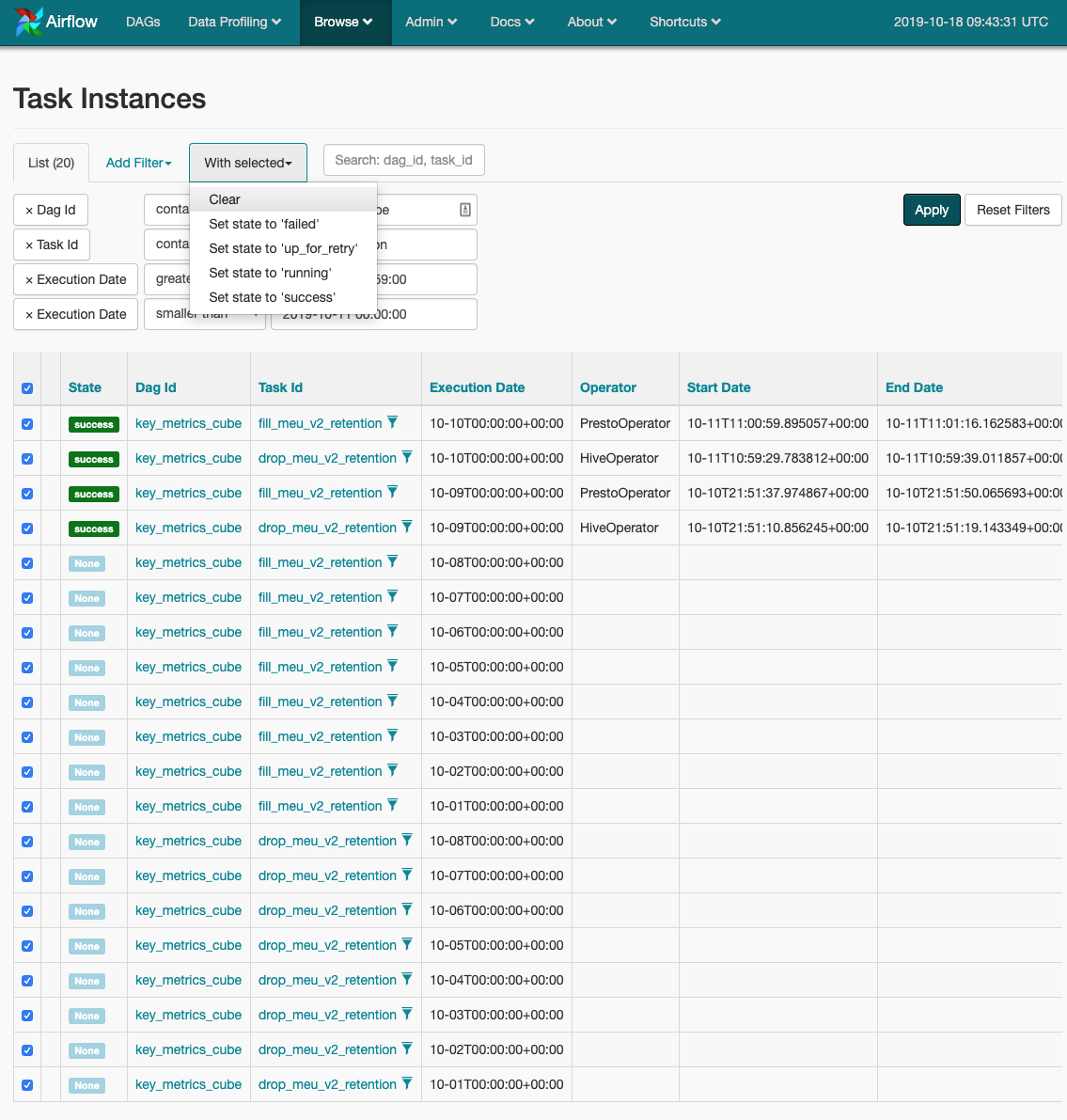 * Airflow is not going to `catchup` if there are already completed `DAG Runs`, we need to clear those up to trigger the `catchup` process. See [Start from Dag Runs view](#start-from-dag-runs-view). You should start seeing tasks running shortly. #### Start from Dag Runs view The DAG Runs view is the best fit to re-run DAG(s)/task(s) that already have DAG runs. **Only use this option if:** - your DAG is configured with `catchup=True`, - the tasks' dependencies have been met, - the backfill period is covered by the DAG's `start_date` - `end_date` range, - the task runs for the task you want to backfill do not exist, or have been deleted using the instruction [here](#start-from-task-instance-view). If not, please see [Start from Task Instance view](#start-from-task-instance-view) In order to do this, you need to: - pause the DAG - go to `Browse` -> `DAG Runs` - `Add Filter` and filter by `Dag Id` - Once you've found all the DAG Runs within your backfill period, select all of them and delete them. - `Unpause` your DAG to trigger the `catchup` process. Once you've deleted the DAG runs, these DAG runs will disappear on the Tree view. However, any task instances for those DAG runs (which existed before you deleted the DAG runs) will still be there. The scheduler will automatically schedule new DAG runs and only run the tasks that have not been completed. ### Backfill Request view The [backfill request view](https://airflow.githubapp.com/admin/backfillrequest/) is built on top of Airflow CLI and is best fit for backfilling a long period of time. **Only use this option if:** - The backfill period will not be worked on by the scheduler: - The backfill period is not within the DAG's `start_date` - `end_date` range; or - There are existing DAG runs for every DAG run in the backfill period; or - The DAG has `catchup=False`; or - The DAG is paused. Use the Backfill request UI to submit a backfill request. Backfill requests are first come first served. You can watch the position of your request in the queue by looking at the [Status tab](https://airflow.githubapp.com/admin/backfillrequest#status). -- This is an automated message from the Apache Git Service. To respond to the message, please log on to GitHub and use the URL above to go to the specific comment. To unsubscribe, e-mail: [email protected] For queries about this service, please contact Infrastructure at: [email protected]

