This is an automated email from the ASF dual-hosted git repository.

yumeng pushed a commit to branch docs-yumeng
in repository https://gitbox.apache.org/repos/asf/incubator-devlake-website.git
The following commit(s) were added to refs/heads/docs-yumeng by this push:
new 1703a3d6dc docs: update all configuration docs
1703a3d6dc is described below
commit 1703a3d6dcdec27424e46782e8891d045b2a159d
Author: yumengwang03 <[email protected]>
AuthorDate: Fri Apr 28 18:10:39 2023 +0800
docs: update all configuration docs
---
docs/Configuration/BitBucket.md | 34 +++++++-------
docs/Configuration/GitHub.md | 50 ++++++++++-----------
docs/Configuration/GitLab.md | 49 +++++++++++---------
docs/Configuration/Jenkins.md | 35 ++++++++-------
docs/Configuration/SonarQube.md | 27 ++++++-----
docs/Configuration/Tapd.md | 28 ++++++------
docs/Configuration/Teambition.md | 22 ++++-----
docs/Configuration/Zentao.md | 29 ++++++------
.../images/github-create-a-connection.png | Bin 0 -> 281816 bytes
.../images/github-set-transformation1.png | Bin 0 -> 70266 bytes
.../images/github-set-transformation2.png | Bin 0 -> 388738 bytes
.../images/gitlab-create-a-connection.png | Bin 0 -> 200565 bytes
.../images/gitlab-set-transformation1.png | Bin 0 -> 63415 bytes
.../images/gitlab-set-transformation2.png | Bin 0 -> 181320 bytes
.../images/jenkins-create-a-connection.png | Bin 0 -> 190486 bytes
.../images/jenkins-set-transformation1.png | Bin 0 -> 48401 bytes
.../images/jenkins-set-transformation2.png | Bin 0 -> 180262 bytes
.../images/zentao-create-a-connection.png | Bin 0 -> 198778 bytes
18 files changed, 145 insertions(+), 129 deletions(-)
diff --git a/docs/Configuration/BitBucket.md b/docs/Configuration/BitBucket.md
index 47a8769891..b81c58db9b 100644
--- a/docs/Configuration/BitBucket.md
+++ b/docs/Configuration/BitBucket.md
@@ -4,23 +4,23 @@ sidebar_position: 2
description: Config UI instruction for BitBucket(Cloud)
---
-Visit config-ui: `http://localhost:4000` and go to `Connections` page.
+Visit Config UI at : `http://localhost:4000` and go to `Connections` page.
-### Step 1 - Add Data Connections
+## Step 1 - Add Data Connections

-#### Connection Name
+### Connection Name
Give your connection a unique name to help you identify it in the future.
-#### Endpoint URL
+### Endpoint URL
For BitBucket Cloud, you do not need to enter the REST API endpoint URL, which
is always `https://api.bitbucket.org/2.0/`.
DevLake will support BitBucket Server in the future.
-#### Username and App Password
+### Username and App Password
Learn about [how to create a BitBucket app
password](https://support.atlassian.com/bitbucket-cloud/docs/create-an-app-password/).
@@ -38,12 +38,12 @@ The following permissions are required to collect data from
BitBucket repositori

-#### Proxy URL (Optional)
+### Proxy URL (Optional)
If you are behind a corporate firewall or VPN you may need to utilize a proxy
server. Enter a valid proxy server address on your network, e.g.
`http://your-proxy-server.com:1080`
-#### Fixed Rate Limit (Optional)
+### Fixed Rate Limit (Optional)
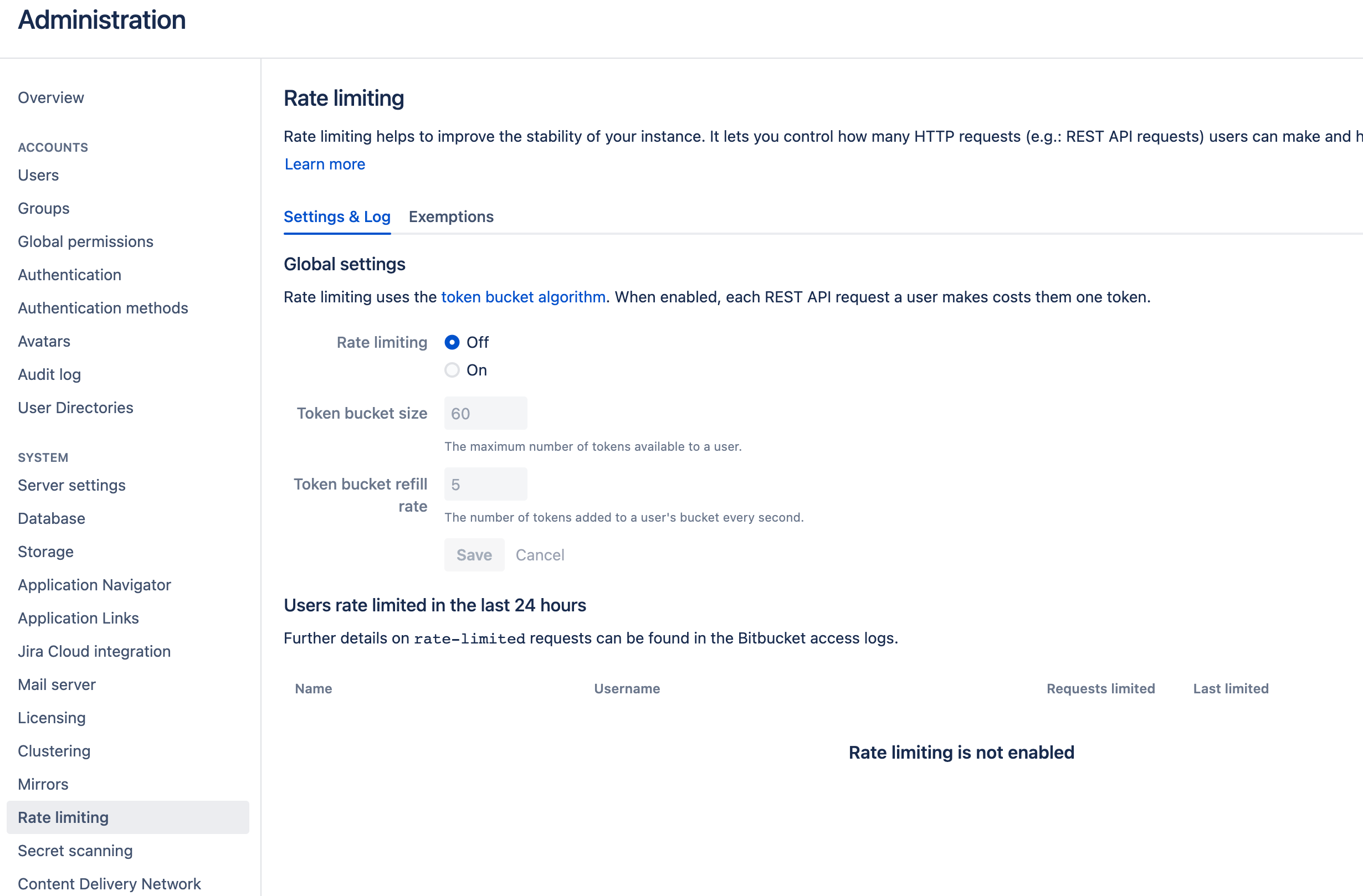
DevLake uses a dynamic rate limit to collect BitBucket data. You can adjust
the rate limit if you want to increase or lower the speed.
@@ -52,19 +52,19 @@ The maximum rate limit for different entities in
BitBucket(Cloud) [varies from 1
<!--
-->
-#### Test and Save Connection
+### Test and Save Connection
Click `Test Connection`, if the connection is successful, click `Save
Connection` to add the connection.
-### Step 2 - Configure Blueprint
+## Step 2 - Configure Blueprint

-#### Repositories
+### Repositories
Select the BitBucket repositories to collect.
-#### Data Entities
+### Data Entities
Usually, you don't have to modify this part. However, if you don't want to
collect certain BitBucket entities, you can unselect some entities to
accelerate the collection speed.
@@ -75,10 +75,10 @@ Usually, you don't have to modify this part. However, if
you don't want to colle
- Cross Domain: BitBucket accounts, etc.
-### Step 3 - Add Transformation (Optional)
+## Step 3 - Add Transformation (Optional)
You can add a `transformation` to standardize the data. A `transformation`
acts on the BitBucket data in the [tool
layer](/docs/DataModels/ToolLayerSchema.md), transforming it to the [domain
layer](/docs/DataModels/DevLakeDomainLayerSchema.md).
-#### Issue Tracking
+### Issue Tracking
**Issue Status Mapping**<br/>

@@ -95,7 +95,7 @@ The original status will be saved in the column
`original_status` of the table '
**Issue Type Mapping**<br/>
DevLake will convert the issue types of 'enhancement', 'proposal', and 'task'
from BitBucket into the new issue type 'REQUIREMENT' for DevLake. In contrast,
any issues classified as 'bug' in BitBucket will be converted into the new
issue type 'BUG' for DevLake. The original type will be saved in the column
`original_type` of the table 'issues', and the new type will be saved in the
column `type` of the same table.
-#### CI/CD
+### CI/CD
The CI/CD configuration for BitBucket is used for calculating [DORA
metrics](../DORA.md).
By default, DevLake will identify the deployment and environment settings that
are defined in the BitBucket CI .yml file.
@@ -126,7 +126,7 @@ If a pipeline step defines `deployment` with a value
(usually indicating the env

-#### Additional Settings (Optional)
+### Additional Settings (Optional)
- Tags Limit: DevLake compares the last N pairs of tags to get the "commit
diff', "issue diff" between tags. N defaults to 10.
@@ -139,10 +139,10 @@ If a pipeline step defines `deployment` with a value
(usually indicating the env
Please click `Save` to save the transformation rules for the repo. In the data
scope list, click `Next Step` to continue configuring.
-### Step 4 - Setting Sync Frequency
+## Step 4 - Setting Sync Policy
You can choose how often you would like to sync your data in this step by
selecting a sync frequency option or entering a cron code to specify your
prefered schedule.
-### Troubleshooting
+## Troubleshooting
If you run into any problems, please check the
[Troubleshooting](/Troubleshooting/Configuration.md) or [create an
issue](https://github.com/apache/incubator-devlake/issues).
diff --git a/docs/Configuration/GitHub.md b/docs/Configuration/GitHub.md
index b903a9d294..78578ce1eb 100644
--- a/docs/Configuration/GitHub.md
+++ b/docs/Configuration/GitHub.md
@@ -4,25 +4,25 @@ sidebar_position: 2
description: Config UI instruction for GitHub
---
-Visit config-ui: `http://localhost:4000`.
+Visit Config UI at: `http://localhost:4000`.
-### Step 1 - Add Data Connections
+## Step 1 - Add Data Connections
-
+
-#### Connection Name
+### Connection Name
-Name your connection.
+Give your connection a unique name to help you identify it in the future.
-#### Endpoint URL
+### Endpoint URL
This should be a valid REST API endpoint, eg. `https://api.github.com/`. The
URL should end with `/`.
-#### Auth Token(s)
+### Personal Access Token(s)
You can use one of the following GitHub tokens: personal access tokens(PATs)
or fine-grained personal access tokens.
-###### GitHub personal access tokens(Recommended)
+#### GitHub Personal Access Tokens(Recommended)
Learn about [how to create a GitHub personal access
token](https://docs.github.com/en/authentication/keeping-your-account-and-data-secure/creating-a-personal-access-token).
The following permissions are required to collect data from repositories:
@@ -41,7 +41,7 @@ The difference is that you have to give full permission for
`repos`, not just `r
The data collection speed is restricted by the **rate limit of [5,000
requests](https://docs.github.com/en/rest/overview/resources-in-the-rest-api#rate-limiting)
per hour per token** (15,000 requests/hour if you pay for GitHub enterprise).
You can accelerate data collection by configuring _multiple_ personal access
tokens. Please note that multiple tokens should be created by different GitHub
accounts. Tokens belonging to the same GitHub account share the rate limit.
-###### Fine-grained personal access tokens
+#### Fine-grained Personal Access Tokens
Note: this token doesn't support GraphQL APIs. You have to disable `Use
GraphQL APIs` on the connection page if you want to use it. However, this will
significantly increase the data collection time.
@@ -54,36 +54,36 @@ The token should be granted read-only permission for the
following entities.
- `Metadata`
- `Pull requests`
-#### Use Graphql APIs
+### Use Graphql APIs
If you are using `github.com` or your on-premise GitHub version supports
GraphQL APIs, toggle on this setting to collect data quicker.
- GraphQL APIs are 10+ times faster than REST APIs, but they may not be
supported in GitHub on-premise versions.
- Instead of using multiple tokens to collect data, you can use ONLY ONE token
because GraphQL APIs are quick enough.
-#### Proxy URL (Optional)
+### Proxy URL (Optional)
If you are behind a corporate firewall or VPN you may need to utilize a proxy
server. Enter a valid proxy server address on your network, e.g.
`http://your-proxy-server.com:1080`
-#### Fixed Rate Limit (Optional)
+### Fixed Rate Limit (Optional)
DevLake uses a dynamic rate limit to collect GitHub data. You can adjust the
rate limit if you want to increase or lower the speed.
The maximum rate limit for GitHub is ** [5,000
requests/hour](https://docs.github.com/en/rest/overview/resources-in-the-rest-api#rate-limiting)**
(15,000 requests/hour if you pay for GitHub enterprise). Please do not use a
rate that exceeds this number.
-#### Test and Save Connection
+### Test and Save Connection
Click `Test Connection`, if the connection is successful, click `Save
Connection` to add the connection.
-### Step 2 - Setting Data Scope
+## Step 2 - Setting Data Scope

-#### Projects
+### Repositories
-Enter the GitHub repos to collect. If you want to collect more than 1 repo,
please separate repos with comma. For example,
"apache/incubator-devlake,apache/incubator-devlake-website".
+Enter the GitHub repositories to collect. If you want to collect more than 1
repo, please separate repos with comma. For example,
"apache/incubator-devlake,apache/incubator-devlake-website".
-#### Data Entities
+### Data Entities
Usually, you don't have to modify this part. However, if you don't want to
collect certain GitHub entities, you can unselect some entities to accelerate
the collection speed.
@@ -93,16 +93,16 @@ Usually, you don't have to modify this part. However, if
you don't want to colle
- CI/CD: GitHub Workflow runs, GitHub Workflow jobs, etc.
- Cross Domain: GitHub accounts, etc.
-### Step 3 - Adding Transformation Rules (Optional)
+## Step 3 - Adding Transformation Rules (Optional)
-
-
+
+
Without adding transformation rules, you can still view the "[GitHub
Metrics](/livedemo/DataSources/GitHub)" dashboard. However, if you want to view
"[Weekly Bug Retro](/livedemo/QAEngineers/WeeklyBugRetro)", "[Weekly Community
Retro](/livedemo/OSSMaintainers/WeeklyCommunityRetro)" or other pre-built
dashboards, the following transformation rules, especially "Type/Bug", should
be added.<br/>
Each GitHub repo has at most ONE set of transformation rules.
-#### Issue Tracking
+### Issue Tracking
- Severity: Parse the value of `severity` from issue labels.
@@ -119,7 +119,7 @@ Each GitHub repo has at most ONE set of transformation
rules.
- Type/Incident: Same as "Type/Requirement", with `type` setting to "INCIDENT".
-#### CI/CD
+### CI/CD
This set of configurations is used for calculating [DORA metrics](../DORA.md).
@@ -137,7 +137,7 @@ The deployment and production regex is always applied to
the records in the cicd
You can also select "Not using Jobs in GitHub Action as Deployments" if you're
not using GitHub action to conduct deployments.
-#### Code Review
+### Code Review
- Type: The `type` of pull requests will be parsed from PR labels by given
regular expression. For example:
@@ -146,7 +146,7 @@ You can also select "Not using Jobs in GitHub Action as
Deployments" if you're n
- Component: The `component` of pull requests will be parsed from PR labels by
given regular expression.
-#### Additional Settings (Optional)
+### Additional Settings (Optional)
- Tags Limit: It'll compare the last N pairs of tags to get the "commit diff',
"issue diff" between tags. N defaults to 10.
@@ -159,7 +159,7 @@ You can also select "Not using Jobs in GitHub Action as
Deployments" if you're n
Please click `Save` to save the transformation rules for the repo. In the data
scope list, click `Next Step` to continue configuring.
-### Step 4 - Setting Sync Frequency
+## Step 4 - Setting Sync Policy
You can choose how often you would like to sync your data in this step by
selecting a sync frequency option or enter a cron code to specify your prefered
schedule.
diff --git a/docs/Configuration/GitLab.md b/docs/Configuration/GitLab.md
index d7ed5a3fa0..302894f5b0 100644
--- a/docs/Configuration/GitLab.md
+++ b/docs/Configuration/GitLab.md
@@ -4,29 +4,33 @@ sidebar_position: 3
description: Config UI instruction for GitLab
---
-Visit config-ui: `http://localhost:4000`.
+Visit Config UI: `http://localhost:4000`.
-### Step 1 - Add Data Connections
+## Step 1 - Add Data Connections
-
+
-#### Connection Name
+### Connection Name
-Name your connection.
+Give your connection a unique name to help you identify it in the future.
-#### Endpoint URL
+### GitLab Version
+
+Select if you use GitLab Cloud or GitLab Server (v11+).
+
+### Endpoint URL
This should be a valid REST API endpoint.
-- If you are using gitlab.com, the endpoint will be
`https://gitlab.com/api/v4/`
-- If you are self-hosting GitLab, the endpoint will look like
`https://gitlab.example.com/api/v4/`
- The endpoint URL should end with `/`.
+- If you use GitLab cloud, you do not need to enter the endpoint, which is
always `https://gitlab.com/api/v4/`.
+- If you GitLab Server (v11+), the endpoint will look like
`https://gitlab.example.com/api/v4/`.
+ Please note: the endpoint URL should end with `/`.
-#### Auth Token(s)
+### Personal Access Token
-GitLab personal access tokens are required to add a connection. Learn about
[how to create a GitLab personal access
token](https://docs.gitlab.com/ee/user/profile/personal_access_tokens.html).
+Your GitLab personal access token (PAT) is required to add a connection. Learn
about [how to create a GitLab personal access
token](https://docs.gitlab.com/ee/user/profile/personal_access_tokens.html).
-###### GitLab personal access tokens
+#### Personal Access Token Permissions
At least one of the following permissions is required to collect data from
repositories:
@@ -38,11 +42,11 @@ You also have to double-check your GitLab user permission
settings.
1. Go to the Project information -> Members page of the GitLab projects you
wish to collect.
2. Check your role in this project from the Max role column. Make sure you are
not the Guest role, otherwise, you will not be able to collect data from this
project.
-#### Proxy URL (Optional)
+### Proxy URL (Optional)
If you are behind a corporate firewall or VPN you may need to utilize a proxy
server. Enter a valid proxy server address on your network, e.g.
`http://your-proxy-server.com:1080`
-#### Fixed Rate Limit (Optional)
+### Fixed Rate Limit (Optional)
DevLake uses a dynamic rate limit at around 12,000 requests/hour to collect
GitLab data. You can adjust the rate limit if you want to increase or lower the
speed.
@@ -50,21 +54,21 @@ The maximum rate limit for GitLab Cloud is ** [120,000
requests/hour](https://do
For self-managed GitLab rate limiting, please contact your GitLab admin to
[get or set the maximum rate
limit](https://repository.prace-ri.eu/git/help/security/rate_limits.md) of your
GitLab instance. Please do not use a rate that exceeds this number.
-#### Test and Save Connection
+### Test and Save Connection
Click `Test Connection`, if the connection is successful, click `Save
Connection` to add the connection.
-### Step 2 - Setting Data Scope
+## Step 2 - Setting Data Scope

-#### Projects
+### Projects
Choose the GitLab projects to collect. Limited by GitLab API, You need to type
more than 2 characters to search.
- If you want to collect public repositories in GitLab, please uncheck "Only
search my repositories" to search all repositories.
-#### Data Entities
+### Data Entities
Usually, you don't have to modify this part. However, if you don't want to
collect certain GitLab entities, you can unselect some entities to accerlerate
the collection speed.
@@ -74,9 +78,12 @@ Usually, you don't have to modify this part. However, if you
don't want to colle
- CI/CD: GitLab pipelines, jobs, etc.
- Cross Domain: GitLab accounts, etc.
-### Step 3 - Adding Transformation Rules (Optional)
+## Step 3 - Adding Transformation Rules (Optional)
+
+
+
-#### CI/CD
+### CI/CD
This set of configurations is used for calculating [DORA metrics](../DORA.md).
@@ -89,7 +96,7 @@ By the above two fields, DevLake can identify a production
deployment among mass
You can also select "Not using Jobs in GitLab CI as Deployments" if you're not
using GitLab CI to conduct deployments.
-### Step 4 - Setting Sync Frequency
+## Step 4 - Setting Sync Policy
You can choose how often you would like to sync your data in this step by
selecting a sync frequency option or enter a cron code to specify your prefered
schedule.
diff --git a/docs/Configuration/Jenkins.md b/docs/Configuration/Jenkins.md
index 45a301381a..a6476eb9ba 100644
--- a/docs/Configuration/Jenkins.md
+++ b/docs/Configuration/Jenkins.md
@@ -4,53 +4,56 @@ sidebar_position: 5
description: Config UI instruction for Jenkins
---
-Visit config-ui: `http://localhost:4000`.
+Visit Config UI at: `http://localhost:4000`.
-### Step 1 - Add Data Connections
+## Step 1 - Add Data Connections
-
+
-#### Connection Name
+### Connection Name
-Name your connection.
+Give your connection a unique name to help you identify it in the future.
-#### Endpoint URL
+### Endpoint URL
This should be a valid REST API endpoint. Eg. `https://ci.jenkins.io/`. The
endpoint url should end with `/`.
-#### Username (E-mail)
+### Username (E-mail)
Your User ID for the Jenkins Instance.
-#### Password
+### Password
For help on Username and Password, please see Jenkins docs on [using
credentials](https://www.jenkins.io/doc/book/using/using-credentials/). You can
also use "API Access Token" for this field, which can be generated at `User` ->
`Configure` -> `API Token` section on Jenkins.
-#### Fixed Rate Limit (Optional)
+### Fixed Rate Limit (Optional)
DevLake uses a dynamic rate limit to collect Jenkins data. You can adjust the
rate limit if you want to increase or lower the speed.
-There is not any doc about Jenkins rate limiting. Please put up an issue if
you find one.
+There is no doc about Jenkins rate limiting. Please create an issue if you
find related information.
-#### Test and Save Connection
+### Test and Save Connection
Click `Test Connection`, if the connection is successful, click `Save
Connection` to add the connection.
-### Step 2 - Setting Data Scope
+## Step 2 - Setting Data Scope

-#### Jobs
+### Jobs
Choose the Jenkins jobs. All `Jenkins builds` under these jobs will be
collected.
-#### Data Entities
+### Data Entities
Jenkins only supports `CI/CD` domain entities, transformed from Jenkins builds
and stages.
- CI/CD: Jenkins builds, stages, etc.
-### Step 3 - Adding Transformation Rules (Optional)
+## Step 3 - Adding Transformation Rules (Optional)
+
+
+
This set of configurations is used for calculating [DORA metrics](../DORA.md).
@@ -69,7 +72,7 @@ After the conversion, the two regexes are applied to the
records in the cicd_tas
You can also select "Not using Jenkins builds as Deployments" if you're not
using Jenkins to conduct deployments.
-### Step 4 - Setting Sync Frequency
+## Step 4 - Setting Sync Policy
You can choose how often you would like to sync your data in this step by
selecting a sync frequency option or enter a cron code to specify your prefered
schedule.
diff --git a/docs/Configuration/SonarQube.md b/docs/Configuration/SonarQube.md
index 6aaeb8009d..5795d02722 100644
--- a/docs/Configuration/SonarQube.md
+++ b/docs/Configuration/SonarQube.md
@@ -4,17 +4,17 @@ sidebar_position: 7
description: Config UI instruction for SonarQube
---
-Visit config-ui: `http://localhost:4000`.
+Visit Config UI at: `http://localhost:4000`.
-### Step 1 - Add Data Connections
+## Step 1 - Add Data Connections

-#### Connection Name
+### Connection Name
Name your connection.
-#### Endpoint URL
+### Endpoint URL
This should be a valid REST API endpoint
@@ -22,38 +22,41 @@ This should be a valid REST API endpoint
The endpoint url should end with `/`.
-#### Auth Token(s)
+### Token
SonarQube token is required to add a connection. Learn about [how to create a
SonarQube
token](https://sonarqube.inria.fr/sonarqube/documentation/user-guide/user-token/).
-#### Proxy URL (Optional)
+### Proxy URL (Optional)
If you are behind a corporate firewall or VPN you may need to utilize a proxy
server. Enter a valid proxy server address on your network, e.g.
`http://your-proxy-server.com:1080`
-#### Fixed Rate Limit (Optional)
+### Fixed Rate Limit (Optional)
DevLake uses a dynamic rate limit at around 18,000 requests/hour to collect
SonarQube data. You can adjust the rate limit if you want to increase or lower
the speed.
-#### Test and Save Connection
+### Test and Save Connection
Click `Test Connection`, if the connection is successful, click `Save
Connection` to add the connection.
-### Step 2 - Setting Data Scope
+## Step 2 - Setting Data Scope

-#### Projects
+### Projects
Choose the SonarQube projects to collect.
-#### Data Entities
+### Data Entities
Usually, you don't have to modify this part. However, if you don't want to
collect certain SonarQube entities, you can unselect some entities to
accerlerate the collection speed.
- Code Quality Domain: SonarQube issues, issue code blocks, file metrics,
hotspots, etc.
- Cross Domain: SonarQube accounts, etc.
-### Step 3 - Setting Sync Frequency
+## Step 3 - Adding Transformation Rules (Optional)
+SonarQube does not have transformation and this step will be skipped.
+
+## Step 4 - Setting Sync Policy
You can choose how often you would like to sync your data in this step by
selecting a sync frequency option or enter a cron code to specify your prefered
schedule.
diff --git a/docs/Configuration/Tapd.md b/docs/Configuration/Tapd.md
index eeb605e121..c518088aac 100644
--- a/docs/Configuration/Tapd.md
+++ b/docs/Configuration/Tapd.md
@@ -4,33 +4,33 @@ sidebar_position: 6
description: Config UI instruction for TAPD
---
-Visit config-ui: `http://localhost:4000` and go to `Connections` page.
+Visit Config UI at: `http://localhost:4000` and go to `Connections` page.
-### Step 1 - Add Data Connections
+## Step 1 - Add Data Connections

-#### Connection Name
+### Connection Name
Name your connection.
-#### Endpoint URL
+### Endpoint URL
This should be a valid REST API endpoint
- `https://api.tapd.cn/`
The endpoint url should end with `/`.
-#### Username / Password
+### Username/Password
Input the username and password of your Tapd account, you can follow the steps
as below.

-#### Proxy URL (Optional)
+### Proxy URL (Optional)
If you are behind a corporate firewall or VPN you may need to utilize a proxy
server. Enter a valid proxy server address on your network, e.g.
`http://your-proxy-server.com:1080`
-#### Ralte Limit (Optional)
+### Ralte Limit (Optional)
For TAPD, we suggest you setting the rate limit to 3500
-#### Test and Save Connection
+### Test and Save Connection
Click `Test Connection`, if the connection is successful, click `Save
Connection` to add the connection.
-### Step 2 - Setting Data Scope
+## Step 2 - Setting Data Scope

@@ -38,18 +38,18 @@ You can find the campany id in your Tapd company dashboard.

-#### Workspaces
+### Workspaces
Choose the Tapd workspaces to collect.
-#### Data Entities
+### Data Entities
Usually, you don't have to modify this part. However, if you don't want to
collect certain Tapd entities, you can unselect some entities to accerlerate
the collection speed.
- Issue Tracking: Tapd issues, issue comments, issue labels, etc.
- Cross Domain: Tapd accounts, etc.
-### Step 3 - Adding Transformation Rules (Optional)
+## Step 3 - Adding Transformation Rules (Optional)

@@ -57,7 +57,7 @@ Without adding transformation rules, you can not view all
charts in "Engineering
Each Tapd workspace can be configured with different transformation rules.
-#### Issue Tracking
+### Issue Tracking
- Requirement: choose the issue types to be transformed to "REQUIREMENT".
- Bug: choose the issue types to be transformed to "BUG".
@@ -66,7 +66,7 @@ Each Tapd workspace can be configured with different
transformation rules.
- IN-PROGRESS: The issues that are work-in-progress
- DONE: The issues that are completed
-### Step 4 - Setting Sync Frequency
+## Step 4 - Setting Sync Policy
You can choose how often you would like to sync your data in this step by
selecting a sync frequency option or enter a cron code to specify your prefered
schedule.
diff --git a/docs/Configuration/Teambition.md b/docs/Configuration/Teambition.md
index 58fd962e14..a82c61bbf5 100644
--- a/docs/Configuration/Teambition.md
+++ b/docs/Configuration/Teambition.md
@@ -4,20 +4,20 @@ sidebar_position: 6
description: Config UI instruction for Teambition
---
-Visit config-ui: `http://localhost:4000` and go to `Connections` page.
+Visit Config UI: `http://localhost:4000` and go to `Connections` page.
-### Step 1 - Add Data Connections
+## Step 1 - Add Data Connections

-#### Connection Name
-Name your connection.
+### Connection Name
+Give your connection a unique name to help you identify it in the future.
#### Endpoint URL
This should be a valid REST API endpoint
- `https://open.teambition.com/api/`
The endpoint url should end with `/`.
-#### App Id / Secret Key
+### App Id/Secret Key
Input the app id and secret key of your Teambition account, you can follow the
steps as below.

@@ -25,7 +25,7 @@ You should ensure that you have added all the necessary "get"
and "list" authent

-#### Tenant Type / Tenant Id
+#### Tenant Type/Tenant Id
It is important to add your app before finding the Tenant Id.
@@ -35,22 +35,22 @@ It is important to add your app before finding the Tenant
Id.

-#### Proxy URL (Optional)
+### Proxy URL (Optional)
If you are behind a corporate firewall or VPN you may need to utilize a proxy
server. Enter a valid proxy server address on your network, e.g.
`http://your-proxy-server.com:1080`
-#### Ralte Limit (Optional)
+### Ralte Limit (Optional)
For Teambition, we suggest you setting the rate limit to 5000
-#### Test and Save Connection
+### Test and Save Connection
Click `Test Connection`, if the connection is successful, click `Save
Connection` to add the connection.
-### Step 2 - Configure Blueprint
+## Step 2 - Configure Blueprint
Similar to other beta plugins, Teambition does not support `project`, which
means, you can only collect Teambition data via blueprint's advanced mode.
Please go to the `Blueprints` page and switch to advanced mode. See how to use
advanced mode and JSON [examples](AdvancedMode.md#11-Teambition).
-### Troubleshooting
+## Troubleshooting
If you run into any problem, please check the
[Troubleshooting](/Troubleshooting/Configuration.md) or [create an
issue](https://github.com/apache/incubator-devlake/issues)
diff --git a/docs/Configuration/Zentao.md b/docs/Configuration/Zentao.md
index 5ce72876c9..7497dc9a4c 100644
--- a/docs/Configuration/Zentao.md
+++ b/docs/Configuration/Zentao.md
@@ -4,49 +4,52 @@ sidebar_position: 6
description: Config UI instruction for Zentao(禅道)
---
-Visit config-ui: `http://localhost:4000` and go to `Connections` page.
+Visit Config UI at: `http://localhost:4000` and go to `Connections` page.
-### Step 1 - Add Data Connections
+## Step 1 - Add Data Connections
-
+
-#### Connection Name
+### Connection Name
-Name your connection.
+Give your connection a unique name to help you identify it in the future.
-#### Endpoint URL
+### Endpoint URL
Please ensure that the REST API endpoint URL is valid. It should be in the
format of either `http://<host>:<port>/api.php/v1/` or
`http://<host>:<port>/zentao/api.php/v1/`.
If the initial test fails, please try another endpoint URL as the URL depends
on where Zentao is deployed. Additionally, please ensure that the endpoint URL
ends with a forward slash `/`.
-#### Username/Password
+### Username/Password
Input the username and password of your Zentao account.
-#### Proxy URL (Optional)
+### Proxy URL (Optional)
If you are behind a corporate firewall or VPN you may need to utilize a proxy
server. Enter a valid proxy server address on your network, e.g.
`http://your-proxy-server.com:1080`
-#### Test and Save Connection
+### Test and Save Connection
Click `Test Connection`, if the connection is successful, click `Save
Connection` to add the connection.
-### Step 2 - Setting Data Scope
+## Step 2 - Setting Data Scope

-#### Projects and Products
+### Projects and Products
Please select the Zentao products for collecting stories/bugs and the Zentao
projects for collecting executions. Both will also collect information on
accounts/departments.
-#### Data Entities
+### Data Entities
Usually, you don't have to modify this part. However, if you don't want to
collect certain Lento entities, you can unselect some entities to accerlerate
the collection speed.
- Issue Tracking: Lento issues, issue comments, issue labels, etc.
-### Step 3 - Setting Sync Frequency
+## Step 3 - Adding Transformation Rules (Optional)
+Zentao does not have transformation and this step will be skipped.
+
+## Step 4 - Setting Sync Policy
You can choose how often you would like to sync your data in this step by
selecting a sync frequency option or enter a cron code to specify your prefered
schedule.
diff --git a/docs/Configuration/images/github-create-a-connection.png
b/docs/Configuration/images/github-create-a-connection.png
new file mode 100644
index 0000000000..4b1bc15fbe
Binary files /dev/null and
b/docs/Configuration/images/github-create-a-connection.png differ
diff --git a/docs/Configuration/images/github-set-transformation1.png
b/docs/Configuration/images/github-set-transformation1.png
new file mode 100644
index 0000000000..a665a8677d
Binary files /dev/null and
b/docs/Configuration/images/github-set-transformation1.png differ
diff --git a/docs/Configuration/images/github-set-transformation2.png
b/docs/Configuration/images/github-set-transformation2.png
new file mode 100644
index 0000000000..672d9872b2
Binary files /dev/null and
b/docs/Configuration/images/github-set-transformation2.png differ
diff --git a/docs/Configuration/images/gitlab-create-a-connection.png
b/docs/Configuration/images/gitlab-create-a-connection.png
new file mode 100644
index 0000000000..31ee473888
Binary files /dev/null and
b/docs/Configuration/images/gitlab-create-a-connection.png differ
diff --git a/docs/Configuration/images/gitlab-set-transformation1.png
b/docs/Configuration/images/gitlab-set-transformation1.png
new file mode 100644
index 0000000000..37cafd14b7
Binary files /dev/null and
b/docs/Configuration/images/gitlab-set-transformation1.png differ
diff --git a/docs/Configuration/images/gitlab-set-transformation2.png
b/docs/Configuration/images/gitlab-set-transformation2.png
new file mode 100644
index 0000000000..3d8071b8c2
Binary files /dev/null and
b/docs/Configuration/images/gitlab-set-transformation2.png differ
diff --git a/docs/Configuration/images/jenkins-create-a-connection.png
b/docs/Configuration/images/jenkins-create-a-connection.png
new file mode 100644
index 0000000000..74173a41e1
Binary files /dev/null and
b/docs/Configuration/images/jenkins-create-a-connection.png differ
diff --git a/docs/Configuration/images/jenkins-set-transformation1.png
b/docs/Configuration/images/jenkins-set-transformation1.png
new file mode 100644
index 0000000000..d6567e4a67
Binary files /dev/null and
b/docs/Configuration/images/jenkins-set-transformation1.png differ
diff --git a/docs/Configuration/images/jenkins-set-transformation2.png
b/docs/Configuration/images/jenkins-set-transformation2.png
new file mode 100644
index 0000000000..2f2b598042
Binary files /dev/null and
b/docs/Configuration/images/jenkins-set-transformation2.png differ
diff --git a/docs/Configuration/images/zentao-create-a-connection.png
b/docs/Configuration/images/zentao-create-a-connection.png
new file mode 100644
index 0000000000..4ce325ce4c
Binary files /dev/null and
b/docs/Configuration/images/zentao-create-a-connection.png differ





