This is an automated email from the ASF dual-hosted git repository.

min pushed a commit to branch develop
in repository https://gitbox.apache.org/repos/asf/incubator-dubbo-ops.git
The following commit(s) were added to refs/heads/develop by this push:
new 7f667e6 add chinese doc
7f667e6 is described below
commit 7f667e6e570666f2daa7e417195b024a724dc376
Author: nzomkxia <[email protected]>
AuthorDate: Fri Oct 26 14:55:19 2018 +0800
add chinese doc
---
README.md | 11 +++++----
README_ZH.md | 76 ++++++++++++++++++++++++++++++++++++++++++++++++++++++++++++
2 files changed, 82 insertions(+), 5 deletions(-)
diff --git a/README.md b/README.md
index f66ccec..a0b1e91 100644
--- a/README.md
+++ b/README.md
@@ -4,6 +4,7 @@
[](https://codecov.io/gh/apache/incubator-dubbo-ops)

+[中文说明](README_ZH.md)
### Screenshot
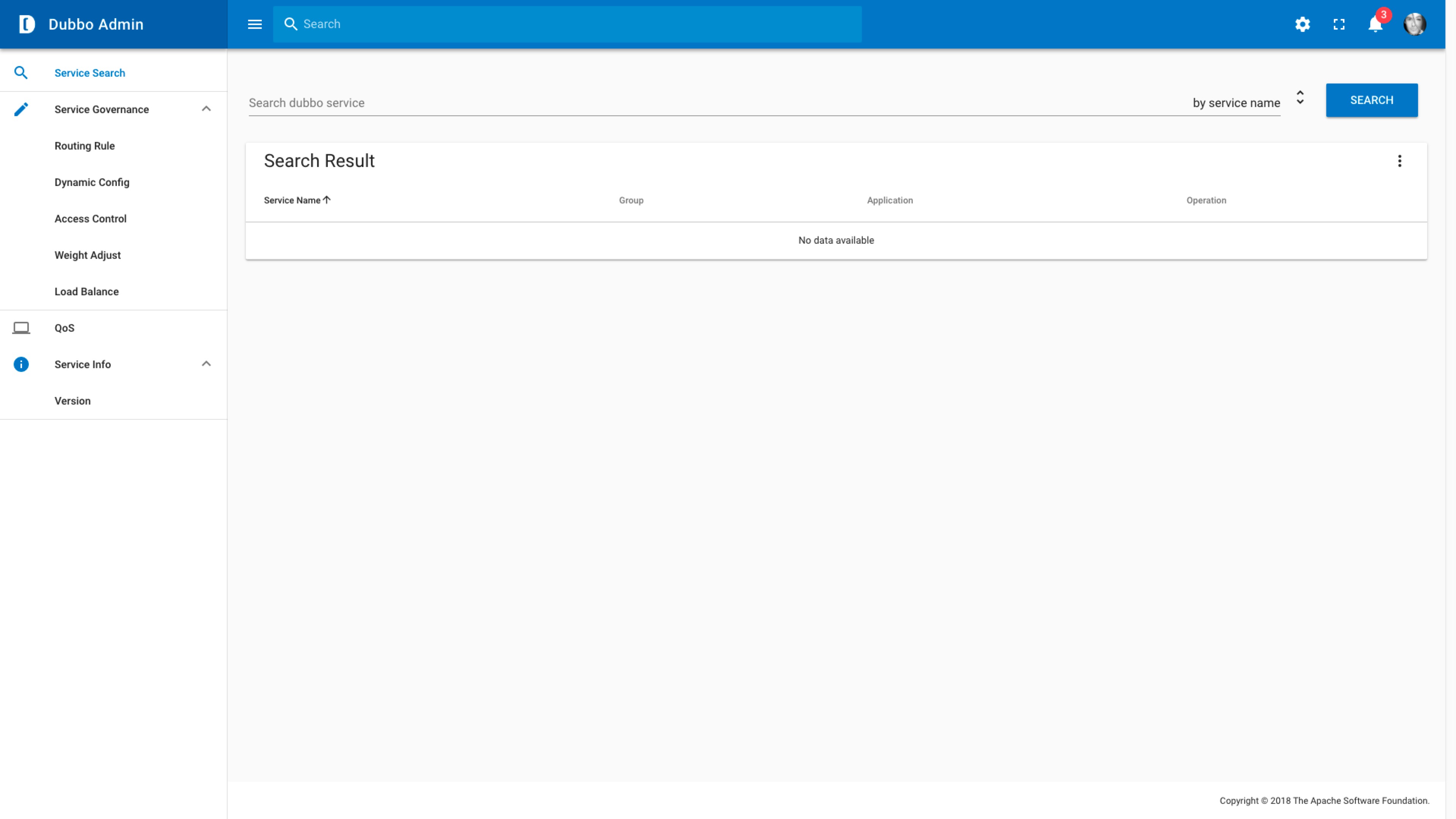
@@ -46,29 +47,29 @@
* Select configuration files in Intellij Idea
1. Choose profile file during project importing
- 1. In the **Import from Maven** page where IntelliJ IDEA displays the
profiles, activate the ones you need:
+ 1. In the **Import from Maven** page where IntelliJ IDEA displays the
profiles, select `develop` maven profile:

2. Select **Next** and finish import
2. Choose profile file in the Maven Projects tool window to activate
profiles.
1. Open the Maven Projects tool window.
2. Click the Profiles node to open a list of declared profiles.
- 3. Select the appropriate checkboxes to activate the profiles you
need.
+ 3. Select the appropriate checkboxes to activate `develop` maven
profile.
* Select configuration files in Eclipse
1. import project
2. In **Project Explorer**, right click `dubbo-admin-backend`
3. Choose **Maven**->**Select Maven Profiles**
- 4. Select profile you need
+ 4. Select `develop` maven profile

* Run backend project
backend is a standard spring boot project, you can run it in any java IDE
* Run frontend project
run with `npm run dev`
* visit webpage
- visit `http://localhost:8081`, frontend support hot reload.
+ visit `http://localhost:8081`, frontend supports hot reload.
* CORS problem
- in this development mode, frontend will request `localhost:8080` to fetch
data, this will cause a CORS problem, so we add a configuration in
`I18nConfig.java` to support CORS, this configuration will only be active under
**develop** mode, please select the right maven profile to support this.
+ for convenien of development, we deploy frontend and backend separately,
so the frontend supports hot reload. In this mode, frontend will request
`localhost:8080` to fetch data, this will cause a CORS problem, so we add a
configuration in `I18nConfig.java` to support CORS, this configuration will
only be active under **develop** mode, please select the right maven profile to
support this.
### Swagger supoort
diff --git a/README_ZH.md b/README_ZH.md
new file mode 100644
index 0000000..7c045cd
--- /dev/null
+++ b/README_ZH.md
@@ -0,0 +1,76 @@
+# Dubbo控制台
+
+[](https://travis-ci.org/apache/incubator-dubbo-ops)
+[](https://codecov.io/gh/apache/incubator-dubbo-ops)
+
+
+English version goes [here](README.md).
+
+### 页面截图
+
+
+
+### 前端部分
+
+-
使用[Vue.js](https://vuejs.org)作为javascript框架,[Vuetify](https://vuetifyjs.com)作为UI框架
+- [dubbo-admin-frontend/README.md](dubbo-admin-frontend/README.md)中有更详细的介绍
+
+### 后端部分
+
+* 配置文件
+
+> - `application.properties`
+> 公共配置文件
+> - `application-production.properties` (默认配置)
+> 生产环境的配置文件
+> - `application-develop.properties`
+> 开发环境的配置文件
+>
+
+
+### 生产环境配置
+
+1. 下载代码: `git clone https://github.com/apache/incubator-dubbo-ops.git`
+2. 在
`dubbo-admin-backend/src/resources/application-production.properties`中指定注册中心地址
+3. 构建
+
+ * 通过命令行来指定maven active file
+
+ > - `mvn clean package -Pproduction`
激活生产环境的配置文件(`application-production.properties`)
+4. 启动 `mvn --projects dubbo-admin-backend spring-boot:run`
+5. 访问 `http://localhost:8080`
+
+
+### 开发环境配置
+* IDE设置
+
+ * 在Intellij Idea中选择maven profile配置文件
+
+ 1. 在引入项目时选择配置文件
+ 1. 在 **Import from Maven** 页面,激活`develop`配置文件:
+

+ 2. 选择 **Next** 完成项目引入
+
+ 2. 在Maven项目工具窗口中选择需要激活的maven profile文件。
+ 1. 打开Maven项目工具窗口。
+ 2. 点击`Profiles`节点。
+ 3. 点击选择`develop`配置文件。
+
+ * 在Eclipse中选择maven profile配置文件
+ 1. 引入项目
+ 2. 在 **Project Explorer**视图中, 右键单击 `dubbo-admin-backend`模块。
+ 3. 选择 **Maven**->**Select Maven Profiles**。
+ 4. 选择`develop`配置文件。
+

+* 运行`dubbo admin backend`
+ `dubbo admin backend`是一个标准的spring boot项目, 可以在任何java IDE中运行它
+* 运行`dubbo admin frontend`
+ `dubbo admin frontend`由npm管理和构建,在开发环境中,可以单独运行: `npm run dev`
+* 页面访问
+ 访问 `http://localhost:8081`, 由于前后端分开部署,前端支持热加载,任何页面的修改都可以实时反馈,不需要重启应用。
+ * 跨域问题
+ 为了方便开发,我们提供了这种前后端分离的部署模式,主要的好处是支持前端热部署,在这种模式下,前端会通过8080端口访问后端的restful
api接口,获取数据, 这将导致跨域访问的问题。因此我们在`I18nConfig.java`添加了支持跨域访问的配置。这些配置只在**develop**
模式中生效,因此在开发环境中,请选择`develop`配置文件。
+
+### Swagger 支持
+
+部署完成后,可以访问 http://localhost:8080/swagger-ui.html 来查看所有的restful api






