** Summary changed:

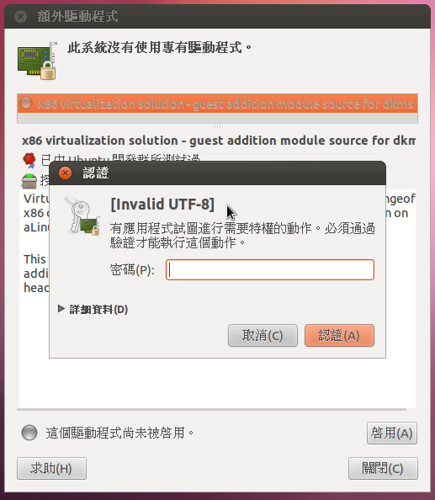
- String show as [invalid UTF-8]
+ Authentication String show as [invalid UTF-8]
** Description changed:

- I have tried to install extra driver (for VirtualBox) with oneiric pre-
- release installation.
+ Series: yes

- When it prompts  Authentication dialogue, there is a string showing
- "[Invalid UTF-8]". As attackment.
+ Reproduce Steps:
+ 1. When Live CD promts "Keyboard = Human", press any key to select language
(Install with live media, ie. i386.iso live CD)
+ 2. Choose "中文(繁體)"
+ 3. Choose the second option, "安裝 Ubuntu" (Install Ubuntu), and press Enter
+ 4. Finish the installation process
+ 5. Restart
+ 6. Launch jockey to install extra drivers
+
+ Expected Result:
+ You have prompted a string to authenticate your identify while the
information is properly displayed in localized form.
+
+ Actual Result:
+ You a information saying "[invalid UTF-8]"
+ See http://farm7.static.flickr.com/6092/6250043249_6b8c657f75.jpg
+
+ However, if you install Ubuntu via another way below, you will get a
+ properly displayed date and week days.
+
+ Reproduce Steps:
+ 1. When Live CD promts "Keyboard = Human", press any key to select language
+ 2. Use "English" as default
+ 3. Choose "Install Ubuntu", and press Enter
+ 4. You see the welcome page in English, select "中文 (繁體)" then click "繼續"
(Continue)
+ Note: You only choose "中文 (繁體)" after you get into the installer
+ 5. Finish the installation process
+ 6. Restart
+ 7. Launch jockey to install extra drivers
+
+ Expected Result:
+ You have prompted a string to authenticate your identify while the
information is properly displayed in localized form.
+
+ Actual Result:
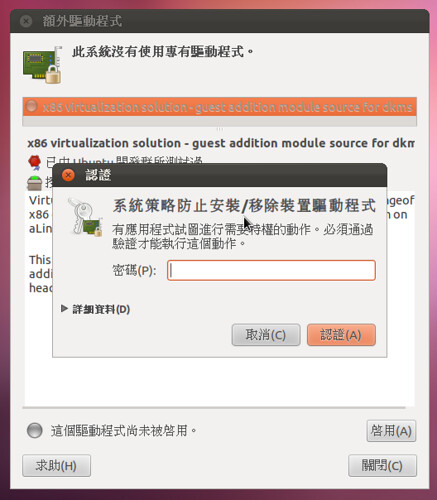
+ You get the right display.
+ http://farm7.static.flickr.com/6169/6250707590_bcec91ce40.jpg

** Description changed:

  Series: yes

  Reproduce Steps:
  1. When Live CD promts "Keyboard = Human", press any key to select language
(Install with live media, ie. i386.iso live CD)
  2. Choose "中文(繁體)"
  3. Choose the second option, "安裝 Ubuntu" (Install Ubuntu), and press Enter
  4. Finish the installation process
  5. Restart
  6. Launch jockey to install extra drivers

  Expected Result:
  You have prompted a string to authenticate your identify while the
information is properly displayed in localized form.

  Actual Result:
  You a information saying "[invalid UTF-8]"
  See http://farm7.static.flickr.com/6092/6250043249_6b8c657f75.jpg

  However, if you install Ubuntu via another way below, you will get a
- properly displayed date and week days.
+ properly displayed prompt information.

  Reproduce Steps:
  1. When Live CD promts "Keyboard = Human", press any key to select language
  2. Use "English" as default
  3. Choose "Install Ubuntu", and press Enter
  4. You see the welcome page in English, select "中文 (繁體)" then click "繼續"
(Continue)
  Note: You only choose "中文 (繁體)" after you get into the installer
  5. Finish the installation process
  6. Restart
  7. Launch jockey to install extra drivers

  Expected Result:
  You have prompted a string to authenticate your identify while the
information is properly displayed in localized form.

  Actual Result:
  You get the right display.
  http://farm7.static.flickr.com/6169/6250707590_bcec91ce40.jpg

--
You received this bug notification because you are a member of Desktop
Packages, which is subscribed to jockey in Ubuntu.
https://bugs.launchpad.net/bugs/870745

Title:
  Authentication String show as [invalid UTF-8]

Status in “jockey” package in Ubuntu:
  New

Bug description:
  Series: yes

  Reproduce Steps:
  1. When Live CD promts "Keyboard = Human", press any key to select language
(Install with live media, ie. i386.iso live CD)
  2. Choose "中文(繁體)"
  3. Choose the second option, "安裝 Ubuntu" (Install Ubuntu), and press Enter
  4. Finish the installation process
  5. Restart
  6. Launch jockey to install extra drivers

  Expected Result:
  You have prompted a string to authenticate your identify while the
information is properly displayed in localized form.

  Actual Result:
  You a information saying "[invalid UTF-8]"
  See http://farm7.static.flickr.com/6092/6250043249_6b8c657f75.jpg

  However, if you install Ubuntu via another way below, you will get a
  properly displayed prompt information.

  Reproduce Steps:
  1. When Live CD promts "Keyboard = Human", press any key to select language
  2. Use "English" as default
  3. Choose "Install Ubuntu", and press Enter
  4. You see the welcome page in English, select "中文 (繁體)" then click "繼續"
(Continue)
  Note: You only choose "中文 (繁體)" after you get into the installer
  5. Finish the installation process
  6. Restart
  7. Launch jockey to install extra drivers

  Expected Result:
  You have prompted a string to authenticate your identify while the
information is properly displayed in localized form.

  Actual Result:
  You get the right display.
  http://farm7.static.flickr.com/6169/6250707590_bcec91ce40.jpg

To manage notifications about this bug go to:
https://bugs.launchpad.net/ubuntu/+source/jockey/+bug/870745/+subscriptions

--
Mailing list: https://launchpad.net/~desktop-packages
Post to     : [email protected]
Unsubscribe : https://launchpad.net/~desktop-packages
More help   : https://help.launchpad.net/ListHelp