[ This message is a bit long, I wanted to include everything I could
think of.  Please read all the way through if you are interested in
testing the new version.  None of the web help has been updated to
reflect these changes. ]
Hi Folks,

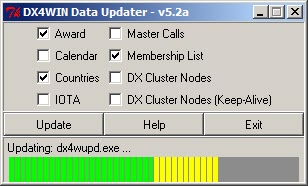
I'm making a test release of the new DX4WIN Data Updater available for
people to try, and I'm looking for your feedback.  This version is an
all-graphical program (except for -auto (unattended) mode, see below).
 Here is a screen shot:

    http://dx4win.ad1c.us/updater/progress.jpg

You can download the program from here:

    http://dx4win.ad1c.us/updater/download/dx4wupd_20130325.zip

It does not come with a real Windows installer yet.  Simply extract
dx4wupd.exe from the ZIP file and save it in your DX4W### directory,
over-writing the one that is there.  It's not available as an update
download at this time.  You can still return to the release version
when you are done testing, by downloading the ZIP file and then
extracting dx4wupd.exe over-top of the test version.  Or you can keep
running the new one, it's up to you.  When the new version is
officially released, you'll be able to Update to get it.

The program is suitable for people running DX4WIN 8.01 or later.  I
will be supporting older versions of DX4WIN (7.07 and earlier), as
does the current (released) updater.  See "Regarding support for older
versions" way down this message for more about this.


The underlying code that actually updates the data files has not
changed, other than user interaction with it.  The main difference is
the all-graphical interface.  You simply check the boxes of the files
you want to update, then click the Update button.  Progress is
reported in the bottom part of the window.  When the updates are done,
there will be a pop-up window telling you how many files were changed
(this is the same as before).  You can/will no longer be prompted
before each file is updated.  If this is a problem for anyone, let me
know.


The second major change is that the DX Cluster nodes file changes are
merged into your existing list, and should not disturb the order of
your preferred nodes you keep at the top.  Nodes in your list that are
not in the downloaded list are removed (with exceptions, see below).
Nodes in the downloaded list that are not in your list will be
inserted in-order, but starting from the bottom instead of the top.
For example, let's say that you normally log into W0MU, but node K1XYZ
was added.  Instead of inserting K1XYZ alphabetically before W1MU at
the top of your list, it will be inserted somewhere in the middle of
the list, where the rest of the K#xxx nodes are. This is not
guaranteed to work 100% of the time, for example, if a node like
2E0QRZ was added, it might get inserted at the top.  But these cases
should be rare.

There are two special merge cases.  If the address of a node changed,
then the change will be applied to your list *unless* it's the address
of LOCAL; this one will never change, because you may have customized
the address for your own installation.  Also, you may have
local/custom nodes in YOUR list that are not in the downloaded list.
For example, I  have one called "JJR" which is the address of the
other computer on my network that is running the cluster software I
want to log into.  Custom nodes like this will NOT be removed during
the merge (because they won't be found in the downloaded file) as long
as they meet one of the following criteria:

* address contains "localhost"
* address begins with 192.168
* address begins with 127.0
* address begins with 10.10 (special case for AD1C)

If you have a local/custom node that gets removed by the merge, let me
know so I can add it to this list.  Each line of the list of nodes
must be in this format:

   NODE>(location or description),address

If one of your existing nodes is not in that format (either '>' or ','
(comma) is missing), then you may/should get a pop-up message during
the update/merge.  That node will NOT be in the final file.


One other change is that the current (released) program has a
"restore" feature that allows you to recover your previous set of data
files from the BACKUP directory, for example if the update messed
something up.  You get this by using the -restore option on the
command line.  Does *anyone* even use this feature?  Is it worth
adding a "Restore" button the the updater which would perform the same
function as the -restore command-line option?  The command-line option
is still functional, and your previous data files are still backed up
into this directory when they are updated.


When you run this new version the first time, it will try to migrate
the settings from your existing DX4WUPD.RC file (not command line
ooptions) into a new DX4WUPD.INI file. This INI file preserves the
selections/settings from run to run (like the .RC file did), but it is
a binary file, so you can not edit it.  You can only change its
contents by altering the checkboxes and exiting the program.  The INI
file is read in every time the program starts, and saved every time
the program finishes, whether there were changes or not.  If the
program can not find an .INI file, then it will fall back to trying to
read a .RC file.  In a future version, I may rename the .RC file after
migration to INI, so that the new updater can never read it again (no
fallback if INI is missing).  If you run the program for the first
time and do NOT have a .RC file, NONE of the check boxes will
initially be checked.  I plan to change this so that they are all
checked the first time (except for the "keep-alive" version of the DX
cluster nodes file), and you can then uncheck (unselect) any files you
do NOT want to update.  This should make it easier for first-time
users.


After the data file updates complete, the program (window) will remain
running, but the "Update" button will be disabled, whether or not any
data files were updated, and whether or not there were any errors.  To
update again, you have to restart the program.  The program does not
automatically when you dismiss the pop-up box showing the number of
files updated and/or number of errors.  I did this because that pop-up
box will be on top of the program window itself, obscuring the
information at the bottom of the window showing exactly which files
were updated.


Most of the command-line arguments are retained, but for how long, I
do not know.  You don't really need most of them anymore, anyway.

-auto on the command line (unattended mode) still works.  Run the
program in this mode like this:

    .\dx4wupd -auto

This runs the program without the graphics, so the Windows Scheduler
can run it at regular intervals.  As with the current (released)
version, it writes a log file showing everything it did, in the same
directory as the updater program itself (DX4W### directory).  There is
no checkbox for this mode, it can only be specified at the command
line.  Make sure you run the graphical program at least ONCE to select
the data files you wish to update each time.  Then the updater can be
run in "auto" mode going forward.  If the updater program itself has
changed, only that fact will be reported in the log file; it does not
download the update (yet).  More below.


When you click the Update button, it will report whether a data file
is current, or that it is updating, and show the date of the remote
(new) file.  The only exception to this is the Calendar.  The server
that provides that file does not report a valid date, so the updater
uses today's date.  The updater has to download the calendar every
time anyway to see if it has been updated, because it can't tell from
the date, but it won't report that the calendar was updated unless it
actually changed.

The updater will bring up a progress bar to show each file being
downloaded.  Unfortunately, the IOTA database (fulllist.xml) does not
report its size due to a server issue.  For this file, the progress
bar will stay gray for the duration of the download.  When the
download finally completes, the progress bar will turn
green/yellow/red (100% done) for a brief period before the updater
starts working on the next file to update.  I could make IOTA last in
the list to keep the progress bar visible for this file.

The updates are downloaded in reverse order, starting with the last
data file in the second (right) column, and ending with the first data
file in the first (left) column. However, when the update is finished,
the bottom part of the program window will show the updated files in
order, from top-to-bottom and left-to-right.  I did this to keep the
"Updating ... " message for each data file close to the progress bar
itself.  When the update for each file finishes, the message will
change from "Updating" to "Updated".

One other thing about updating:  the program will report that
DX4WIN.CTY (the country file) is updating, but will not say anything
about the corresponding ADIF.PMP being updated (prefix to ADIF country
code mapping), even though it is also updated when the country file is
updated.  This is because there is no new download associated with
ADIF.PMP; the download was already done for DX4WIN.CTY.  However, in
-auto (unattended) mode, the updating of this file IS reported in the
download log file.  So for example, given the exact same set of files
being updated, graphical mode will report one fewer file updated than
in unattended mode.  I understand why the code does this (it's tied
into the download progress bar), but I will look at fixing it.

Finally, if you click on the Exit button while a download is going on,
the current file should be preserved, but it may have been moved to
the BACKUP directory.  I need to see what actually happens.  And the
next time you run the updater, it should try to update that file
again.  I could disable the Exit button during updates, but then there
would be no way to stop the program if an update/download got stuck.
Maybe I could interrupt the download somehow and restore the file.
This needs more thought and testing.


The current program can backup your DX4WIN log file into the BACKUP
directory, if you specify:

    -log=<mycall>.DXL

This graphical version of the program does not support this (yet),
because there is no way to specify the name of the log file to backup.
 I may add a "Log" checkbox.  When you check it on (checked), a window
will pop up for you to navigate to log file requiring backup.  You
will only be able to back up ONE log file, though the previous
(released) program let you back up more than one.  The name of the log
file to back up will be retained in the INI file from run to run.  You
will, however, have to go through this selection process any time you
un-check, then re-check the Log checkbox.

There is no checkbox for updating the program itself.  Right now, when
you click on the Update button, it will first check whether the
updater itself has changed.  If it has, you will be prompted whether
you want to download it (so updating the updater is still optional).
When the download is finished, you will get a pop-up box saying that
the new version will run the next time you start the program.  Then
the updater will continue the rest of the updates, using the CURRENT
version of the program.  When you exit and start again, you'll get the
new version.  By delaying the update of the program itself, the
updater can be started even if you have no network connection,
however, it won't be able to update anything.

So for updating the update program itself, the two main changes from
the current version are:

* you don't get notified of an update when the program starts, until
you click on Update.
* you can't restart the updater program with the new version until
after the current data file updates are finished.  So you can't use
the new updater to perform the current update.

I am considering adding a check-box for updating the updater itself
(this would fit well if I also added a checkbox for backing up your
log).  If this box is NOT checked, the program will work as I
described above.  If the box is checked, then the updater program will
automatically download the update (without asking the user first), in
addition to the other data file updates, and there will be no pop-up
reminder about the new version running next time.  The next time you
start the updater, you will of course get the new version.

Regarding support for older versions of DX4WIN (7.07 and earlier).
The data file formats work with both old and new versions.  Users of
7.07 and earlier do not need to download the IOTA database or
membership list, so those two boxes can be left unchecked.   However,
those boxes WILL be checked by default the first time you run after a
brand new installation of the updater.

The name of the master callsign file DID change between versions.
Older versions use DX4WIN.MAS and 8.01 and later use DX4WIN.MAS1 (to
distinguish from the membership list, which is DX4WIN.MAS2).  My
current thinking is that *both* .MAS and .MAS1 files are downloaded if
the "Master Callsigns" box is checked, regardless of DX4WIN version
(i.e. you always get both).  The files are not that big, just over
200K bytes.  The alternative is to download the file once, then copy
it to the other name.  This may make more sense.

I think I covered most of the changes.  There may be some
idiosyncrasies with the new updater that I either didn't test or did
not experience myself during my own testing.


These are some of the things I'd like to see tested:

1.  Did your previous settings transfer correctly?

2.  Did your list of DX Cluster nodes merge properly? You could test
this by copying the DX4WIN.TCP file from your BACKUP directory to your
SAVE directory, before doing the update.  Hopefully the one in the
BACKUP directory is old enough that there will be changes resulting
from the new version.

3.  Delete all the files from the UPDATE directory, then run the
program and click Update.  It should update them all again.  Is this a
feature to consider adding i.e. click something like Purge, to delete
all the files, forcing them to update?

4.  Did any of the updates/downloads hang or report an error?  Did any
error message pop-up that you didn't expect, and/or were you able to
make progress after it happened?

5.  Check both DX Cluster Node boxes - what happens?  You don't need
to tell me unless it's not what you expected.

6.  Try updating without ANY boxes checked.  What happens?  Is it what
you expected?  Should I add a pop-up box warning you about this?  Even
with no boxes checked, updating will probably disable the Update
button.

7.  Try starting the program while DX4WIN is running.

8.  Delete both the files in the UPDATE directory, as well as the
directory (folder) itself. Did the program update everything after
that?

9.  Try copying the dx4wupd.exe file to some other place, like your
SAVE directory, and run it from there.  What happens?  Again, you
don't need to tell me unless it's not what you expect.

10. Try it in -auto mode.  You could even try this by adding -auto to
the command line and then double-clicking to run the program, though I
have not tried this.  The updater creates a .LOG file - does the
content in that file make sense?  I found and fixed a long-standing
bug where the update completion time was not reported correctly in
this file (it printed something totally unrelated to date/time).

11.  Click on EXIT while the program is downloading updates.  What
happens?  You can try this during #8 above.  When the program exits,
it's supposed to check that all required files (like DX4WIN.CTY) are
present, and if not, report an error.  This won't be a problem for the
country or awards files, because they are downloaded in compressed
(ZIP) format to save time.  This may only be a problem if you are
updating the DX Cluster Nodes (another required file), so try clicking
Exit while that download is happening.  I haven't tried this.

I'm sure there are lots of other things to try.  The types of errors
that are checked in the current (released) updater are also in this
test version, however, the reporting mechanism has changed.


Thanks for any feedback, comments, complaints or suggestions you can provide.


73 - Jim AD1C

--
Jim Reisert AD1C, <[email protected]>, http://www.ad1c.us
______________________________________________________________
DX4WIN mailing list
Home: http://mailman.qth.net/mailman/listinfo/dx4win
Help: http://mailman.qth.net/mmfaq.htm
Post: mailto:[email protected]

This list hosted by: http://www.qsl.net
Please help support this email list: http://www.qsl.net/donate.html