Koen Aers [http://community.jboss.org/people/koen.aers%40jboss.com] modified
the blog post:
"Forging of the Forge Tools"

To view the blog post, visit:
http://community.jboss.org/community/tools/blog/2011/01/27/forging-of-the-forge-tools

--------------------------------------------------------------
Over the past few weeks, I have started the integration of
http://seamframework.org/Documentation/SeamForge Seam Forge into
http://www.jboss.org/tools JBoss Tools. Today I am happy to present the first
results of this work.
h1. Installation
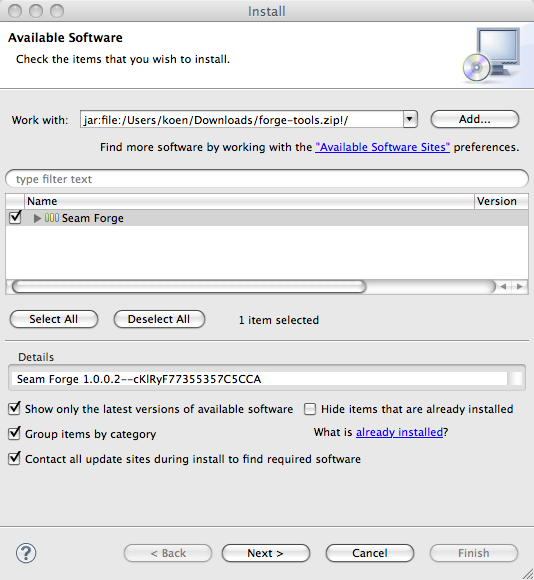
If you are familiar with the Eclipse platform the installation should be a
breeze for you. The easiest way is to  http://www.eclipse.org/downloads/
download a recent Eclipse version and use the 'Help->Install New Software...'
wizard to install the latest and greatest JBoss Tools from the
http://download.jboss.org/jbosstools/updates/development/ update site. Don't
forget to include the Maven integration for Eclipse as we will need it later
on. After this, use the same mechanism to install the forge tools from
http://download.jboss.org/jbosstools/extras/forge-tools.zip this update
archive. Restart Eclipse and you should be set to go.

http://community.jboss.org/servlet/JiveServlet/showImage/38-3555-11210/Install+Forge.png

http://community.jboss.org/servlet/JiveServlet/downloadImage/38-3555-11210/449-488/Install+Forge.png

h1. Starting and Stopping
Now that the installation is dealt with, let's have a look whether everything
went ok. You can bring up the "Forge Console View" by selecting 'Window->Show
View->Other...' and then 'Seam Forge->Forge Console'.

http://community.jboss.org/servlet/JiveServlet/showImage/38-3555-11212/Forge+Console.png

http://community.jboss.org/servlet/JiveServlet/downloadImage/38-3555-11212/450-76/Forge+Console.png
 As you can see the Forge Console View has a toolbar and a dropdown menu that
allow you to start and stop Forge. The initial message pane indicates that
Forge is not running. Let's get going and push the 'Start Forge' button.

http://community.jboss.org/servlet/JiveServlet/showImage/38-3555-11213/Forge+Started.png

http://community.jboss.org/servlet/JiveServlet/downloadImage/38-3555-11213/450-121/Forge+Started.png

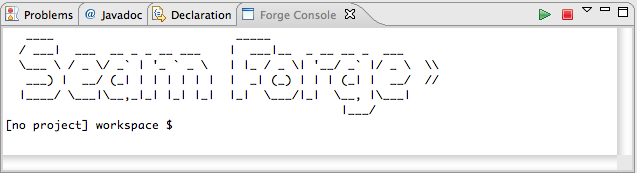
After a while, the Forge welcome banner appears and you are invited to enter
forge commands. The very convenient tab completion suggesting the list or
possible commands does not work yet, but you can get the suggestions anyway by
pressing tab followed by a return. Also, the coloring is not yet enabled like
when using Forge directly in a terminal window. When you're done working you
can stop Forge by pushing the 'Stop Forge' button.
h1. Create a Project
To make things a bit more interesting, let's try the tutorial from
http://community.jboss.org/people/lincolnthree/blog/2010/12/31/forge-100alpha1-kitten-released--rad-java
 Lincoln's blog. We create a new project called 'foo' with top level package
'org.foo':

[no project] workspace $ new-project --named foo --topLevelPackage org.foo

http://community.jboss.org/servlet/JiveServlet/showImage/38-3555-11214/Foo+Created.png

http://community.jboss.org/servlet/JiveServlet/downloadImage/38-3555-11214/450-118/Foo+Created.png
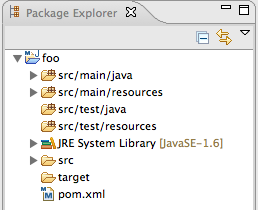
 Now the project is created but unfortunately, we cannot see it in our
workspace. This is one of the obvious features that need to be added. For now,
we have to import the project in the workspace. Here is where the Maven plugins
come into play. For Forge projects are indeed Maven projects too. Select
'File->Import...' and then 'Maven->Existing Maven Project'. Point the wizard at
the workspace root and the 'foo' project should show up in the list of projects
to import. After importing the project shows up in the package explorer.

http://community.jboss.org/servlet/JiveServlet/showImage/38-3555-11215/Package+Explorer+Foo.png

http://community.jboss.org/servlet/JiveServlet/downloadImage/38-3555-11215/258-210/Package+Explorer+Foo.png
 We enter the next few commands from the tutorial:

[foo] foo $ install forge.scaffold
[foo] foo $ new-entity --named Person
[foo] Person.java $ new-field string --fieldName firstName
[foo] Person.java $ new-field string --fieldName lastName
[foo] Person.java $ cd ..
[foo] domain $ scaffold generate-metawidget-jsf *.java

To see which changes are performed in the project by these commands we need to
refresh the project.

http://community.jboss.org/servlet/JiveServlet/showImage/38-3555-11216/Complete+Workbench.png

http://community.jboss.org/servlet/JiveServlet/downloadImage/38-3555-11216/450-384/Complete+Workbench.png

Again, it would be good if after issuing each command the relevant changes
would be highlighted by setting the relevant folder, file or file element
selected. This is more work for the future.
h1. The Future
As suggested, a lot more work is waiting... Some of the features that are on
the list are:
* Adding a preference page to be able to add and select Forge runtimes.
* Support for tab completion suggesting the list of possible commands.
* Support for command history.
* Support for colors in the Eclipse Forge Console.
* Show appropriate feedback after each command.
* etc.
If you are interested in helping out implementing some of these features or if
you just want to view the code implementing the current console, you can find
the sources in the  https://anonsvn.jboss.org/repos/jbosstools/trunk/forge/
JBoss Tools SVN.

Happy forging!
Koen
--------------------------------------------------------------

Comment by going to Community
[http://community.jboss.org/community/tools/blog/2011/01/27/forging-of-the-forge-tools]
_______________________________________________
jboss-user mailing list
[email protected]
https://lists.jboss.org/mailman/listinfo/jboss-user