Max Rydahl Andersen
[http://community.jboss.org/people/max.andersen%40jboss.com] modified the blog
post:
"Getting started with JBoss Tools, JBoss Maven Integration and Weld"

To view the blog post, visit:
http://community.jboss.org/community/tools/blog/2011/02/21/getting-started-with-jboss-tools-jboss-maven-integration-and-weld

--------------------------------------------------------------
JBoss Tools includes the JBoss Maven Integration and Weld feature that enable
you to quickly and easily start developing Weld applications.
h4. Installing JBoss Tools 3.2.0

The best way to install JBoss Tools including the JBoss Maven integration is to
start with  http://eclipse.org/downloads/ Eclipse Java EE IDE for Web
Developers.
What you then need to do is download appropriate archive for your OS, unpack it
and start Eclipse.
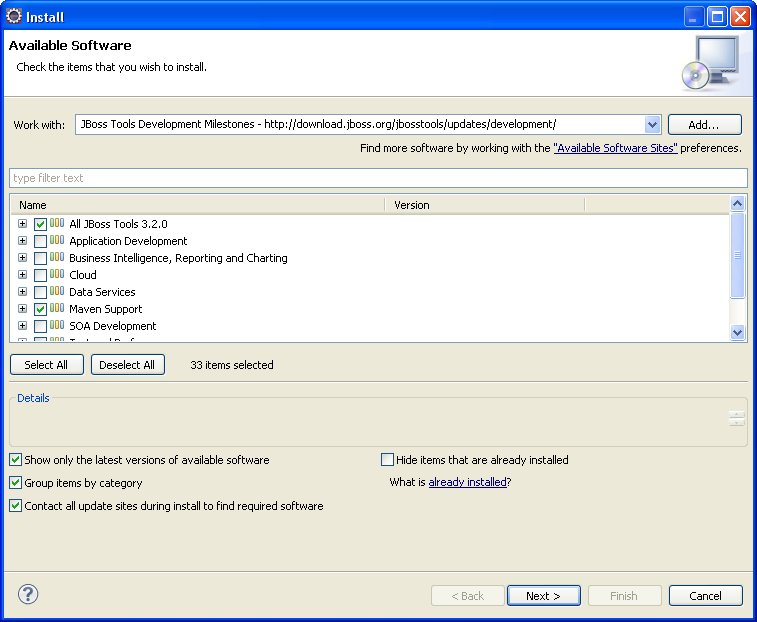
Call *Help>Install New Software...*, click the *Add* button and enter the
following update site:
 http://download.jboss.org/jbosstools/updates/development/
http://download.jboss.org/jbosstools/updates/development/
Choose *All JBoss Tools 3.2.0* and *Maven Support*

http://community.jboss.org/servlet/JiveServlet/showImage/38-3567-11285/JBossToolsInstall.png

http://community.jboss.org/servlet/JiveServlet/downloadImage/38-3567-11285/450-369/JBossToolsInstall.png

Click the *Next* button, accept the license terms and click the *Finish*
button.
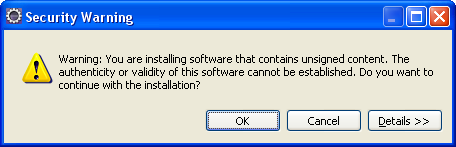
Click the *OK* button on the *Security Warning* dialog.

http://community.jboss.org/servlet/JiveServlet/showImage/38-3567-11286/JBossToolsSecurityWarning.png

http://community.jboss.org/servlet/JiveServlet/downloadImage/38-3567-11286/449-145/JBossToolsSecurityWarning.png

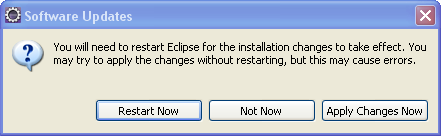
and the *Restart Now* button on the *Software Updates* dialog.

http://community.jboss.org/servlet/JiveServlet/showImage/38-3567-11287/JBossToolsRestart.png

http://community.jboss.org/servlet/JiveServlet/downloadImage/38-3567-11287/441-136/JBossToolsRestart.png

You have installed JBoss Tools, the JBoss Maven Integration and all required
dependencies.

h4. Installing JBoss AS 6.0 Server

You can perform the following steps to install the JBoss AS 6.0 Server:
Download  http://www.jboss.org/jbossas/downloads JBoss AS 6.0.0.Final and
unpack the archive to some directory.

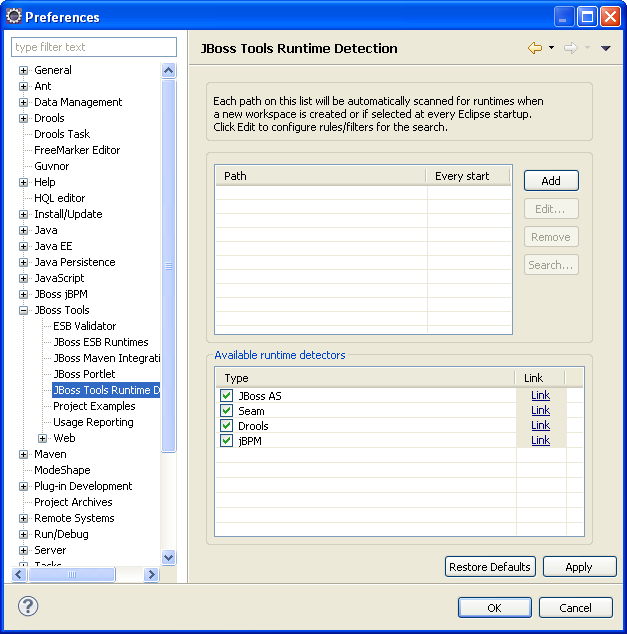
Call *Window>Preferences>JBoss Tools>JBoss Tools Runtime Detection*

http://community.jboss.org/servlet/JiveServlet/showImage/38-3567-11288/JBRuntimeDetection.png

http://community.jboss.org/servlet/JiveServlet/downloadImage/38-3567-11288/450-454/JBRuntimeDetection.png

Click the *Add* button and point to the directory where you unpacked the JBoss
AS 6.0.0.Final.

http://community.jboss.org/servlet/JiveServlet/showImage/38-3567-11289/JBRTSearchDialog.png

http://community.jboss.org/servlet/JiveServlet/downloadImage/38-3567-11289/450-277/JBRTSearchDialog.png

Click the *OK* button.

The JBoss AS 6.0 Server is created.

h4. Creating weld-jsf-login example

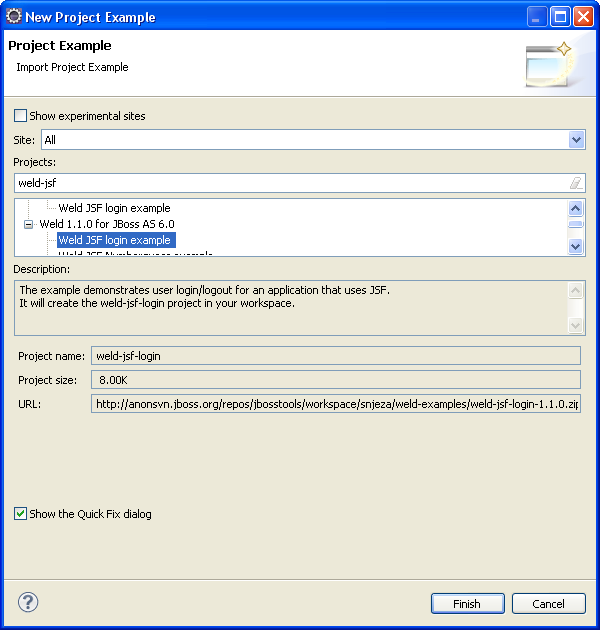
In order to install this example you need to call *Help>Project Examples*

http://community.jboss.org/servlet/JiveServlet/showImage/38-3567-11290/JBTProjectExamples.png

http://community.jboss.org/servlet/JiveServlet/downloadImage/38-3567-11290/450-472/JBTProjectExamples.png

Select *Weld JSF login example* and click the *Finish* button.

You will then get the weld-jsf-login application in your workspace.
If you are interested in more info on this example, see
http://docs.jboss.org/weld/reference/1.1.0.Final/en-US/html/example.html Weld
1.1.0 Reference - Chapter 3. JSF web application example

h4. Deploying and starting weld-jsf-login application

 The following procedure demonstrates how to deploy and start this application:

* Open the Servers view (*Window>Show View>Other...>Server>Servers*)
* Right click the *jboss-6.0.0.Final* server and select *Add and Remove...*
* Select the *weld-jsf-login* application and click the *Add* button
* Click the *Finish* button
* Right click the *weld-jsf-login* project in the *Package Explorer* view and
select *Run As>Run On Server*
* Select the *jboss-6.0.0.Final* server and click the *Finish* button

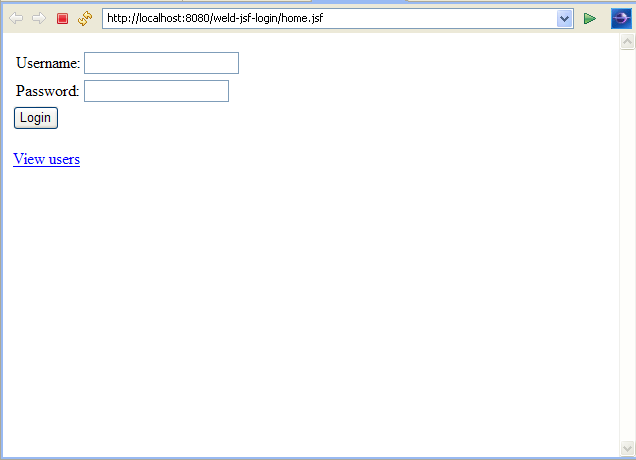
As a result, the *weld-jsf-login* application will be deployed and executed on
the JBoss AS 6.0 server.

http://community.jboss.org/servlet/JiveServlet/showImage/38-3567-11291/weldjsflogin.png

http://community.jboss.org/servlet/JiveServlet/downloadImage/38-3567-11291/450-325/weldjsflogin.png

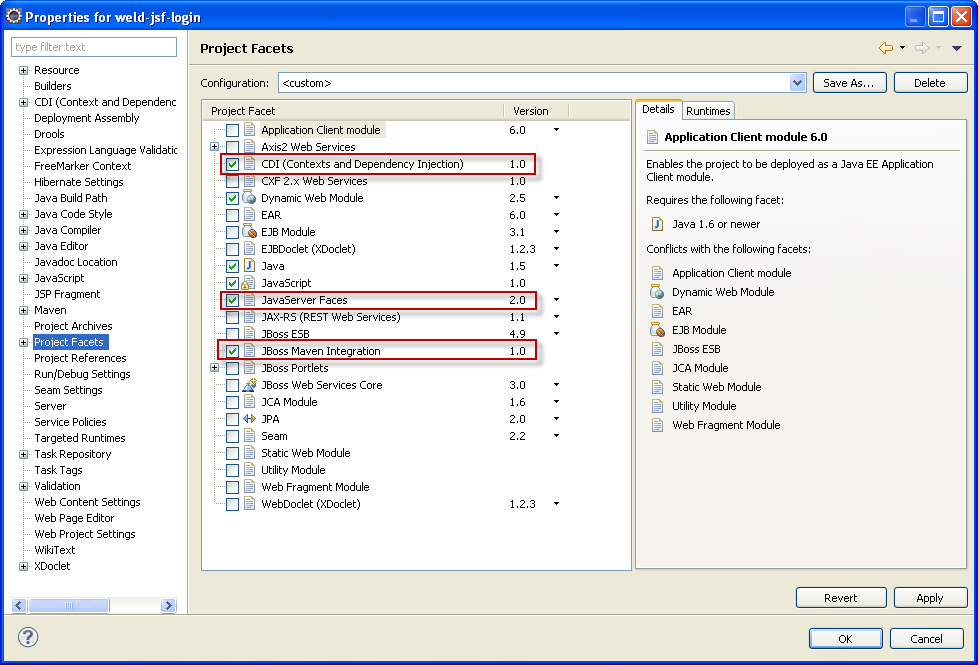
The application includes the JBoss CDI and WTP JSF feature.

http://community.jboss.org/servlet/JiveServlet/showImage/38-3567-11292/facets.png

http://community.jboss.org/servlet/JiveServlet/downloadImage/38-3567-11292/450-305/facets.png


The following examples can be created in a similar way:
* numberguess
* permalink
* pastecode
* translator


h5. References

 http://docs.jboss.org/weld/reference/1.1.0.Final/en-US/html/ Weld - JSR-299
Reference Implementation
 http://download.jboss.org/jbosstools/nightly-docs/ JBoss Tools Guides - Latest
Version
 http://m2eclipse.sonatype.org/ m2eclipse - Maven integration for Eclipse
--------------------------------------------------------------

Comment by going to Community
[http://community.jboss.org/community/tools/blog/2011/02/21/getting-started-with-jboss-tools-jboss-maven-integration-and-weld]
_______________________________________________
jboss-user mailing list
[email protected]
https://lists.jboss.org/mailman/listinfo/jboss-user