Max Rydahl Andersen [https://community.jboss.org/people/maxandersen] modified
the blog post:
"JBoss Tools and Developer Studio Beta 3 - Use the Source!"

To view the blog post, visit:
https://community.jboss.org/community/tools/blog/2012/05/21/jboss-tools-and-developer-studio-beta-3

--------------------------------------------------------------
Beta3 of JBoss Tools and Developer Studio is now available with a good set of
bugfixes but also a good set of new improvements and features in the area of
OpenShift, Maven, BrowerSim, GWT, Annotation Processing and it even now come
with easy installable source features for easy debugging and hacking.

https://community.jboss.org/servlet/JiveServlet/showImage/38-4854-18193/jbosstolsdevstudio.png

https://community.jboss.org/servlet/JiveServlet/downloadImage/38-4854-18193/jbosstolsdevstudio.png

h4. Beta3
Developer Studio: [ http://devstudio.jboss.com/earlyaccess Download] | Tools: [
http://www.jboss.org/tools/download/dev Download] [
http://download.jboss.org/jbosstools/updates/development/indigo/ Update Site] |
[ http://docs.jboss.org/tools/whatsnew What's New] [
http://www.jboss.com/index.html?module=bb&op=viewforum&f=201 Forums] [
http://jira.jboss.com/jira/browse/JBIDE JIRA] [ http://twitter.com/jbosstools
Twitter]

JBoss Tools is a set of plugins for Eclipse that complements, enhances and goes
beyond the support that exist for JBoss and related technologies in the default
Eclipse distribution.

JBoss Developer Studio is a fully bundled Eclipse distribution which not only
includes majority of JBoss Tools but also all its needed dependencies and 3rd
party plugins allowing for an easy one-click and no-fuzz installation.

If you are into doing your own bleeding edge eclipse plugin assembly, JBoss
tools is for you, if you are more into having something that "Just Works" then
JBoss Developer Studio is the way to go.

h2. Installation

+JBoss Developer Studio+ comes with everything pre-bundled in its installer.
Simply  http://devstudio.jboss.com/earlyaccess download it and run it like this:

java -jar jbdevstudio-<installername>.jar


Note, if you are on Mac OSX 64-bit we recommend you ensure to select the 32-bit
option in the multi-platform installer to get Visual Page editor working and
use much less memory.

Similar if you are on Windows 64-bit then use a 32-bit JDK to get 32-bit
version running.

+JBoss Tools+ requires a bit more:

This release requires at least Eclipse 3.7.1 but we recommend using the
http://www.eclipse.org/downloads/packages/eclipse-ide-java-ee-developers/indigosr2
 Eclipse 3.7.2 JEE Bundle since then you get most of the dependencies
preinstalled.

Once you have installed Eclipse, you either find us on
http://marketplace.eclipse.org/content/jboss-tools-indigo  Eclipse Marketplace
under "JBoss Tools (Indigo)" or use our update site directly.

The update site URL to use from Help > Install New Software... is:

 http://download.jboss.org/jbosstools/updates/development/indigo/
http://download.jboss.org/jbosstools/updates/development/indigo/

Note: SOA tooling such as Drools, jbpm, ESB, Teeid etc. are not included in the
JBoss Tools core releases at this time - they will be available separately.

h2. OpenShift
The OpenShift platform is moving and improving all the time and this also shows
in the OpenShift tooling included in JBoss Tools.

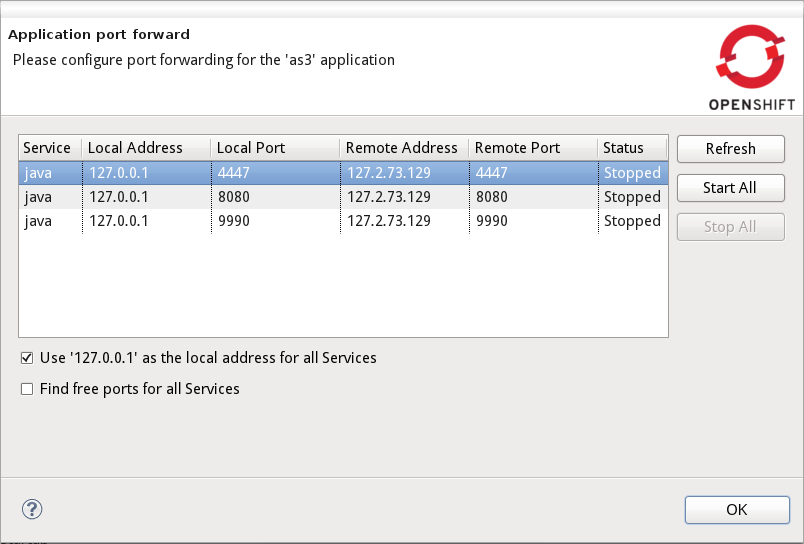
The most prominent and waited for feature in this release is we now support
starting port forwarding from the IDE instead of using the command line.
And we've done it so it is even better and more powerful than the command line
in a couple of situations:

* it works on all platforms out of the box
* it allows you to choose between using 127.0.0.1 or the remote addresses
(especially good for Mac and Windows which needs configuration using 127.0.0.x)
* it will find free ports if necessary avoiding you to have to stop your local
running servers to connect to OpenShift

 http://docs.jboss.org/tools/whatsnew/openshift/images/port-forwarding.png
http://docs.jboss.org/tools/whatsnew/openshift/images/port-forwarding.png

To start/stop this you use the context menu of your OpenShift application in
OpenShift Explorer (previously named OpenShift Console).

OpenShift Tools further more now allows you to put any existing application
onto OpenShift where it previously only allowed Eclipse WTP projects. These
projects can now even be multi-module Maven projects if you want to. This
feature should be used with care since it overwrites your OpenShift application
and your project content might not be working out of the box on OpenShift -
thus use with care and if it fails
remember that OpenShift uses Git for it storage so you can roll it back in case
of a failure.

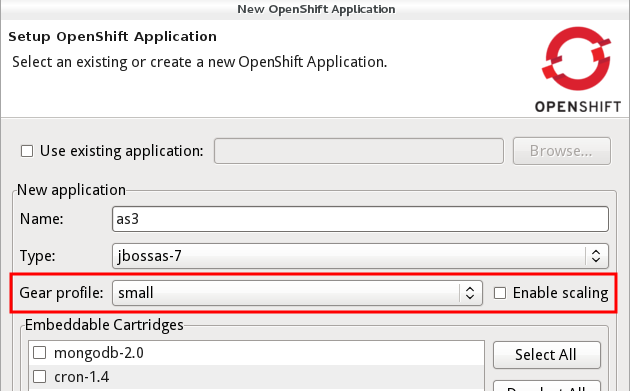
And finally OpenShift tools also allows you to create scalable applications in
the UI now.


http://docs.jboss.org/tools/whatsnew/openshift/images/create-scalable-applications.png

http://docs.jboss.org/tools/whatsnew/openshift/images/create-scalable-applications.png


h2. Annotation Processing w/Maven

Java EE 6 really started pushing more and more annotation processors and
Eclipse APT provides a nice incremental integreation with this in Eclipse that
makes it fast and non-invasive.

Unfortunately in context of Maven this have not always been easy to get
configured since there exists multiple ways to invoke the Annotation Processor
and in some cases Eclipse APT single-folder-output gives problems

With this release of JBoss Tools we are also releasing a configurator for m2e
which combines all the best plugins concerning Annotation Processing and made
something better and more integrated.

Fred Bricon have written a full blog about the feature set and how it works -
if you use Annotation processing and maven I recommend you
https://community.jboss.org/community/tools/blog/2012/05/20/annotation-processing-support-in-m2e-or-m2e-apt-100-is-out
 read it.

h2. Google Web Toolkit (GWT) w/Maven

In our previous releases we have struggled with getting GWT examples to load
into Eclipse without users having to tweak and manually run certain actions in
specific sequence. The reason for this all came down to that there did not
exist a m2e Configurator which takes the maven compiler plugin settings and
apply them to Google's Eclipse plugin properly. With JBoss Tools Beta 3 that
now exists and it just works.

Without this loaded you would have to manually add the GWT module xml to
Eclipse and then perform a build based on that which would generate to possibly
different output directories than your Maven project is configured to. With
JBoss Tools for Maven loaded this a problem of the past.

h2. Mobile Browser Simulator Skins

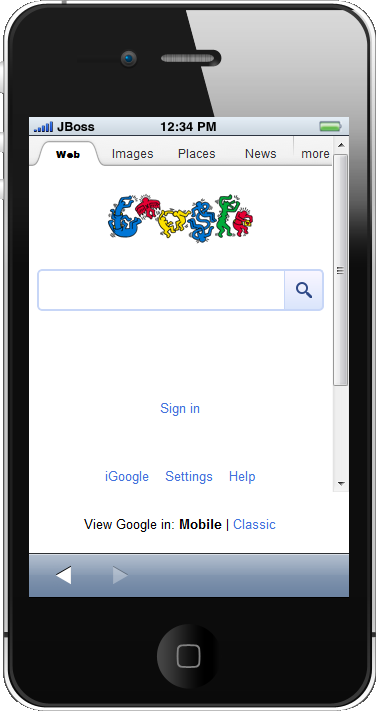
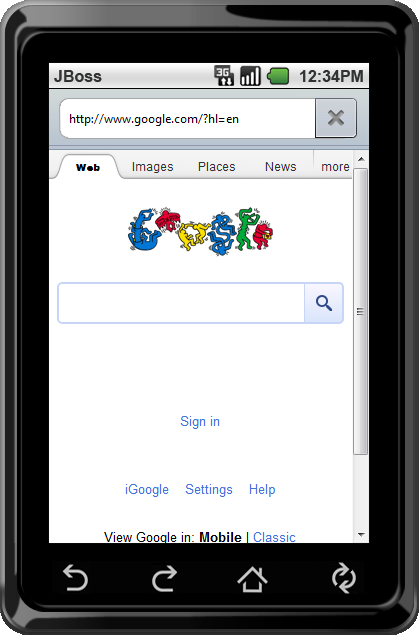
BrowserSim now has support for View Source, roatation of the screen by clicking
in the corners and two new skins:


http://docs.jboss.org/tools/whatsnew/vpe/images/3.3.0.Beta3/browsersim-iphone4.png

http://docs.jboss.org/tools/whatsnew/vpe/images/3.3.0.Beta3/browsersim-iphone4.png

http://docs.jboss.org/tools/whatsnew/vpe/images/3.3.0.Beta3/browsersim-android.png

http://docs.jboss.org/tools/whatsnew/vpe/images/3.3.0.Beta3/browsersim-android.png


...and finally as a team enjoying the wonders of Open Source we've added two
things that could not exist without the source(s) being open:

h2. JBoss Source Lookup
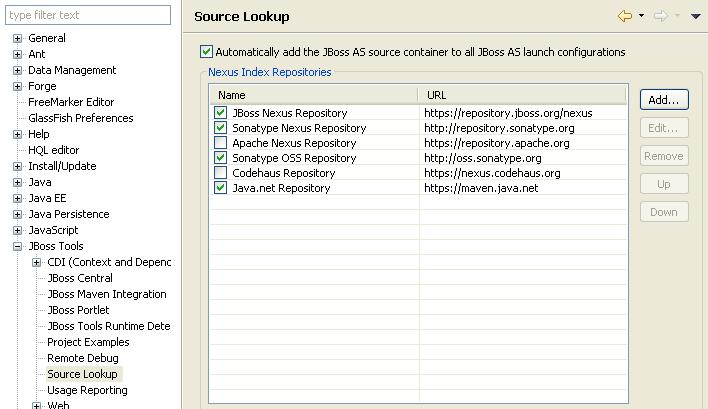
We've included the JBoss Source Lookup container which Snjezana have been
working on that will scan a directory of jar's and use their Maven metadata and
if necessary their MD5 checksum to locate the source code for any Launch
configuration not just your Maven projects and Maven classpath provider.

This is useful when you have a server like JBoss, Tomcat, Glassfish or any
other server or framework which jar's are mostly available in Maven
repositories together with their source artifacts.

This allow you to fully debug your runtimes without having to pollute your
classpath or Eclipse project configuration with runtime details, machine
specific locations and manual download of the sources.

 http://docs.jboss.org/tools/whatsnew/images/sourcelookuppreferences.png
http://docs.jboss.org/tools/whatsnew/images/sourcelookuppreferences.png

The feature must be explicitly enabled, thus be sure to read
https://community.jboss.org/community/tools/blog/2012/01/24/jboss-source-lookup
Snjezana's wiki article outlining how to use this.

h2. Eclipse Source Features
If you are into Eclipse plugin development and want to tinker with the source
of JBoss Tools our updatesite now include a matching source feature for
majority of our plugins under the Source category on the updatesite. This
allows debugging and editing of JBoss Tools plugin without having to checkout
our full SVN source tree. Contributions very welcome  :)

h2. ...and more

As usual screenshots and more explanation of what is new is available from the
http://docs.jboss.org/tools/whatsnew What's New site!

Let us know what you think - and do know that we are codefreezing for CR1/GA
any day now, so do let us know if you find big issues or simply just love it -
both things is what keeps us going  :)

Have fun,
Max
--------------------------------------------------------------

Comment by going to Community
[https://community.jboss.org/community/tools/blog/2012/05/21/jboss-tools-and-developer-studio-beta-3]
_______________________________________________
jboss-user mailing list
[email protected]
https://lists.jboss.org/mailman/listinfo/jboss-user