Andre Dietisheim [https://community.jboss.org/people/adietish] modified the
blog post:
"Deploy from Eclipse to OpenShift in a breeze"

To view the blog post, visit:
https://community.jboss.org/community/tools/blog/2012/06/27/deploy-from-eclipse-to-openshift-in-a-breeze

--------------------------------------------------------------
*
 #Dont_get_your_fingers_dirty_use_the_JBoss_Tools_for_OpenShift Dont get your
fingers dirty, use the JBoss Tools for OpenShift


**
 #Get_the_tools_get_started Get the tools, get started


*
 #A_very_basic_workflow A very basic workflow


**
 #Create_your_application_runtime Create your application runtime


**
 #Push_to_build_and_deploy Push to build and deploy


**
 #Server_Adapter_to_the_rescue Server Adapter to the rescue


*
 #Deploy_my_very_own_project Deploy my very own project!


**
 #Have_your_project_ready Have your project ready


**
 #JBoss_Tools_configure_my_project JBoss Tools, configure my project


**
 #Oh_my_project_how_you_changed Oh my project, how you changed!


**
 #Push_me_up_Scotty Push me up, Scotty


**
 #Multimodule_maven_projects Multi-module maven projects


*
 #My_maven_project_is_not_in_the_git_repo_root My maven project is not in the
git repo root


**
 #Have_your_project_ready_142319 Have your project ready


**
 #Create_your_OpenShift_application Create your OpenShift application


**
 #OpenShift_here_I_come OpenShift, here I come


h1. Dont get your fingers dirty, use the JBoss Tools for OpenShift
 https://openshift.redhat.com/app/ OpenShift is the PaaS offering from
http://www.redhat.com Red Hat. It gives you your personal application platform
on demand. With OpenShift, there's no need to look for hosting and application
stack. OpenShift provides you those within minutes, whenever you need them.
 http://www.jboss.org/tools JBoss Tools for OpenShift offers a feature complete
environment to work with OpenShift. From developing to deploying, JBoss Tools
provides you a fully fledged environment for your project and aligns with the
standard workflows within Eclipse. It allows Eclipse users to stick to their
favorite IDE and deal with OpenShift within their developement environment.
Especially the OpenShift server adapter mimics an
http://www.eclipse.org/webtools/ Eclipse WTP compliant way of deploying to
OpenShift and hides the complexity, that you'd otherwise had to handle when
publishing bare metal (which is by using Git).


h2. Get the tools, get started
The
https://community.jboss.org/community/tools/blog/2012/06/21/jboss-tools-33-and-developer-studio-50-final-release
 release blog shows you extensively how to get JBoss Tools from our update
site, from the Eclipse marketplace or even how to install the
https://devstudio.jboss.com/download/ JBoss Developer Studio. If installing
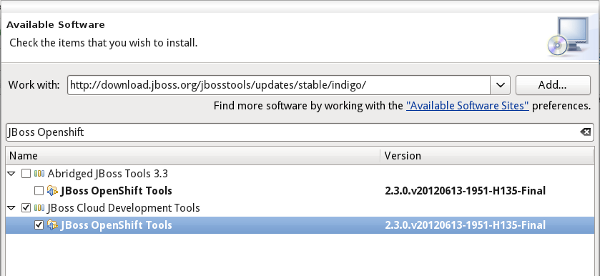
JBoss Tools, you'll have to make sure you choose at least the OpenShift bundles
on our update site:


https://community.jboss.org/servlet/JiveServlet/downloadImage/38-4972-18803/450-207/update-site.png

(https://community.jboss.org/servlet/JiveServlet/showImage/38-4972-18803/update-site.png)


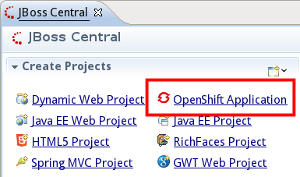
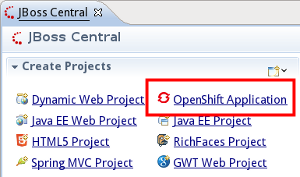
Once you have JBoss Tools installed, you'll spot our wizards either in JBoss
Central or in the Eclipse Wizards:

https://community.jboss.org/servlet/JiveServlet/showImage/38-4972-18806/central.png

https://community.jboss.org/servlet/JiveServlet/downloadImage/38-4972-18806/315-185/central.png


All you need to get started quickly is offered within this wizard. It'll create
your application platform, import a starter project and create a server adapter
that you may use to publish to the PaaS.
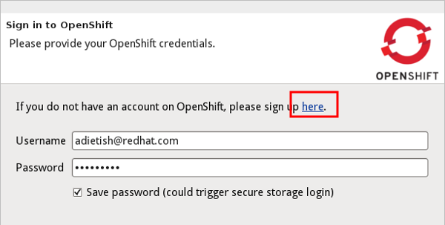
OpenShift of course requires you to have an account. If you have none yet, the
wizard will drop you to the signup form by hitting the link that is displayed
on the first wizard page.


https://community.jboss.org/servlet/JiveServlet/showImage/38-4972-18807/signup.png

https://community.jboss.org/servlet/JiveServlet/downloadImage/38-4972-18807/445-225/signup.png


Once you have your account, you'll be ready to go, ready to get amazed by JBoss
Tools and OpenShift.

h1. A very basic workflow


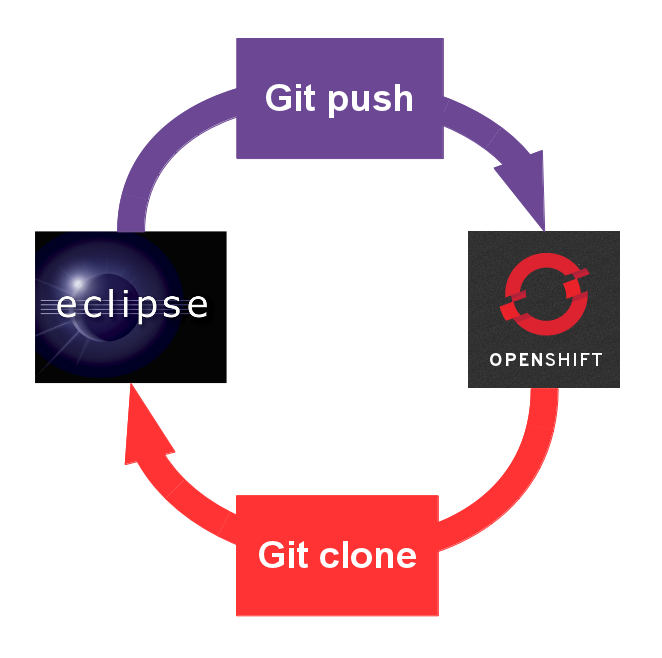
OpenShift is a  http://en.wikipedia.org/wiki/Platform_as_a_service PaaS, a
Platform as a Service. As such it offers you your personal application stack
and it does this on demand. A range of standards runtimes are offered to you
whenever you need them. Working with the PaaS is as simple as importing a stub
(the starter application) to your workspace, changing and publishing it again:


https://community.jboss.org/servlet/JiveServlet/showImage/38-4972-18892/openshift-workflow.png

https://community.jboss.org/servlet/JiveServlet/downloadImage/38-4972-18892/414-412/openshift-workflow.png


h2. Create your application runtime
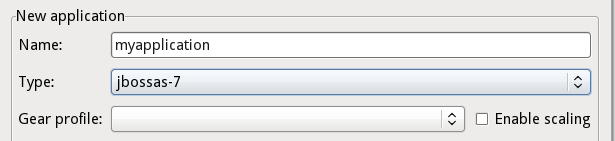
It all starts by creating your own application runtime. In the OpenShift
Application wizard, set a name and choose the application (runtime) you need:


https://community.jboss.org/servlet/JiveServlet/showImage/38-4972-18809/application.png

https://community.jboss.org/servlet/JiveServlet/downloadImage/38-4972-18809/447-103/application.png


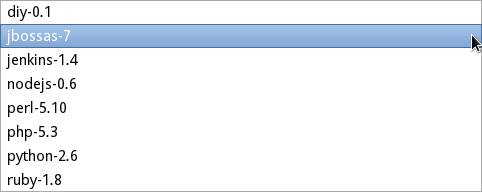
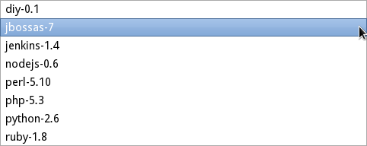
OpenShift offers a wide range of standard runtimes. You may to choose among
php, ruby, phython, nodejs etc. Java developers will be most amazed to see that
OpenShift offers a fully Java EE 6 compliant application server: the blazing
fast  http://www.jboss.org/as7 JBoss AS 7.1.


https://community.jboss.org/servlet/JiveServlet/showImage/38-4972-18810/application-types.png

https://community.jboss.org/servlet/JiveServlet/downloadImage/38-4972-18810/367-146/application-types.png


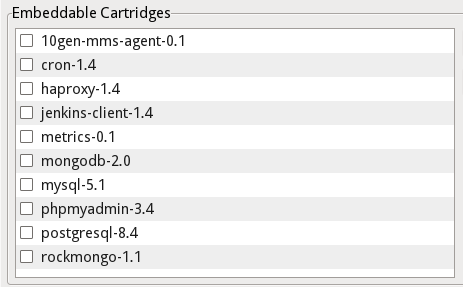
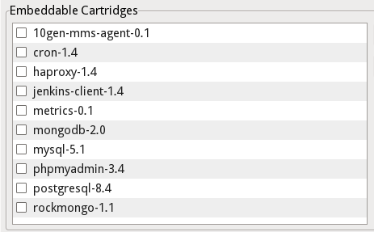
You may also add different extensions to your platform ranging from SQL- (like
MySQL or Postgres) or NoSQL-databases (like MongoDB) up to your very own CI
server (jenkins).


https://community.jboss.org/servlet/JiveServlet/showImage/38-4972-18811/application-cartridges.png

https://community.jboss.org/servlet/JiveServlet/downloadImage/38-4972-18811/374-232/application-cartridges.png


Once you made up your choices and finish the wizard, it'll create your
OpenShift application, wait for it to become reachable and import it's initial
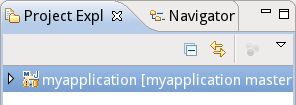
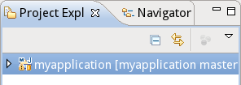
content - a starter application - to your Eclipse workspace. Looking into your
Project Explorer or Navigator, you'll spot the new project that the wizard
imported. It has the very same name as the OpenShift application. In case of a
JBoss AS7 runtime, the starter app is a maven artifact and the project we
import to your workspace will have the name that's configured for the maven
artifact.


https://community.jboss.org/servlet/JiveServlet/showImage/38-4972-18852/imported-project.png

https://community.jboss.org/servlet/JiveServlet/downloadImage/38-4972-18852/241-86/imported-project.png


h2. Push to build and deploy

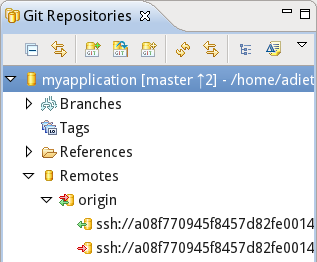
The new project in your Eclipse workspace is where you apply your changes. It
is shared with a git repository on your local machine. This repository is a
clone of the git repository within your OpenShift application.


https://community.jboss.org/servlet/JiveServlet/showImage/38-4972-18853/application-git-repository.png

https://community.jboss.org/servlet/JiveServlet/downloadImage/38-4972-18853/242-200/application-git-repository.png


Deploying this project to the PaaS is as simple as pushing the local repository
to it's origin, the OpenShift git repository. OpenShift will then build and
deploy your application to the application runtime.
In case of a Java application, OpenShift relies on a maven based build, that is
triggered with each git push:


https://community.jboss.org/servlet/JiveServlet/showImage/38-4972-18817/application-build.png

https://community.jboss.org/servlet/JiveServlet/downloadImage/38-4972-18817/450-263/application-build.png


h2. Server Adapter to the rescue
When dealing with git, you have to deal with a brilliant but rather complex
code versioning system. Even if you're familiar with git, there's still room to
reduce the number of manipulations when publishing.
 http://www.eclipse.org/webtools/ Eclipse WTP server adapters historically
allow you to interact with your server. This would typically be some local or
remote server you'd have file- or SSH-based access to. We adapted this handy
concept and implemented a variant that would work with OpenShift. This server
adapter hides the complexity of dealing with git and allows 1-click publishing
to the cloud.

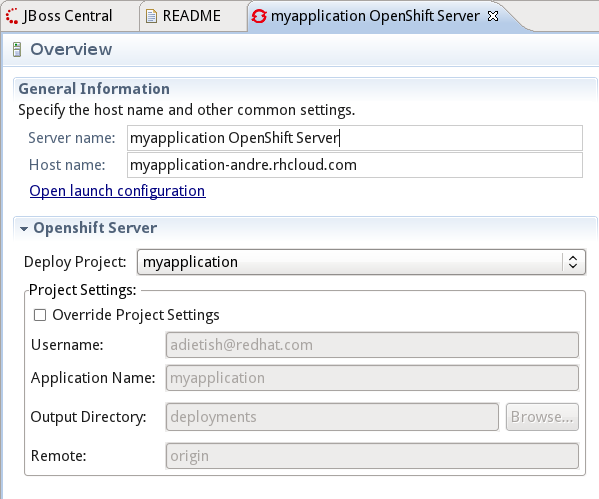
The OpenShift Application wizard sets the adapter up when you create your
application and import the starter project to your workspace.  Our Server
adapter is bound to the OpenShift project in your workspace and it'll do the
git operations for you.


https://community.jboss.org/servlet/JiveServlet/showImage/38-4972-18818/server-adapter.png

https://community.jboss.org/servlet/JiveServlet/downloadImage/38-4972-18818/448-373/server-adapter.png


When publishing it will deploy the changes in your OpenShift project to the
PaaS. It'll hide all the complexity that is inherent to git. It will commit
your changes to your local clone and push them to the git repository of your
OpenShift application (the origin).


https://community.jboss.org/servlet/JiveServlet/showImage/38-4972-18819/server-adapter-publish.png

https://community.jboss.org/servlet/JiveServlet/downloadImage/38-4972-18819/449-164/server-adapter-publish.png


h1. Deploy my very own project!

Importing the starter application to your workspace is the most simple usecase
we provide. I bet most users already have a project that they'd want to deploy
though. We of course also provide this ability in our OpenShift Application
wizard.


Our little screencast shows you the steps when starting with your very own
project. It uses the kitchensink example to demonstrate how this would occourr.
You may get it on github:

> *Kitchensink example project:*
>
>  https://github.com/adietish/kitchensink.git
> https://github.com/adietish/kitchensink.git

h2. Have your project ready
You first have to get your project to Eclipse. We only support *git-shared or
non-shared project* though. A typical usecase would be to have your project on
https://github.com/ github or in any other git repository.You then simply clone
it's repository to your local machine (using  http://www.eclipse.org/egit/ EGit
or the command line) and import the project within it to your Eclipse
workspace.

h2. JBoss Tools, configure my project
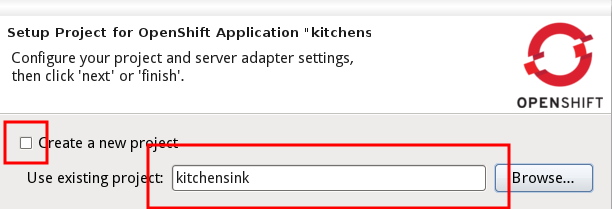
You then create your OpenShift application in our wizard, provide the name,
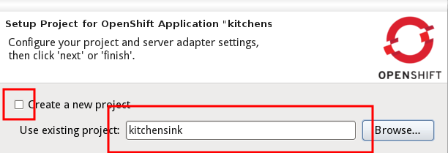
type and eventually additional cartridges. You then switch to the second wizard
page and tell the wizard that you dont want to create a new project in your
workspace. You tell it to use your project instead.


https://community.jboss.org/servlet/JiveServlet/showImage/38-4972-18854/use-existing.png

https://community.jboss.org/servlet/JiveServlet/downloadImage/38-4972-18854/448-152/use-existing.png


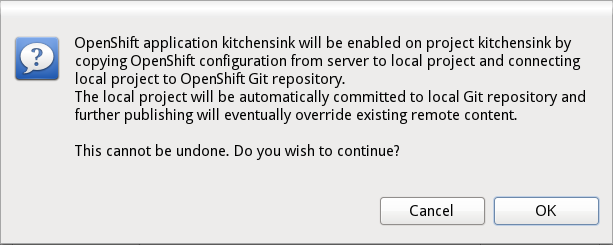
The wizard will warn you about upcoming changes to your project and ask you to
confirm:


https://community.jboss.org/servlet/JiveServlet/showImage/38-4972-18886/merged-cannotundo.png

https://community.jboss.org/servlet/JiveServlet/downloadImage/38-4972-18886/450-180/merged-cannotundo.png

h2. Oh my project, how you changed!
We then add OpenShift specific configurations to your project. These changes
unfortunately cannot be undone. You'd have to provide your own means (ex. a
separate branch) if you dont want these additions in your developement code The
changes we apply are the following:

> *All changes:*
> *
> *
> * eventually create a git repository and commit your project to it
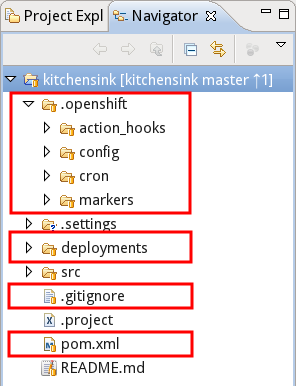
> * add a *.op**enshift* folder with openshift specific hooks
> * add a *deployments* folder
> * add the Eclipse specific files (.project, .classpath etc.) to the
> *.gitignore*
> * add *openshift-profile* to the pom
> * add OpenShift *git repo as remote* to your local git repo
>

https://community.jboss.org/servlet/JiveServlet/showImage/38-4972-18855/merged-configuration.png

https://community.jboss.org/servlet/JiveServlet/downloadImage/38-4972-18855/220-286/merged-configuration.png


Since publishing to OpenShift is git pushing to it, we'll make sure your
project is shared to a *git repo*. We therefore eventually create a git
repository for your project if there's none yet and add your project to it.
We add the *.openshift* folder which may contain OpenShift specific
configurations and tweaks (like custom build-scripts, markers, cron entries
etc.). We also create a *deployments* folder which OpenShift will use to build
to. You may also add additional artifacts to it.
We then tweak *.gitignore* and add the Eclipse specific files so that they dont
make it to the git repo by default.


https://community.jboss.org/servlet/JiveServlet/showImage/38-4972-18857/merged-configuration-gitignore.png

https://community.jboss.org/servlet/JiveServlet/downloadImage/38-4972-18857/173-110/merged-configuration-gitignore.png


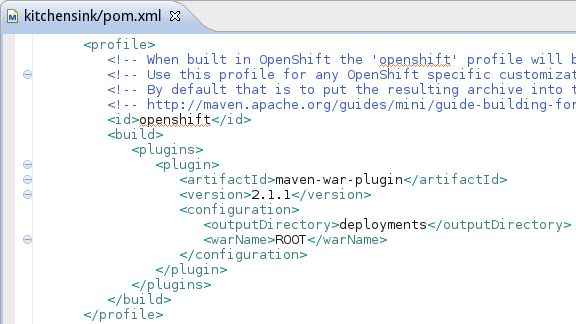
For maven-based java projects we tweak the *pom* and add an openshift profile
to it.


https://community.jboss.org/servlet/JiveServlet/showImage/38-4972-18858/openshift-profile.png

https://community.jboss.org/servlet/JiveServlet/downloadImage/38-4972-18858/439-247/openshift-profile.png


The openshift profile is what the PaaS is using when building your project on
the PaaS. The profile we add is telling maven to create the war in the
deployments folder. The deployments folder is where JBoss AS7 is expecting and
picking new deployables from. Adding the profile makes sure that your project
is deployed when it is built.

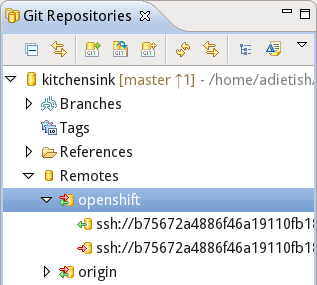
We'll also then add the OpenShift application git repo as *remote* to the git
repo of your local project. This will allow you to push your project to
OpenShift without knowing about the exact url you'll have to push to. All you
have to know is what name the OpenShift repo is stored at.


https://community.jboss.org/servlet/JiveServlet/showImage/38-4972-18871/merged-configuration-remotes.png

https://community.jboss.org/servlet/JiveServlet/downloadImage/38-4972-18871/222-200/merged-configuration-remotes.png


We're storing the OpenShift application git url as "openshift" in the remotes
known to your local repo. You may of course tell the wizard to use any name you
like:


https://community.jboss.org/servlet/JiveServlet/showImage/38-4972-18872/merged-configuration-remotes-configure.png

https://community.jboss.org/servlet/JiveServlet/downloadImage/38-4972-18872/447-60/merged-configuration-remotes-configure.png


h2. Push me up, Scotty

Once we configured your project, we commit the changes to your local git repo
(either your project was already shared with a git repo or we created one for
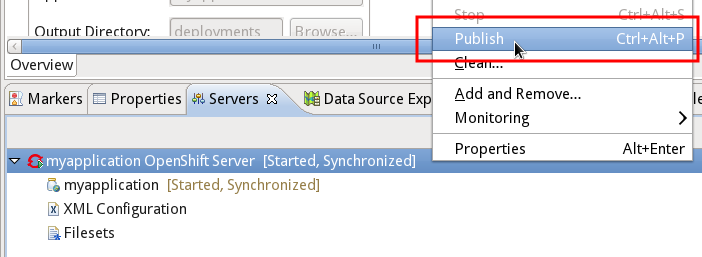
you). To now deploy your project to OpenShift, you'd have to go to the Servers
view, choose the OpenShift server adapter (that we created for you) and tell it
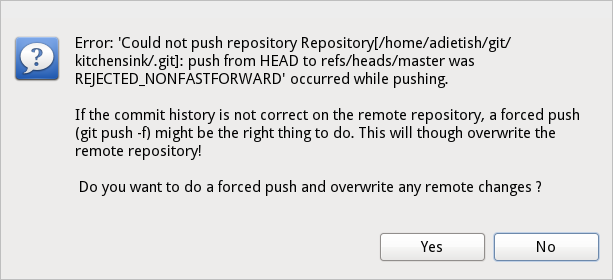
to *publish*. The server adapter will then detect that the local project is
ahead of the remote one and that publishing would only be possible when
overriding the remote starter application. It'll ask you to confirm this step:


https://community.jboss.org/servlet/JiveServlet/showImage/38-4972-18887/merged-pushforce.png

https://community.jboss.org/servlet/JiveServlet/downloadImage/38-4972-18887/450-205/merged-pushforce.png

Once the publishing is done, you'll have your project running on OpenShift!

h2. Multi-module maven projects

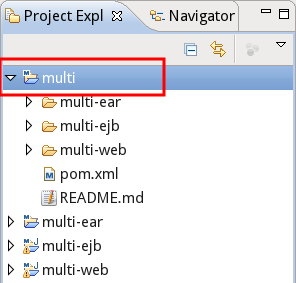
Our OpenShift Application wizard also supports multi-module maven projects.
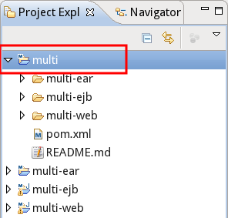
You'd simply have to make sure all modules are nested within a parent project
and choose the parent project as existing project (multi vs. multi-web,
multi-ejb, multi-ejb in my screenshot) in the wizard:


https://community.jboss.org/servlet/JiveServlet/showImage/38-4972-18889/multi-ear.png

https://community.jboss.org/servlet/JiveServlet/downloadImage/38-4972-18889/228-218/multi-ear.png


https://community.jboss.org/servlet/JiveServlet/showImage/38-4972-18890/multi-ear-wizard.png

https://community.jboss.org/servlet/JiveServlet/downloadImage/38-4972-18890/450-60/multi-ear-wizard.png


> *Note:*
>
> in case your multi-module maven project is an ear, there are still slight
> limitations in our tooling for the moment. You may easily work around them
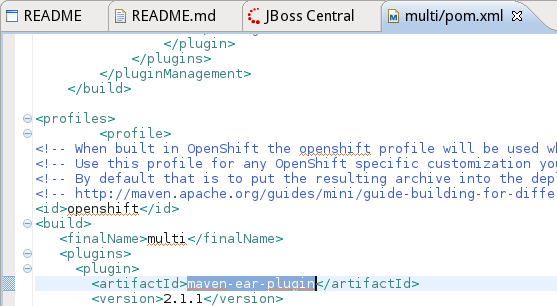
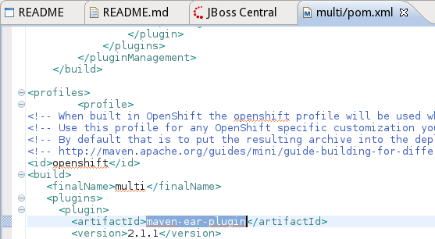
> though. You'd have to alter the maven profile in the pom of your
> parent-projec and replace the maven-war-plugin by the maven-ear-plugin:
>
>
> https://community.jboss.org/servlet/JiveServlet/showImage/38-4972-18870/maven-ear-plugin.png
>
> https://community.jboss.org/servlet/JiveServlet/downloadImage/38-4972-18870/435-239/maven-ear-plugin.png
>
>
> You may read about it in all details and track our progress on it in
> https://issues.jboss.org/browse/JBIDE-12252 JBIDE-12252

h1. My maven project is not in the git repo root
When deploying an existing project to OpenShift, you'd have to tell the wizard
in JBoss Tools about your project. Your project would have to comply to a basic
layout though. We expect the pom in the root of your git repository. If this is
not the case, then you'd have to take an alternative approach when publishing.
Publishing then gets as easy as drag and dropping your project to the adapter.


In our screencast, we show you how to proceed. We use the the ticket-monster
example project which is available at github:

> *Ticket-monster example project:*
>
>  https://github.com/jboss-jdf/ticket-monster
> https://github.com/jboss-jdf/ticket-monster

h2. Have your project ready
The first thing to do is to import your application to your Eclipse workspace.
The only requirement we have is that your project shall be
http://www.eclipse.org/webtools/ Eclipse WTP compliant. It may be a Dynamic Web
or a Maven project. Maven projects are turned into Eclipse WTP projects if you
have  https://www.eclipse.org/m2e-wtp/ m2e-wtp installed when importing them
(m2e-wtp bridges the gap between Eclipse WTP and maven, it turns any maven
project into a WTP compliant project).
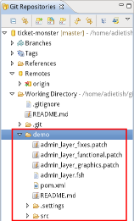
In the ticket-monster example, the maven project is nested into the demo folder:


https://community.jboss.org/servlet/JiveServlet/showImage/38-4972-18881/draganddrop-nested.png

https://community.jboss.org/servlet/JiveServlet/downloadImage/38-4972-18881/221-364/draganddrop-nested.png


We import with the Eclipse Maven import wizard pointing it to the demo-folder:


h2. Create your OpenShift application
Once you have your project ready you'll go and create the OpenShift application
that will host your application. Launch the OpenShit Application wizard in
JBoss Tools, tell it to create a *jbossas-7* application and let it import the
starter app, as shown in the first paragraphs of this blog.

h2. OpenShift, here I come
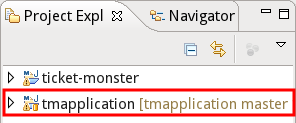
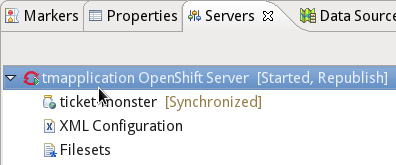
The OpenShift Application wizard imports the starter application to your
workspace and creates a server adapter for it:


https://community.jboss.org/servlet/JiveServlet/showImage/38-4972-18891/draganddrop-starter.png

https://community.jboss.org/servlet/JiveServlet/downloadImage/38-4972-18891/238-99/draganddrop-starter.png


https://community.jboss.org/servlet/JiveServlet/showImage/38-4972-18878/draganddrop-adapter.png

https://community.jboss.org/servlet/JiveServlet/downloadImage/38-4972-18878/277-115/draganddrop-adapter.png


You are then ready to publish your project. Simply drag and drop it to the
OpenShift *server adapter* in the Servers view. Your project will then get
published to OpenShift.
 Once  the publishing is done, you'll notice that the server adapter now has 2
modules: the starter application and your project:


https://community.jboss.org/servlet/JiveServlet/showImage/38-4972-18882/draganddrop-new-module.png

https://community.jboss.org/servlet/JiveServlet/downloadImage/38-4972-18882/307-123/draganddrop-new-module.png

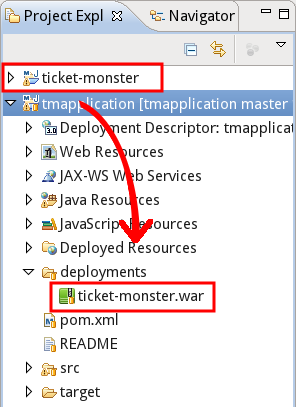
The server adapter actually compressed your project to a war and dropped it to
the deployments folder within the starter application:


https://community.jboss.org/servlet/JiveServlet/showImage/38-4972-18883/draganddrop-war.png

https://community.jboss.org/servlet/JiveServlet/downloadImage/38-4972-18883/217-298/draganddrop-war.png


It then committed this addition and pushed the starter application to
OpenShift. The JBoss AS7 then noticed the new war and deployed it. Simple as
that.
--------------------------------------------------------------

Comment by going to Community
[https://community.jboss.org/community/tools/blog/2012/06/27/deploy-from-eclipse-to-openshift-in-a-breeze]
_______________________________________________
jboss-user mailing list
[email protected]
https://lists.jboss.org/mailman/listinfo/jboss-user