Victor Rubezhny [https://community.jboss.org/people/vrubezhny] modified the
document:
"Eclipse VJET - a new 3rd-party tool available in Central"

To view the document, visit: https://community.jboss.org/docs/DOC-48905

--------------------------------------------------------------
Eclipse VJET is a new 3rd-party tool that is available for installation from
Central. Well integrated into Eclipse WTP, VJET aims to replace standard JSDT
(JavaScript Development Tools) in Eclipse. VJET provides its own JavaScript
Editor ('VJET Editor') with Content Assistant facility that allows you
create/edit JavaScript files (*.js) as well as to edit JavaScripts on HTML
pages. It also provides a number of views and outlines that help to browse the
existing JavaScript structure, Type Space, Types, Members and so on.
h2. Installing Eclipse VJET into JBoss Developer Studio

Due to simplify the Eclipse VJET installation and to allow our users to have it
handy we've included the Eclipse VJET to 3rd-party products available for
installation from JBoss Central. To install Eclipse VJET you need to perform
the following few simple steps:

* Open JBoss Central and select 'Software/Update' tab and type 'vjet' in filter
field. You'll see the only 'Eclipse VJET' item in the list of 3rd-party
software under 'Web and Mobile Development'. Select 'Eclipse VJET' and press
'Install' button below:

https://community.jboss.org/servlet/JiveServlet/showImage/21025/vjet-01-installation-from-central.png

https://community.jboss.org/servlet/JiveServlet/downloadImage/21025/vjet-01-installation-from-central.png

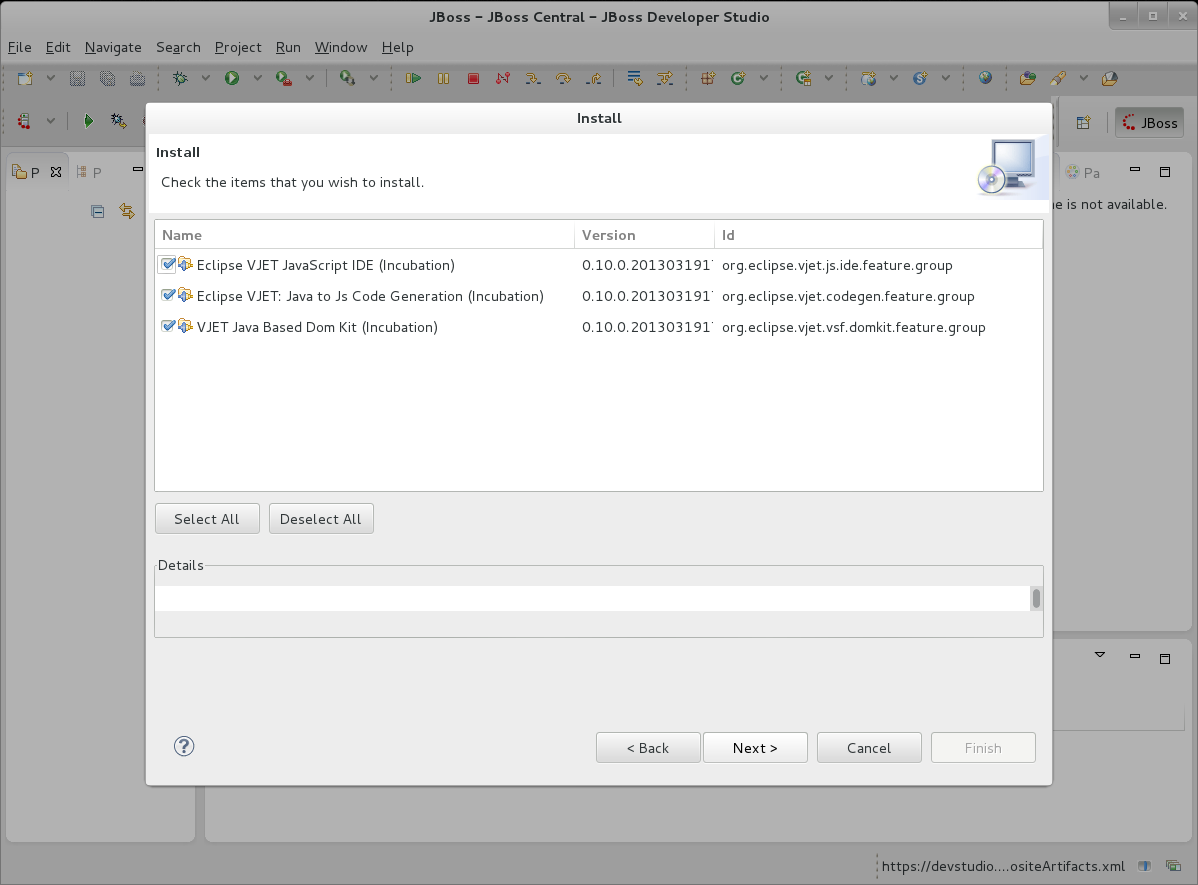
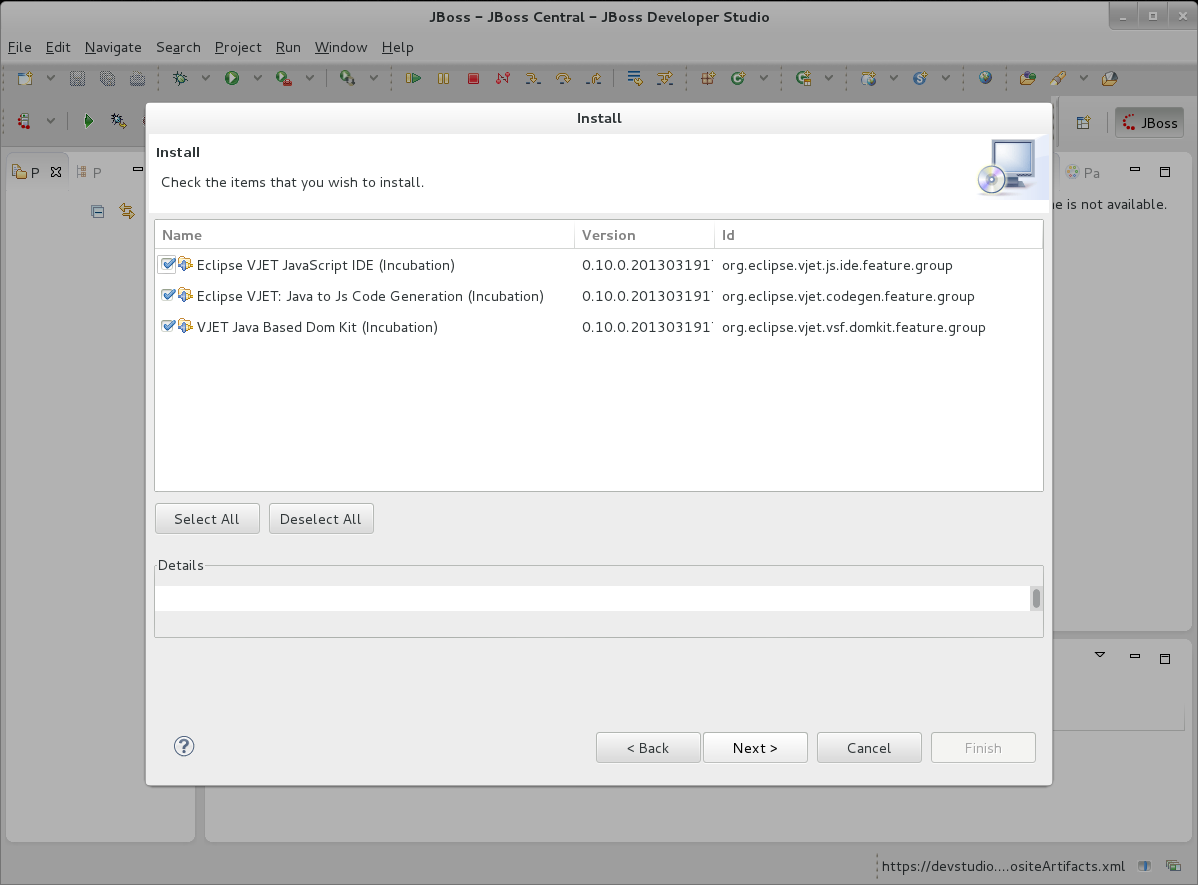
* Make sure that at least 'Eclipse VJET JavaScript IDE (Incubation)' item is
selected and press 'Next >' button:

https://community.jboss.org/servlet/JiveServlet/showImage/21026/vjet-02-installation-from-central.png

https://community.jboss.org/servlet/JiveServlet/downloadImage/21026/vjet-02-installation-from-central.png

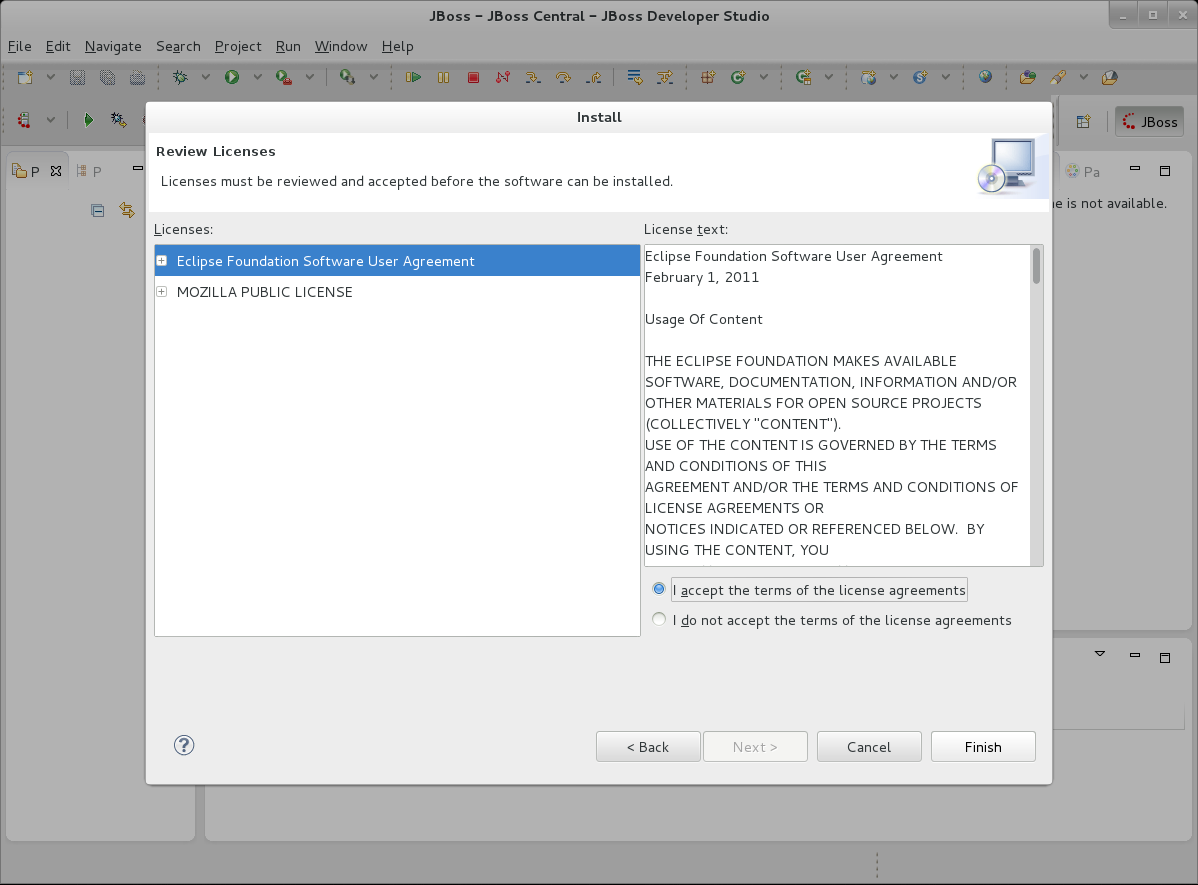
* Select at least one License in the list and make sure that 'I accept the
terms...' radio is selected, then press 'Next >' button:

https://community.jboss.org/servlet/JiveServlet/showImage/21027/vjet-03-installation-from-central.png

https://community.jboss.org/servlet/JiveServlet/downloadImage/21027/vjet-03-installation-from-central.png

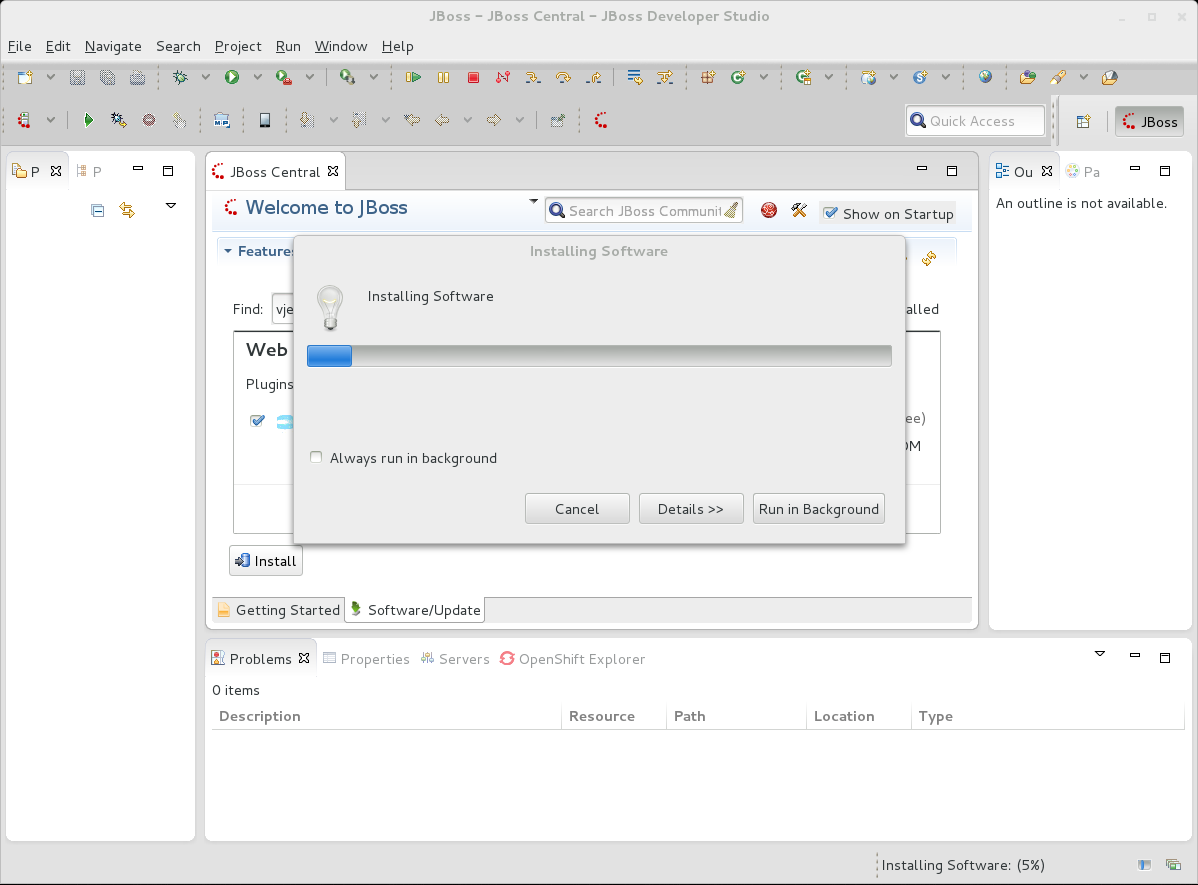
* Wait a bit while installation process is finished...

https://community.jboss.org/servlet/JiveServlet/showImage/21028/vjet-04-installation-from-central.png

https://community.jboss.org/servlet/JiveServlet/downloadImage/21028/vjet-04-installation-from-central.png

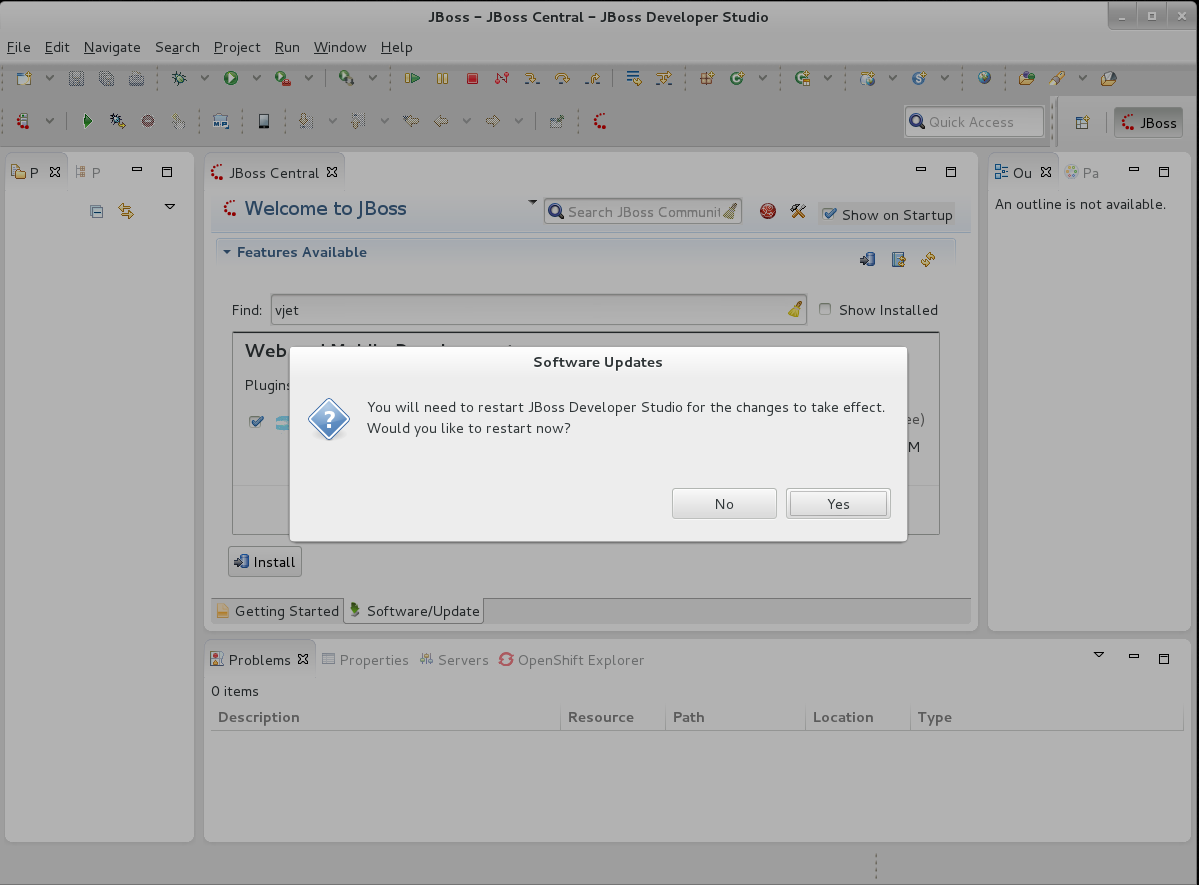
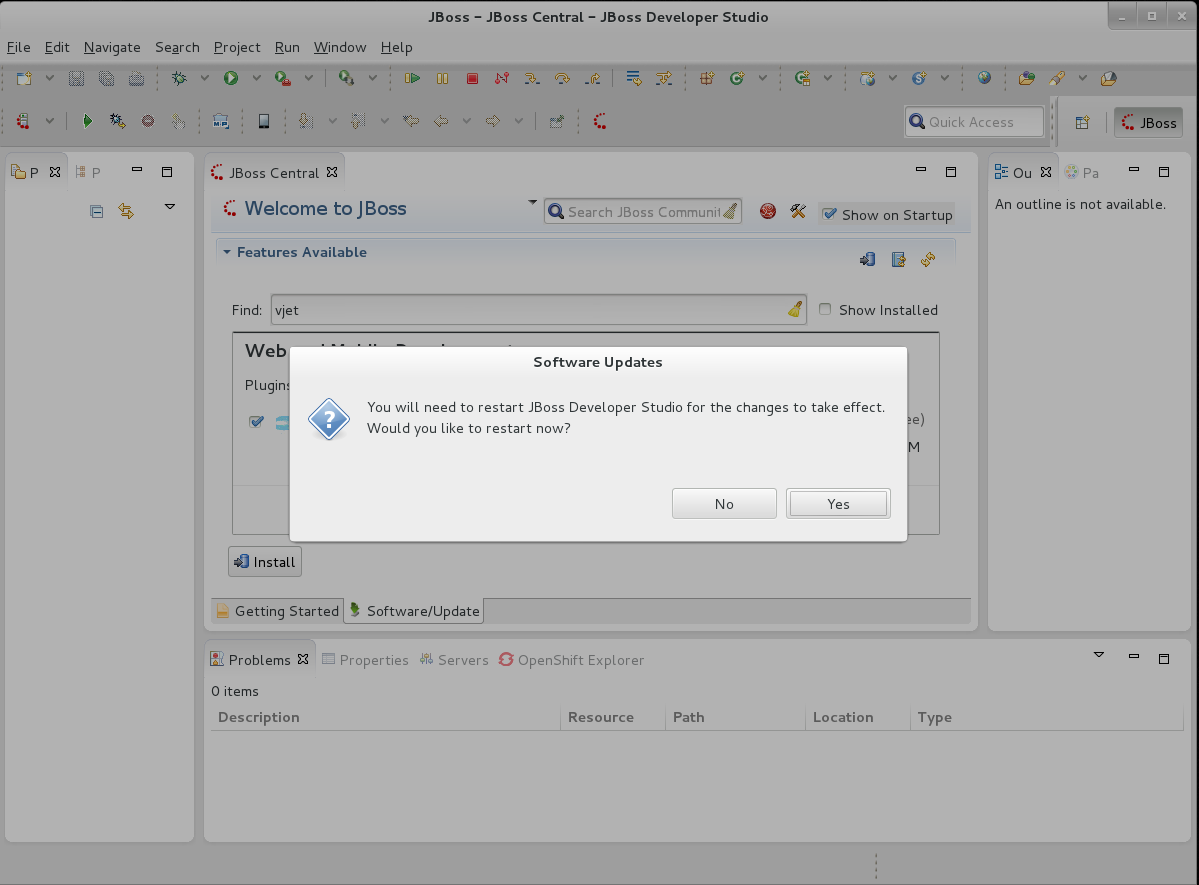
* ... then restart JBoss Developer Studio

https://community.jboss.org/servlet/JiveServlet/showImage/21029/vjet-05-installation-from-central.png

https://community.jboss.org/servlet/JiveServlet/downloadImage/21029/vjet-05-installation-from-central.png

Most part of installation is finished so you can try to use Eclipse VJET's
features.

h2. Using Eclipse VJET

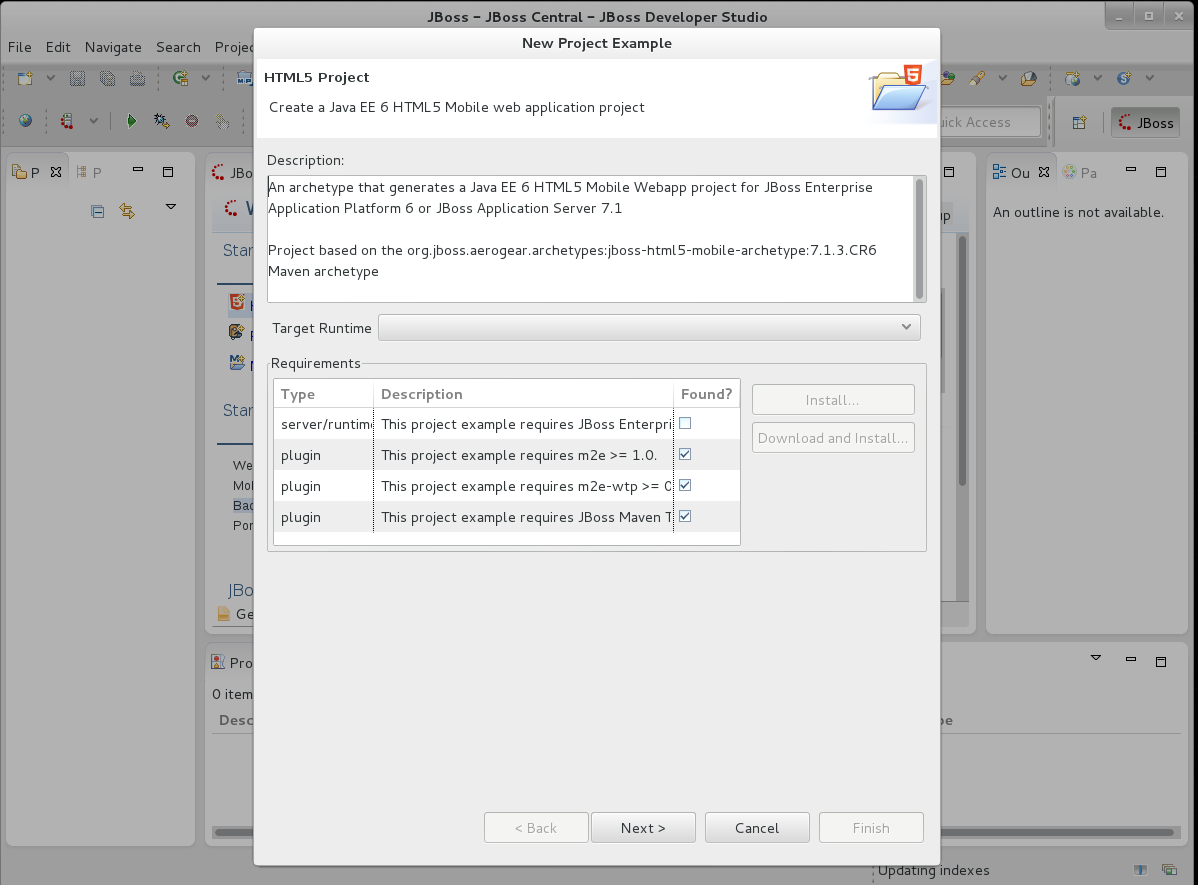
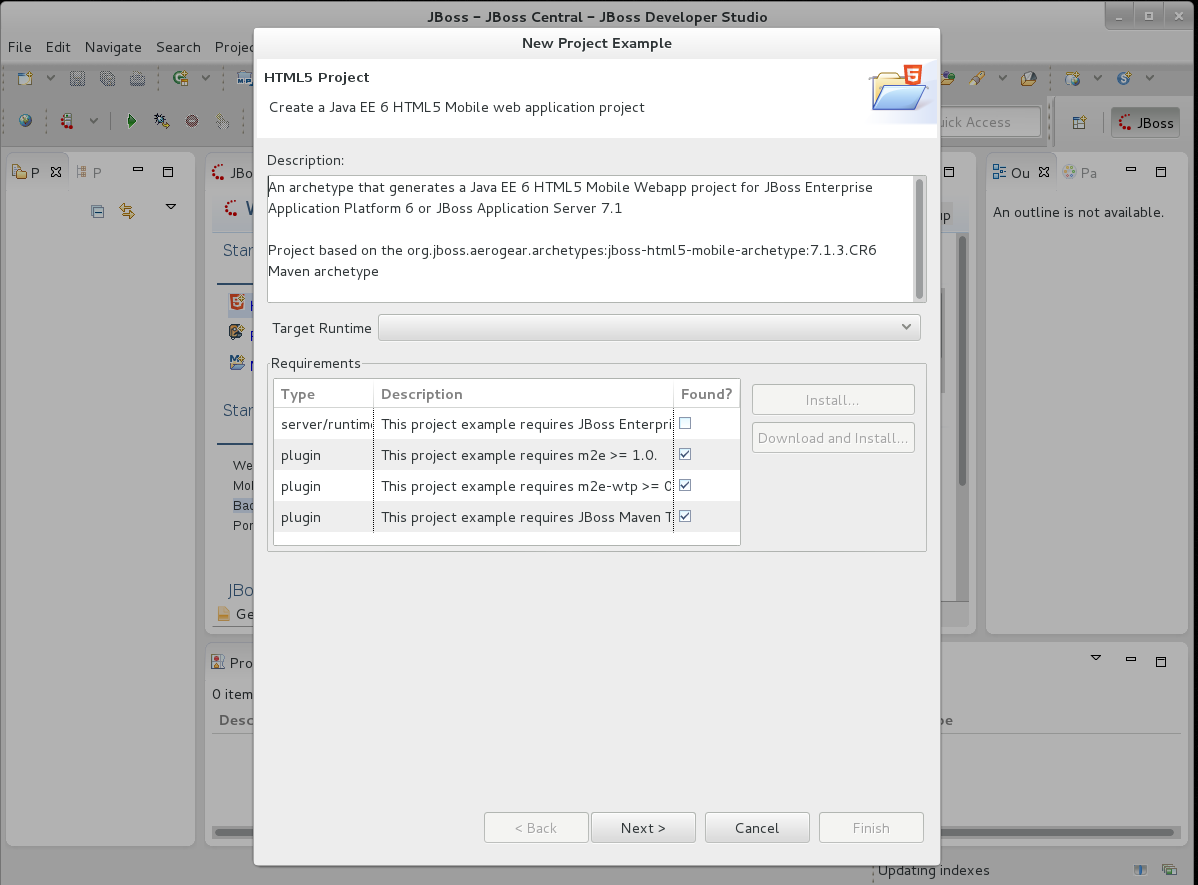
We've used HTML 5 Example project imported from JBoss Central hereafter:


https://community.jboss.org/servlet/JiveServlet/showImage/21030/vjet-06-import-a-project.png

https://community.jboss.org/servlet/JiveServlet/downloadImage/21030/vjet-06-import-a-project.png


But you can create a new project from scratch or use an existing project.
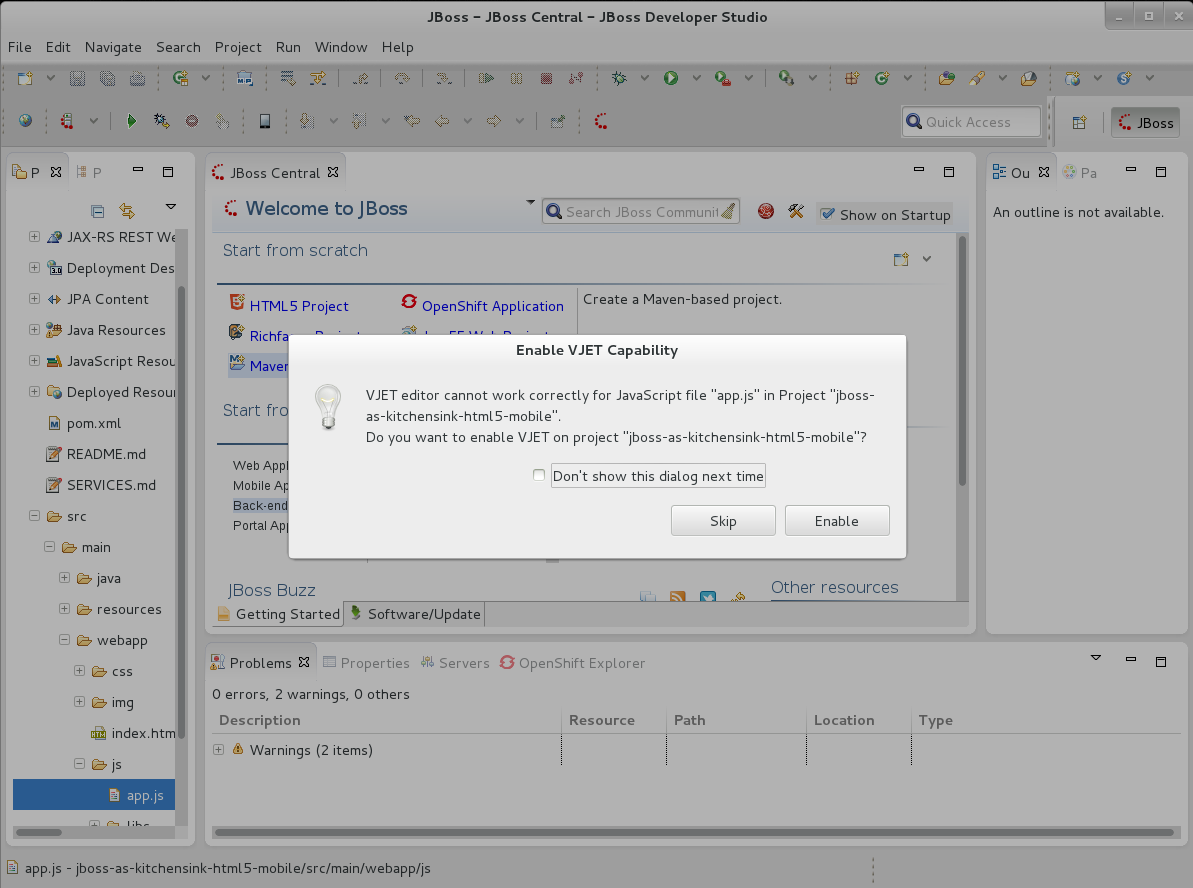
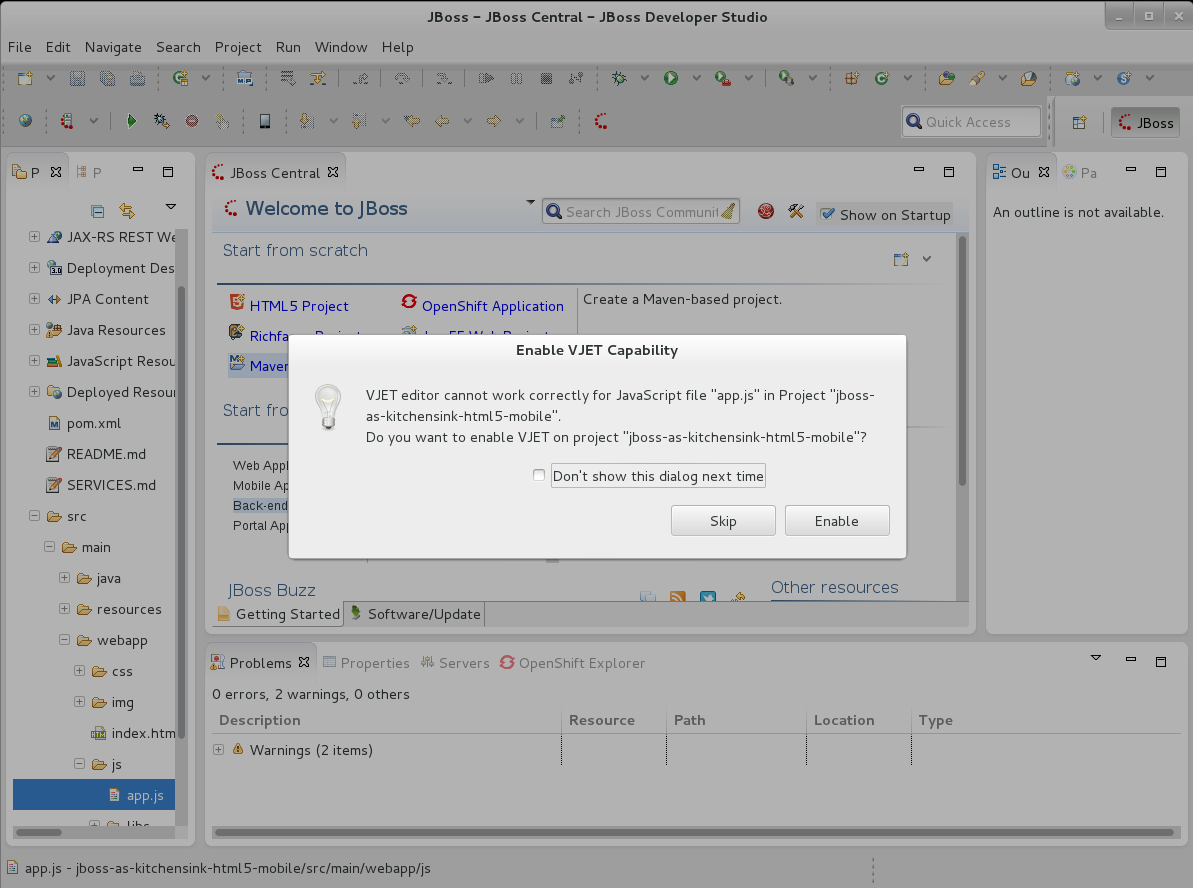
Eclipse VJET requires to be enabled on a project you're developing and suggests
you to make it automatically when you're opening a JavaScript file for the
first time:


https://community.jboss.org/servlet/JiveServlet/showImage/21031/vjet-07-open-a-js-file.png

https://community.jboss.org/servlet/JiveServlet/downloadImage/21031/vjet-07-open-a-js-file.png


Press 'Enable' button to enable Eclipse VJET on your project.

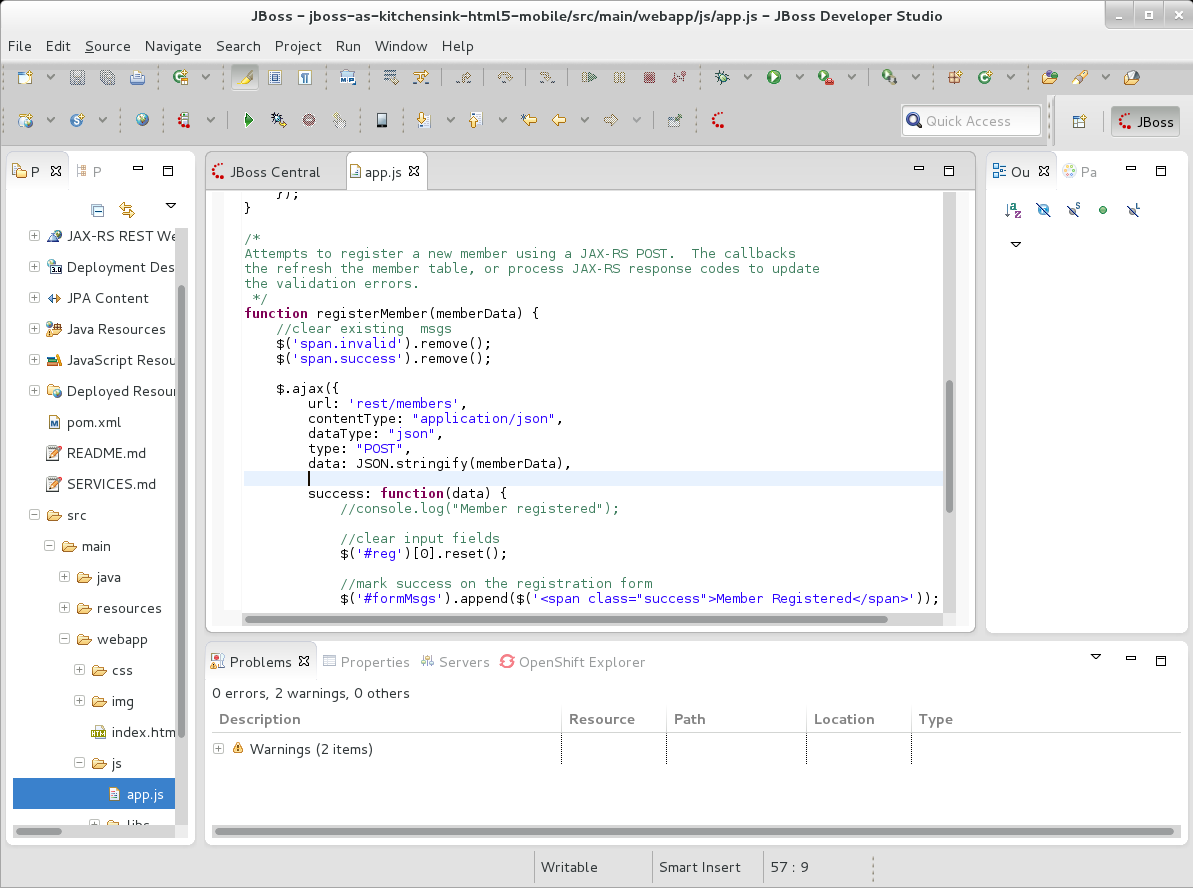
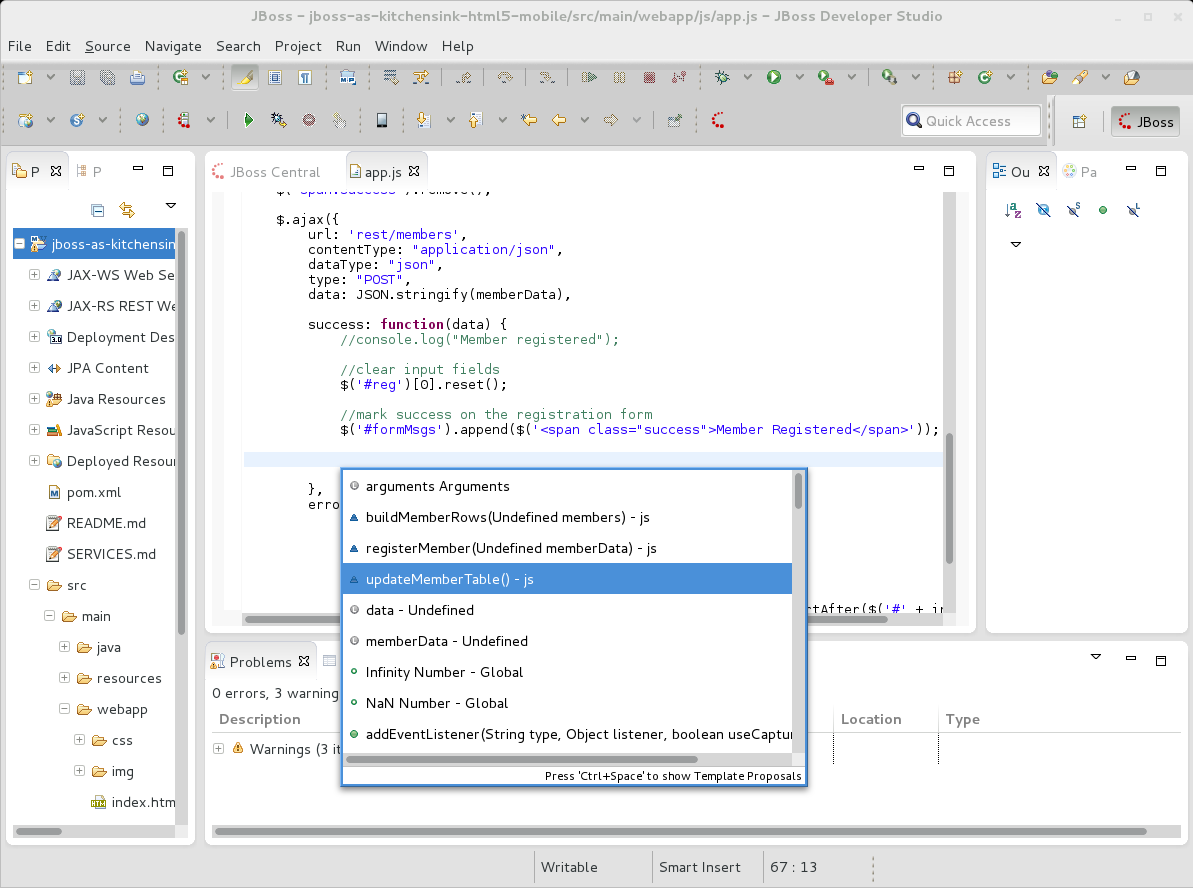
Most usefull feature of VJET is Content Assistant. For a number of reasons,
VJET requires a file to be saved due to provide a Content Assist. So, we've
made a new line and saved the document:


https://community.jboss.org/servlet/JiveServlet/showImage/21032/vjet-08-content-assist.png

https://community.jboss.org/servlet/JiveServlet/downloadImage/21032/vjet-08-content-assist.png


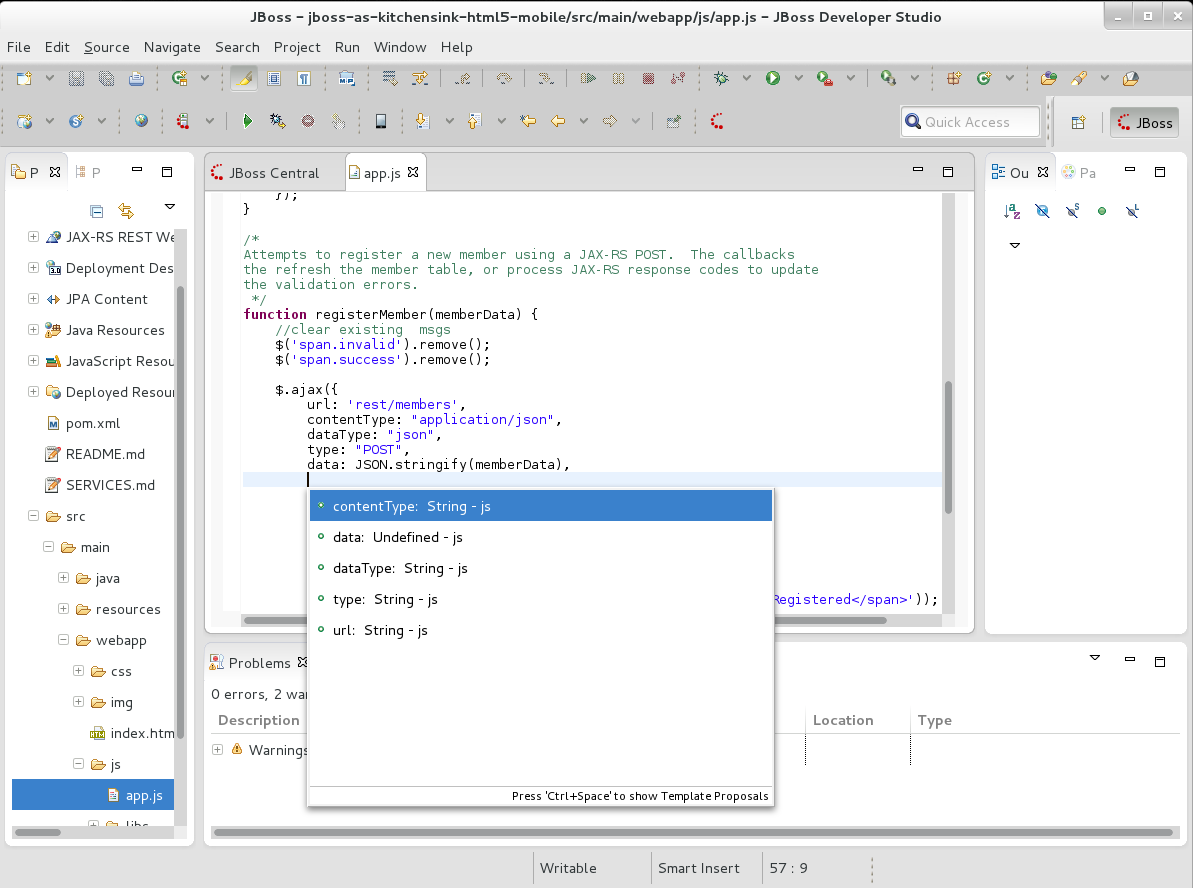
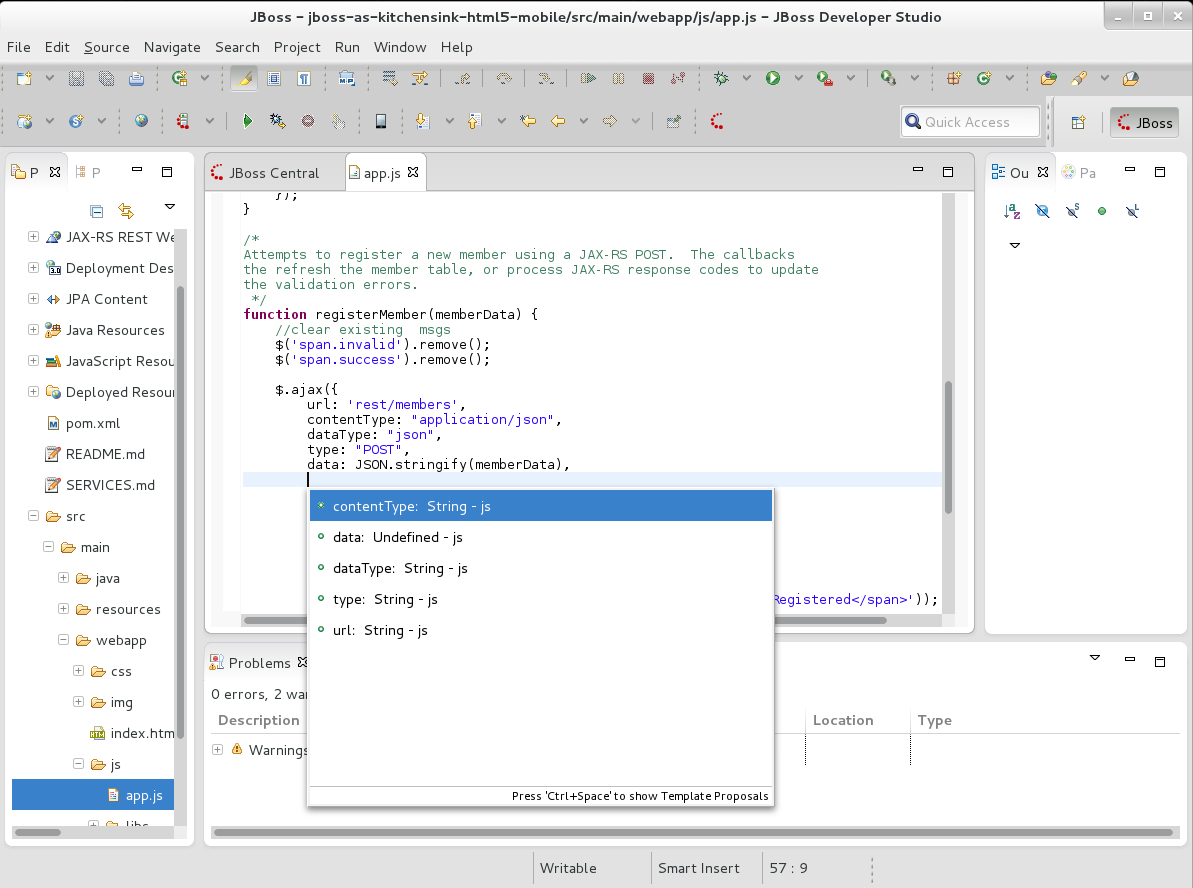
...and invoked Content Assistant by pressing Ctrl-Space:


https://community.jboss.org/servlet/JiveServlet/showImage/21033/vjet-09-content-assist.png

https://community.jboss.org/servlet/JiveServlet/downloadImage/21033/vjet-09-content-assist.png


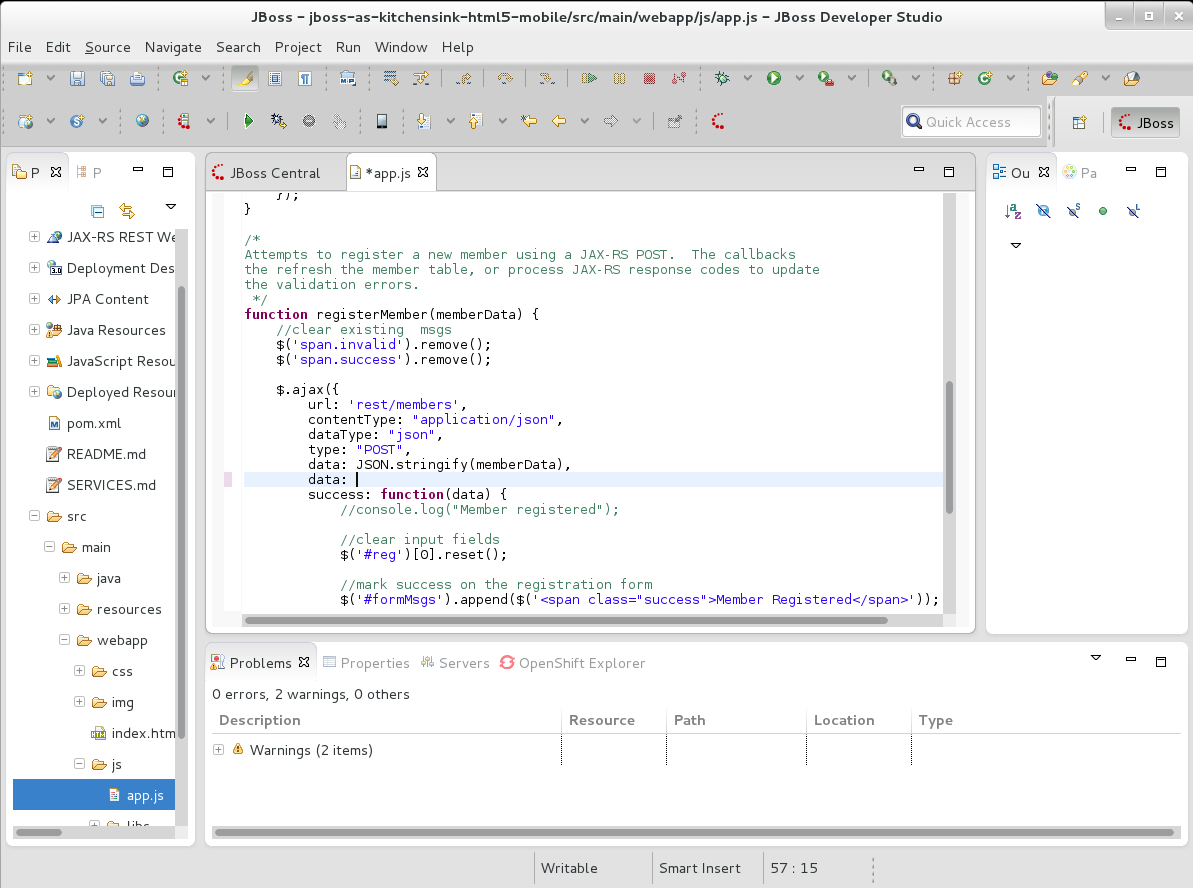
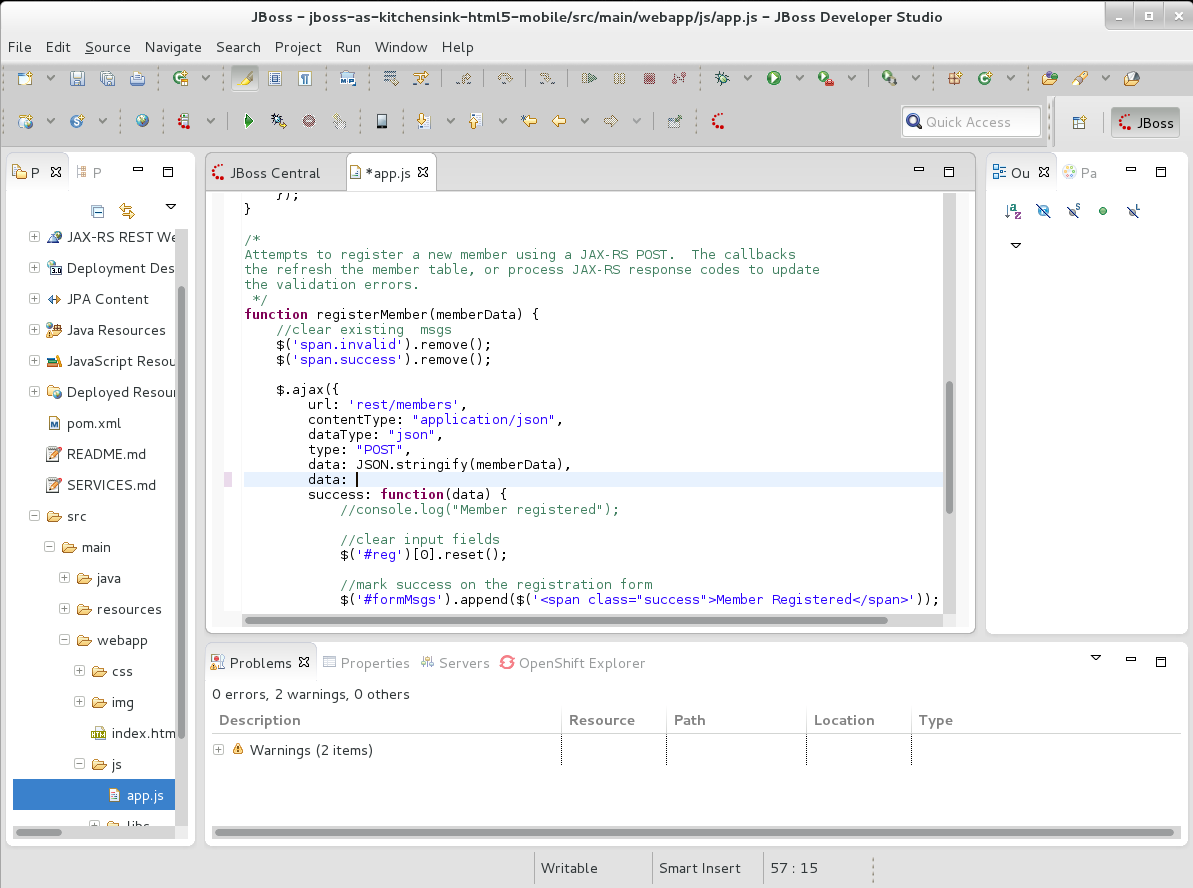
...and then applied the selected property on the document:


https://community.jboss.org/servlet/JiveServlet/showImage/21034/vjet-10-content-assist-applyed.png

https://community.jboss.org/servlet/JiveServlet/downloadImage/21034/vjet-10-content-assist-applyed.png


h2. Using Eclipse VJET's Type Libraries

JavaScript is a scripting language that is not precompiled, so the Object Types
are poorly calculated. But there are number of well known libraries that are
supported by Eclipse VJET in form of Type Library Projects that could be
imported into your workspace due to provide types and method signatures for the
Content Assist and Validation.

If you want such information to be available for your project:

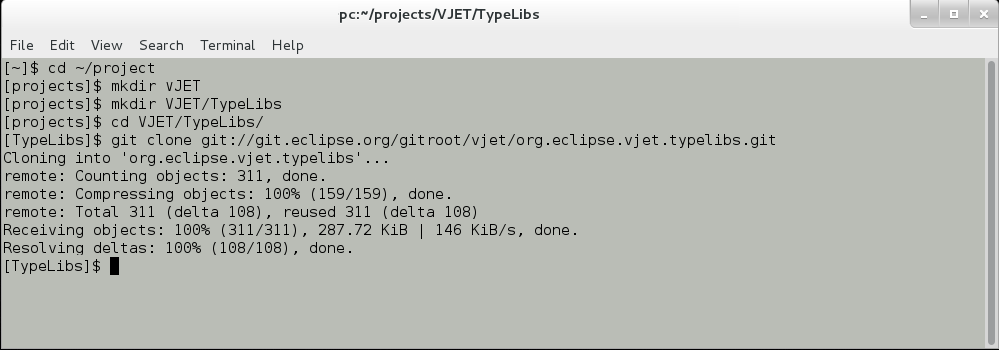
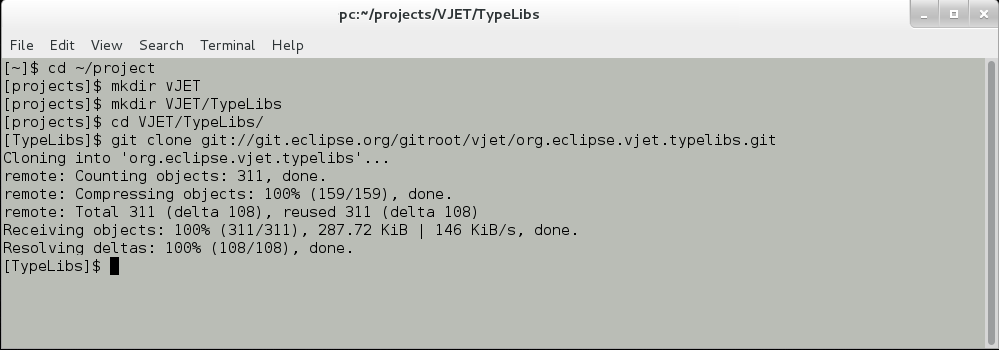
* Clone the Type Libraries Project from Eclipse's Git repository
'git://git.eclipse.org/gitroot/vjet/org.eclipse.vjet.typelibs.git' into a local
folder:

https://community.jboss.org/servlet/JiveServlet/showImage/21035/vjet-11-getting-type-libraries.png

https://community.jboss.org/servlet/JiveServlet/downloadImage/21035/vjet-11-getting-type-libraries.png

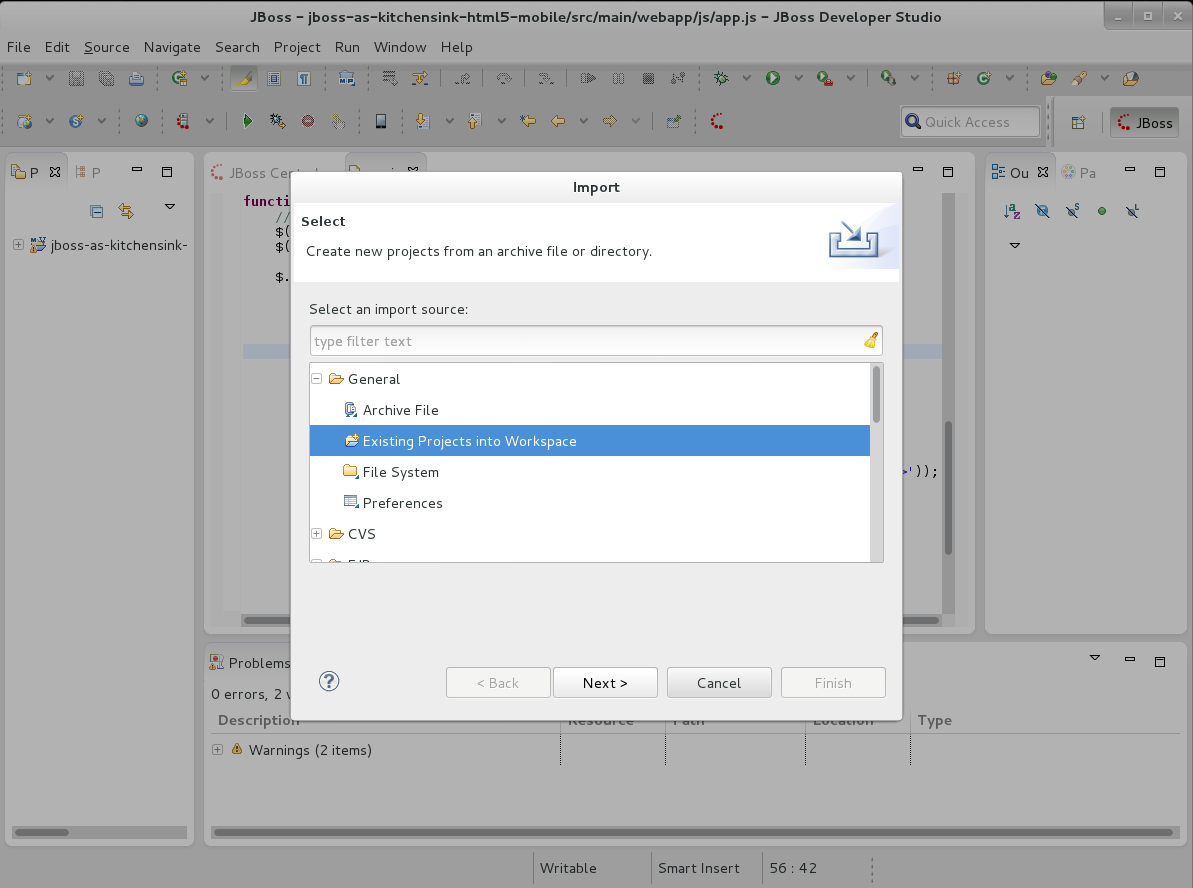
* Then return to your Workspace, select 'File->Import->Existing Projects into
Workspace' and press 'Next >'

https://community.jboss.org/servlet/JiveServlet/showImage/21036/vjet-12-import-type-libraries-as-existing-projects.png

https://community.jboss.org/servlet/JiveServlet/downloadImage/21036/vjet-12-import-type-libraries-as-existing-projects.png

* Find and select 'org.eclipse.vjet.typelibs' folder and press 'OK'

https://community.jboss.org/servlet/JiveServlet/showImage/21037/vjet-13-import-type-libraries.png

https://community.jboss.org/servlet/JiveServlet/downloadImage/21037/vjet-13-import-type-libraries.png

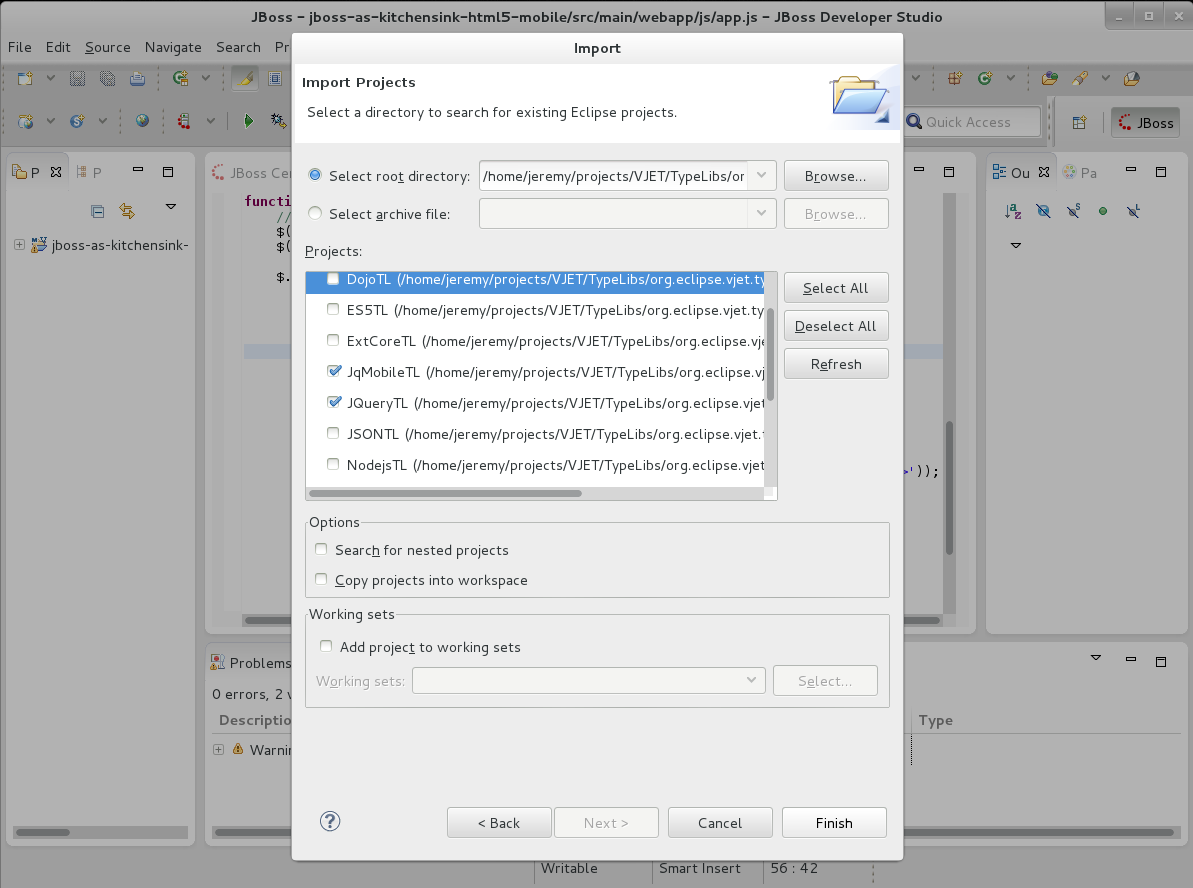
* Then select the Type Library project(s) you want to add to your project and
press 'Finish' - the required Type Library Project(s) will be imported into
your Workspace

https://community.jboss.org/servlet/JiveServlet/showImage/21038/vjet-14-import-type-libraries.png

https://community.jboss.org/servlet/JiveServlet/downloadImage/21038/vjet-14-import-type-libraries.png

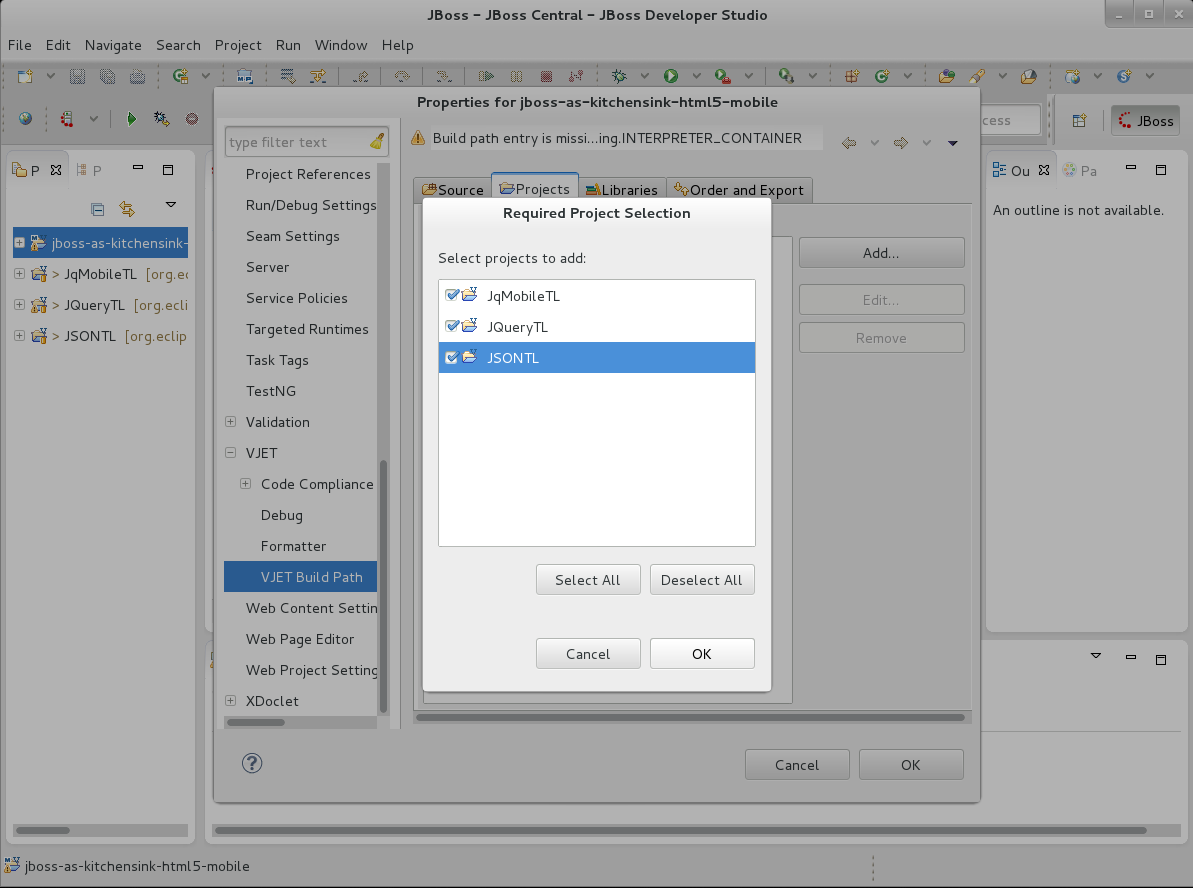
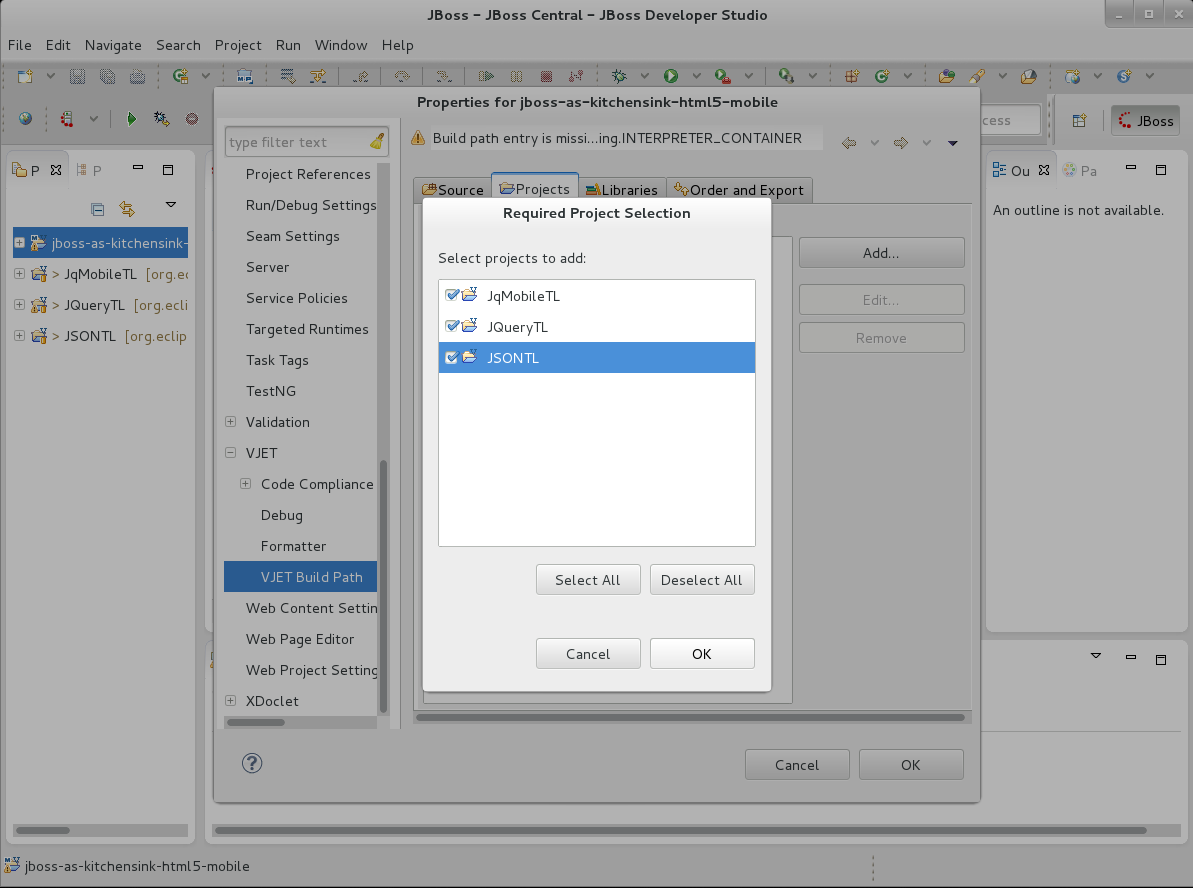
* Right-click on your project and select 'Properties->VJET->VJET Build Path',
then select 'Projects' Tab and press 'Add' button. Then select imported Type
Library Project(s) and press 'OK' button:

https://community.jboss.org/servlet/JiveServlet/showImage/21039/vjet-15-setup-type-libraries-on-a-project.png

https://community.jboss.org/servlet/JiveServlet/downloadImage/21039/vjet-15-setup-type-libraries-on-a-project.png

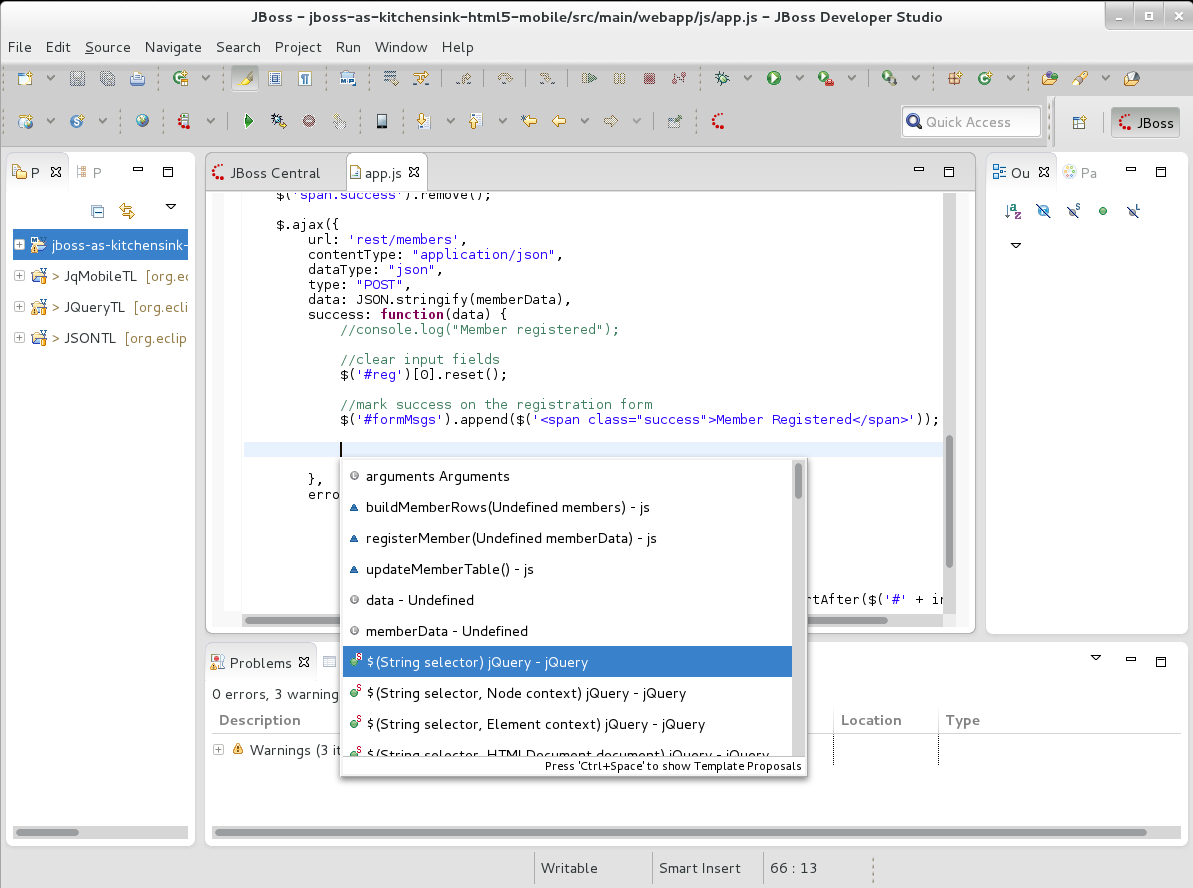
* Now you can use the information provided by selected Type Library in Content
Assistant for your project, so you're able to select...

https://community.jboss.org/servlet/JiveServlet/showImage/21040/vjet-16-content-assist.png

https://community.jboss.org/servlet/JiveServlet/downloadImage/21040/vjet-16-content-assist.png

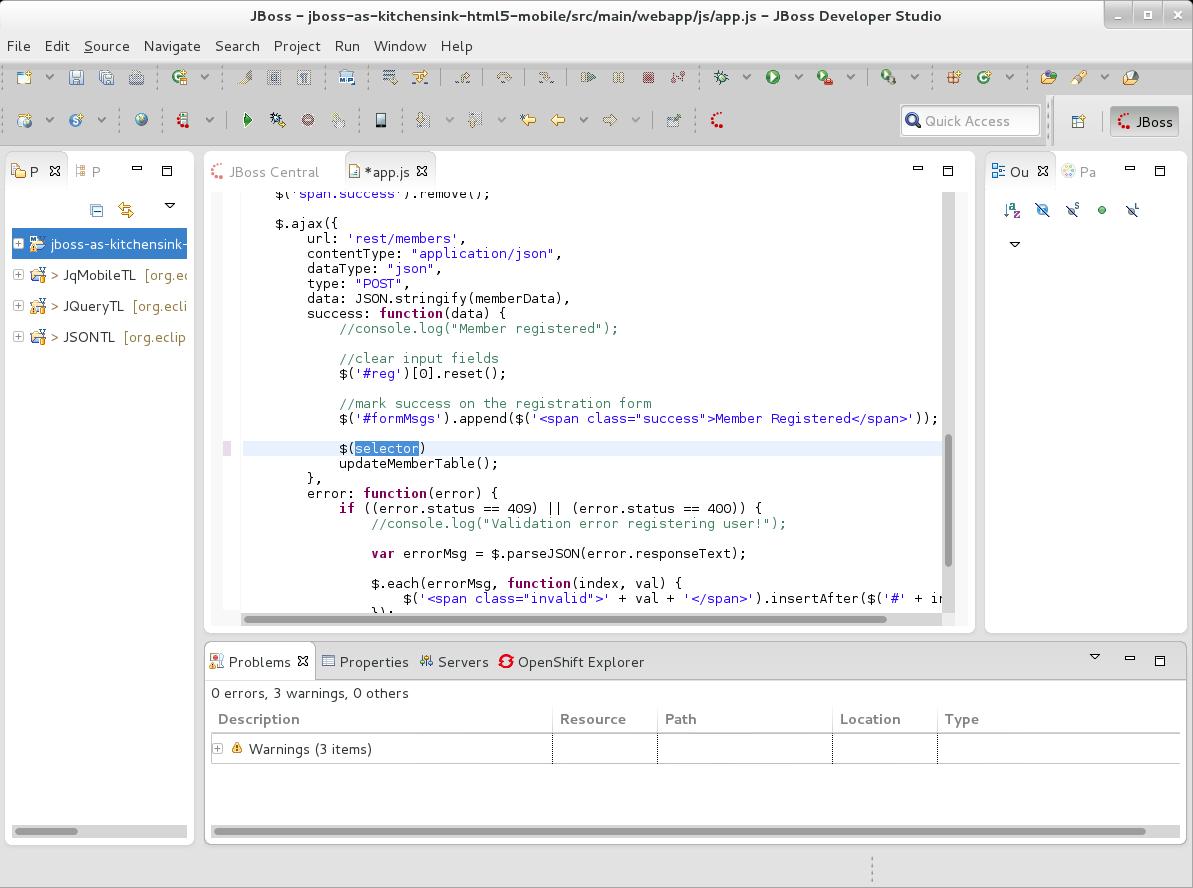
* ... and apply these proposals:

https://community.jboss.org/servlet/JiveServlet/showImage/21041/vjet-17-content-assist-applyed.png

https://community.jboss.org/servlet/JiveServlet/downloadImage/21041/vjet-17-content-assist-applyed.png


Without having the Type Library project imported and set up, the Content
Assistant would be incomplete in most cases. For example, see the proposals of
Content Assist invoked at the same file and position but with no jQuery Type
Library project imported and referenced:


https://community.jboss.org/servlet/JiveServlet/showImage/21042/vjet-18-content-assist-without-tl.png

https://community.jboss.org/servlet/JiveServlet/downloadImage/21042/vjet-18-content-assist-without-tl.png


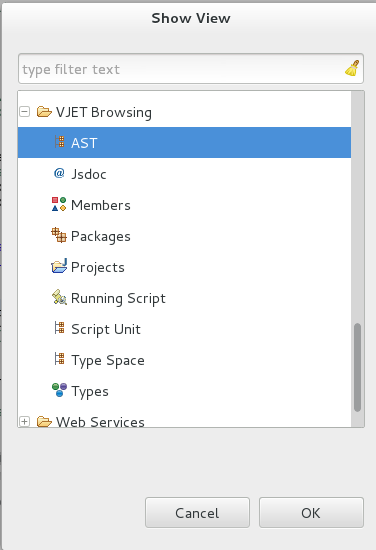
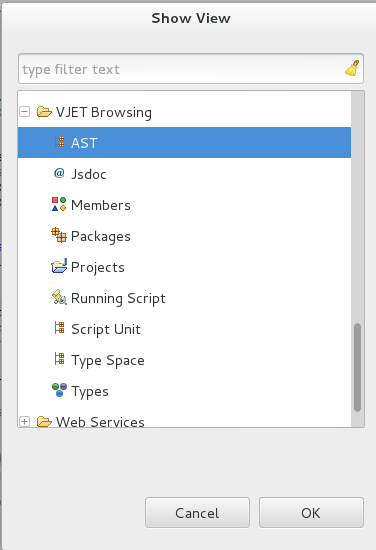
h2. Eclipse VJET Views to browse the project information

Eclipse VJET provides a number of views that may help you to view a project
details:


https://community.jboss.org/servlet/JiveServlet/showImage/21044/vjet-19-vjet-views.png

https://community.jboss.org/servlet/JiveServlet/downloadImage/21044/vjet-19-vjet-views.png


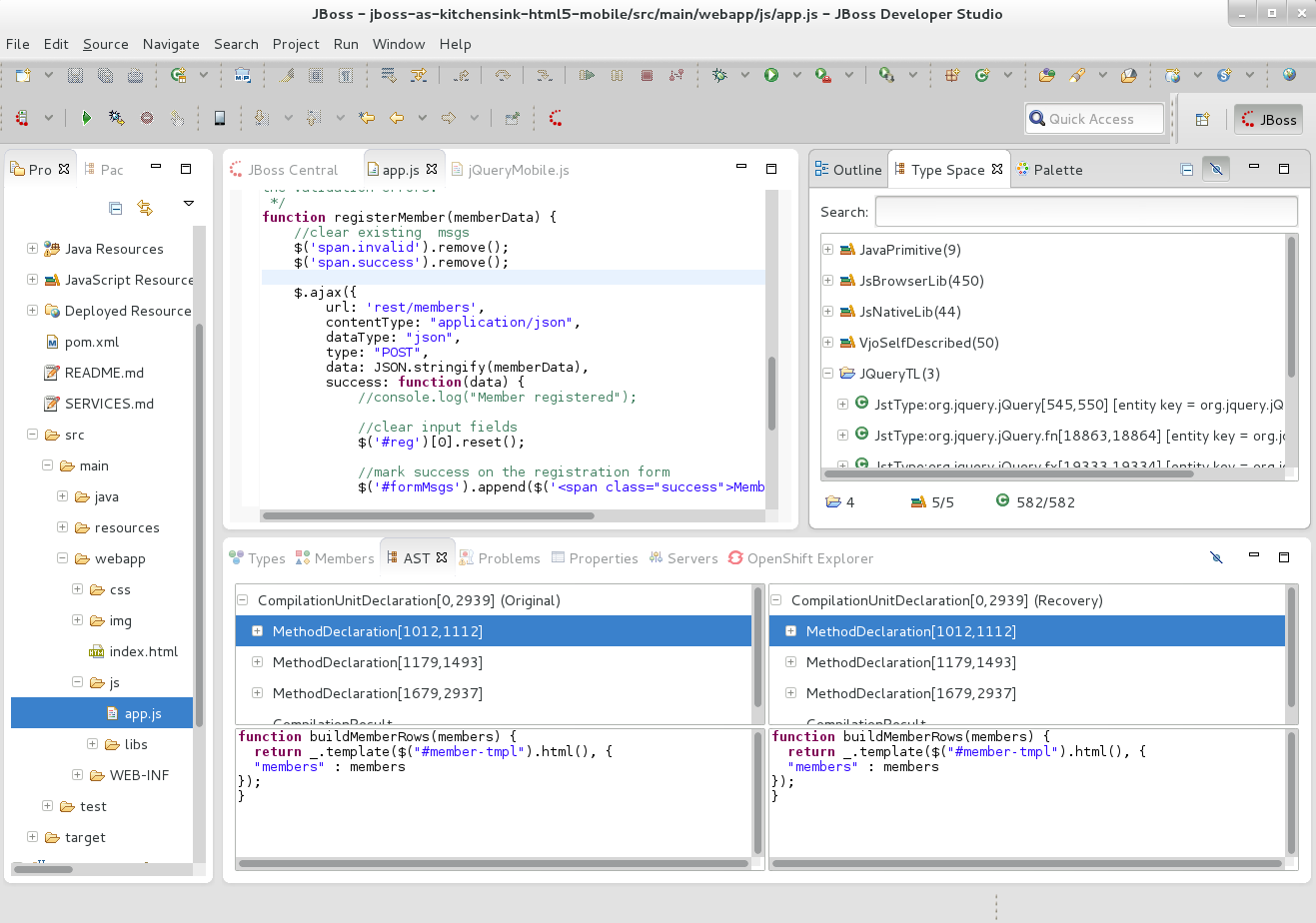
AST View and Type Space View - AST Trees of original and recovered JavaScript
and information on Types used in JavaScript:


https://community.jboss.org/servlet/JiveServlet/showImage/21045/vjet-20-ast-and-typespace-views.png

https://community.jboss.org/servlet/JiveServlet/downloadImage/21045/vjet-20-ast-and-typespace-views.png


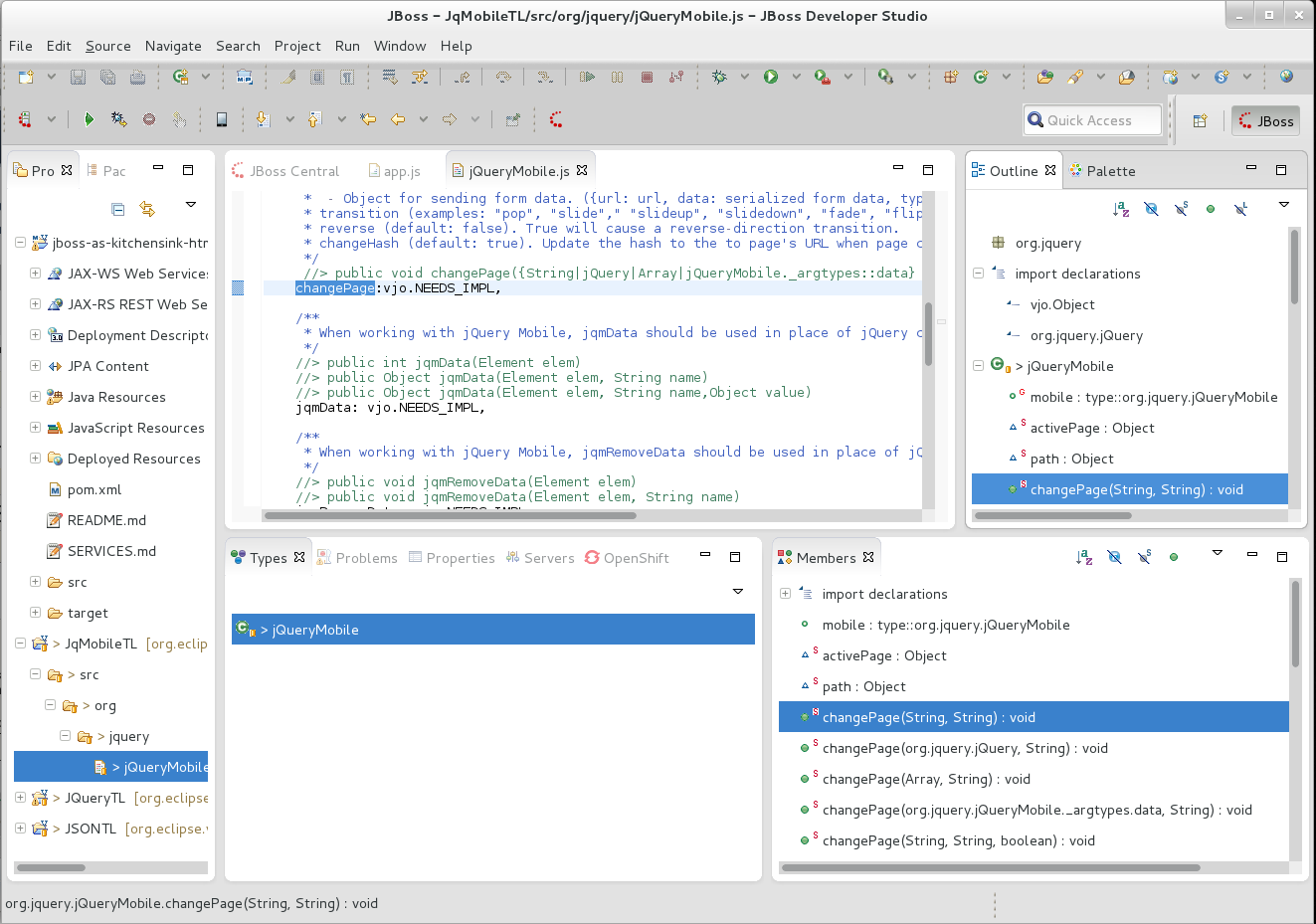
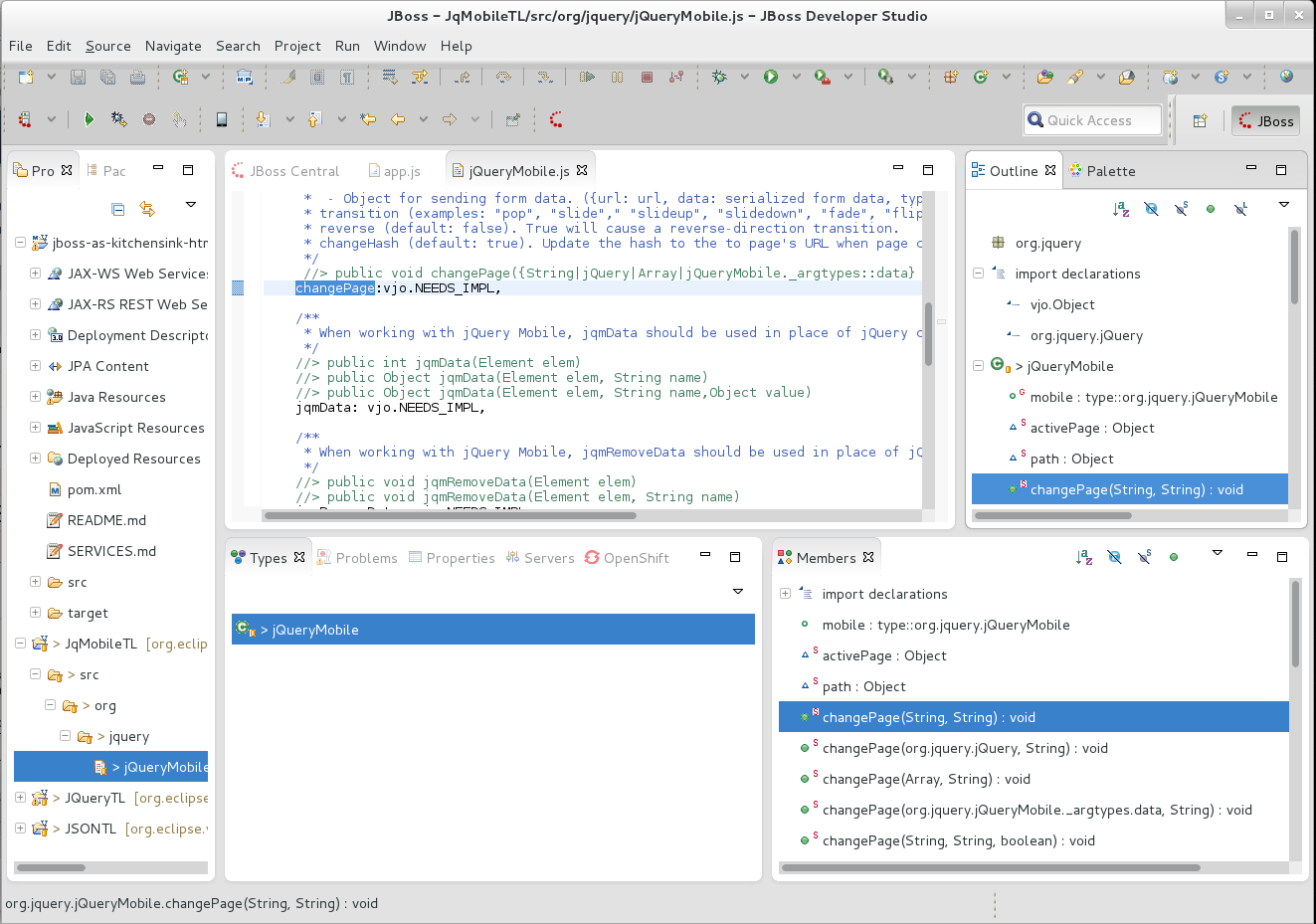
Outline, Types and Members Views:


https://community.jboss.org/servlet/JiveServlet/showImage/21046/vjet-21-types-and-members-views.png

https://community.jboss.org/servlet/JiveServlet/downloadImage/21046/vjet-21-types-and-members-views.png
--------------------------------------------------------------

Comment by going to Community
[https://community.jboss.org/docs/DOC-48905]

Create a new document in JBoss Tools at Community
[https://community.jboss.org/choose-container!input.jspa?contentType=102&containerType=14&container=2128]
_______________________________________________
jboss-user mailing list
[email protected]
https://lists.jboss.org/mailman/listinfo/jboss-user