I have seen a few notes on here about folks having difficulties with some
automations. I found the below attached article from tidbits.com
<http://tidbits.com/> to be worth the read.
I will state again, if you can wait a couple months before upgrading your
Macintosh and you use automations then you should.

Mojave’s New Security and Privacy Protections Face Usability Challenges
https://tidbits.com/2018/09/10/mojaves-new-security-and-privacy-protections-face-usability-challenges/?utm_campaign=website&utm_source=sendgrid%20email&utm_medium=email

<https://tidbits.com/2018/09/10/mojaves-new-security-and-privacy-protections-face-usability-challenges/?utm_campaign=website&utm_source=sendgrid%20email&utm_medium=email>

10 September 2018

 <https://tidbits.com/>Thoughtful, detailed coverage of everything Apple for 28
years
and the TidBITS Content Network <https://tcn.tidbits.com/apple-pros/> for Apple
professionals
Back in 2016, security researcher and developer Jonathan Zdziarski released a
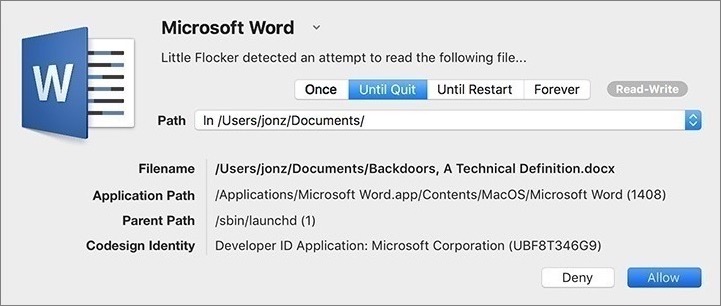
tool called Little Flocker that could protect Macs at the file level. Much as a
firewall analyzes and blocks network traffic, Little Flocker locked down the
file system and allowed only authorized applications access to only approved
files.

Little Flocker was too complex to manage for average users, but it quickly
became a darling among Mac security experts. Most modern malware doesn’t
blindly hit your computer through a network scan. Instead, it tricks you—or
your computer—into installing some piece of software that then does bad things.
Little Flocker ensured that applications could access only data they were
supposed to, making it far more difficult for malicious software to complete
its nefarious mission. In fact, this compartmentalization is the foundation of
iOS security and one of the primary reasons that iOS is the most secure
consumer operating system available.

 <https://tidbits.com/uploads/2018/09/Little-Flocker.jpg>
When Zdziarski took a job at Apple in 2017, he sold Little Flocker to the
security vendor F-Secure
<https://www.macworld.com/article/3190149/security/little-flocker-reincarnates-at-f-secure-in-free-beta.html>,
 which released it as Xfence <https://campaigns.f-secure.com/xfence/>.
Zdziarski’s job change started the clock ticking on when we might see similar
capabilities built into macOS. With macOS 10.14 Mojave, Apple has added
file-level protections, plus some additional security enhancements. And you
know what? Mojave is running into the same usability issues that users of
Little Flocker endured.

Apple is enhancing OS security to boost OS privacy

Apple has been inching down this path of protected files in macOS since it
introduced Gatekeeper and sandboxing. With each release, Apple has tightened
the sandboxing screws to limit the traditionally near-unfettered access of
apps. However, application sandboxing as we’ve seen it so far applies only to
apps downloaded from the Mac App Store and offers no protection to apps
installed from any other source.

Mojave extends these protections in three key areas across all applications on
your Mac:

Access to the camera and microphone
Access to certain private data stores (beyond those protected in High Sierra)
Inter-application communications with Apple events
Access to the camera and microphone is easily understood. If an app is going to
use the camera or microphone, it needs to ask for permission, just as apps do
in iOS. There’s little that’s controversial or potentially problematic about
this privacy enhancement.

For most Mac users, the most obvious and significant changes are the enhanced
notifications and protections for managing access to core privacy-related data
stores: Location, Contacts, Calendars, Reminders, and Photos. In Mojave, when
an application tries to access your location, contacts, calendars, reminders,
or photos, you’ll need to approve that request to grant access. Again, this is
similar to how things work in iOS and High Sierra—when an app wants to work
with your photos or contacts, it has to ask permission first.

You might be thinking that there’s quite a bit more that deserves protection,
and you’d be right. In fact, Mojave extends protection to data in Mail,
Messages, Safari, Home, Time Machine, and certain administrative settings, but
without the granular notifications of the data types we’ve been discussing.
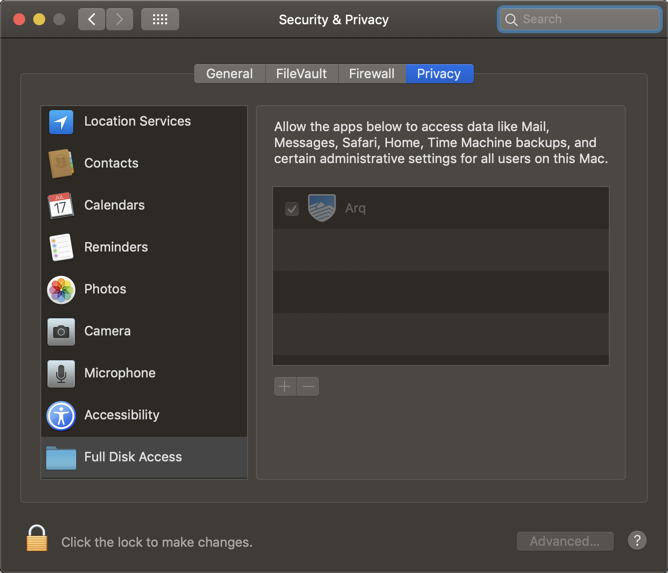
Apps can request access to data in Mail or Messages or Safari too, and they’ll
appear in the Full Disk Access list in the Privacy pane of the Security &
Privacy preference pane.

 <https://tidbits.com/uploads/2018/09/Privacy-settings.png>
Keep in mind that non-Apple data repositories don’t receive this special
protection, so if you use a third-party photo app (like Adobe Lightroom) or
calendar software (such as Microsoft Outlook) with its own database and
storage, these new protections won’t help you.

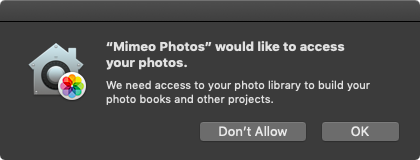
The first time you launch an app that tries to access these data stores, you’ll
get a notification dialog asking for access. If the app was compiled with the
Mojave-specific version of Xcode, the notification will feature
developer-provided text describing why the app wants access. For older apps,
the notification will instead show generic, Apple-provided text.

 <https://tidbits.com/uploads/2018/09/macOS-permission-prompt.png>
Here’s where things start to get tricky. If you provide access, all should be
well, since the app is getting the data it expects, and it will appear in the
appropriate list in the Privacy pane of the Security & Privacy preference pane.

But if you deny access to an older app, it may crash, since it has no way of
anticipating such an error condition. Since Apple hasn’t yet officially
released Mojave, we can’t say for sure what will happen, and it will
undoubtedly vary by app. For a deeper dive on these changes over time,
developer Howard Oakley has written some excellent posts about his struggles to
update his tools for Mojave <https://eclecticlight.co/tag/privacy/>.

Protecting inter-application communication is complex

Mojave also introduces new authorizations for the Apple events that
applications use to communicate with each other. Apple events are the essential
backbone to Mac automation capabilities you might not even realize you are
using, because Apple events enable one application to launch and sometimes
control another app.

In a blog post talking about how scheduling and scripting works in Super Duper
<https://www.shirt-pocket.com/blog/index.php/shadedgrey/comments/macos_mojave_opening_new_vistas_in_security_for_mac_users/>,
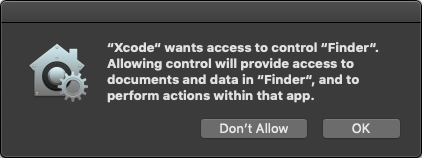
 Dave Nanian of Shirt Pocket notes that simply choosing Show in Finder in Xcode
will trigger a new authorization request. (That was true in Mojave beta 8; in
beta 10, Show in Finder works without an authorization request but choosing
File > Open in External Editor in Xcode still asks to control the Finder.) The
ability to interconnect and allow applications on the Mac to communicate and
send commands to each other is deeply embedded into far more applications than
the average user might realize.

 <https://tidbits.com/uploads/2018/09/Xcode-prompt.png>
These inter-application requests also trigger notifications to authorize
access, again using a mix of developer-specified and default text. Combined
with the personal data protections, this could lead to a flood of alerts and
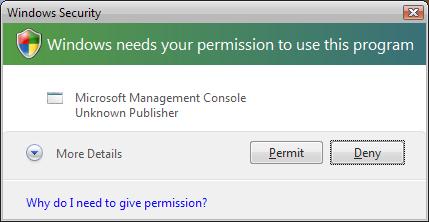
user confusion. Nanian compares it to the well-intentioned but eventually
removed alerts that Microsoft used in Windows Vista.

 <https://tidbits.com/uploads/2018/09/Vista-UAC.jpg>
And of course, lots of people write their own apps using AppleScript. Over at
Six Colors
<https://sixcolors.com/link/2018/08/a-looping-mac-automation-apocalypse/>,
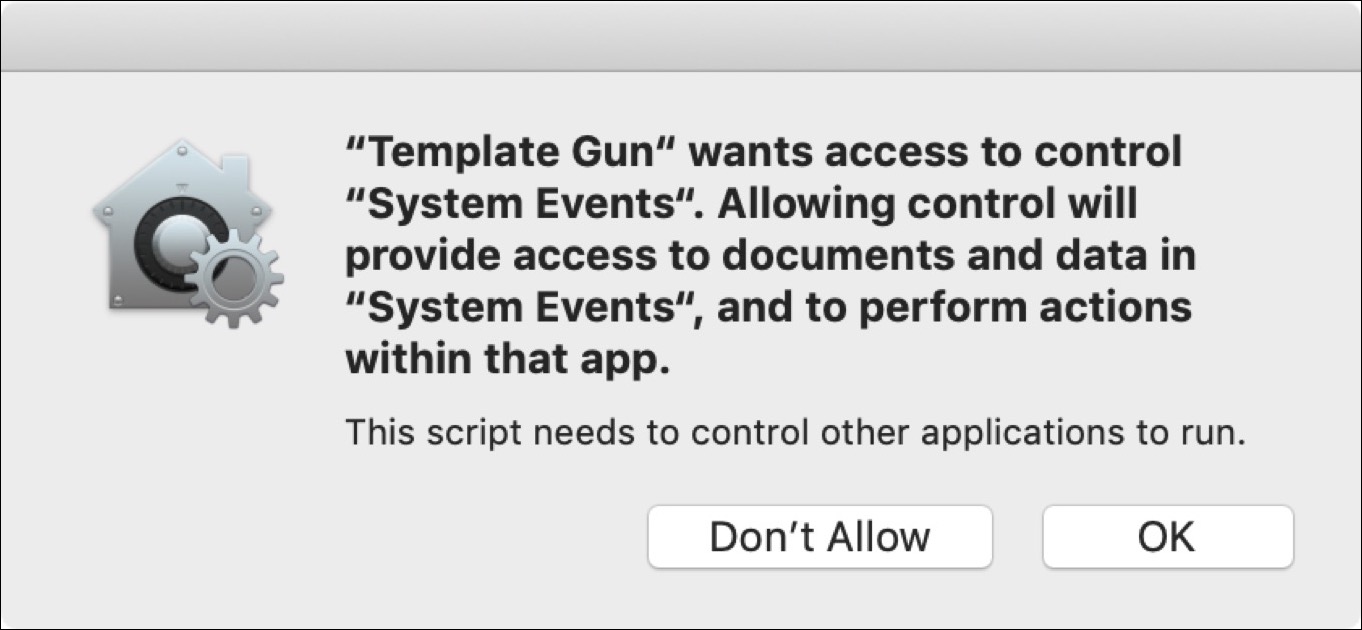
Jason Snell talks about how he wrote an AppleScript-based app that demands
authorization repeatedly even after he added it to the Accessibility list in
the Privacy pane of the Security & Privacy preference pane.

 <https://tidbits.com/uploads/2018/09/AppleScript-prompt.jpg>
Developer Felix Schwarz discusses these complexities
<https://www.felix-schwarz.org/blog/2018/08/new-apple-event-apis-in-macos-mojave>
 with a deconstruction of the notifications and the complexity required to
manage them. Apple has addressed some of his concerns, but will likely struggle
for some time to strike the right balance between security and usability.

Mojave lets developers protect their own apps

While the most visible changes in Mojave center around user notifications, the
Mac’s new operating system also includes a range of additional under-the-hood
hardening. Some of these are obvious evolutions, such as enhancements to the
System Integrity Protection (SIP) features that defend the core operating
system from malware.

In an unexpected set of changes, Apple is extending some of the runtime
protections it uses for its own applications to developers. Opting into these
improves an application’s ability to protect itself from being compromised by
malware, with features like improved code signing, a tighter “chain of trust”
to allow only expected code libraries, and restrictions on running debuggers
against an app. All of these inhibit common ways attackers compromise
applications to gain control of a system.

Apple has even created a notary service for developers to submit applications
for additional review. Unlike app review, this notary service is available to
all applications, even those distributed outside the Mac App Store. Notarized
apps are checked for their security settings and embedded malware before Apple
will sign them. This is merely the first step, as Apple intends to require
notarization for all apps signed with developer IDs in the future. If you
recall, a developer ID is required to install an app on Macs with the default
Gatekeeper settings.

With great security come great usability challenges

Regardless of how Apple finesses these dialogs in Mojave and its updates, all
Mac users will need to get used to authorizing app requests for
privacy-protected data as they now do on iOS. Balancing security notifications
and authorization requests is notoriously tricky. Prompt users too often and
they will both become annoyed and reflexively click OK. A security feature has
failed when the noise of so many alerts leads users to stop reading them—and
that eventually leads to malware asking for and receiving authorization. It’s a
modern-day version of the “The Boy Who Cried Wolf.”

These prompts are nothing new to anyone who uses a recent version of iOS, but
the concern is that the Mac is a more complex environment with more inter-app
communications and cross-app file access than most users tend to use on their
iPhones.

As a security professional, I don’t think Apple has much of a choice in
adopting file level protections. The threats are just too great, and the
liability just keeps growing. Apple has, for the most part, focused on the
right data to protect, but it still needs to improve the user experience
surrounding notifications, especially for users with a mix of old and new
applications that use different wording for their authorization requests.
Practically speaking, most users don’t install that many applications that
access these personal data stores. And even then, authorization requests for
contacts or photos are relatively easy to explain, and for users to understand,
particularly if they’ve seen similar requests in iOS.

Some types of applications, such as backup apps, face greater challenges. For
example, I use Arq for system backups (see “Roll Your Own Cloud Backups with
Arq and B2
<https://tidbits.com/2018/05/18/roll-your-own-cloud-backups-with-arq-and-b2/>,”
18 May 2018). After installing the Mojave beta, I experienced a string of
repetitive alerts for access to every one of my protected data categories,
followed by failed backups even after I clicked OK a few dozen times. The
eventual answer was to go into the Security & Privacy preference pane and add
Arq to the Full Disk Access list manually. Average users would likely have
trouble figuring this out on their own, and they may be confused and unhappy
about having to do it even if the developer provides instructions.

Authorization requests for Apple event–based inter-application communication
are even more likely to be problematic from a usability standpoint. Developers
will have to update their apps with useful notification descriptions, plus
include extensive error handling in case users make a decision that impedes an
app’s functionality.

Apple needs to improve Mojave to provide both developers and users with clear
alerts that avoid the pitfalls that crippled so many similar attempts in the
past. There’s a reason any mention of Windows Vista still sends shudders down
the spine of anyone who worked a help desk during those perilous times. And the
company needs to improve the current situation for anyone who creates
AppleScript-based apps to make sure such apps don’t prompt constantly for
access.

Don’t get me wrong. Apple is moving in the right direction. These features have
measurable security benefits and the potential to make attacks against Mac
users dramatically harder, which will result in increased safety for all.
Mojave’s security and privacy enhancements are a natural progression from
Gatekeeper, sandboxing, restrictions on kernel extensions, and the
under-the-hood hardening of recent years. Combine these software changes with
Apple’s recent inclusion of special security hardware in the MacBook Pro and
iMac Pro, and you can see how the company is driving Mac security closer to
where iPhones and iPads are today, all while striving to maintain the
flexibility that makes the Mac essential.

But to achieve that goal, Apple must put more work into striking the right
balance between security, privacy, and usability.

--
The following information is important for all members of the Mac Visionaries
list.

If you have any questions or concerns about the running of this list, or if you
feel that a member's post is inappropriate, please contact the owners or
moderators directly rather than posting on the list itself.

Your Mac Visionaries list moderator is Mark Taylor.  You can reach mark at:
[email protected] and your owner is Cara Quinn - you can reach Cara at
[email protected]

The archives for this list can be searched at:
http://www.mail-archive.com/[email protected]/
---
You received this message because you are subscribed to the Google Groups
"MacVisionaries" group.
To unsubscribe from this group and stop receiving emails from it, send an email
to [email protected].
To post to this group, send email to [email protected].
Visit this group at https://groups.google.com/group/macvisionaries.
For more options, visit https://groups.google.com/d/optout.