This is an automated email from the ASF dual-hosted git repository.

juzhiyuan pushed a commit to branch master
in repository https://gitbox.apache.org/repos/asf/apisix-website.git
The following commit(s) were added to refs/heads/master by this push:
new ec71821bbea docs: add "Accessing Apisix-dashboard from everywhere with
Keycloak authentication" (#1468)
ec71821bbea is described below
commit ec71821bbeafaa2b8e5b836c240ec13011b3662f
Author: [email protected] <[email protected]>
AuthorDate: Thu Jan 19 04:46:12 2023 +0100
docs: add "Accessing Apisix-dashboard from everywhere with Keycloak
authentication" (#1468)
Co-authored-by: 琚致远 / Zhiyuan Ju <[email protected]>
Co-authored-by: Yilia <[email protected]>
---
...from_everywhere_with_keycloak_authentication.md | 1152 ++++++++++++++++++++
1 file changed, 1152 insertions(+)
diff --git
a/blog/en/blog/2023/01/02/accessing_apisix-dashboard_from_everywhere_with_keycloak_authentication.md
b/blog/en/blog/2023/01/02/accessing_apisix-dashboard_from_everywhere_with_keycloak_authentication.md
new file mode 100644
index 00000000000..468e91252f7
--- /dev/null
+++
b/blog/en/blog/2023/01/02/accessing_apisix-dashboard_from_everywhere_with_keycloak_authentication.md
@@ -0,0 +1,1152 @@
+---
+title: "Accessing APISIX-Dashboard from Everywhere with Keycloak
Authentication"
+authors:
+ - name: "Busico Mirto Silvio"
+ title: ""
+ url: "https://github.com/MirtoBusico";
+ image_url:
"https://avatars.githubusercontent.com/u/11090934?s=400&u=644e4f87c2fad56760f6eb4f46cbcb4db059880a&v=4";
+keywords:
+ - Alternatives to NGINX
+ - Access and Authentication
+ - Nginx reverse proxy
+ - OpenID-Connect
+ - Keycloak
+description: This guest blog shares how to expose the APISIX Dashboard using
APISIX to authenticate access with the OpenID-Connect plugin and Keycloak
server to manage identities.
+tags:
+ - APISIX Basics
+ - API Gateway Concepts
+ - Authorization & Authentication
+cover: https://static.apiseven.com/uploads/2023/01/19/FKDU7U6j_blog01a.png
+---
+
+> This article describes how to setup an external access to apisix-dashboard
protecting the URL with authentication managed by a keycloak server.
+
+<!--truncate-->
+
+
+
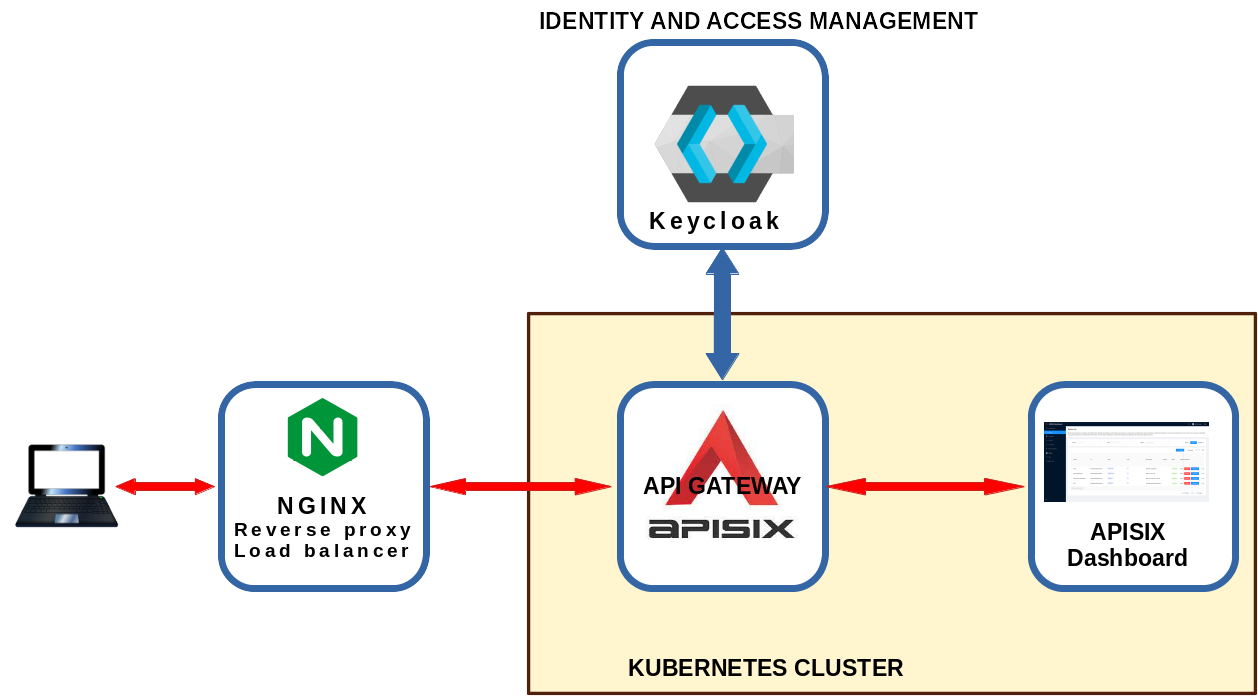
+This article presents how to setup a framework where a user can access the
Apisix-dashboard protected using an authentication system managed by a Keycloak
server.
+
+## Prerequisites
+
+Basic understanding of nginx reverse proxy, kubernetes, apisix and openid
connect.
+
+> A lot of information on this matter can be found in ["Use Keycloak with API
Gateway to secure
APIs"](https://apisix.apache.org/blog/2022/07/06/use-keycloak-with-api-gateway-to-secure-apis/)
blog post
+
+Here I'll present instructions, examples, code and screenshots taken from my
home lab.
+
+The framework used in this article consists of some KVM virtual machines (from
now VM):
+
+| VM Name | Role | Services | Description |
+|-------------|------|----------|-------------|
+| hdev | Development |kubectl, istioctl, helm |
workstation from where manage the cluster |
+| hserv | external services | DNS server, Nginx, Keycloak |
services used by the cluster VM and external users |
+| hkm | Kubernetes master | master node | control plane
manager for K8S |
+| hkw1 | K8S worker 1 | first worker node | node for
hosting pods |
+| hkw2 | K8S worker 2 | second worker node | node for
hosting pods |
+| hkw3 | K8S worker 3 | third worker node | node for
hosting pods |
+
+The **hserv** VM have two lan cards: one on an external lan to expose services
and one an internal lan to communicate with the Kubernetes (from now K8S)
cluster.
+All the other VM are only connected to the internal lan.
+
+All the machines resolve the IP addresses using the DNS server installed on
**hserv**
+
+**Hserv** and **hdev** machines have a Graphical User Interface (from now
GUI). All the other machines have only the character console.
+
+> The real framework is more complex. Here are reported only the relevant
components
+
+All machines use Ubuntu distribution but commands reported here should worh
for other distributions with some modifications.
+The username used throughout this article will be **"sysop"** So the home
directory will be indicated as **"/home/sysop"** or **"~/"**.
+
+## Create a Certification Authority and Certificates
+
+For all the VM the DNS server will resolve **"apisix.h.net"** to the external
address of **hserv**.
+In all others machine that will access the the services exposed by **hserv**
there will be a line in the **"/etc/hosts"** file resolving **"apisix.h.net"**
to the external address of **hserv**.
+
+> Working on **hserv**
+
+Create the directory for the entire project software
+
+```
+cd
+mkdir H
+```
+
+Create the directory to hold the Certification authority (from now CA)
certificates and the web sites certificates
+
+```
+cd ~/H
+mkdir hservcerts
+cd hservcerts
+```
+
+Create a private key for **"hservca"**
+
+```
+sudo openssl genrsa -out hservca.key 2048
+```
+
+This generates a **hservca.key** key file. Using this fiile generate the CA
certificate
+
+```
+sudo openssl req -x509 -new -nodes -key hservca.key -sha256 -days 3650 -out
hservca.pem
+```
+
+This generates a **hservca.pem"** certificate file. These two files will be
used to create the web sites certificates
+
+### Add the CA to Browsers
+
+To be able to access the web sites with certidicates issued by this private
CA, the CA certificate file have to be added to the web browser that will
access these sites.
+
+> Working on hdev
+
+Copy the **"hservca.pem"** file in any machine that will access these sites.
+
+```
+cd
+cp ~/H/hservcerts/hservca.pem .
+rcp hservca.pem mirto@_any_machine_name_://home/_your_username_/
+```
+
+For **Firefox** browser go to:
+
+```
+Preferences -> Privacy & Security -> Certificates -> View Certificates ->
Authorities -> Import
+```
+
+and import **"hservca.pem"** (remember to flag all options)
+
+For **Chromium** or **Chrome** browsers go to:
+
+```
+Settings -> Advanced -> Privacy and security -> Manage certificates ->
Authorities -> Import (flag all options)
+```
+
+and import **"hservca.pem"** (remember to flag all options)
+
+### Add the CA to the Operating System
+
+> Working on hdev
+
+Copy the "hservca.pem" file in the "/home/sysop" directory.
+Copy this file on any other machine that will use sertificates signed by this
CA.
+
+```
+cd
+cp ~/H/hservcerts/hservca.pem .
+rcp hservca.pem mirto@_any_machine_name_://home/_your_username_/
+```
+
+> Work on any machine
+
+Then on any machine and hserv do the following:
+
+```
+cd
+sudo mkdir -p /usr/share/ca-certificates/extra
+sudo cp hservca.pem /usr/share/ca-certificates/extra/hservca.crt
+sudo dpkg-reconfigure ca-certificates
+```
+
+> **Attention**:
+>
+> • "dpkg-reconfigure ca-certificates" do not recognize the ".pem" extension.
Copy the **"hservca.pem"** file to **"hservca.crt"**
+>
+> • select the new certificate in "dpkg-reconfigure ca-certificates"
(extra/hservca.crt is not selected)
+
+Confirm that you want to proceed: select “yes” and click “Ok”. Select the new
“hservca.crt” entry and click “Ok”
+
+
+
+## Install nginx-mainline
+
+Verify the system is updated
+
+```
+sudo apt update
+sudo apt full-upgrade
+```
+
+Install prerequisites
+
+```
+sudo apt install wget gnupg2 ca-certificates lsb-release ubuntu-keyring
software-properties-common -y
+```
+
+Download the Nginx GPG key
+
+```
+wget -O- https://nginx.org/keys/nginx_signing.key | sudo gpg --dearmor | sudo
tee /usr/share/keyrings/nginx-archive-keyring.gpg
+```
+
+Add the Nginx mainline apt repository
+
+```
+echo deb [arch=amd64,arm64
signed-by=/usr/share/keyrings/nginx-archive-keyring.gpg]
http://nginx.org/packages/mainline/ubuntu `lsb_release -cs` nginx | sudo tee
/etc/apt/sources.list.d/nginx-mainline.list
+```
+
+Pin the Nginx repository
+
+```
+echo -e "Package: *\nPin: origin nginx.org\nPin: release
o=nginx\nPin-Priority: 900\n" | sudo tee /etc/apt/preferences.d/99nginx
+```
+
+Update apt and install nginx
+
+```
+sudo apt update
+sudo apt install nginx
+```
+
+## Install Keycloak
+
+> Work on **hserv**
+
+### Prerequisites
+
+Install jdk
+
+```
+sudo apt install default-jdk
+```
+
+Remove anacron
+
+```
+sudo apt remove anacron
+```
+
+Reboot the **hserv** machine
+
+### Keycloak Installation
+
+Go in base installation directory and get keycloak installation files (verify
what is the last release)
+
+```
+cd ~/H/
+wget
https://github.com/keycloak/keycloak/releases/download/20.0.1/keycloak-20.0.1.zip
+```
+
+Extract the files
+
+```
+unzip keycloak-20.0.1.zip
+```
+
+Go to the bin directory and start keycloak in standalone mode
+
+```
+cd ~/H/keycloak-20.0.1/bin/
+./kc.sh start-dev
+```
+
+Verify that Keycloak is accessible from **hserv** at the URL
**"http://localhost:8080"**
+
+Create the admin user as name **"admin"** and password **"1357Togo"**
+
+
+
+Go to the administration console
+
+
+
+Login and the “Master” realm appears. Note the Keycloak version
+
+
+
+### Automatic Keycloak Startup
+
+> Work on **hserv**
+
+Create in **“/usr/lib/systemd/system”** a file named **“keycloak.service”**
containing
+
+```
+[Unit]
+Description=keycloak service
+After=network.service
+
+[Service]
+ExecStart=/home/sysop/H/keycloak-20.0.1/bin/kc.sh start-dev
>/var/log/keycloak.log 2>&1
+PIDFile=/var/run/keycloak.pid
+
+[Install]
+WantedBy=multi-user.target
+```
+
+Enable and activate the service
+
+```
+sudo systemctl enable keycloak
+sudo systemctl start keycloak
+```
+
+Reboot hserv and verify Keycloak is accessible at startup
+
+### Create site and certificates for "https://k6k.h.net";
+
+> Work on **hserv**
+>
+> Note that keycloak will be abbreviated in **k6k**
+
+Verify that the keycloak address was added in **"/etc/hosts"** file on any
machine that will access the service and is reported in the DNS server hosted
on **hserv**.
+
+The address used is the exsternal address o the **hsrv** machine
+
+In the **"/etc/hosts"** fle add the line
+
+```
+192.168.100.20 k6k k6k.h.net
+```
+
+In the DNS server on **hserv** add the k6k entry in the **“h.net”** DNS zone
with address **“192.168.100.20”**
+
+
+
+Create the certificate for **"k6k.h.net"**
+
+In **"~/H/hservcerts"** create a file called **"k6kssl.cnf"** containing
+
+```
+[req]
+default_bits = 2048
+distinguished_name = req_distinguished_name
+prompt = no
+
+[req_distinguished_name]
+C = IT
+ST = Italy
+L = Rome
+O = Busico Mirto
+OU = Laboratory
+CN = k6k.h.net
+
+[v3_ca]
+subjectAltName = @alt_names
+
+[alt_names]
+DNS.1 = k6k
+# other names
+DNS.2 = k6k.h.net
+DNS.3 = k6k.ext.h.net
+DNS.4 = k6k.int.h.net
+```
+
+Create the server private key and csr certificate request
+
+```
+cd ~/H/hservcerts
+sudo openssl req -new -sha256 -nodes -newkey rsa:2048 -keyout k6k.key -out
k6k.csr -config k6kssl.cnf
+```
+
+Create the certificate signed by the **"hservca"** certification authority
+
+```
+sudo openssl x509 -req -in k6k.csr -CA hservca.pem -CAkey hservca.key
-CAcreateserial -out k6k.crt -sha256 -days 3650 -extfile k6kssl.cnf -extensions
v3_ca
+```
+
+Now you have the key file **k6k.key** and the certificate file **k6k.cert** to
be used in the nginx reverse proxy
+
+Change the access rights for k6k.key file to permit nginx access
+
+```
+cd ~/H/hservcerts
+sudo chmod a+r k6k.key
+```
+
+Create the root directory for k6k under nginx and create an index.html file in
that directory
+
+```
+sudo mkdir /usr/share/nginx/k6k
+sudo chmod 777 /usr/share/nginx/k6k
+vi /usr/share/nginx/k6k/index.html
+```
+
+Put in index.html filke the "K6K" base document
+
+```
+<!DOCTYPE html>
+<html>
+<text>
+
+<h1>K6K default page</h1>
+
+</text>
+</html>
+```
+
+In the directory **“/etc/nginx/conf.d”** create the file **“k6k.conf”**
+
+```
+cd /etc/nginx/conf.d
+sudo vi k6k.conf
+```
+
+The file contains
+
+```
+server {
+
+ listen 443 ssl http2;
+ server_name k6k.h.net;
+ root /usr/share/nginx/k6k;
+
+ access_log /var/log/nginx/k6k.access.log;
+ error_log /var/log/nginx/k6k.error.log;
+
+ ssl_certificate /home/sysop/H/hservcerts/k6k.crt;
+ ssl_certificate_key /home/sysop/H/hservcerts/k6k.key;
+
+
+ location / {
+ index index.html index.htm;
+ }
+
+ error_page 404 /404.html;
+
+ # redirect server error pages to the static page /50x.html
+ #
+ error_page 500 502 503 504 /50x.html;
+ location = /50x.html {
+ root /usr/share/nginx/html;
+ }
+
+}
+```
+
+Restart Nginx
+
+```
+sudo systemctl restart nginx
+```
+
+Try to access “https://k6k.h.net” from a browser: the k6k base document will
be showed
+
+### Add Keycloak Reverse Proxy
+
+In the directory **“/etc/nginx/conf.d”** change the file **“k6k.conf”** to
proxy keycloak
+
+```
+cd /etc/nginx/conf.d
+sudo vi k6k.conf
+```
+
+The file now contains
+
+```
+server {
+
+ listen 443 ssl http2;
+ server_name k6k.h.net;
+ root /usr/share/nginx/k6k;
+
+ access_log /var/log/nginx/k6k.access.log;
+ error_log /var/log/nginx/k6k.error.log;
+
+ ssl_certificate /home/sysop/H/hservcerts/k6k.crt;
+ ssl_certificate_key /home/sysop/H/hservcerts/k6k.key;
+
+ proxy_set_header Host $host;
+ proxy_set_header X-Real-IP $remote_addr;
+ proxy_set_header X-Forwarded-For $proxy_add_x_forwarded_for;
+ proxy_set_header X-Forwarded-Host $host;
+ proxy_set_header X-Forwarded-Proto $scheme;
+
+ location / {
+ proxy_pass http://127.0.0.1:8080;
+ }
+
+ error_page 404 /404.html;
+
+ # redirect server error pages to the static page /50x.html
+ #
+ error_page 500 502 503 504 /50x.html;
+ location = /50x.html {
+ root /usr/share/nginx/html;
+ }
+
+}
+```
+
+Restart Nginx
+
+```
+sudo systemctl restart nginx
+```
+
+Rebuild keycloak for production
+
+```
+cd ~/H/keycloak-20.0.1/bin/
+./kc.sh --verbose build
+```
+
+Change in **“/usr/lib/systemd/system”** the file named **“keycloak.service”**
with this content
+
+```
+[Unit]
+Description=keycloak service
+After=network.service
+
+[Service]
+ExecStart=/home/sysop/H/keycloak-20.0.1/bin/kc.sh start --proxy edge
--hostname-strict=false >/var/log/keycloak.log 2>&1
+PIDFile=/var/run/keycloak.pid
+
+[Install]
+WantedBy=multi-user.target
+```
+
+Enable and activate the service
+
+```
+sudo systemctl daemon-reload
+sudo systemctl restart keycloak
+```
+
+## Apisix API Gateway
+
+### Addresses for apisix-dashboard
+
+The address used is the exsternal address o the **hsrv** machine
+
+In the **"/etc/hosts"** file of any machine accessing the cluster through the
nginx reverse proxy add the line
+
+```
+192.168.100.20 apisix apisix.h.net
+```
+
+In the DNS server on **hserv** add the apisix entry in the **“h.net”** DNS
zone with address **“192.168.100.20”**
+
+
+
+### APISIX Deployment
+
+> Work on **hdev**
+
+create a namespace for apisix
+
+```
+kubectl create ns apisix
+```
+
+Add apisix helm repo
+
+```
+mkdir ~/H/software/apisisx
+cd ~/H/software/apisisx
+helm repo add apisix https://charts.apiseven.com
+helm repo update
+helm repo list
+```
+
+> work on **hserv**
+
+On **“hserv”** create the CA kubernetes secret (make readable hservca.key)
+
+```
+cd ~/H/hservcerts
+ls -lh hservca.*
+kubectl -n apisix create secret generic hservcacert
--from-file=cert=./hservca.pem
+kubectl describe secret hservcacert -n apisix
+```
+
+> work on **hdev**
+
+Get the core_dns service address and port (in this example 10.43.0.10:53)
+
+```
+sysop@hdev:~/H/software/apisisx$ kubectl get svc -n kube-system
+NAME TYPE CLUSTER-IP EXTERNAL-IP
PORT(S) AGE
+kube-dns ClusterIP 10.43.0.10 <none>
53/UDP,53/TCP,9153/TCP 97d
+metrics-server ClusterIP 10.43.64.71 <none>
443/TCP 97d
+docker-registry LoadBalancer 10.43.183.18
192.168.101.21,192.168.101.22,192.168.101.23,192.168.101.24 5000:31397/TCP
92d
+sysop@hdev:~/H/software/apisisx$
+```
+
+Get the apisic helm chart the default values and put the output in a file
named **apisix-values.yaml** then edit this file
+
+```
+cd ~/H/software/apisisx
+helm show values apisix/apisix > apisix-values.yaml
+vi apisix-values.yaml
+```
+
+You have to change:
+
+- the gateway type to **LoadBalancer** (my home lab is powered off every day
and with the default gateway type of NodePort the Apisix gateway starts every
day on a different node changing IP address)
+- set the **tls** section to use the kubernetes secret with the private CA
reference
+- set the discovery section to use the kube-dns address found before (doing
this enables apisix upstream definition to use the service name instead of the
IP address)
+- set a session secret in the httpSrv section as a workaround cited in the
[#8068](https://github.com/apache/apisix/pull/8068) feature request
+- enable (set to true) apisix dashboard and ingress-controller
+
+The relevant tiles changed are:
+
+```
+gateway:
+ type: LoadBalancer
+...
+ tls:
+ enabled: true
+ servicePort: 443
+ containerPort: 9443
+ existingCASecret: "hservcacert"
+ certCAFilename: "cert"
+...
+discovery:
+ enabled: true
+ registry:
+ dns:
+ servers:
+ - "10.43.0.10:53"
+...
+ httpSrv: |
+ set $session_secret 0123456789a5bac9bb3c868ec8b202e93;
+...
+
+dashboard:
+ enabled: true
+
+ingress-controller:
+ enabled: true
+```
+
+Install apisix using the new values.yaml file
+
+```
+helm install apisix apisix/apisix -f apisix-values.yaml \
+--set ingress-controller.config.apisix.serviceNamespace=apisix \
+--set ingress-controller.config.apisix.serviceName=apisix-admin \
+--set
ingress-controller.config.kubernetes.apisixRouteVersion=apisix.apache.org/v2beta3
\
+--namespace apisix
+```
+
+Wait for the pods to start (it can take some time)
+
+```
+kubectl -n apisix wait --for=condition=Ready pods --all
+kubectl get pods -n apisix
+```
+
+When all the Apisix pods will be in **Running** state the installation is
completed
+
+### Accessing APISIX Dashboard
+
+> Work on **hdev**
+
+Port forward apisix-dashboard
+
+```
+kubectl -n apisix port-forward service/apisix-dashboard 9090:80
+```
+
+The command output should be something like
+
+```
+sysop@hdev:~$ kubectl -n apisix port-forward service/apisix-dashboard 9090:80
+Forwarding from 127.0.0.1:8080 -> 9000
+Forwarding from [::1]:8080 -> 9000
+```
+
+Then access the dashboard on **“hdev”** pointing the web browser to the url
“http://localhost:9090”
+Login with **“admin / admin”**
+
+
+
+Verify the dashboard version
+
+
+
+## Create Apisix resources for apisix-dashboard
+
+### Create the certificate for **"apisix.h.net"**
+
+> Work on **hserv**
+
+In the “~/H/hservcerts/” folder create the key and certificate for apisix.h.net
+
+Create a file called **"apisixssl.cnf"** containing
+
+```
+[req]
+default_bits = 2048
+distinguished_name = req_distinguished_name
+prompt = no
+
+[req_distinguished_name]
+C = IT
+ST = Italy
+L = Rome
+O = Busico Mirto
+OU = Laboratory
+CN = apisix.h.net
+
+[v3_ca]
+subjectAltName = @alt_names
+
+[alt_names]
+DNS.1 = apisix
+# other names
+DNS.2 = apisix.h.net
+DNS.3 = apisix.ext.h.net
+DNS.4 = apisix.int.h.net
+```
+
+Create the server private key and csr
+
+```
+sudo openssl req -new -sha256 -nodes -newkey rsa:2048 -keyout apisix.key -out
apisix.csr -config apisixssl.cnf
+```
+
+Create the certificate file.
+
+```
+sudo openssl x509 -req -in apisix.csr -CA hservca.pem -CAkey hservca.key
-CAcreateserial -out apisix.crt -sha256 -days 3650 -extfile apisixssl.cnf
-extensions v3_ca
+```
+
+Change the access rights for apisix key to permit nginx access
+
+```
+sudo chmod a+r apisix.key
+```
+
+### Apply certificates Nginx and enable HTTPS
+
+> Work on **hserv**
+
+Create the root directory for apisix under nginx and create an index.html file
in that directory
+
+```
+sudo mkdir /usr/share/nginx/apisix
+sudo chmod 777 /usr/share/nginx/apisix
+vi /usr/share/nginx/apisix/index.html
+```
+
+Create a **index.html** file containing
+
+```
+<!DOCTYPE html>
+<html>
+<text>
+
+<h1>apisix https default page</h1>
+
+</text>
+</html>
+```
+
+In the directory **“/etc/nginx/conf.d”** create the file named
**“apisix.conf”**
+
+```
+cd /etc/nginx/conf.d
+sudo vi apisix.conf
+```
+
+Put in the **“apisix.conf”** file this content
+
+```
+server {
+
+ listen 443 ssl http2;
+ server_name apisix.h.net;
+ root /usr/share/nginx/apisix;
+
+ access_log /var/log/nginx/apisix.access.log;
+ error_log /var/log/nginx/apisix.error.log;
+
+ ssl_certificate /home/sysop/H/hservcerts/apisix.crt;
+ ssl_certificate_key /home/sysop/H/hservcerts/apisix.key;
+
+
+ location / {
+ index index.html index.htm;
+ }
+
+ error_page 404 /404.html;
+
+ # redirect server error pages to the static page /50x.html
+ #
+ error_page 500 502 503 504 /50x.html;
+ location = /50x.html {
+ root /usr/share/nginx/html;
+ }
+
+}
+```
+
+Restart Nginx
+
+```
+sudo systemctl restart nginx
+```
+
+Add the apisix line in “/etc/hosts” on any machine that will access
apisix-dashboard
+
+```
+192.168.100.20 apisix.h.net
+```
+
+Add the apisix A record in the DNS in “h.net” zone
+
+
+
+Access “https://apisix.h.net” from a browser and the apisix default page
should be presented
+
+### Create the load balancer definition
+
+> Work on **hserv**
+
+In the directory **“/etc/nginx/conf.d”** modify the file **“apisix.conf”**
+
+```
+cd /etc/nginx/conf.d
+sudo vi apisix.conf
+```
+
+Put in the file this content
+
+```
+upstream hcluster {
+ ip_hash;
+ server 192.168.101.22:443;
+ server 192.168.101.23:443;
+ server 192.168.101.24:443;
+}
+
+
+server {
+
+ listen 443 ssl http2;
+ server_name apisix.h.net;
+ root /usr/share/nginx/apisix;
+
+ access_log /var/log/nginx/apisix.access.log;
+ error_log /var/log/nginx/apisix.error.log;
+
+ ssl_certificate /home/sysop/H/hservcerts/apisix.crt;
+ ssl_certificate_key /home/sysop/H/hservcerts/apisix.key;
+
+ proxy_busy_buffers_size 512k;
+ proxy_buffers 4 512k;
+ proxy_buffer_size 256k;
+
+ proxy_set_header Host $host;
+ proxy_ssl_server_name on;
+ proxy_ssl_name apisix.h.net;
+ proxy_set_header X-Real-IP $remote_addr;
+ proxy_set_header X-Forwarded-For $proxy_add_x_forwarded_for;
+ proxy_set_header X-Forwarded-Host $host;
+ proxy_set_header X-Forwarded-Proto $scheme;
+
+ location / {
+ proxy_pass https://hcluster;
+ }
+
+ error_page 404 /404.html;
+
+ # redirect server error pages to the static page /50x.html
+ #
+ error_page 500 502 503 504 /50x.html;
+ location = /50x.html {
+ root /usr/share/nginx/html;
+ }
+
+}
+```
+
+> **Note:**
+>
+> the lines
+
+```
+upstream hcluster {
+ ip_hash;
+ server 192.168.101.22:443;
+ server 192.168.101.23:443;
+ server 192.168.101.24:443;
+}
+```
+
+> use the internal address of the three kubernetes worker nodes and it is
necessary to specify the 443 port to enable https traffic
+>
+> The lines
+
+```
+ proxy_busy_buffers_size 512k;
+ proxy_buffers 4 512k;
+ proxy_buffer_size 256k;
+```
+
+> are required because, after the Keycloak authentication, the apisix server
replyes with the state in the URL.
+>
+> With the default values nginx replies with a "response too big" error
+
+Restart Nginx
+
+```
+sudo systemctl restart nginx
+```
+
+Access “https://apisix.h.net” from a browser. You should receive page not
found error because there is no route in Apisix
+
+### Create “apisix-dashboard” route and upstream with apisix-dashboard
+
+> Work on **hdev**
+
+port forward apisix-dashboard and access it at “http://localhost:9090” and
login with **“admin” / "admin“**
+
+```
+kubectl -n apisix port-forward service/apisix-dashboard 9090:80
+```
+
+Find the apisix-dashboard service name and port
+
+```
+sysop@hdev:~/H/hservcerts$ kubectl get svc -n apisix
+NAME TYPE CLUSTER-IP EXTERNAL-IP
PORT(S) AGE
+apisix-etcd-headless ClusterIP None <none>
2379/TCP,2380/TCP 12h
+apisix-etcd ClusterIP 10.43.75.4 <none>
2379/TCP,2380/TCP 12h
+apisix-ingress-controller ClusterIP 10.43.170.105 <none>
80/TCP 12h
+apisix-dashboard ClusterIP 10.43.48.202 <none>
80/TCP 12h
+apisix-admin ClusterIP 10.43.169.123 <none>
9180/TCP 12h
+apisix-gateway LoadBalancer 10.43.161.47
192.168.101.21,192.168.101.22,192.168.101.23,192.168.101.24
80:30508/TCP,443:32653/TCP 12h
+sysop@hdev:~/H/hservcerts$
+```
+
+Create an upstream
+
+
+
+Set the name to **“apisix-dashboard”**, upstream type to **“service
discovery”**, discovery type to **“dns”** and servicename to
**“apisix-dashboard.apisix.svc.cluster.local:80”**.
+
+
+
+Then click “Next” and after click “Submit”
+
+Click “View” to see the json upstream definition
+
+
+
+Note the upstream name to be used in the next route definition
+
+
+
+Now click “Create” on the “Route” page
+
+
+
+Create a route ("Define api request" - on top): set name to “apisix-dashboard”
and add a description
+
+
+
+Create a route ("Define api request" - below): set host to **“apisix.h.net”**
and path to **“/*”**. Then click **“Next”**
+
+
+
+Select the previous defined “apisix” upstream from the dropdown list. Then
click “Next”
+
+
+
+For now don’t use plugins and click “Next”. Then click “Submit”
+
+
+
+### Enable https in apisix
+
+> Work on **hserv**
+
+Copy the certificates from hserv to hdev. From hserv:
+
+```
+sysop@hserv:~$ cd ~/H
+sysop@hserv:~/H$ rsync -vau --stats ./hservcerts/*
hdev.int.h.net://home/sysop/H/hservcerts/
+```
+
+> Work on **hdev**
+
+Port forward apisix-dashboard and access it ah “http://localhost:9090” and
login with **“admin” / "admin“**
+
+```
+kubectl -n apisix port-forward service/apisix-dashboard 9090:80
+```
+
+Select the “SSL” page and click Create
+
+
+
+Select **“Way: Upload”**, then click **“upload certificate”** and **“upload
key”**. Clik “Next” (Take certificate and key files from **~/H/hservcerts**)
+
+
+
+Preview the SSL resource and click “Submit”
+
+
+
+The ssl resource appear in the list (note the SNI values)
+
+
+
+Configure the “apisix-dashboard” route to enable http to https redirection
+
+
+
+Set the **“Redirect”** field to **“Enable HTTPS”**. Then click “Next” until
you see “Submit”. Click “Submit”
+
+
+
+View the route configuration and verify that the redirect plugin is enabled
+
+
+
+Now from any machine you can access the apisix-dashboard at the url
**“https://apisix.h.net”** and verify that the apisix-dashboard login page is
showed
+
+
+
+Login with “admin” / “admin”
+
+
+
+#### Create Keycloak Definitions for OpenID-Connect
+
+> Work on any machine
+
+Working on any machine, access the keycloak console at “https://k6k.h.net”
and login with “admin” / "1357Togo“
+
+Click “Create Realm”
+
+
+
+Create a realm named **“hcluster_admins”**
+
+
+
+Create a client named **“hcadmins”**
+
+
+
+Verify that the client protocol is **“openid-connect”** and click “Next”
+
+
+
+Set “Client authentication” to "on" (means OIDC type confidential). Click
“Save”
+
+
+
+In **“Cient details”**, **“Settings”** tab, **“access settings”** section, set
**“Valid redirect URI”** to **“*”**. Click **“Save”**
+
+
+
+Create a new user
+
+
+
+Set the username to **“hcadmin”** and click **“Create”**
+
+
+
+In the **“Credentials”** tab click **“Set password”** (same procedure for
"Reset" password)
+
+
+
+Set a permanent (Temporary set to Off) password to **“hcadmin”** (equal to the
username)
+
+
+
+#### Get Client ID and Secret
+
+Select **hcadmins** client. Go to **Credentials** tab; show the Secret and
copy the client id and secret to be used in the next steps
+
+client ID: **hcadmins**
+
+Secret: **MoqLUhwgsEDi36II0KuJldKq4YGLHxl3**
+
+
+
+In the **“Realm settings”**, **“General”** tab click on the link **“OpenID
Endpoint Configuration”**
+
+
+
+This is the shown page
+
+
+
+Copy the link
+
+```
+https://k6k.h.net/realms/hcluster_admins/.well-known/openid-configuration
+```
+
+Prepare a json client definition using the previous copied information
+
+```
+{
+ "client_id":"hcadmins",
+ "client_secret":"MoqLUhwgsEDi36II0KuJldKq4YGLHxl3",
+
"discovery":"https://k6k.h.net/realms/hcluster_admins/.well-known/openid-configuration";,
+ "scope":"openid profile",
+ "bearer_only":false,
+ "realm":"hcluster_admins",
+ "introspection_endpoint_auth_method":"client_secret_post",
+ "redirect_uri":"https://apisix.h.net/*";,
+ "access_token_in_authorization_header":true
+}
+```
+
+#### OpenID-Connect for APISIX Dashboard
+
+> Work on any machine
+
+Configure the apisix-dashboard route.
+
+Go to **“3 Plugin config”**
+
+
+
+Click **“Enable”** on openid-connect plugin (if you have already defined the
plugin you'll see "Edit" instead of "Enable")
+
+
+
+Enable the plugin. Copy the previous defined json definition and click
**“Submit”**
+
+
+
+Clik "next" and then clik "Submit" to complete the route configuration
+
+Then "view" the route to see the plugin configuration
+
+
+
+### Accessing the Protected APISIX Dashboard Route
+
+> Work on any machine
+
+Go to the URL
+
+```
+https://apisix.h.net
+```
+
+You will be redirected to the Keycloak login page for the "HCLUSTER_ADMINS"
realm.
+Login with the previous defined user "hcadmin" / "hcadmin"
+
+
+
+The apisix-dashboard login will be presented. Login with "admin" / "admin"
+
+
+
+And now you can see the apisix dashboard
+
+
+
+## Recap
+
+In this article were presented the intruction to:
+
+- set up a Certification authority and create key and certificates for various
sites
+- set up a nginx server as reverse proxy and load balancer
+- set up a Keycloak server accessible through a nginx reverse proxy
+- set up Apisix in a kubernetes cluster with ingress-controller and
apisix-dashboard
+- set up the authentication framework in Keycloak to access the
apisix-dashboard
+- set up the nginx load balancer for apisix-dashboard inside kubernetes
+- set up the apisix resources, including openid-connect plugin, to access the
apisix-dashboard with authentication provided by the keycloak server
+
+Note that this set up is only for educational purpose. Do not use in
production.