This is an automated email from the ASF dual-hosted git repository.

baoyuan pushed a commit to branch master
in repository https://gitbox.apache.org/repos/asf/apisix-website.git


The following commit(s) were added to refs/heads/master by this push:
     new 683633fcabc chore: use CDN to speed up blog images (#1483)
683633fcabc is described below

commit 683633fcabc1856b9f9cc6fddfd3d00ecfc016a7
Author: Yilia <[email protected]>
AuthorDate: Fri Jan 20 18:02:37 2023 +0800

    chore: use CDN to speed up blog images (#1483)
---
 ...from_everywhere_with_keycloak_authentication.md | 94 +++++++++++-----------
 1 file changed, 47 insertions(+), 47 deletions(-)

diff --git 
a/blog/en/blog/2023/01/02/accessing_apisix-dashboard_from_everywhere_with_keycloak_authentication.md
 
b/blog/en/blog/2023/01/02/accessing_apisix-dashboard_from_everywhere_with_keycloak_authentication.md
index e464b8adcc4..d488366e082 100644
--- 
a/blog/en/blog/2023/01/02/accessing_apisix-dashboard_from_everywhere_with_keycloak_authentication.md
+++ 
b/blog/en/blog/2023/01/02/accessing_apisix-dashboard_from_everywhere_with_keycloak_authentication.md
@@ -21,7 +21,7 @@ cover: 
https://static.apiseven.com/uploads/2023/01/19/FKDU7U6j_blog01a.png
 
 <!--truncate-->
 
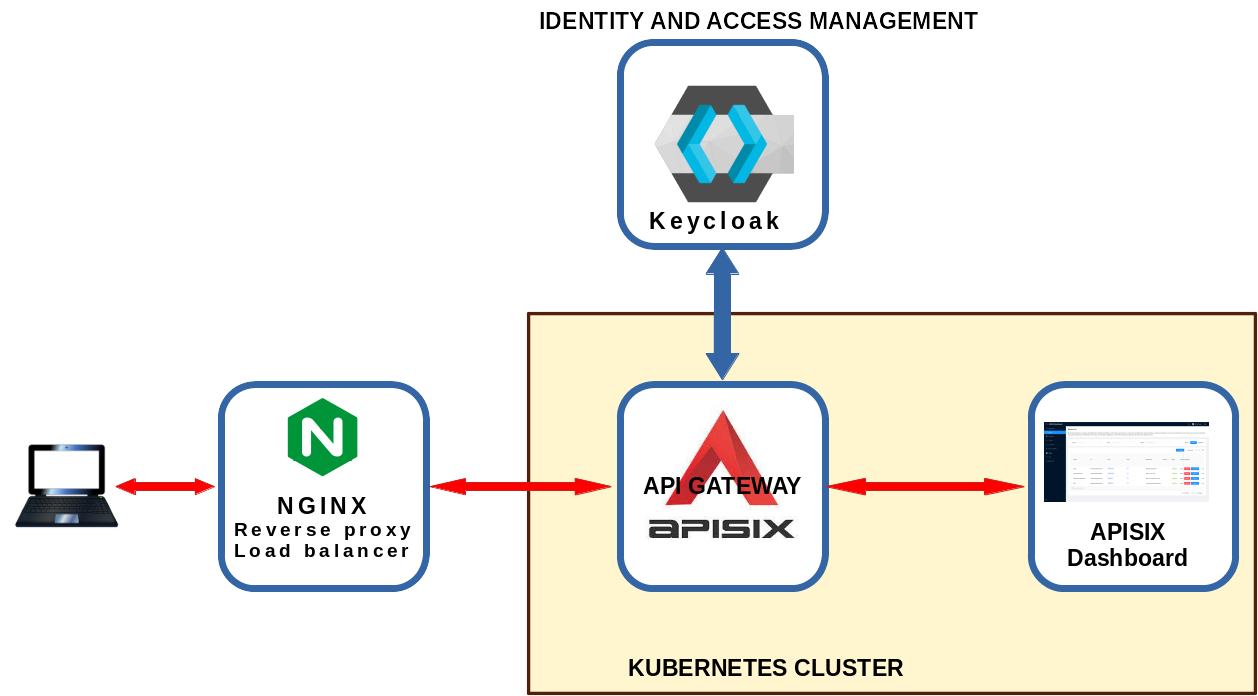
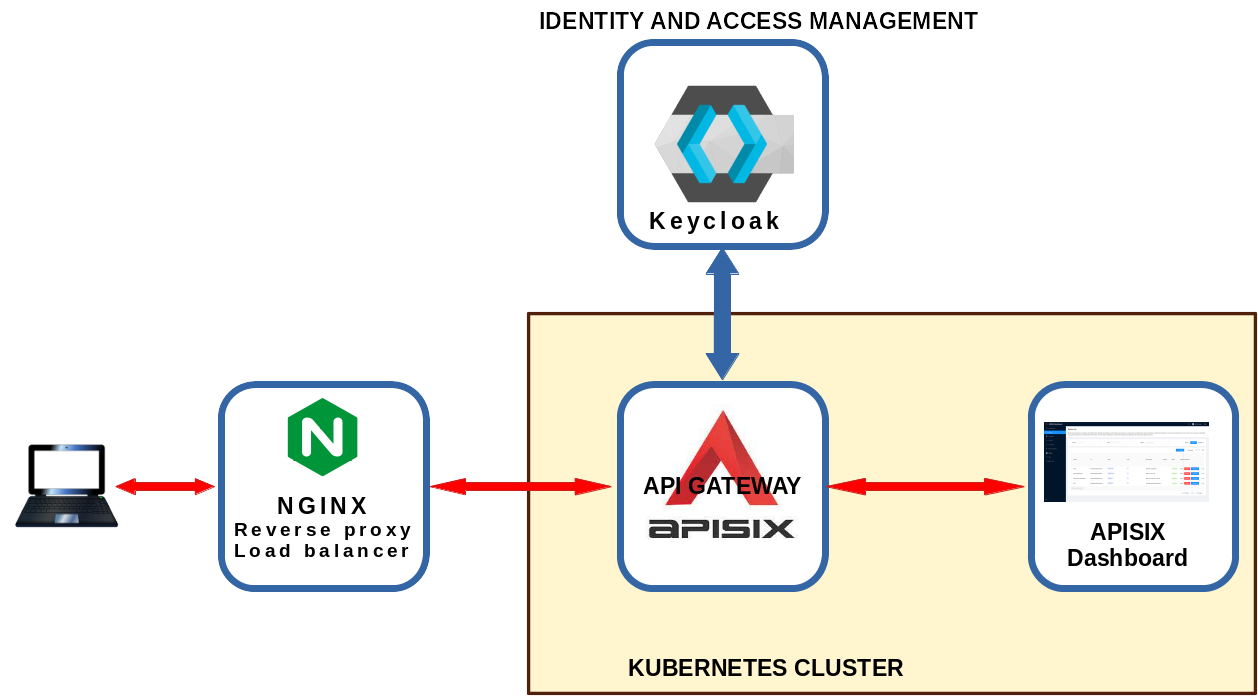
-![framework](https://github.com/MirtoBusico/assets-for-blogs/blob/main/blog01a.png)
+![framework](https://static.apiseven.com/uploads/2023/01/20/mV2GUS21_blog01a.png)
 
 This article presents how to setup a framework where a user can access the 
Apisix-dashboard protected using an authentication system managed by a Keycloak 
server.
 
@@ -154,7 +154,7 @@ sudo dpkg-reconfigure ca-certificates
 
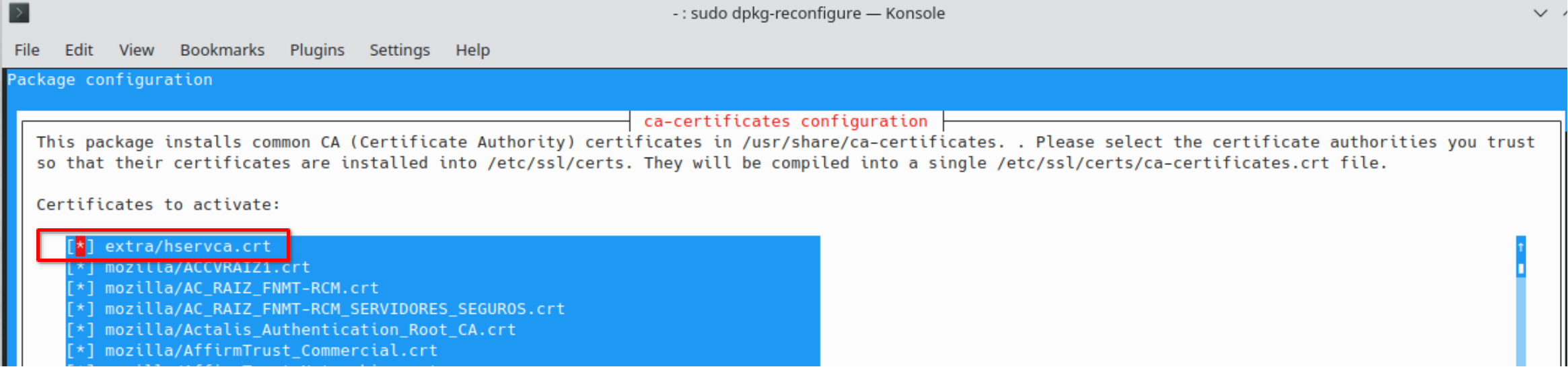
 Confirm that you want to proceed: select “yes” and click “Ok”. Select the new 
“hservca.crt” entry and click “Ok”
 
-![confirm](https://github.com/MirtoBusico/assets-for-blogs/blob/main/ca-certificates.png)
+![confirm](https://static.apiseven.com/uploads/2023/01/20/uSuVlfv2_2%20ca-certificates.png)
 
 ## Install nginx-mainline
 
@@ -242,15 +242,15 @@ Verify that Keycloak is accessible from **hserv** at the 
URL **"http://localhost
 
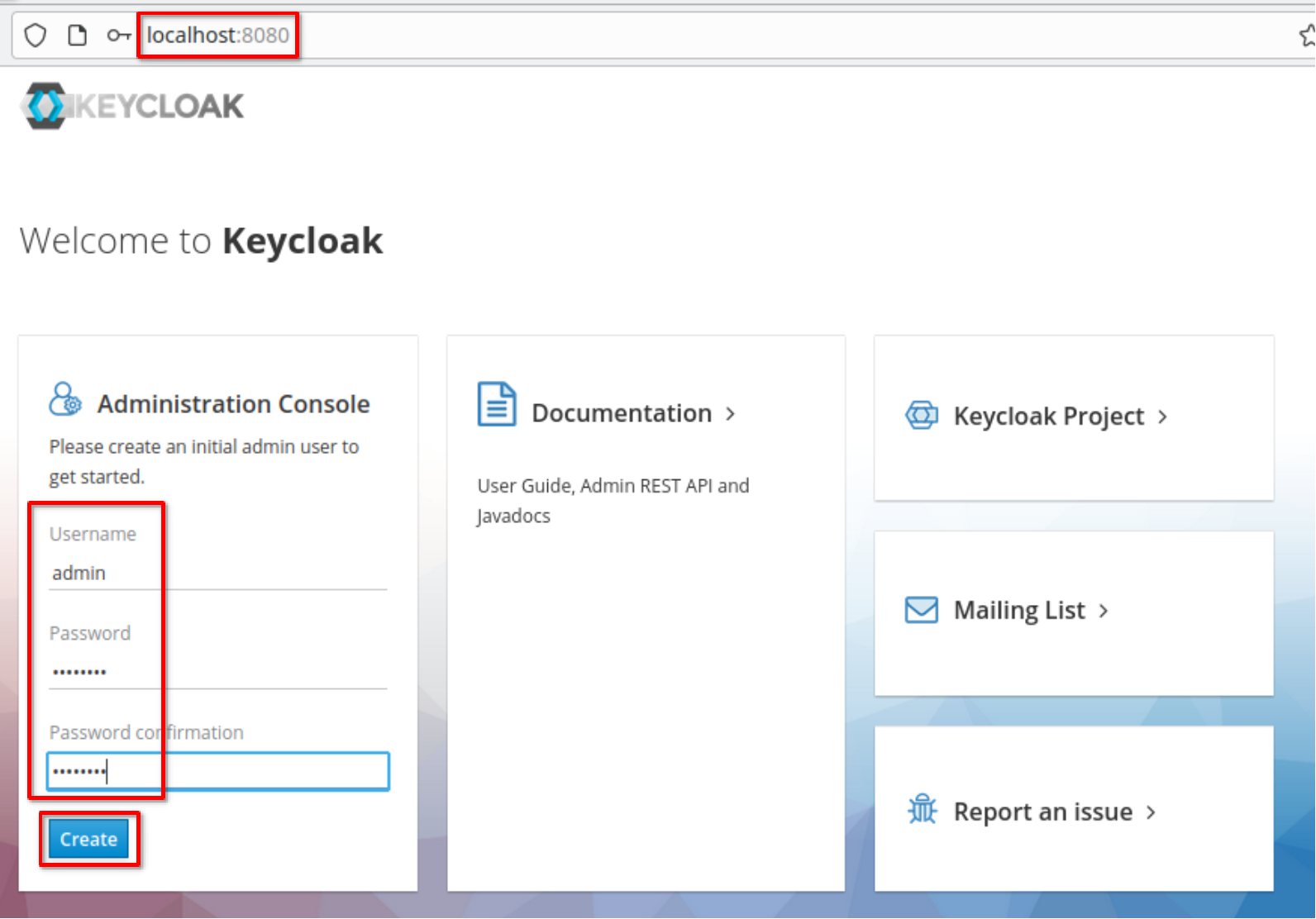
 Create the admin user as name **"admin"** and password **"1357Togo"**
 
-![k6k01](https://github.com/MirtoBusico/assets-for-blogs/blob/main/k6k01.png)
+![k6k01](https://static.apiseven.com/uploads/2023/01/20/N8jhfNWf_3%20k6k01.png)
 
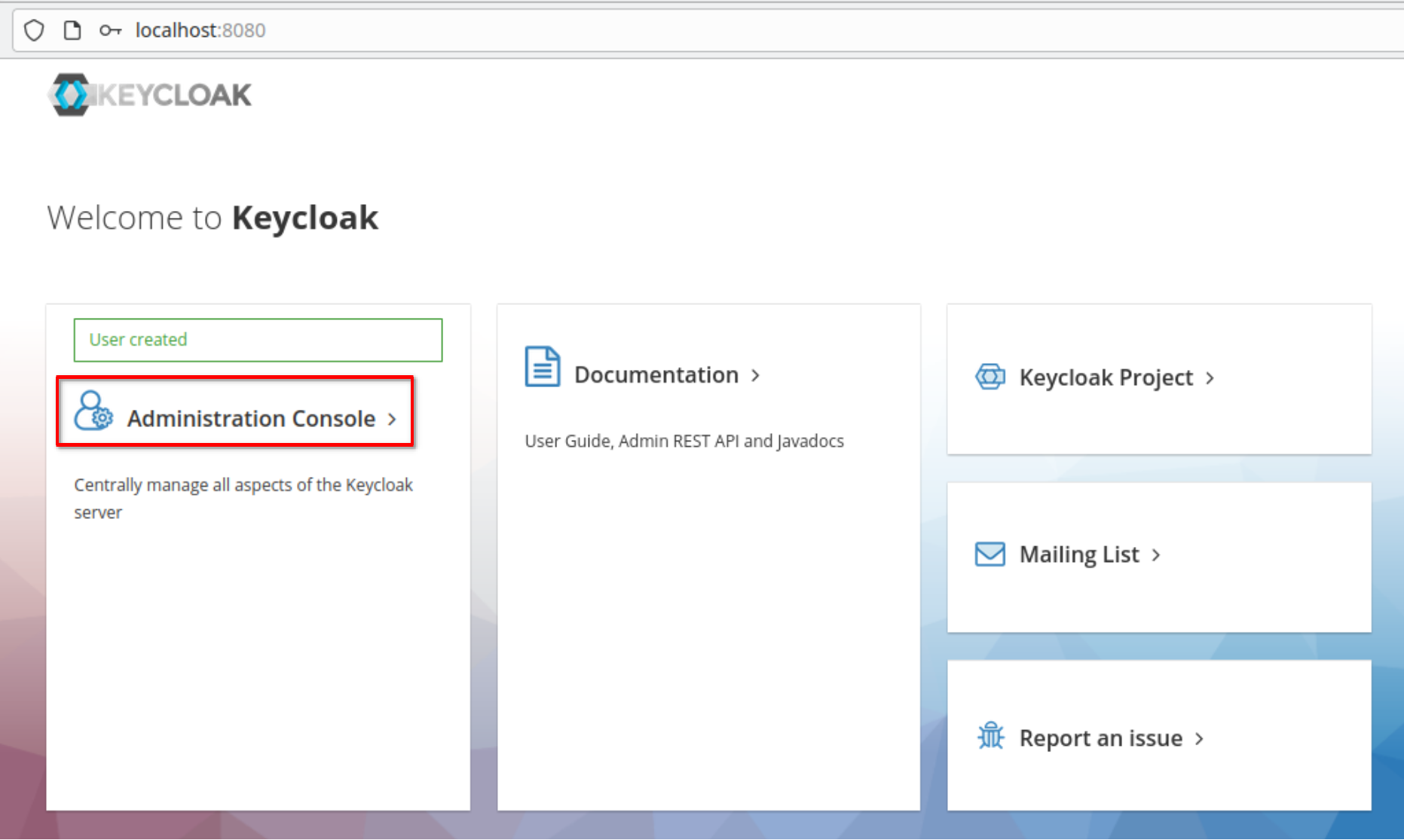
 Go to the administration console
 
-![k6k02](https://github.com/MirtoBusico/assets-for-blogs/blob/main/k6k02.png)
+![k6k02](https://static.apiseven.com/uploads/2023/01/20/casYhEXo_4%20k6k02.png)
 
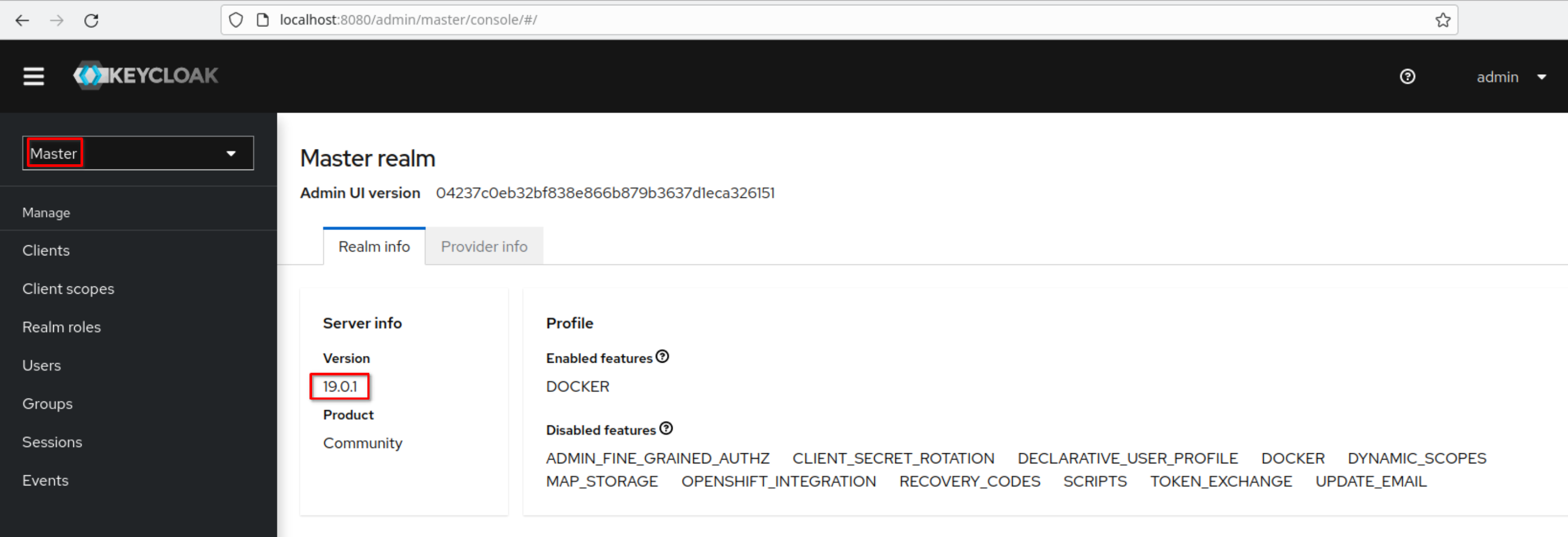
 Login and the “Master” realm appears. Note the Keycloak version
 
-![k6k03](https://github.com/MirtoBusico/assets-for-blogs/blob/main/k6k03.png)
+![k6k03](https://static.apiseven.com/uploads/2023/01/20/mReJJEkt_5%20k6k03.png)
 
 ### Automatic Keycloak Startup
 
@@ -298,7 +298,7 @@ In the **"/etc/hosts"** fle add the line
 
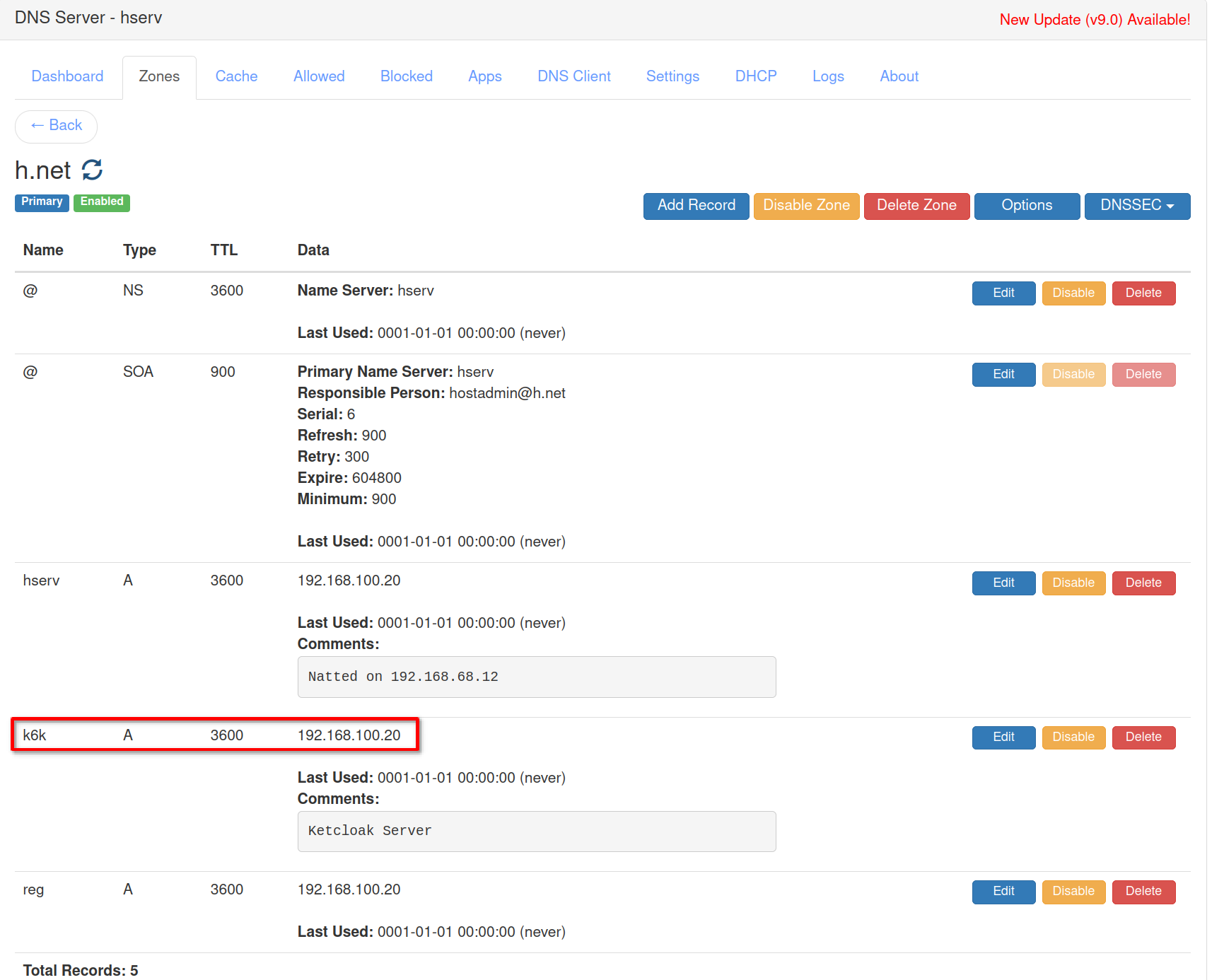
 In the DNS server on **hserv** add the k6k entry in the **“h.net”** DNS zone 
with address **“192.168.100.20”**
 
-![dns01](https://github.com/MirtoBusico/assets-for-blogs/blob/main/dns01.png)
+![dns01](https://static.apiseven.com/uploads/2023/01/20/clouoRER_6%20dns01.png)
 
 Create the certificate for **"k6k.h.net"**
 
@@ -514,7 +514,7 @@ In the **"/etc/hosts"** file of any machine accessing the 
cluster through the ng
 
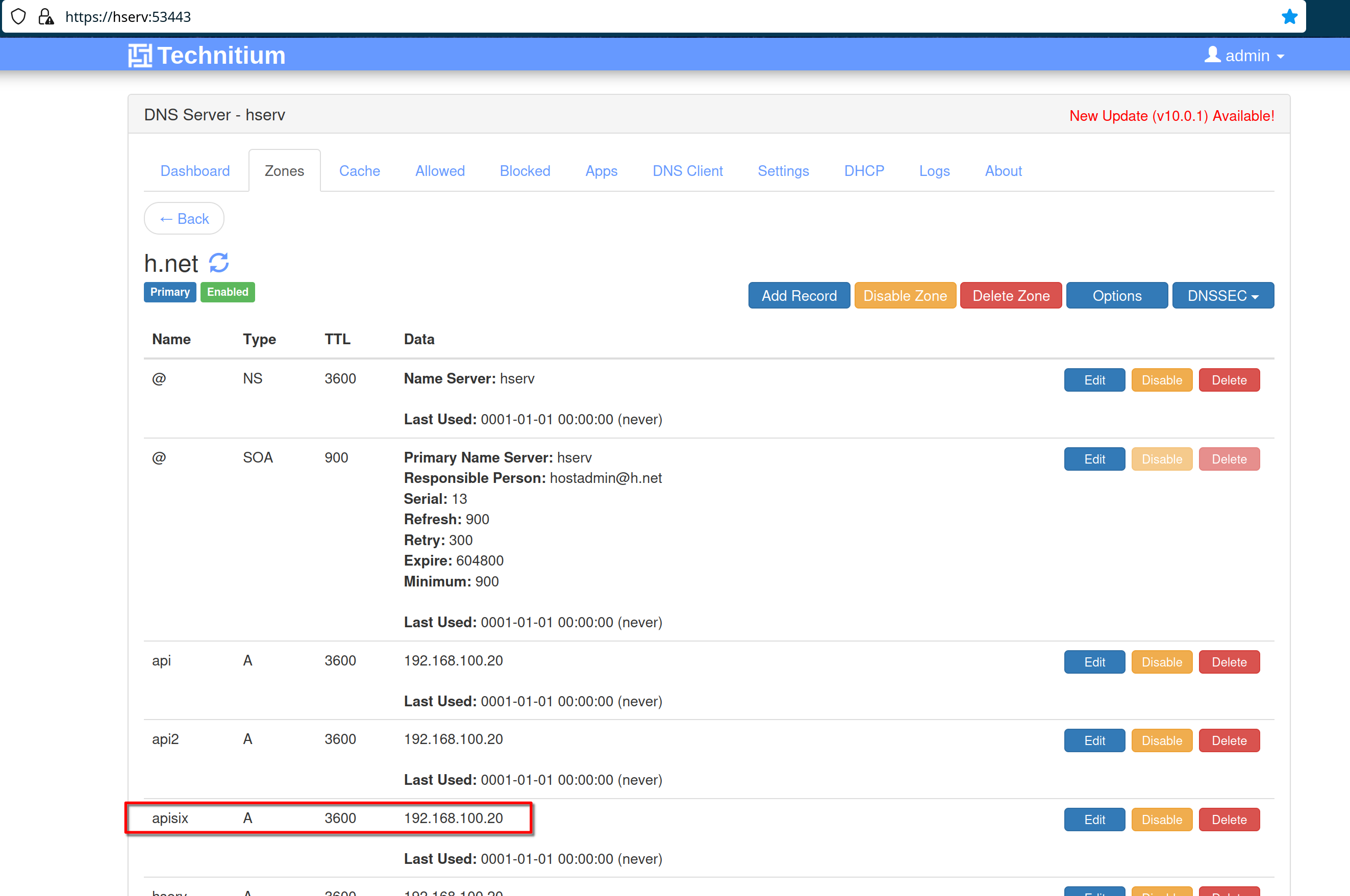
 In the DNS server on **hserv** add the apisix entry in the **“h.net”** DNS 
zone with address **“192.168.100.20”**
 
-![dns02](https://github.com/MirtoBusico/assets-for-blogs/blob/main/dns02.png)
+![dns02](https://static.apiseven.com/uploads/2023/01/20/fAqZA2hy_7%20dns02.png)
 
 ### APISIX Deployment
 
@@ -647,11 +647,11 @@ Forwarding from [::1]:8080 -> 9000
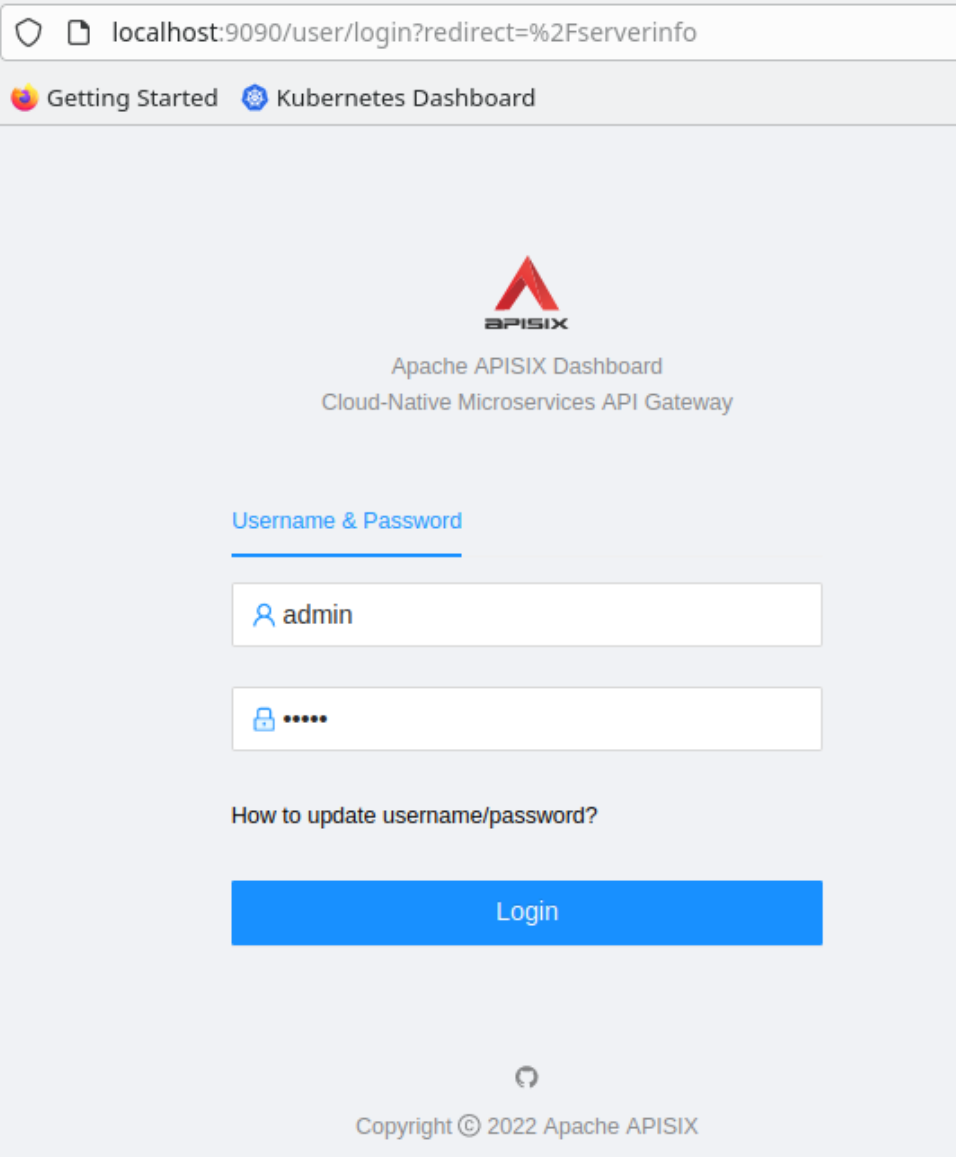
 Then access the dashboard on **“hdev”** pointing the web browser to the url 
“http://localhost:9090”
 Login with **“admin / admin”**
 
-![ad01](https://github.com/MirtoBusico/assets-for-blogs/blob/main/ad01.png)
+![ad01](https://static.apiseven.com/uploads/2023/01/20/INeavn6G_8%20ad01.png)
 
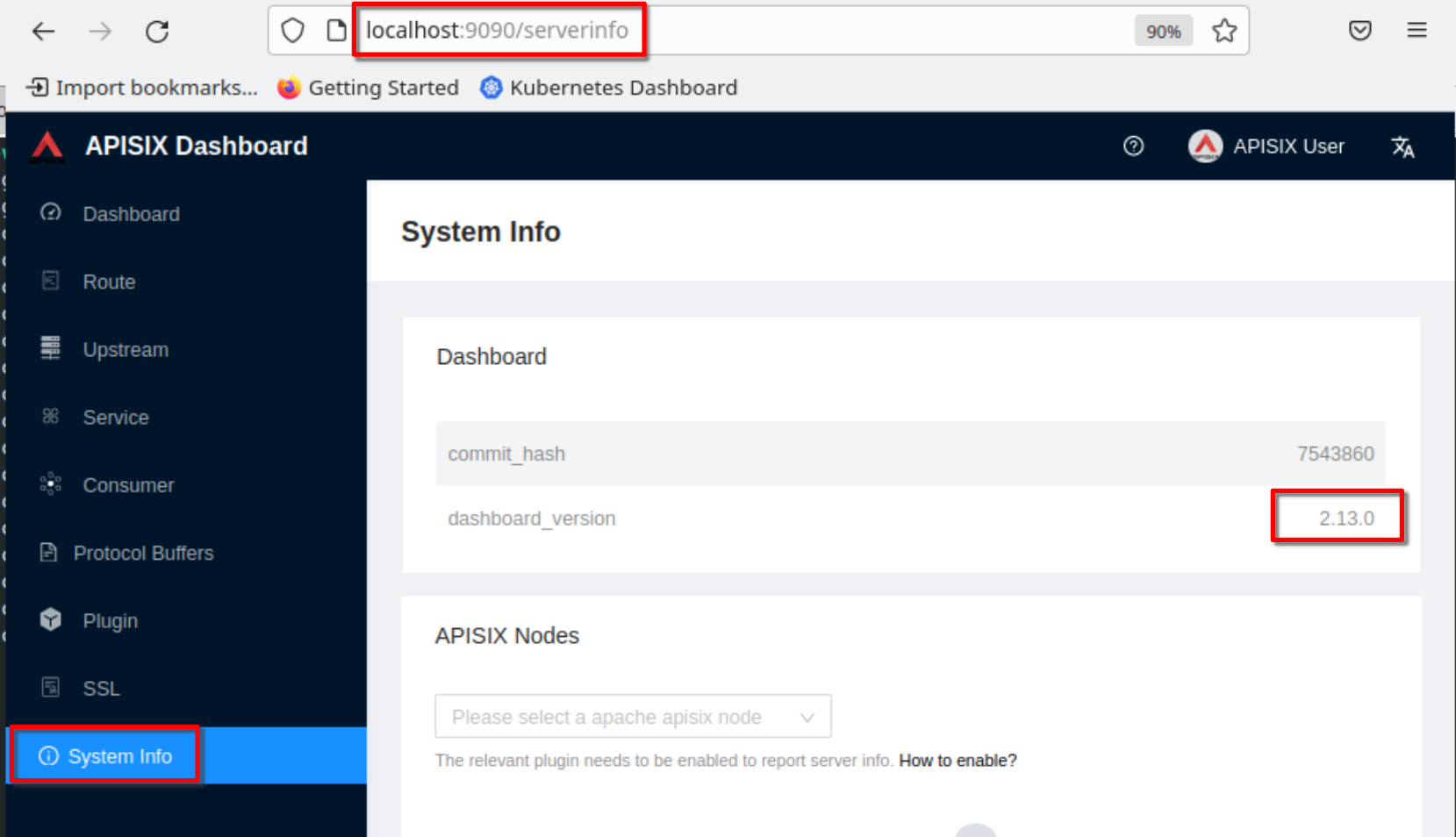
 Verify the dashboard version
 
-![ad02](https://github.com/MirtoBusico/assets-for-blogs/blob/main/ad02.png)
+![ad02](https://static.apiseven.com/uploads/2023/01/20/2lzTvaa8_9ad02.png)
 
 ## Create Apisix resources for apisix-dashboard
 
@@ -784,7 +784,7 @@ Add the apisix line in “/etc/hosts” on any machine that 
will access apisix-d
 
 Add the apisix A record in the DNS in “h.net” zone
 
-![ad03](https://github.com/MirtoBusico/assets-for-blogs/blob/main/ad03.png)
+![ad03](https://static.apiseven.com/uploads/2023/01/20/sXSh4zpz_10ad03.png)
 
 Access “https://apisix.h.net” from a browser and the apisix default page 
should be presented
 
@@ -911,41 +911,41 @@ sysop@hdev:~/H/hservcerts$
 
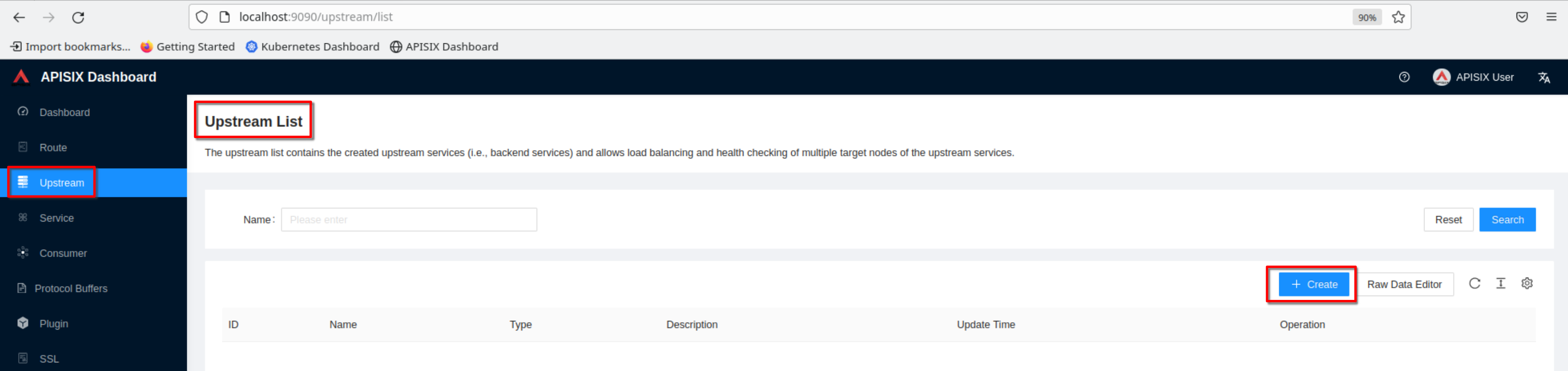
 Create an upstream
 
-![ad04](https://github.com/MirtoBusico/assets-for-blogs/blob/main/ad04.png)
+![ad04](https://static.apiseven.com/uploads/2023/01/20/awmMSYaW_11ad04.png)
 
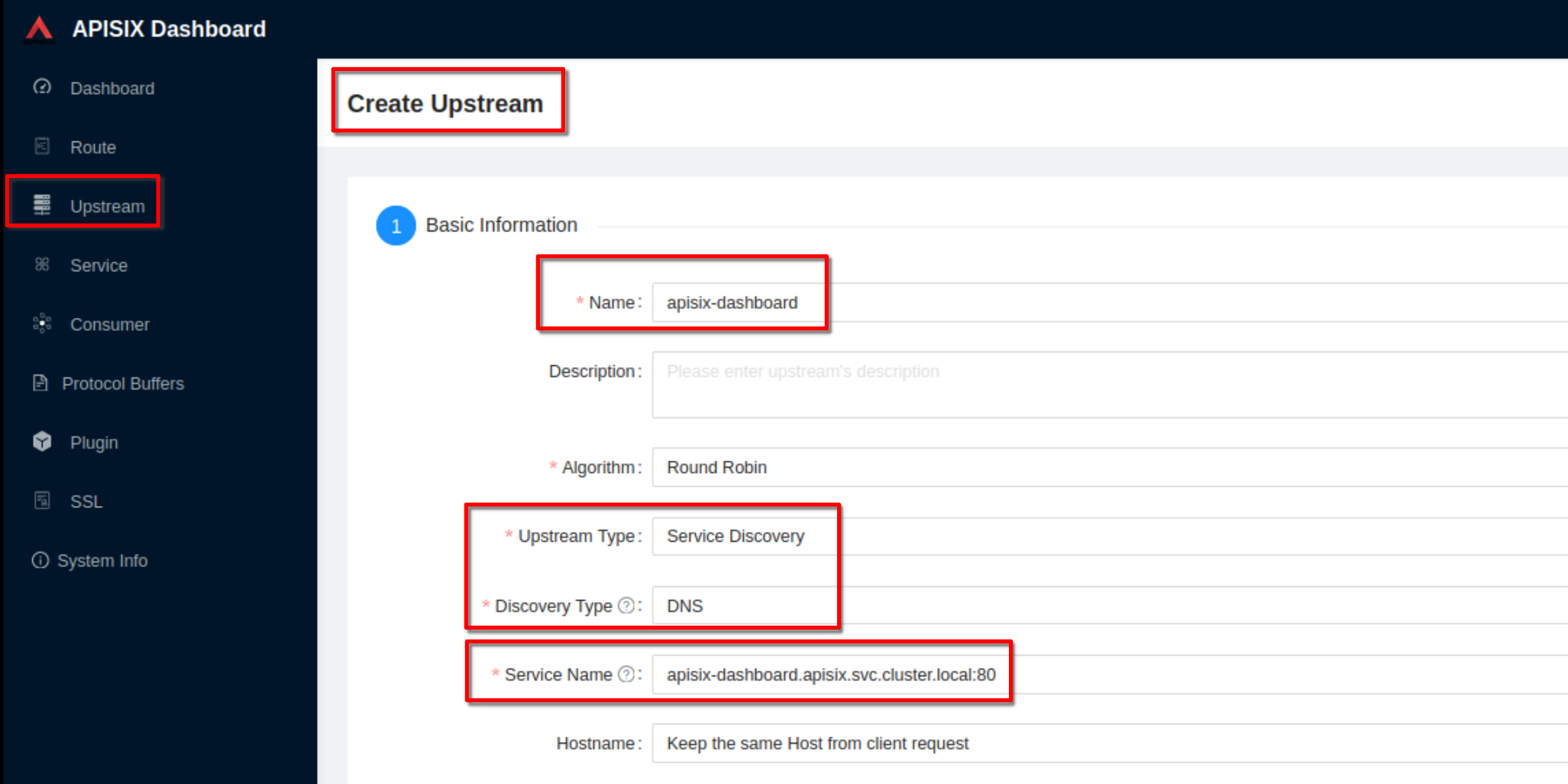
 Set the name to **“apisix-dashboard”**, upstream type to **“service 
discovery”**, discovery type to **“dns”** and servicename to 
**“apisix-dashboard.apisix.svc.cluster.local:80”**.
 
-![ad05](https://github.com/MirtoBusico/assets-for-blogs/blob/main/ad05.png)
+![ad05](https://static.apiseven.com/uploads/2023/01/20/HAQw19MF_12ad05.png)
 
 Then click “Next” and after click “Submit”
 
 Click “View” to see the json upstream definition
 
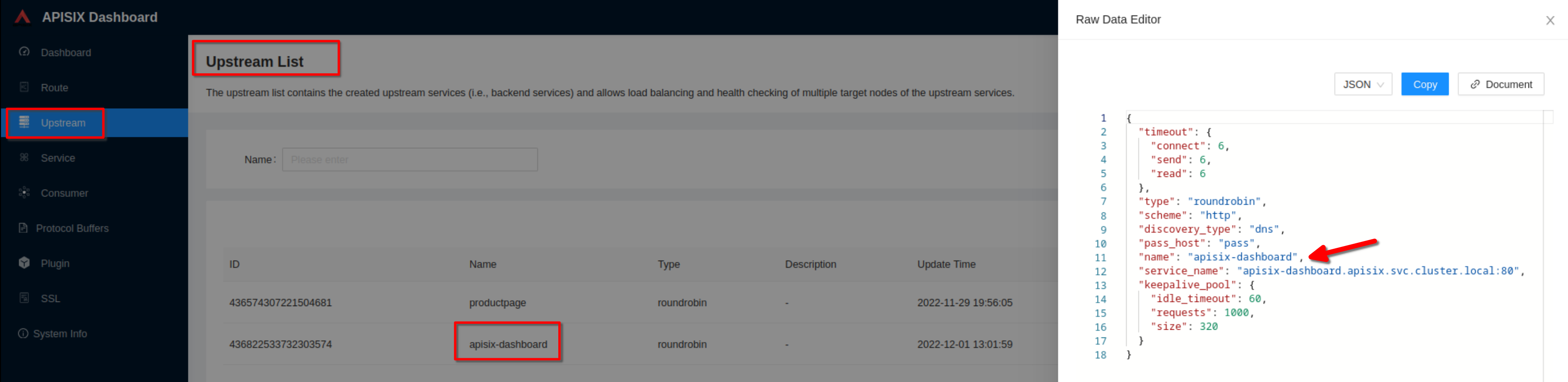
-![ad06](https://github.com/MirtoBusico/assets-for-blogs/blob/main/ad06.png)
+![ad06](https://static.apiseven.com/uploads/2023/01/20/2K7p0bZi_13ad06.png)
 
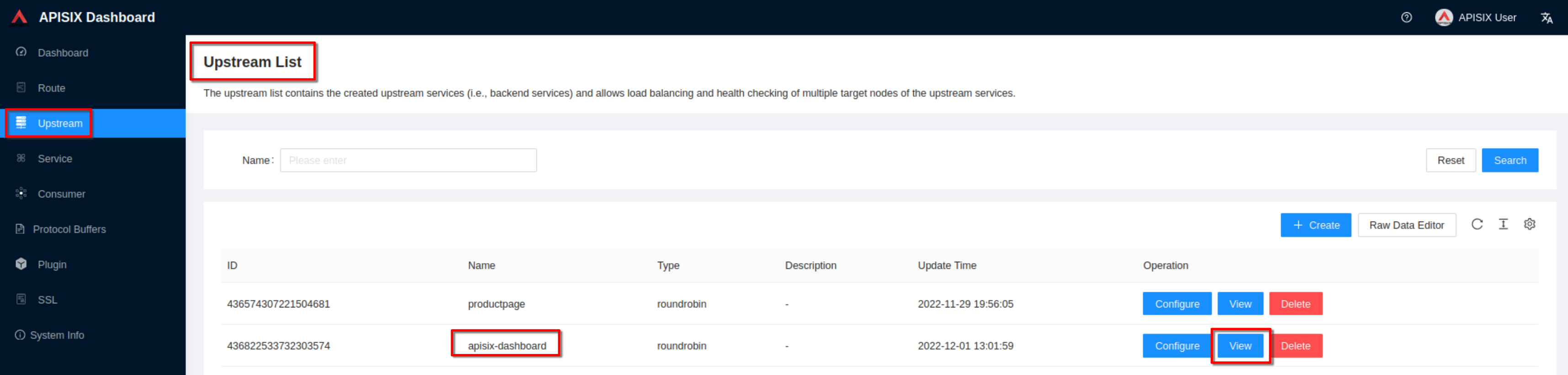
 Note the upstream name to be used in the next route definition
 
-![ad07](https://github.com/MirtoBusico/assets-for-blogs/blob/main/ad07.png)
+![ad07](https://static.apiseven.com/uploads/2023/01/20/TduSqV0m_14ad07.png)
 
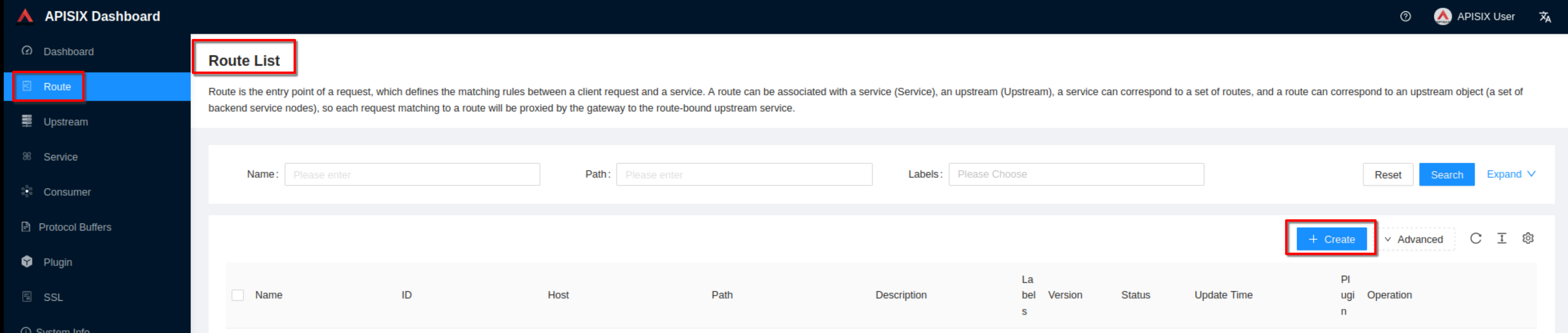
 Now click “Create” on the “Route” page
 
-![ad08](https://github.com/MirtoBusico/assets-for-blogs/blob/main/ad08.png)
+![ad08](https://static.apiseven.com/uploads/2023/01/20/fuSqIVlL_15ad08.png)
 
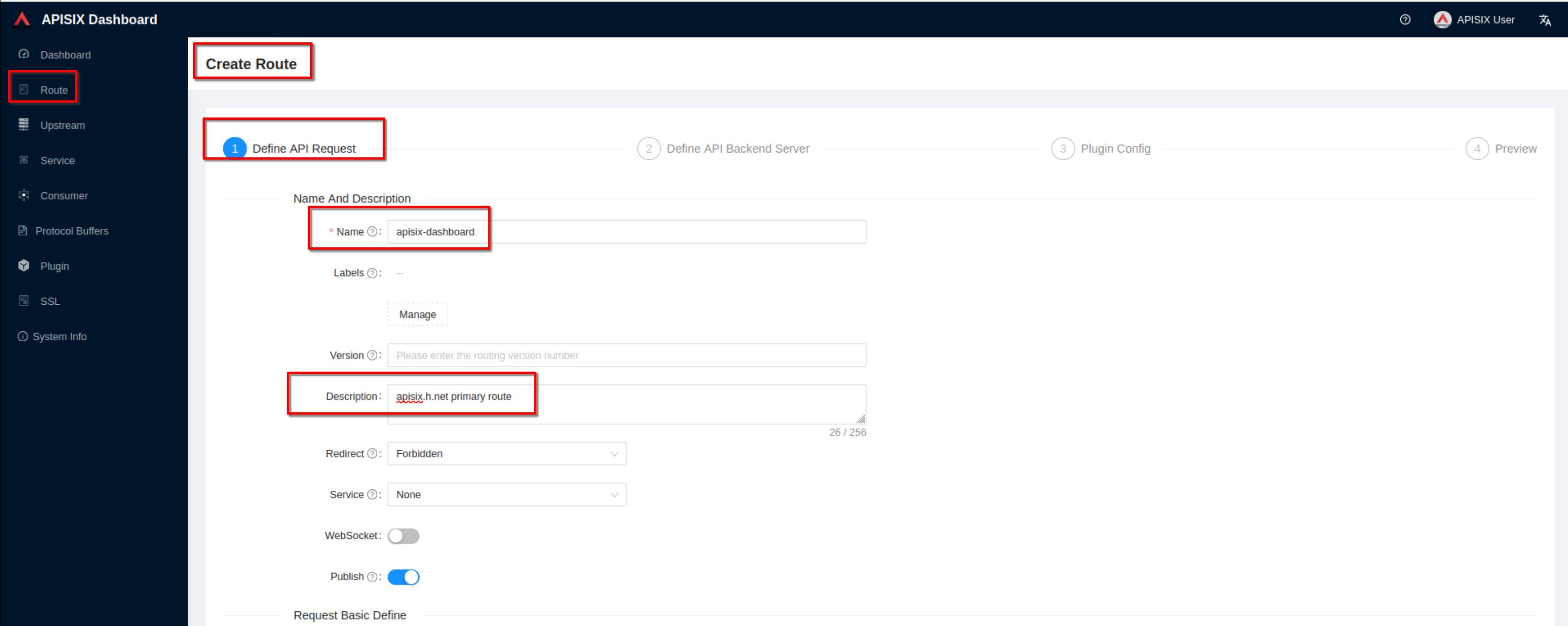
 Create a route ("Define api request" - on top): set name to “apisix-dashboard” 
and add a description
 
-![ad09](https://github.com/MirtoBusico/assets-for-blogs/blob/main/ad09.png)
+![ad09](https://static.apiseven.com/uploads/2023/01/20/TEQaia56_16ad09.png)
 
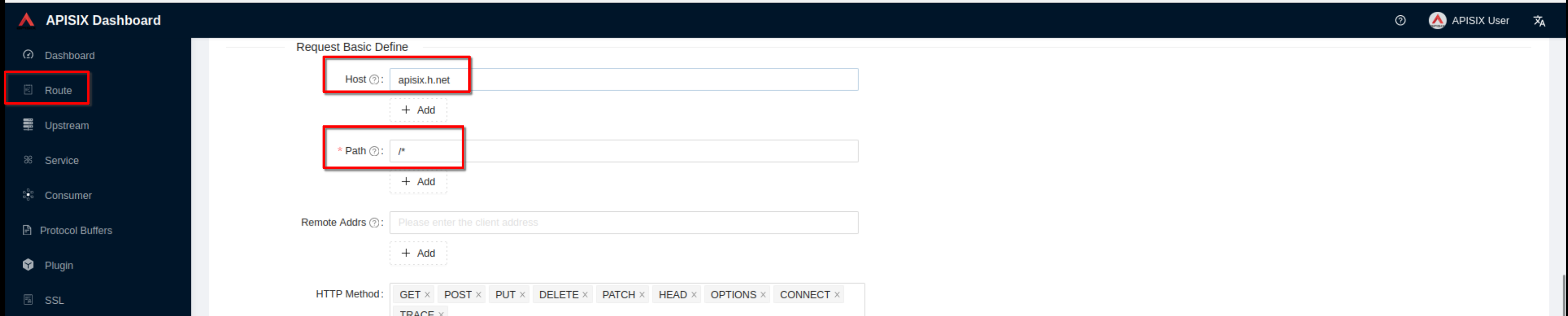
 Create a route ("Define api request" - below): set host to **“apisix.h.net”** 
and path to **“/*”**. Then click **“Next”**
 
-![ad10](https://github.com/MirtoBusico/assets-for-blogs/blob/main/ad10.png)
+![ad10](https://static.apiseven.com/uploads/2023/01/20/U2C0nK9H_17ad10.png)
 
 Select the previous defined “apisix” upstream from the dropdown list. Then 
click “Next”
 
-![ad11](https://github.com/MirtoBusico/assets-for-blogs/blob/main/ad11.png)
+![ad11](https://static.apiseven.com/uploads/2023/01/20/aTCu1mIe_18ad11.png)
 
 For now don’t use plugins and click “Next”. Then click “Submit”
 
-![ad12](https://github.com/MirtoBusico/assets-for-blogs/blob/main/ad12.png)
+![ad12](https://static.apiseven.com/uploads/2023/01/20/Z6m7MicN_19ad12.png)
 
 ### Enable https in apisix
 
@@ -968,39 +968,39 @@ kubectl -n apisix port-forward service/apisix-dashboard 
9090:80
 
 Select the “SSL” page and click Create
 
-![ad14](https://github.com/MirtoBusico/assets-for-blogs/blob/main/ad14.png)
+![ad14](https://static.apiseven.com/uploads/2023/01/20/dEVd2rD6_20ad14.png)
 
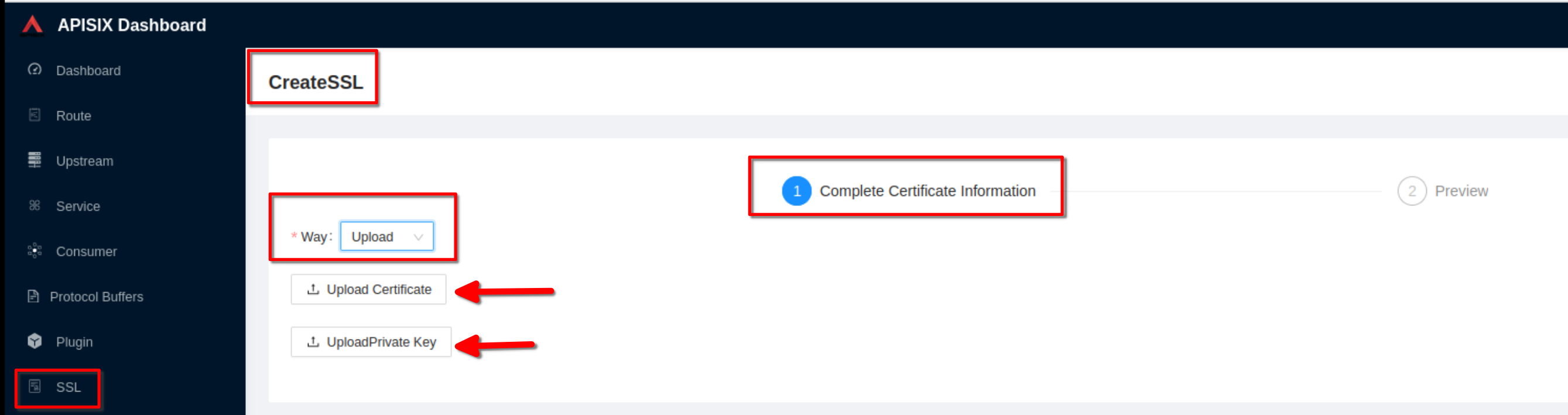
 Select **“Way: Upload”**, then click **“upload certificate”** and **“upload 
key”**. Clik “Next” (Take certificate and key files from **~/H/hservcerts**)
 
-![ad15](https://github.com/MirtoBusico/assets-for-blogs/blob/main/ad15.png)
+![ad15](https://static.apiseven.com/uploads/2023/01/20/cBHW3QQH_21ad15.png)
 
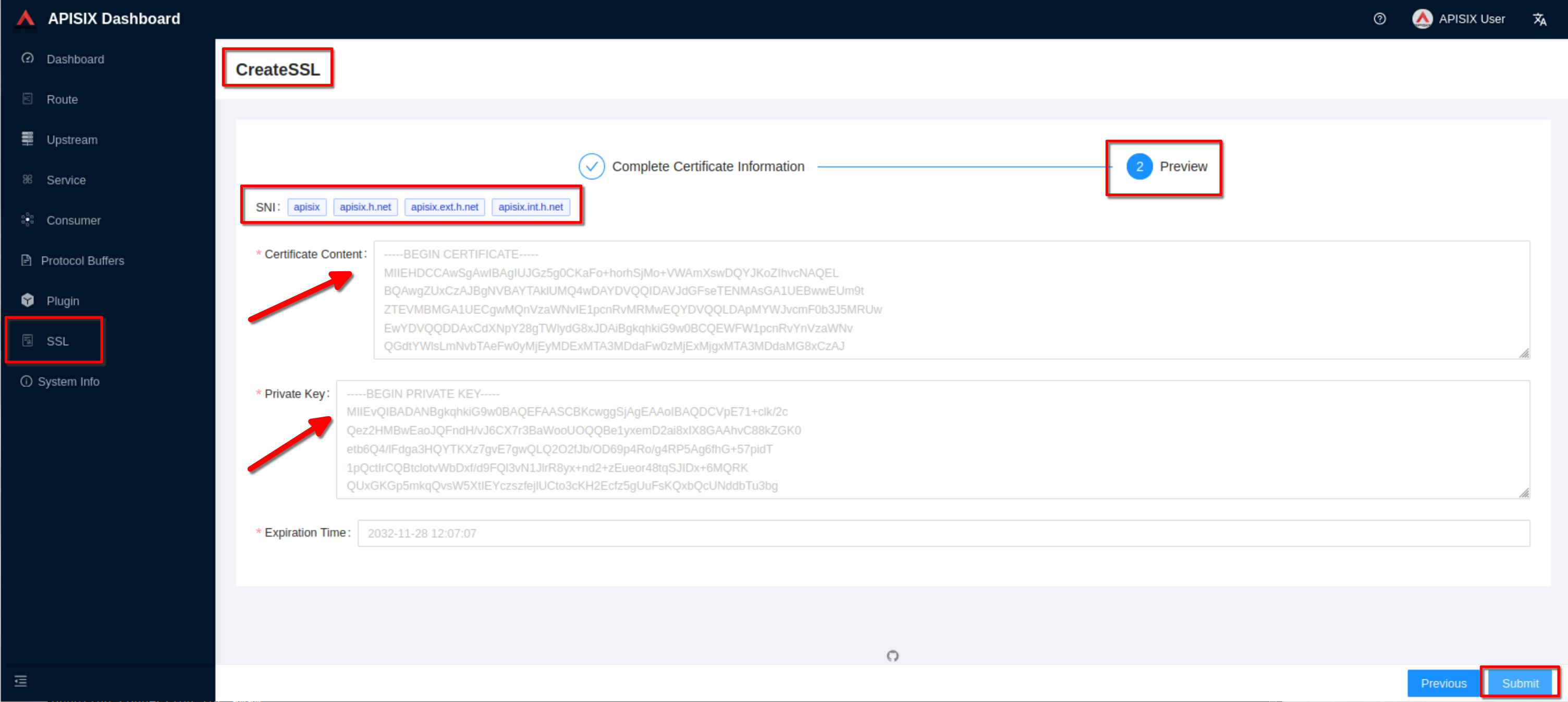
 Preview the SSL resource and click “Submit”
 
-![ad16](https://github.com/MirtoBusico/assets-for-blogs/blob/main/ad16.png)
+![ad16](https://static.apiseven.com/uploads/2023/01/20/5y67o7w7_22ad16.png)
 
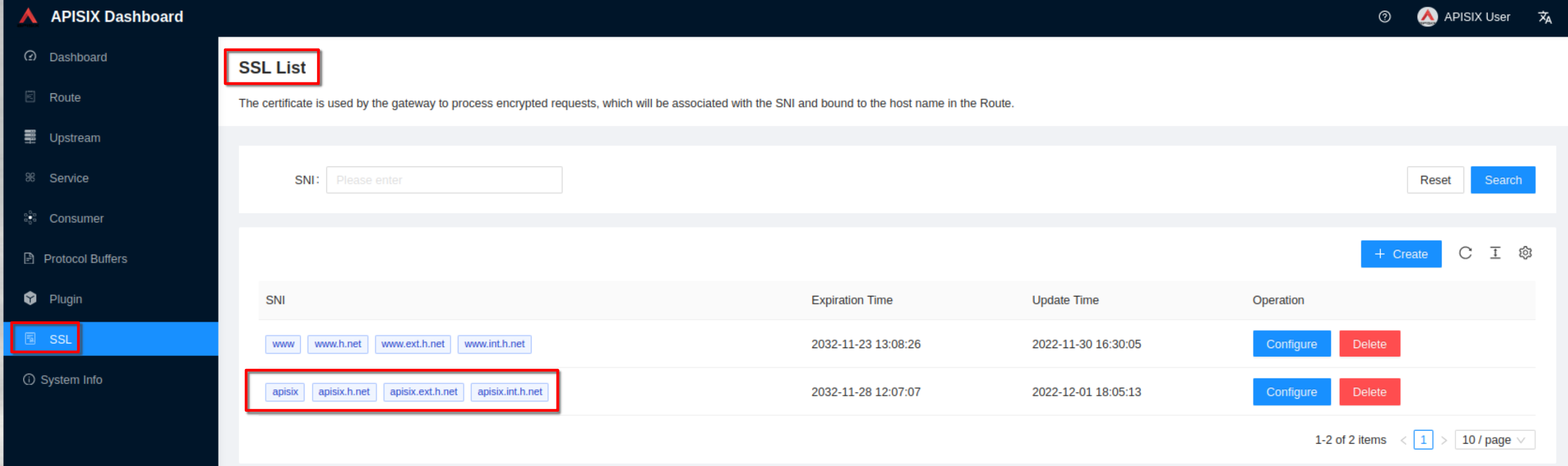
 The ssl resource appear in the list (note the SNI values)
 
-![ad17](https://github.com/MirtoBusico/assets-for-blogs/blob/main/ad17.png)
+![ad17](https://static.apiseven.com/uploads/2023/01/20/0QcDTVt7_23ad17.png)
 
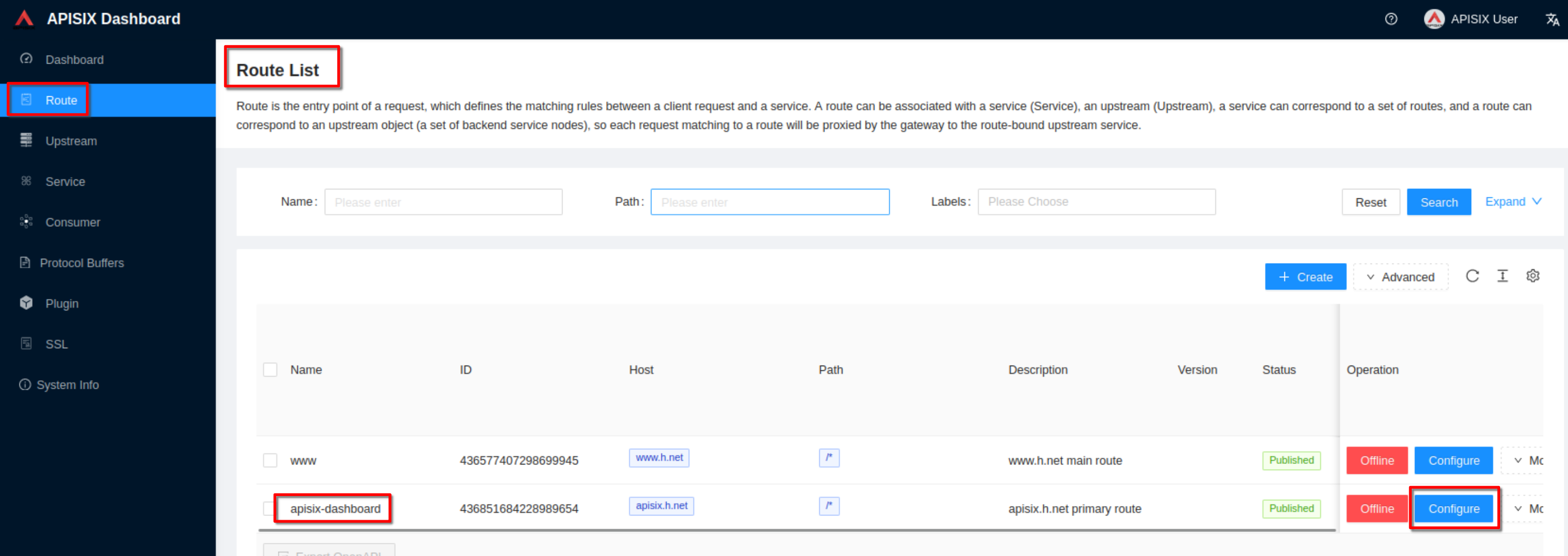
 Configure the “apisix-dashboard” route to enable http to https redirection
 
-![ad18](https://github.com/MirtoBusico/assets-for-blogs/blob/main/ad18.png)
+![ad18](https://static.apiseven.com/uploads/2023/01/20/rxL1HGlY_24ad18.png)
 
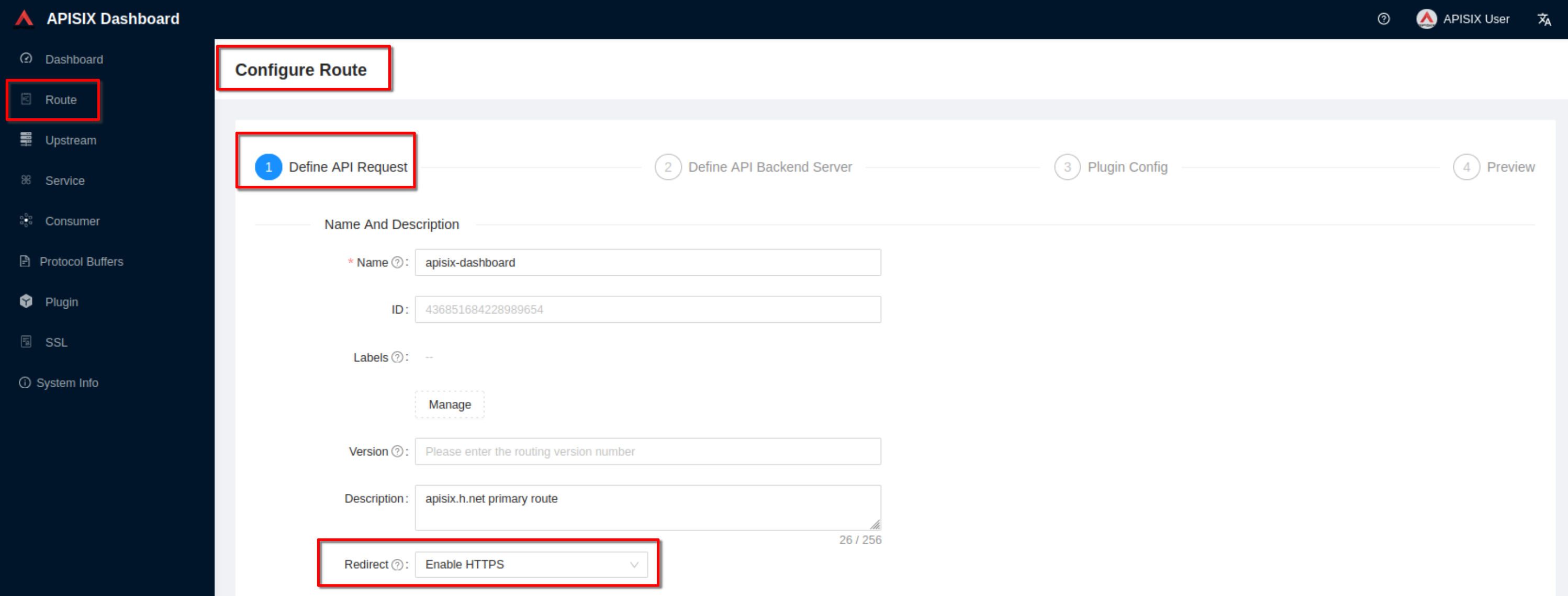
 Set the **“Redirect”** field to **“Enable HTTPS”**. Then click “Next” until 
you see “Submit”. Click “Submit”
 
-![ad19](https://github.com/MirtoBusico/assets-for-blogs/blob/main/ad19.png)
+![ad19](https://static.apiseven.com/uploads/2023/01/20/iD0XRe4A_25ad19.png)
 
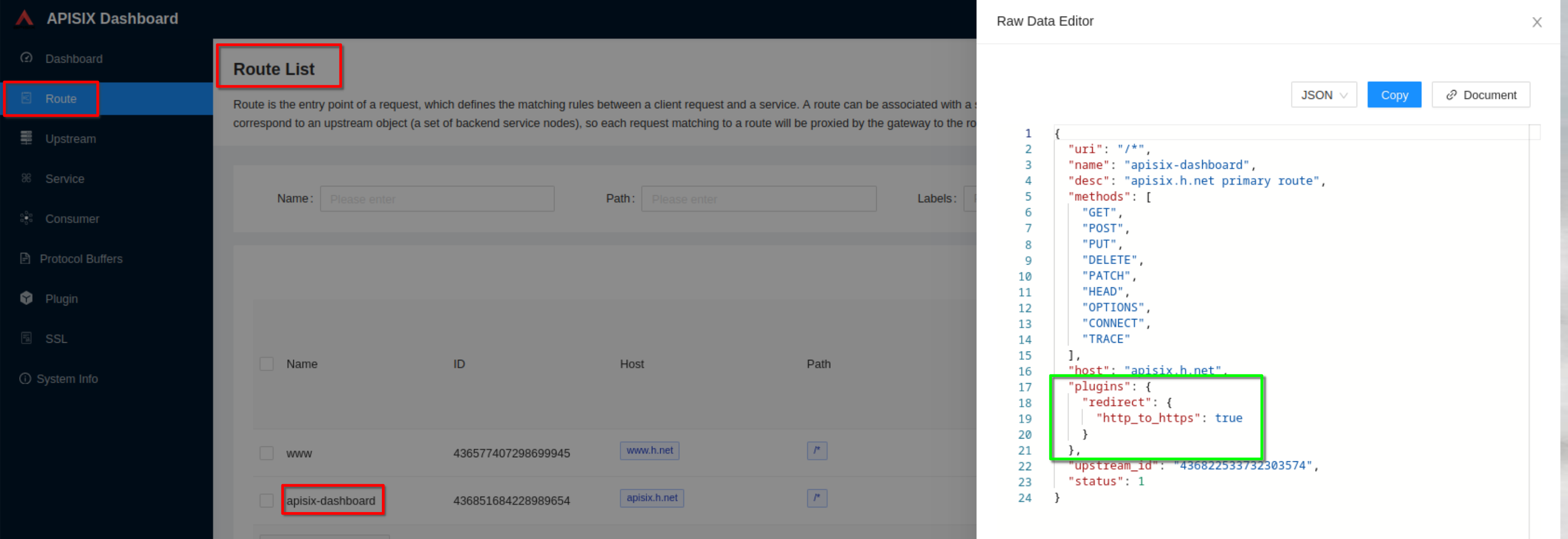
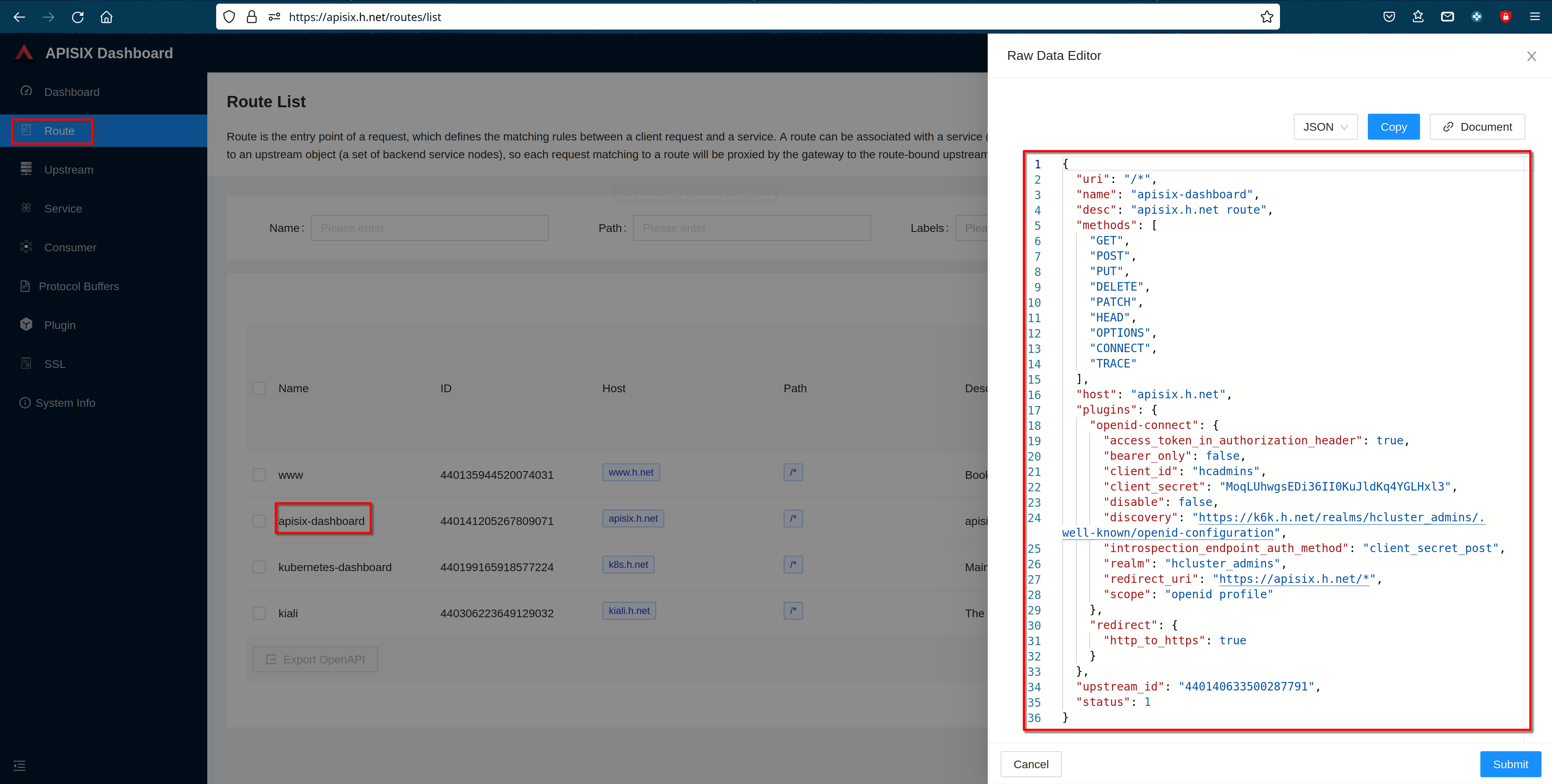
 View the route configuration and verify that the redirect plugin is enabled
 
-![ad20](https://github.com/MirtoBusico/assets-for-blogs/blob/main/ad20.png)
+![ad20](https://static.apiseven.com/uploads/2023/01/20/8I9QKdZj_26ad20.png)
 
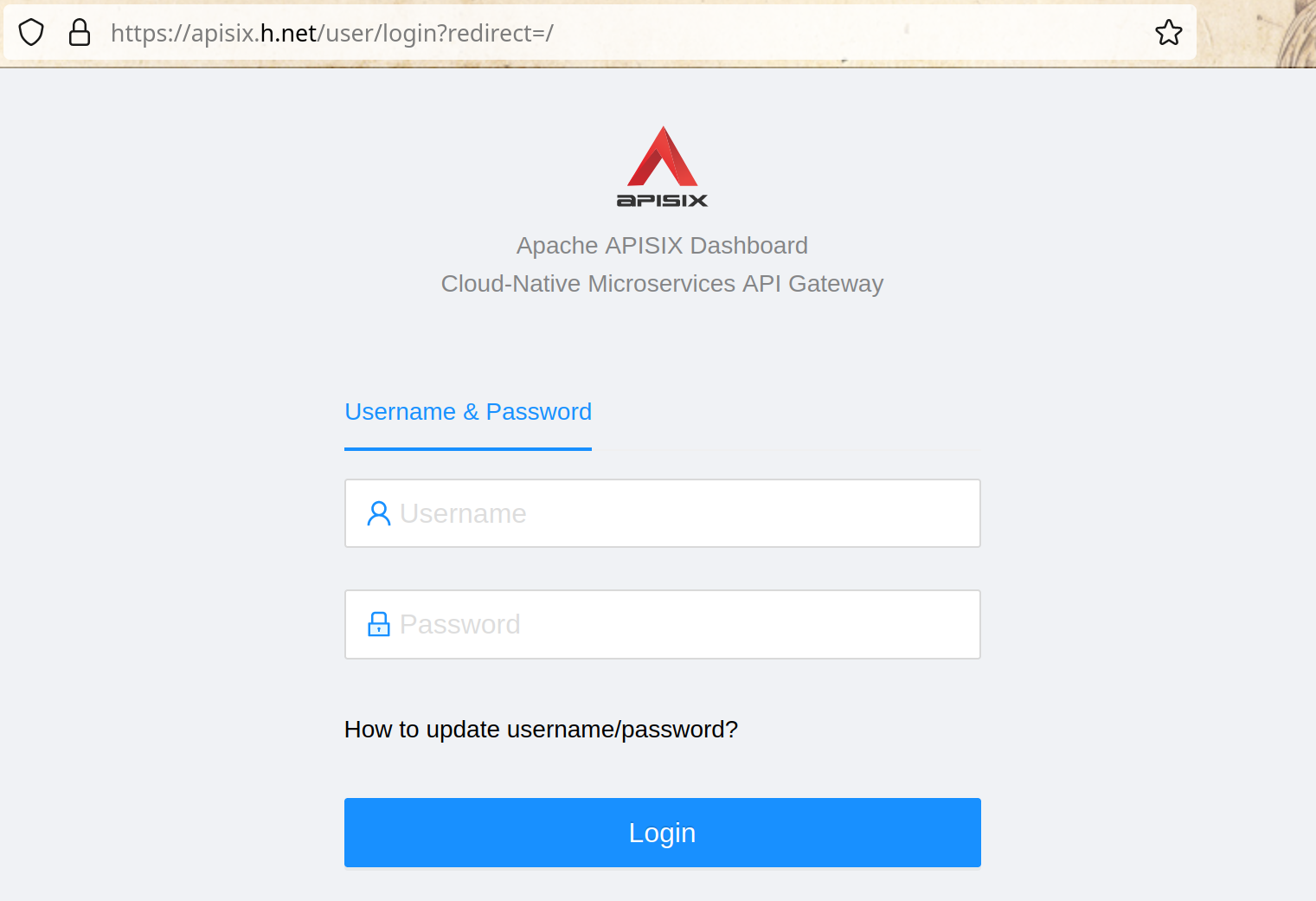
 Now from any machine you can access the apisix-dashboard at the url 
**“https://apisix.h.net”** and verify that the apisix-dashboard login page is 
showed
 
-![ad21](https://github.com/MirtoBusico/assets-for-blogs/blob/main/ad21.png)
+![ad21](https://static.apiseven.com/uploads/2023/01/20/WYwVhc6V_27ad21.png)
 
 Login with “admin” / “admin”
 
-![ad22](https://github.com/MirtoBusico/assets-for-blogs/blob/main/ad22.png)
+![ad22](https://static.apiseven.com/uploads/2023/01/20/33gBSogM_28ad22.png)
 
 #### Create Keycloak Definitions for OpenID-Connect
 
@@ -1010,31 +1010,31 @@ Working on any machine, access the keycloak console at  
“https://k6k.h.net”
 
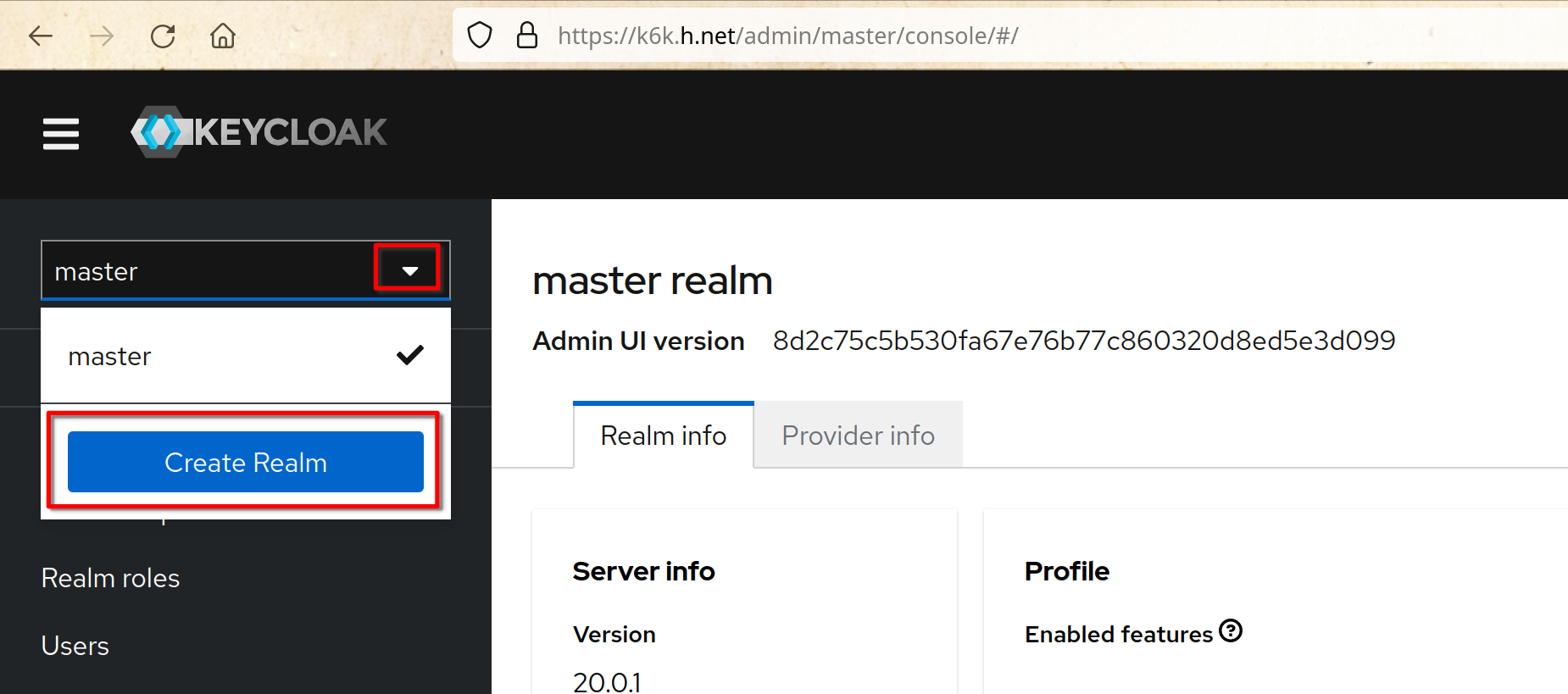
 Click “Create Realm”
 
-![k6k04](https://github.com/MirtoBusico/assets-for-blogs/blob/main/k6k04.png)
+![k6k04](https://static.apiseven.com/uploads/2023/01/20/rgM4S46s_29k6k04.png)
 
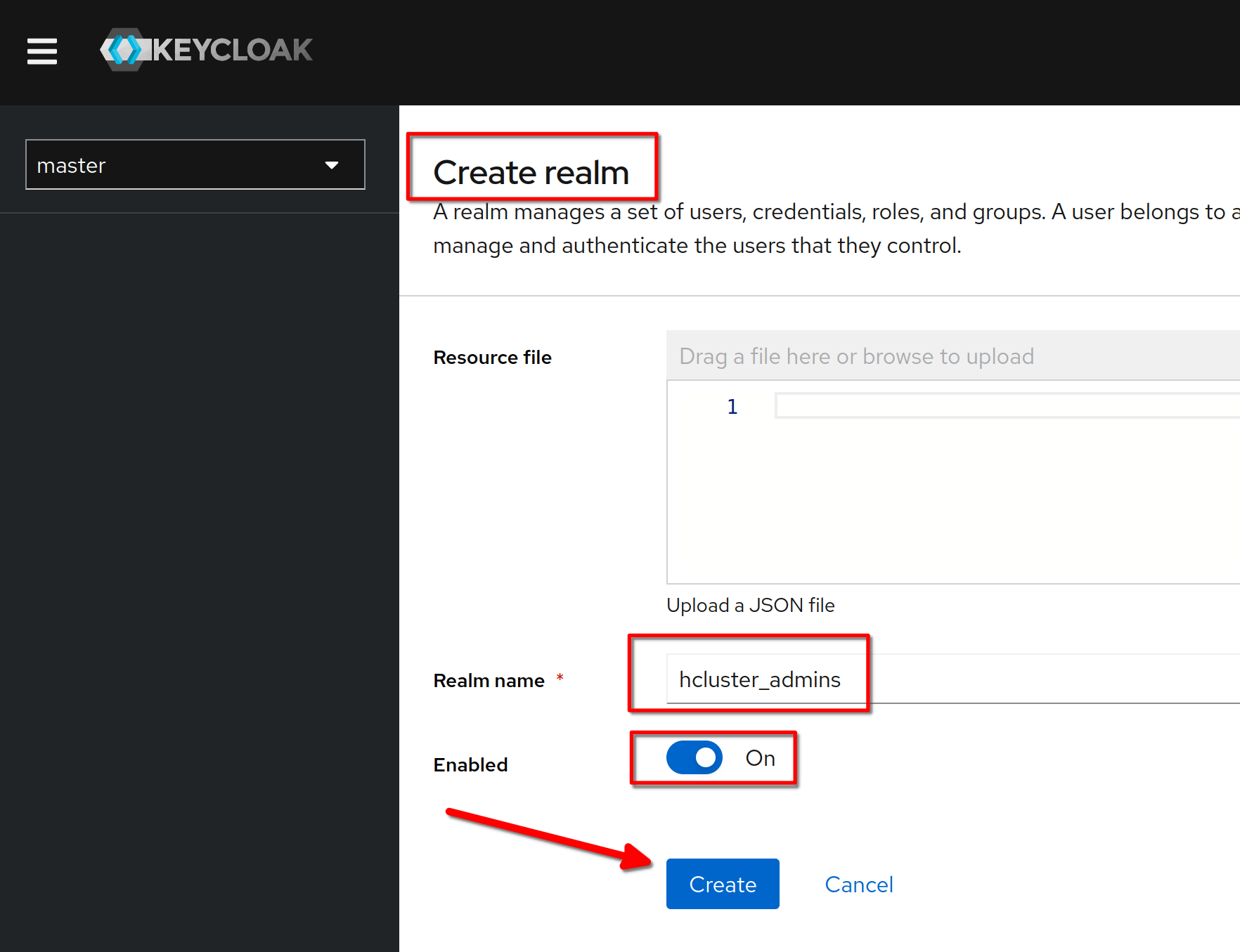
 Create a realm named **“hcluster_admins”**
 
-![k6k05](https://github.com/MirtoBusico/assets-for-blogs/blob/main/k6k05.png)
+![k6k05](https://static.apiseven.com/uploads/2023/01/20/WGPQt7eY_30k6k05.png)
 
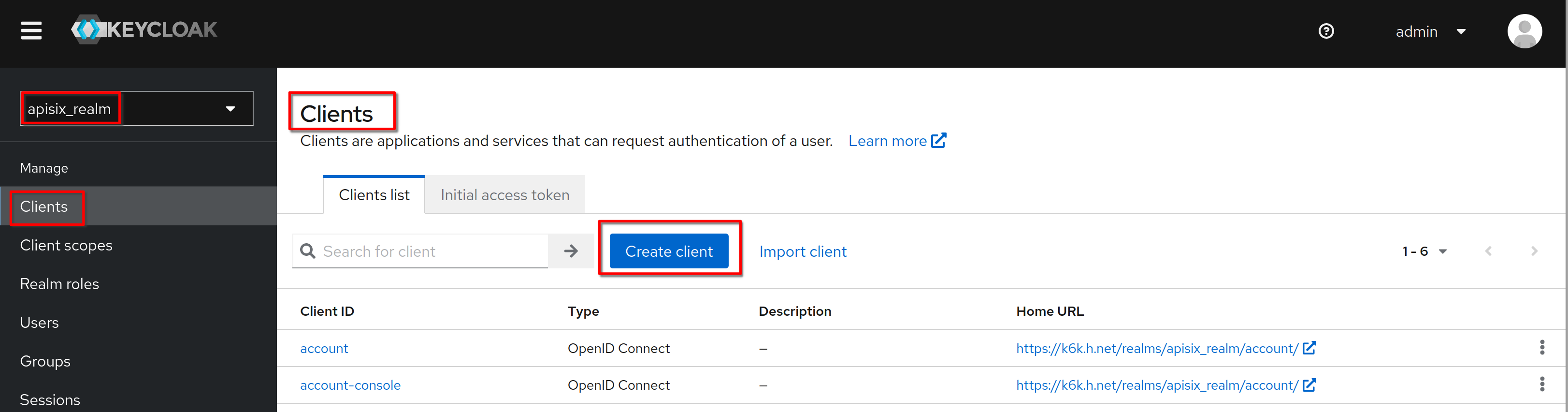
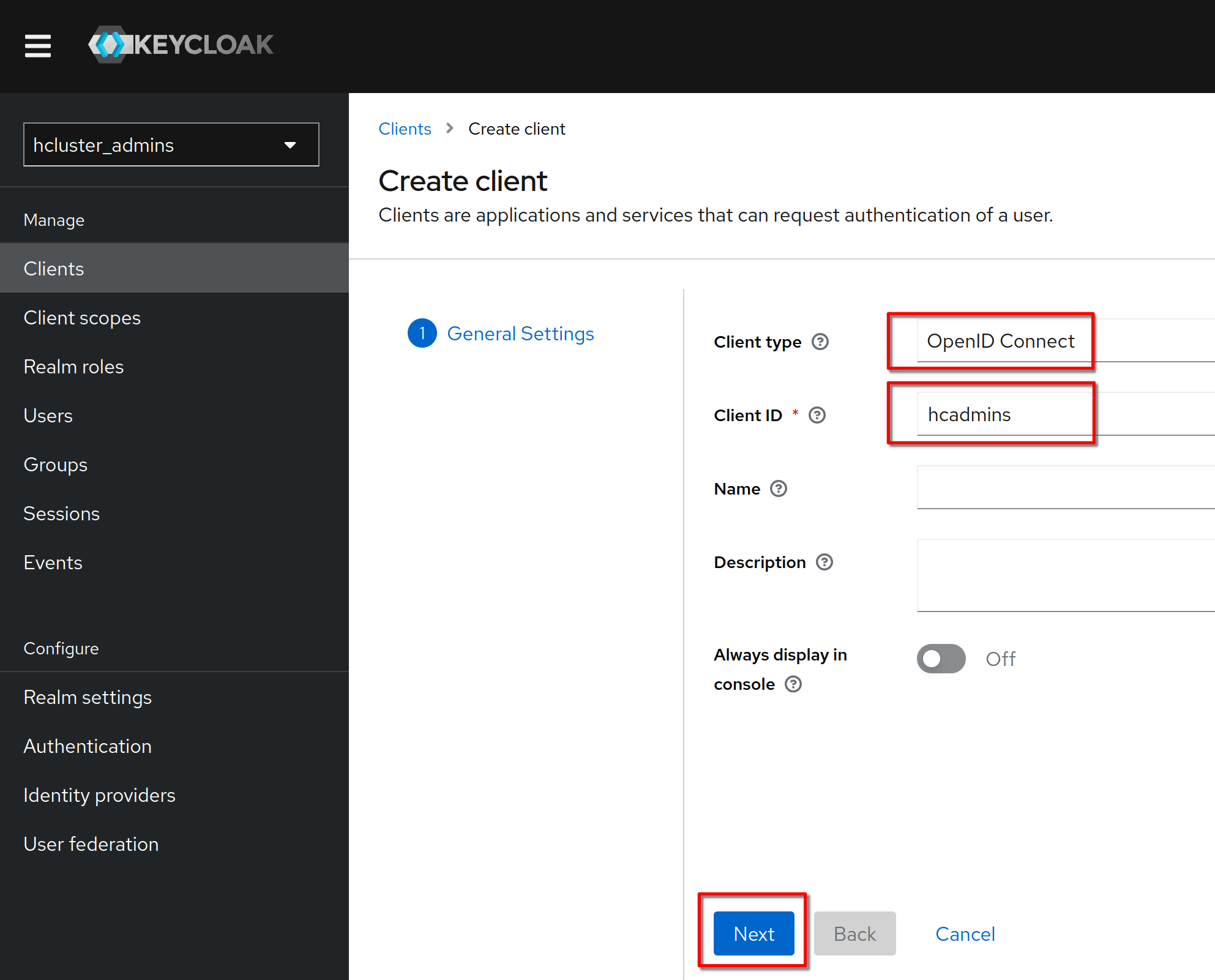
 Create a client named **“hcadmins”**
 
-![k6k06](https://github.com/MirtoBusico/assets-for-blogs/blob/main/k6k06.png)
+![k6k06](https://static.apiseven.com/uploads/2023/01/20/nSIDqrMz_31k6k06.png)
 
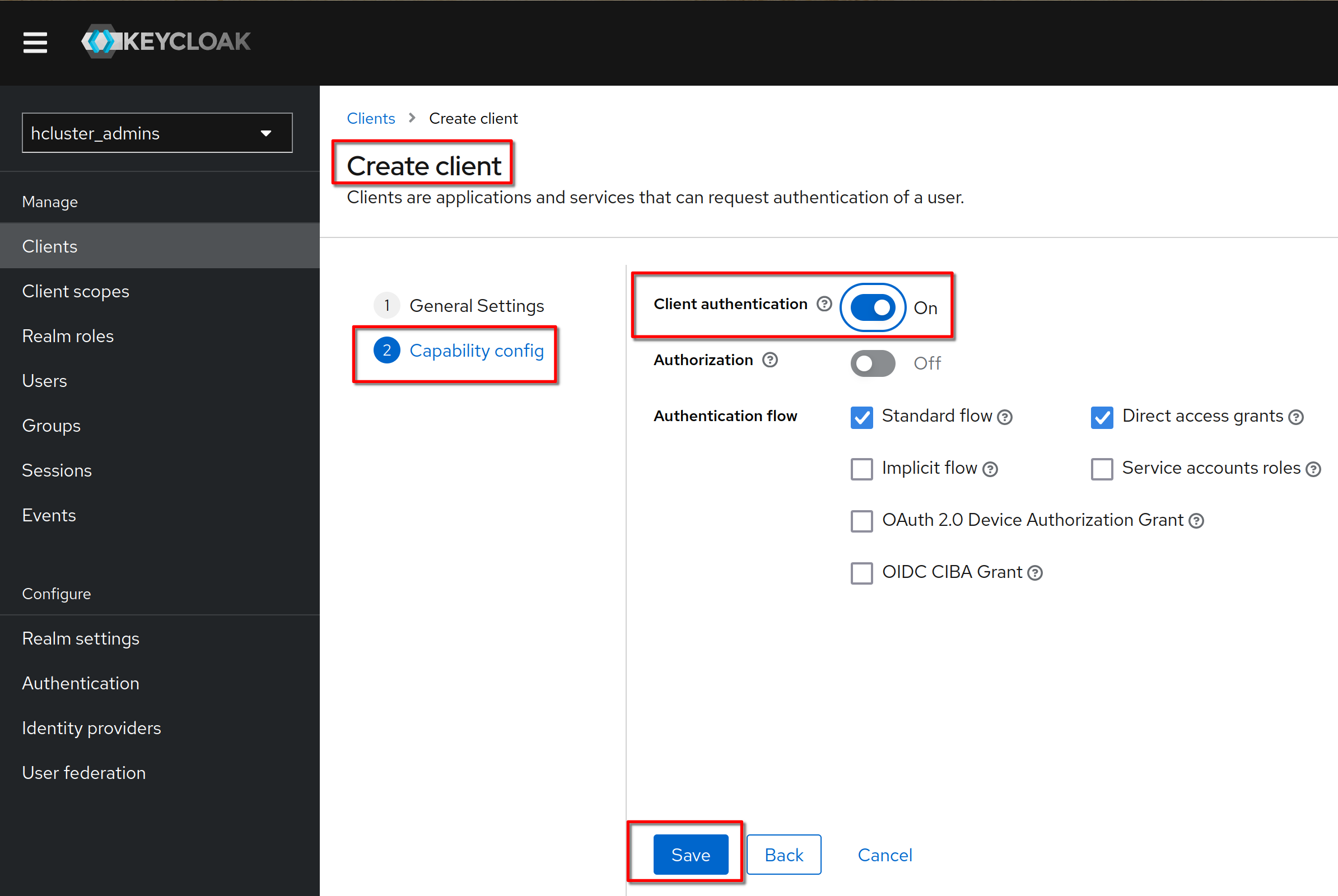
 Verify that the client protocol is **“openid-connect”** and click “Next”
 
-![k6k07](https://github.com/MirtoBusico/assets-for-blogs/blob/main/k6k07.png)
+![k6k07](https://static.apiseven.com/uploads/2023/01/20/5FMWvLiZ_32k6k07.png)
 
 Set “Client authentication” to "on" (means OIDC type confidential). Click 
“Save”
 
-![k6k08](https://github.com/MirtoBusico/assets-for-blogs/blob/main/k6k08.png)
+![k6k08](https://static.apiseven.com/uploads/2023/01/20/OPLxpYCZ_33k6k08.png)
 
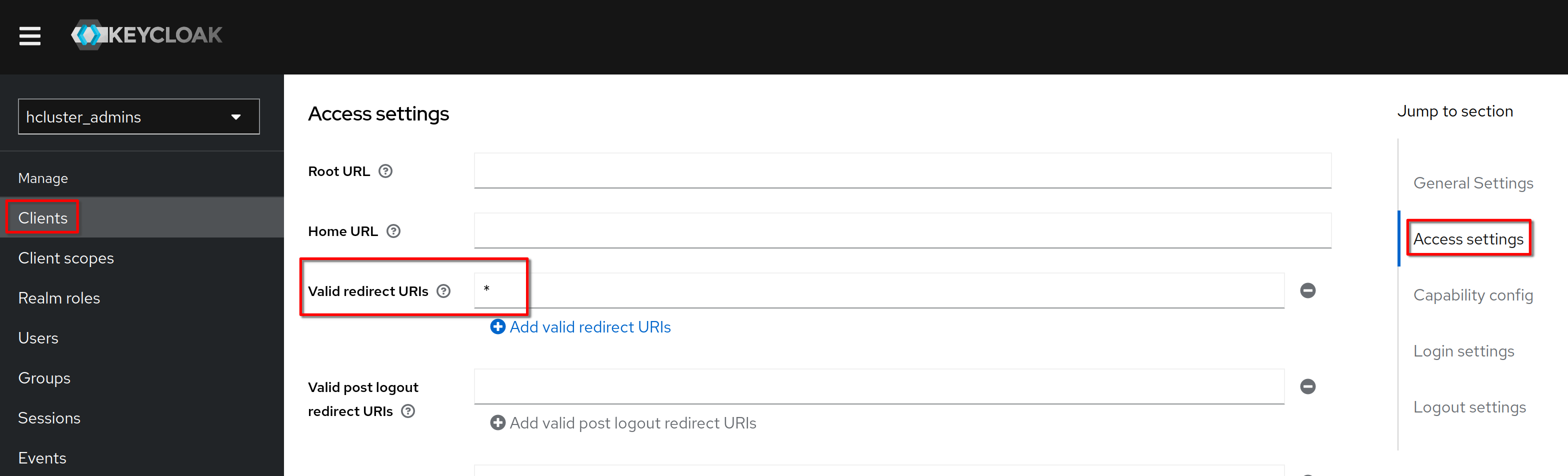
 In **“Cient details”**, **“Settings”** tab, **“access settings”** section, set 
**“Valid redirect URI”** to **“*”**. Click **“Save”**
 
-![k6k09](https://github.com/MirtoBusico/assets-for-blogs/blob/main/k6k09.png)
+![k6k09](https://static.apiseven.com/uploads/2023/01/20/ZtOy06uu_34k6k09.png)
 
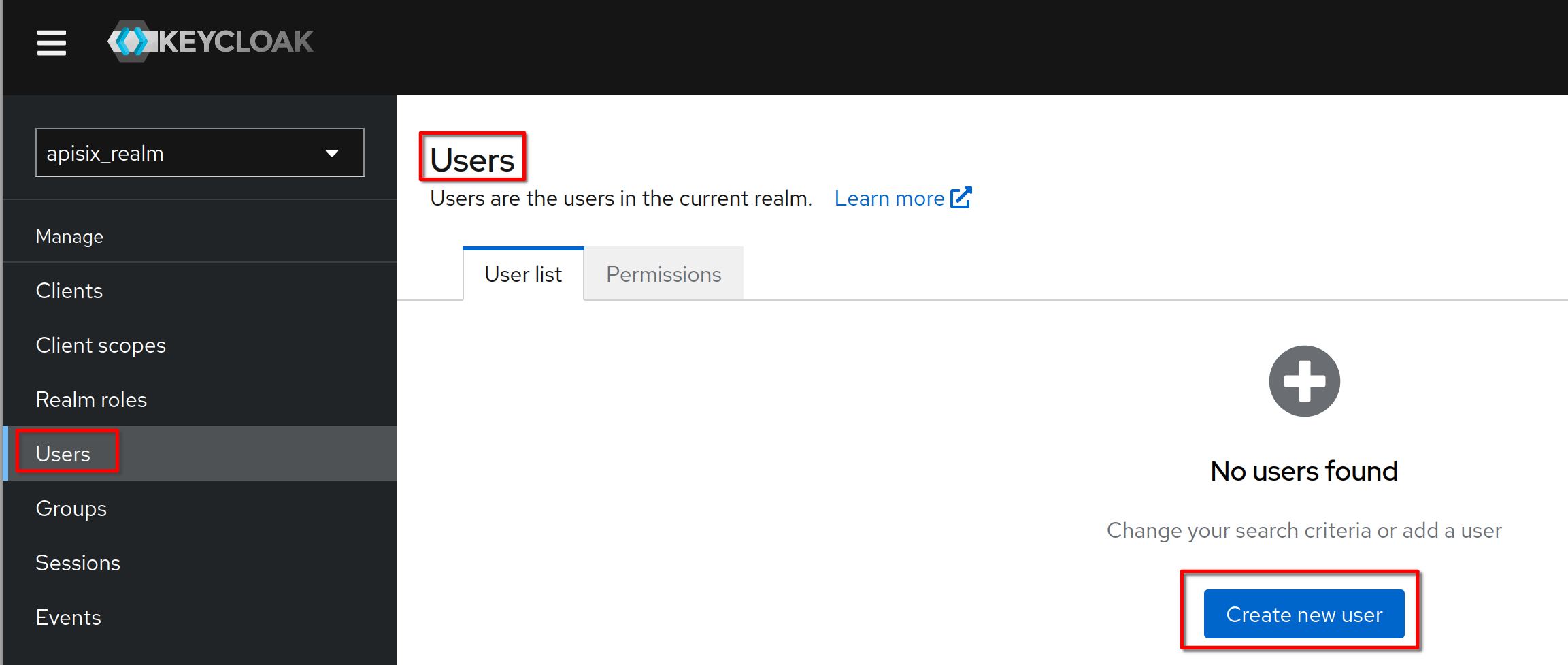
 Create a new user
 
-![k6k10](https://github.com/MirtoBusico/assets-for-blogs/blob/main/k6k10.png)
+![k6k10](https://static.apiseven.com/uploads/2023/01/20/2MPpK4Xw_35k6k10.png)
 
 Set the username to **“hcadmin”** and click **“Create”**
 
@@ -1042,11 +1042,11 @@ Set the username to **“hcadmin”** and click **“Create”**
 
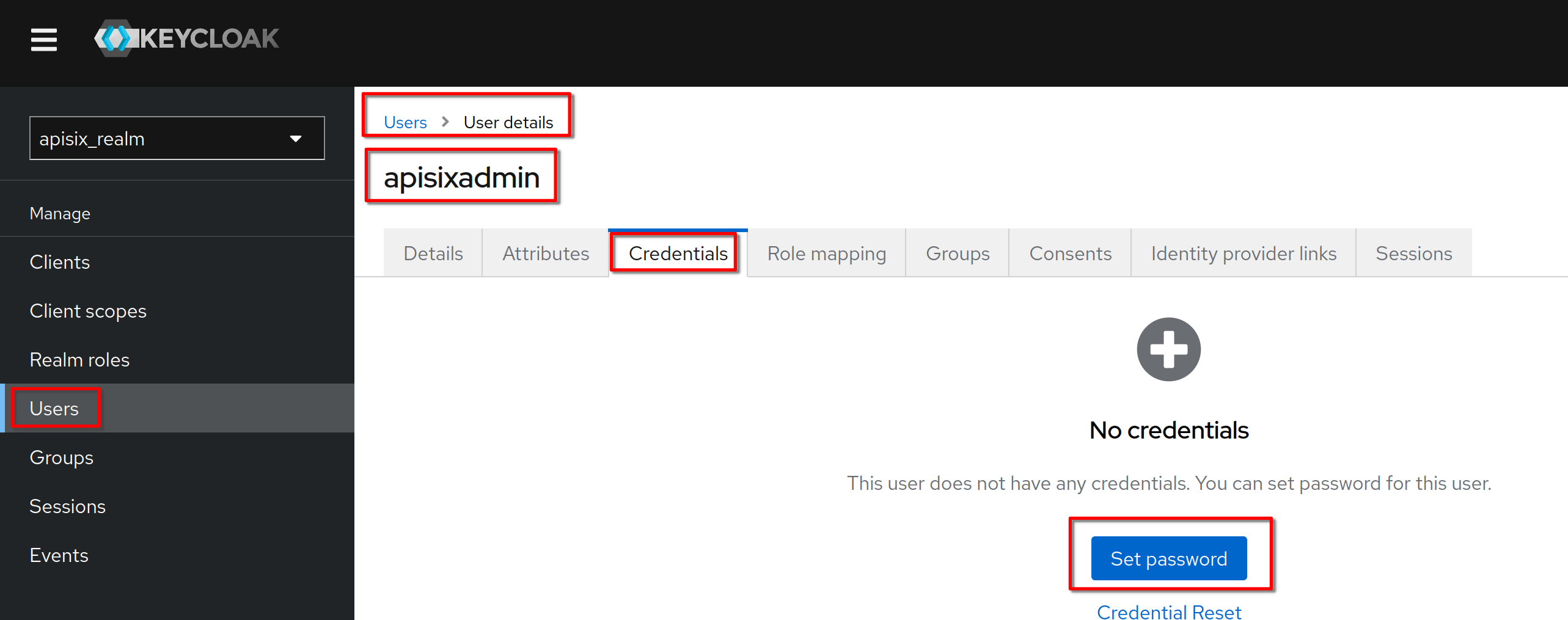
 In the **“Credentials”** tab click **“Set password”** (same procedure for 
"Reset" password)
 
-![k6k12](https://github.com/MirtoBusico/assets-for-blogs/blob/main/k6k12.png)
+![k6k12](https://static.apiseven.com/uploads/2023/01/20/HzbaXwUN_37k6k12.png)
 
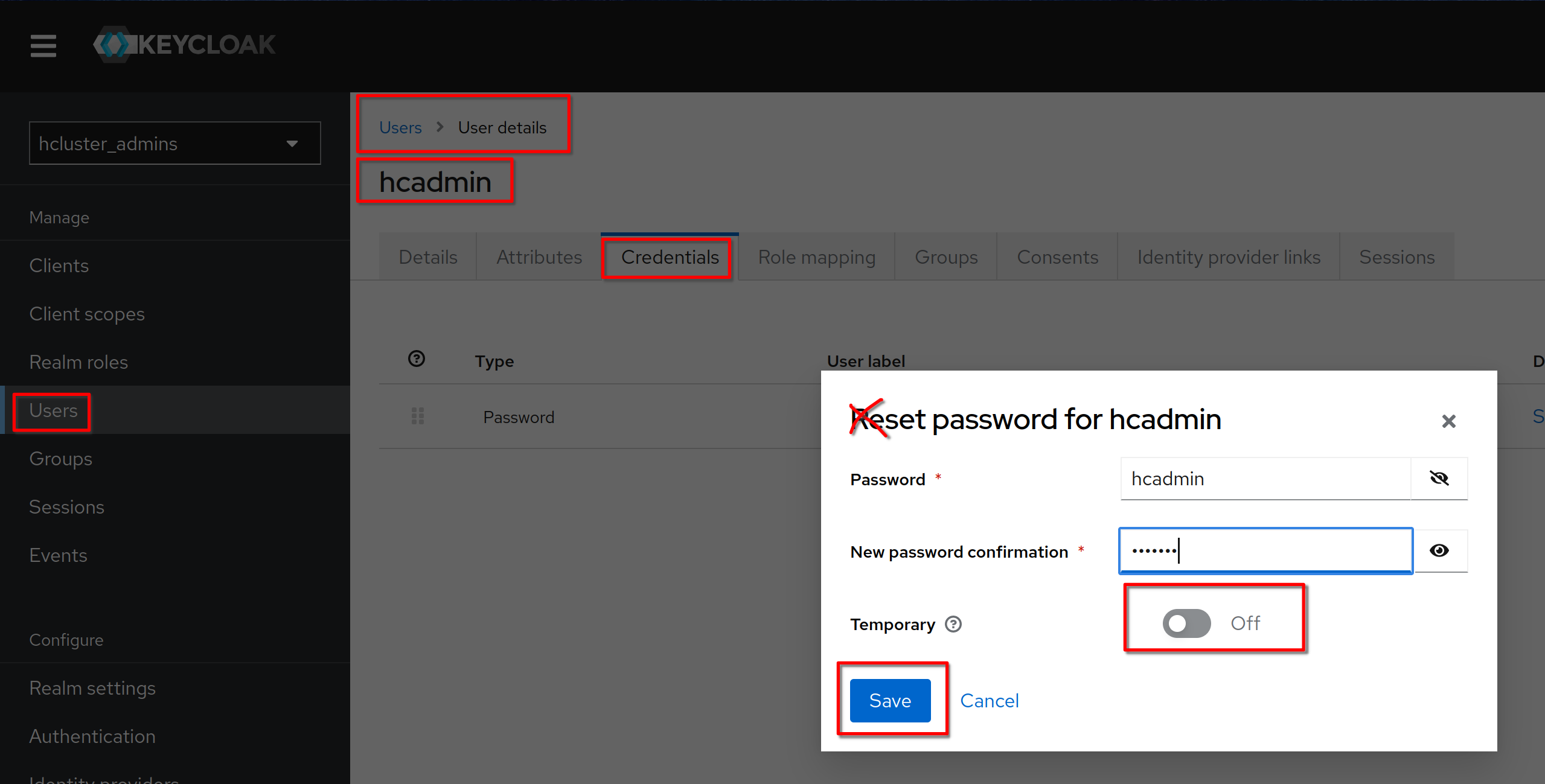
 Set a permanent (Temporary set to Off) password to **“hcadmin”** (equal to the 
username)
 
-![k6k13](https://github.com/MirtoBusico/assets-for-blogs/blob/main/k6k13.png)
+![k6k13](https://static.apiseven.com/uploads/2023/01/20/fS53TVta_38k6k13.png)
 
 #### Get Client ID and Secret
 
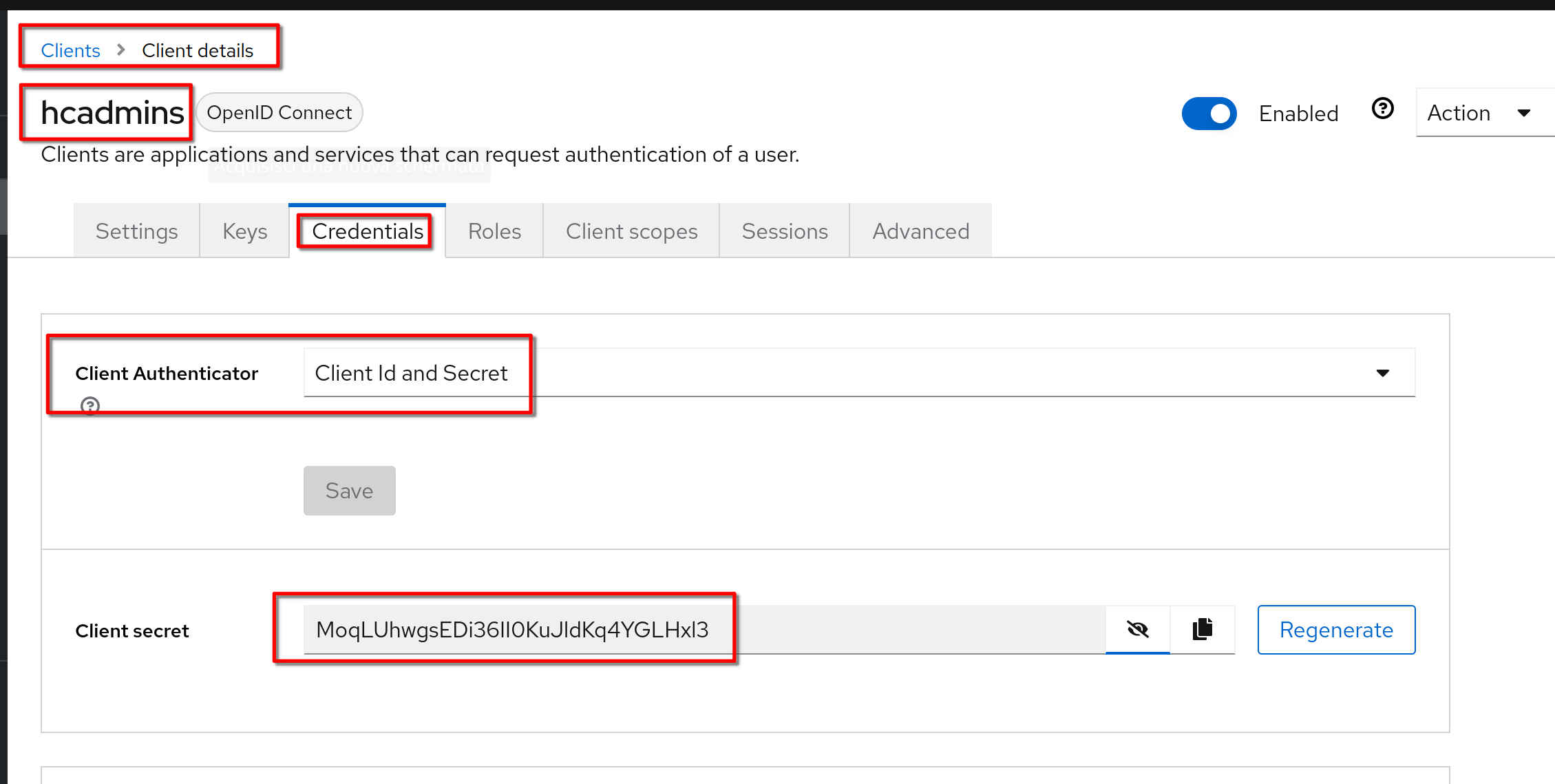
@@ -1056,15 +1056,15 @@ client ID: **hcadmins**
 
 Secret: **MoqLUhwgsEDi36II0KuJldKq4YGLHxl3**
 
-![k6k14](https://github.com/MirtoBusico/assets-for-blogs/blob/main/k6k14.png)
+![k6k14](https://static.apiseven.com/uploads/2023/01/20/TSporVZx_39k6k14.png)
 
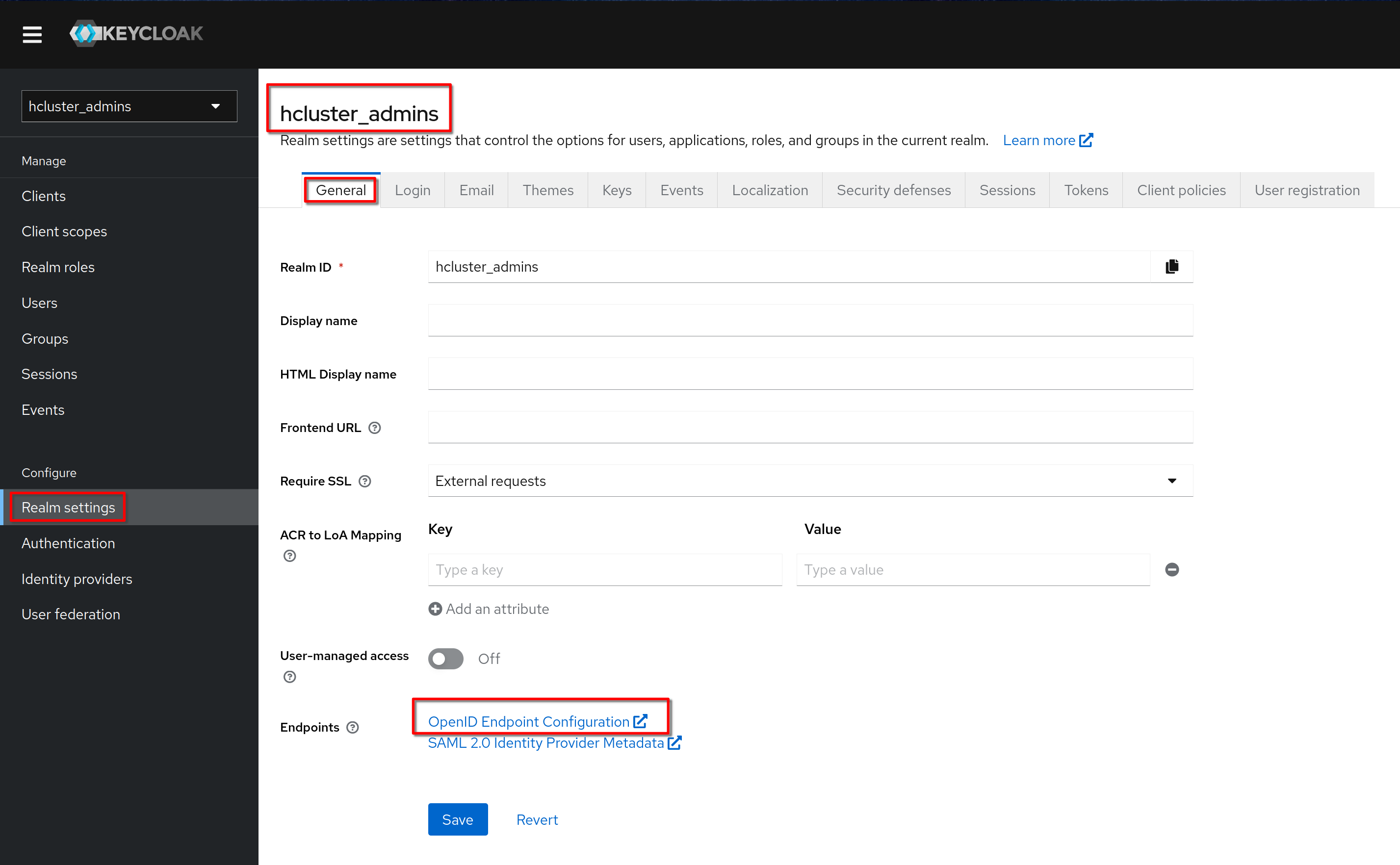
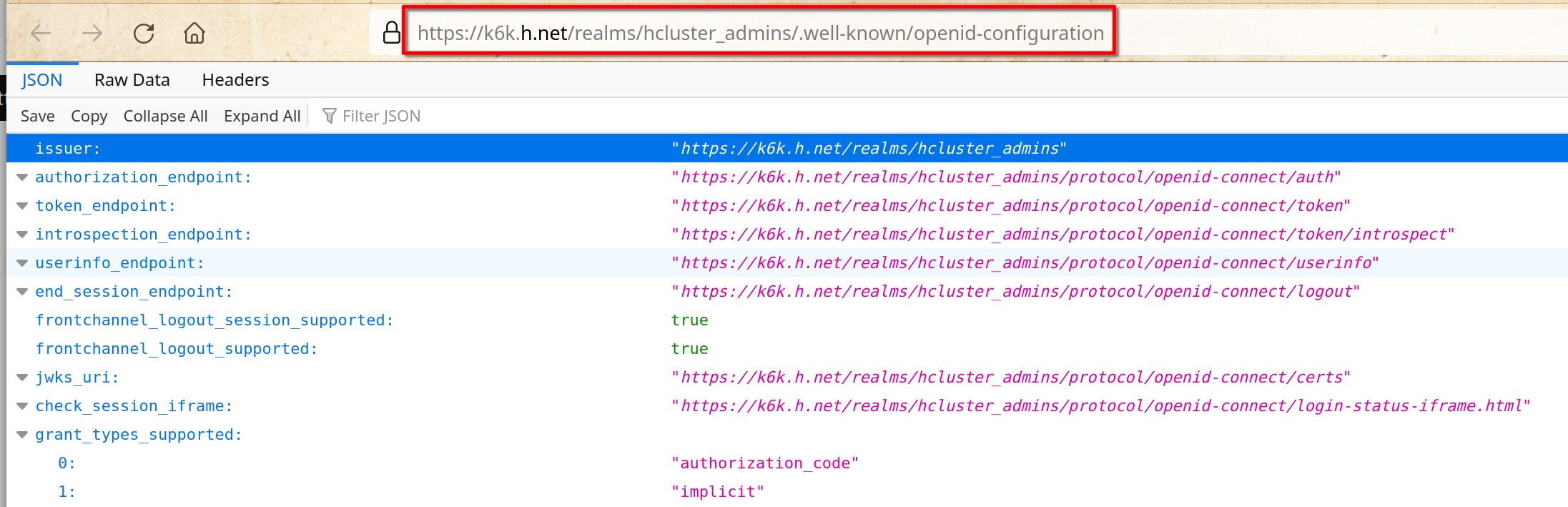
 In the **“Realm settings”**, **“General”** tab click on the link **“OpenID 
Endpoint Configuration”**
 
-![k6k15](https://github.com/MirtoBusico/assets-for-blogs/blob/main/k6k15.png)
+![k6k15](https://static.apiseven.com/uploads/2023/01/20/MiFQHqS0_40k6k15.png)
 
 This is the shown page
 
-![k6k16](https://github.com/MirtoBusico/assets-for-blogs/blob/main/k6k16.png)
+![k6k16](https://static.apiseven.com/uploads/2023/01/20/IQDtB8NP_41k6k16.png)
 
 Copy the link
 
@@ -1096,21 +1096,21 @@ Configure the apisix-dashboard route.
 
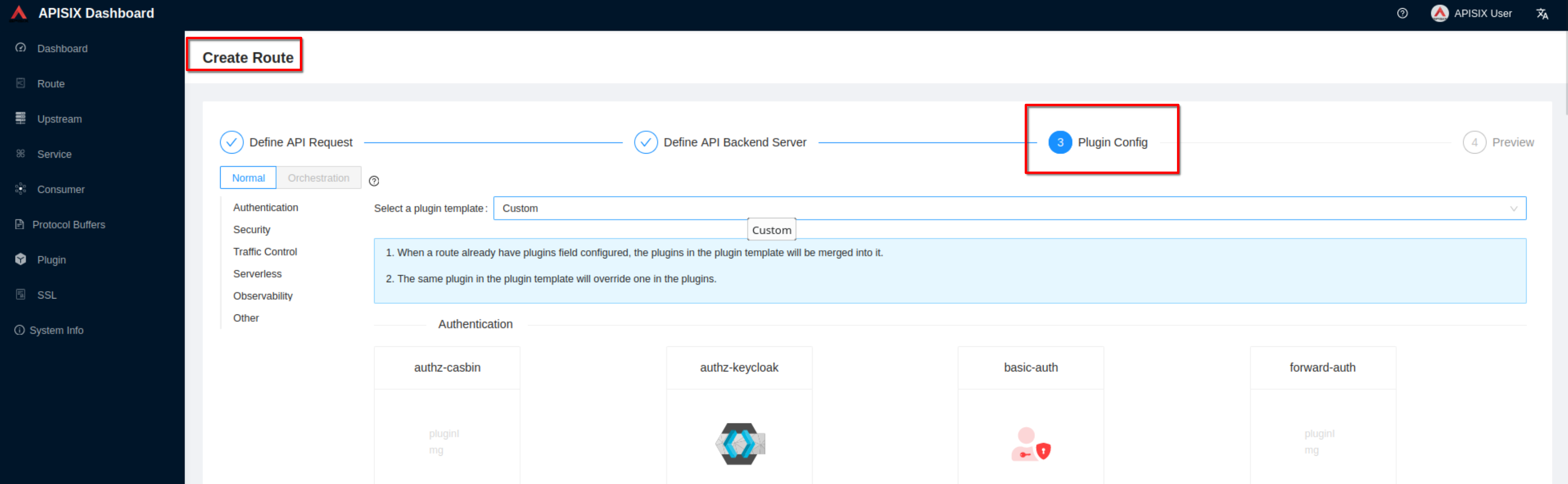
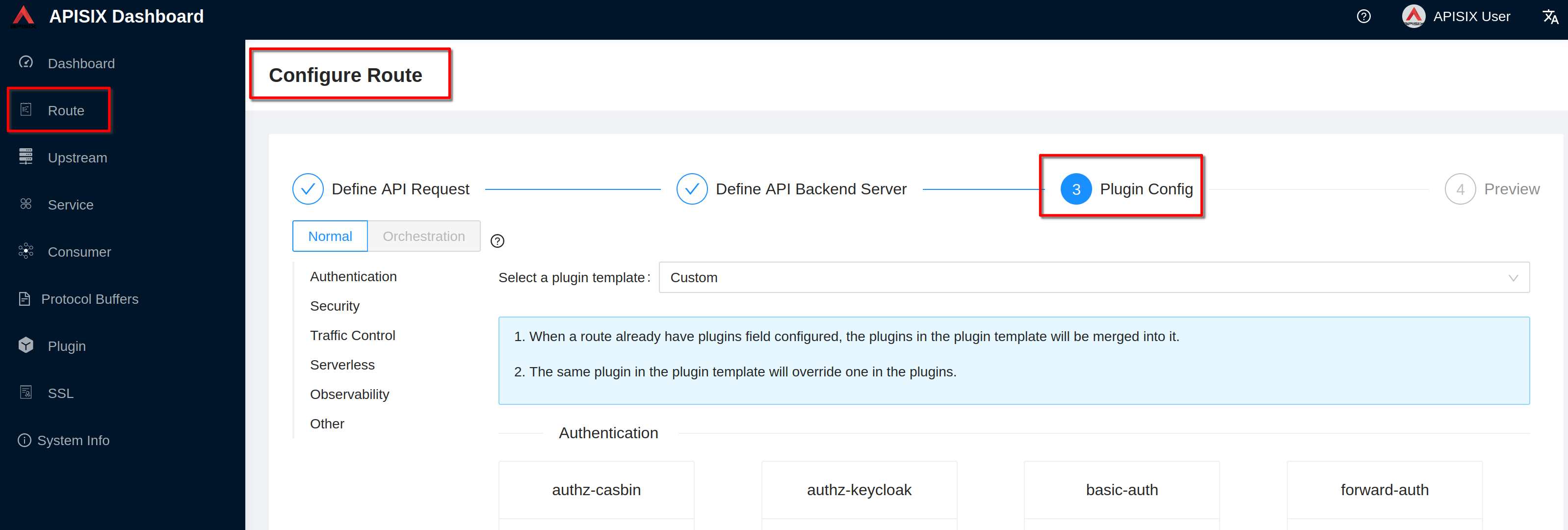
 Go to **“3 Plugin config”**
 
-![ad23](https://github.com/MirtoBusico/assets-for-blogs/blob/main/ad23.png)
+![ad23](https://static.apiseven.com/uploads/2023/01/20/fRBFq9qA_42ad23.png)
 
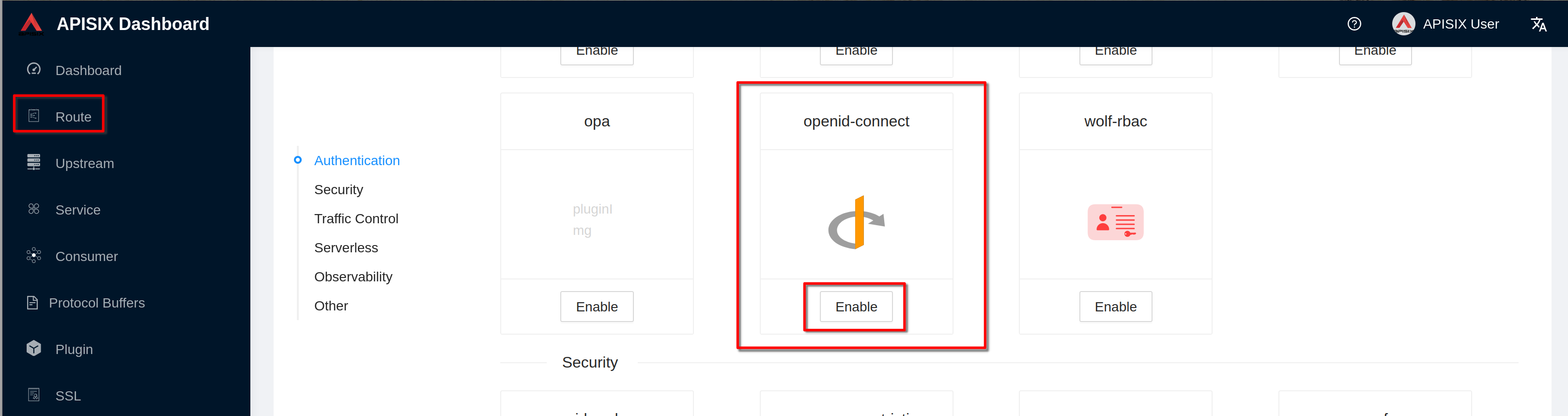
 Click **“Enable”** on openid-connect plugin (if you have already defined the 
plugin you'll see "Edit" instead of "Enable")
 
-![ad24](https://github.com/MirtoBusico/assets-for-blogs/blob/main/ad24.png)
+![ad24](https://static.apiseven.com/uploads/2023/01/20/yh2HtjSR_43ad24.png)
 
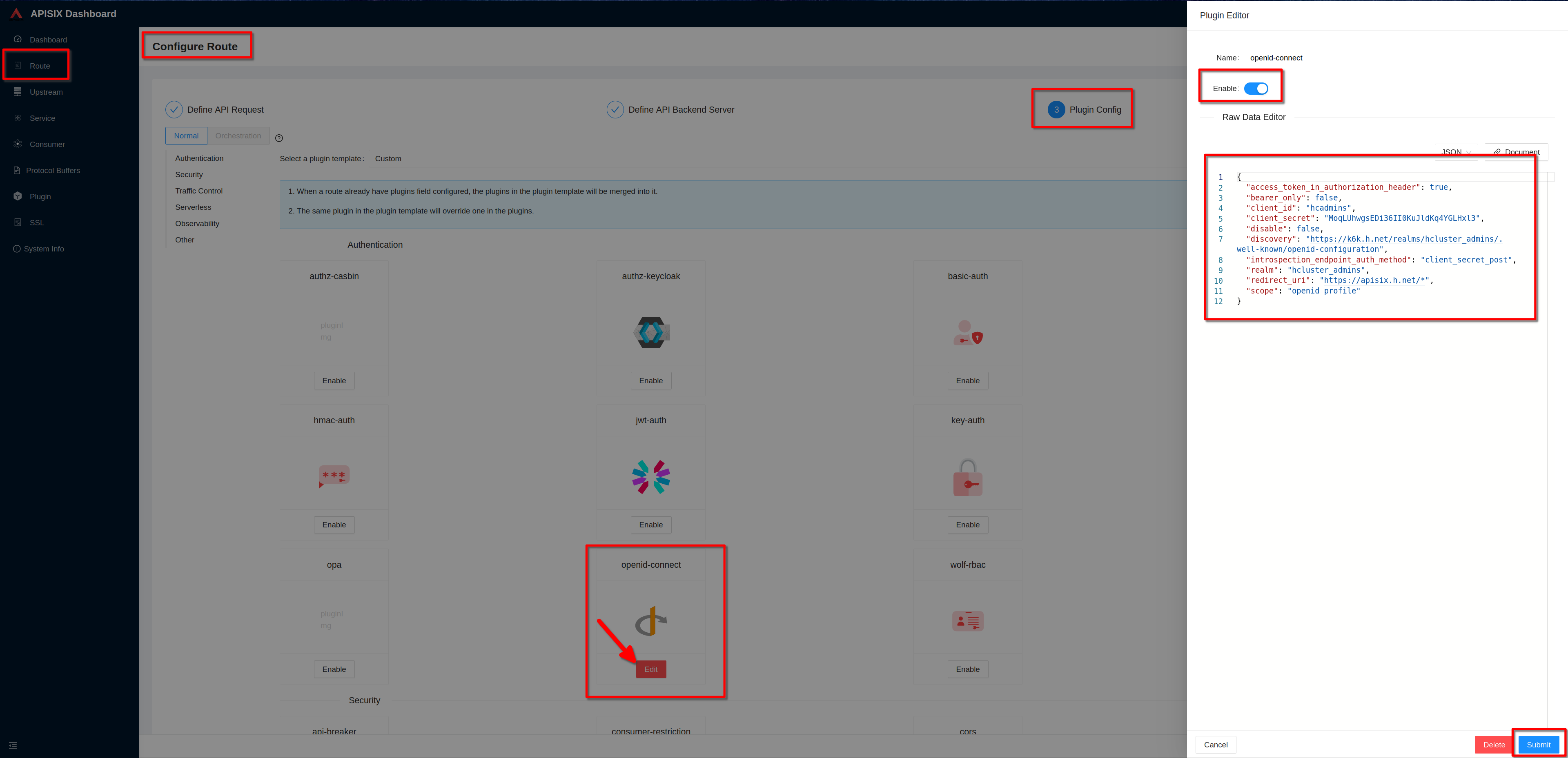
 Enable the plugin. Copy the previous defined json definition and click 
**“Submit”**
 
-![ad25](https://github.com/MirtoBusico/assets-for-blogs/blob/main/ad25.png)
+![ad25](https://static.apiseven.com/uploads/2023/01/20/DSqrLV7K_44ad25.png)
 
 Clik "next" and then clik "Submit" to complete the route configuration
 
 Then "view" the route to see the plugin configuration
 
-![ad26](https://github.com/MirtoBusico/assets-for-blogs/blob/main/ad26.png)
+![ad26](https://static.apiseven.com/uploads/2023/01/20/hFGRuPmq_45ad26.png)
 
 ### Accessing the Protected APISIX Dashboard Route
 
@@ -1125,15 +1125,15 @@ https://apisix.h.net
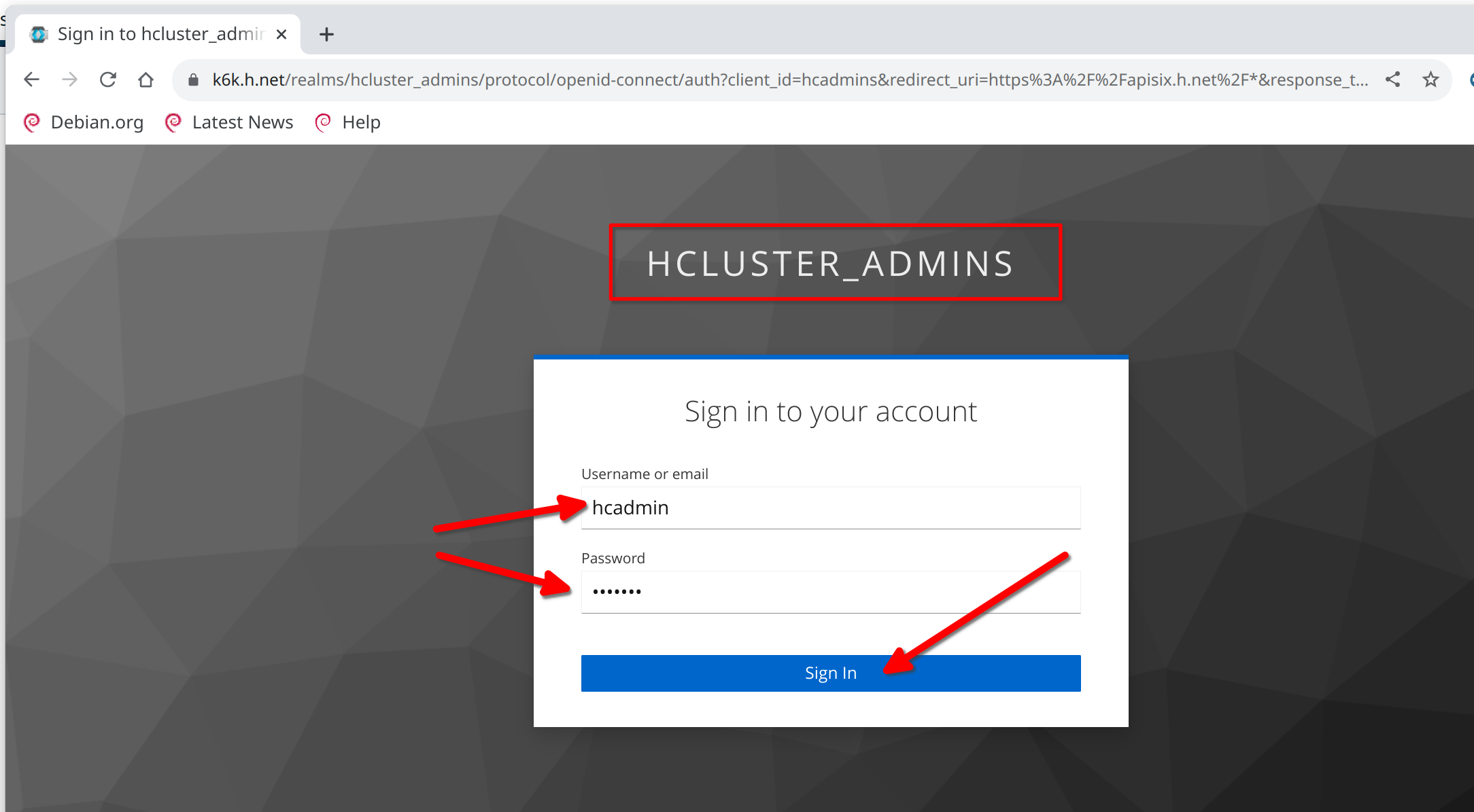
 You will be redirected to the Keycloak login page for the "HCLUSTER_ADMINS" 
realm.
 Login with the previous defined user "hcadmin" / "hcadmin"
 
-![ad27](https://github.com/MirtoBusico/assets-for-blogs/blob/main/ad27.png)
+![ad27](https://static.apiseven.com/uploads/2023/01/20/fs5u4nNI_46ad27.png)
 
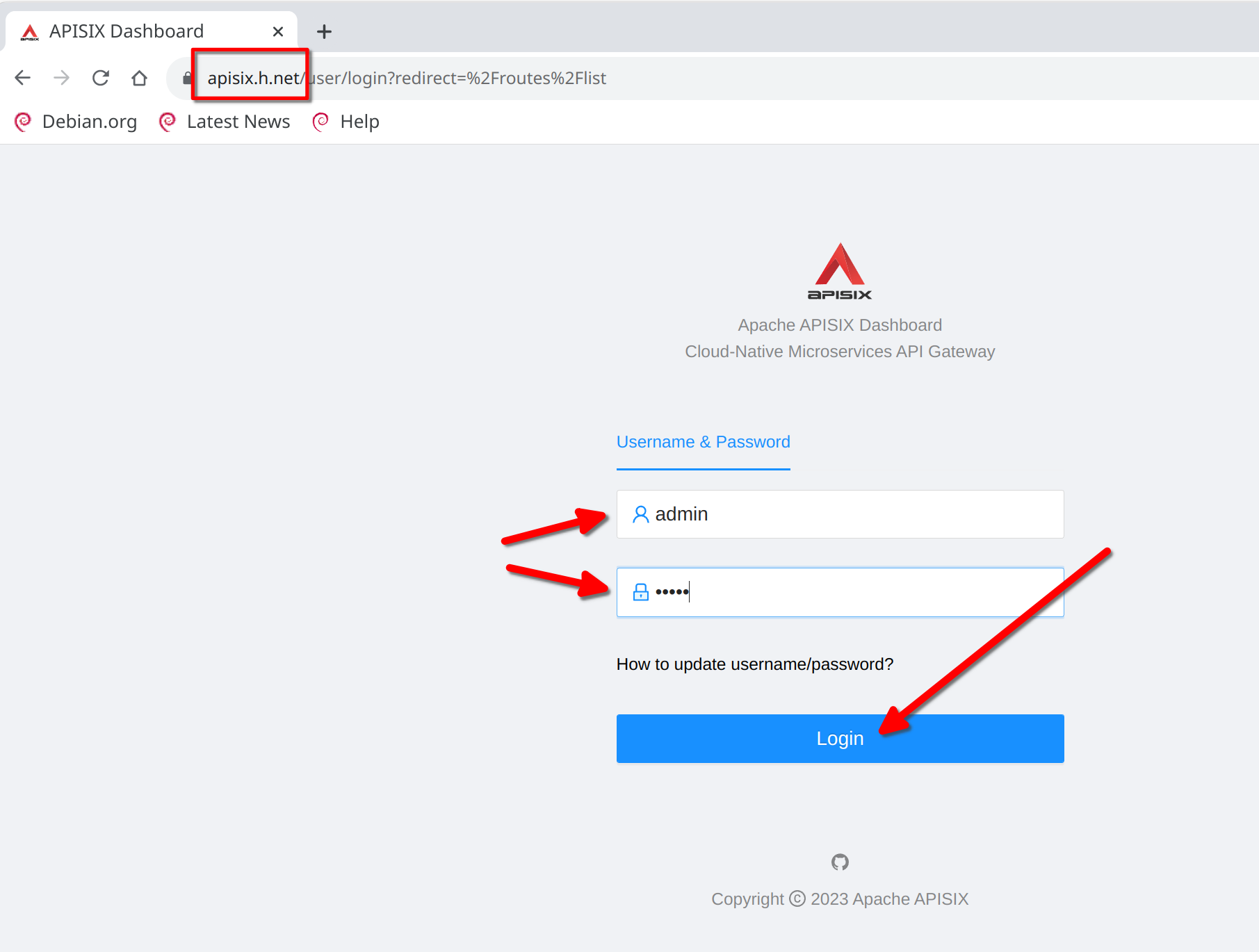
 The apisix-dashboard login will be presented. Login with "admin" / "admin"
 
-![ad28](https://github.com/MirtoBusico/assets-for-blogs/blob/main/ad28.png)
+![ad28](https://static.apiseven.com/uploads/2023/01/20/RnoBom2u_47ad28.png)
 
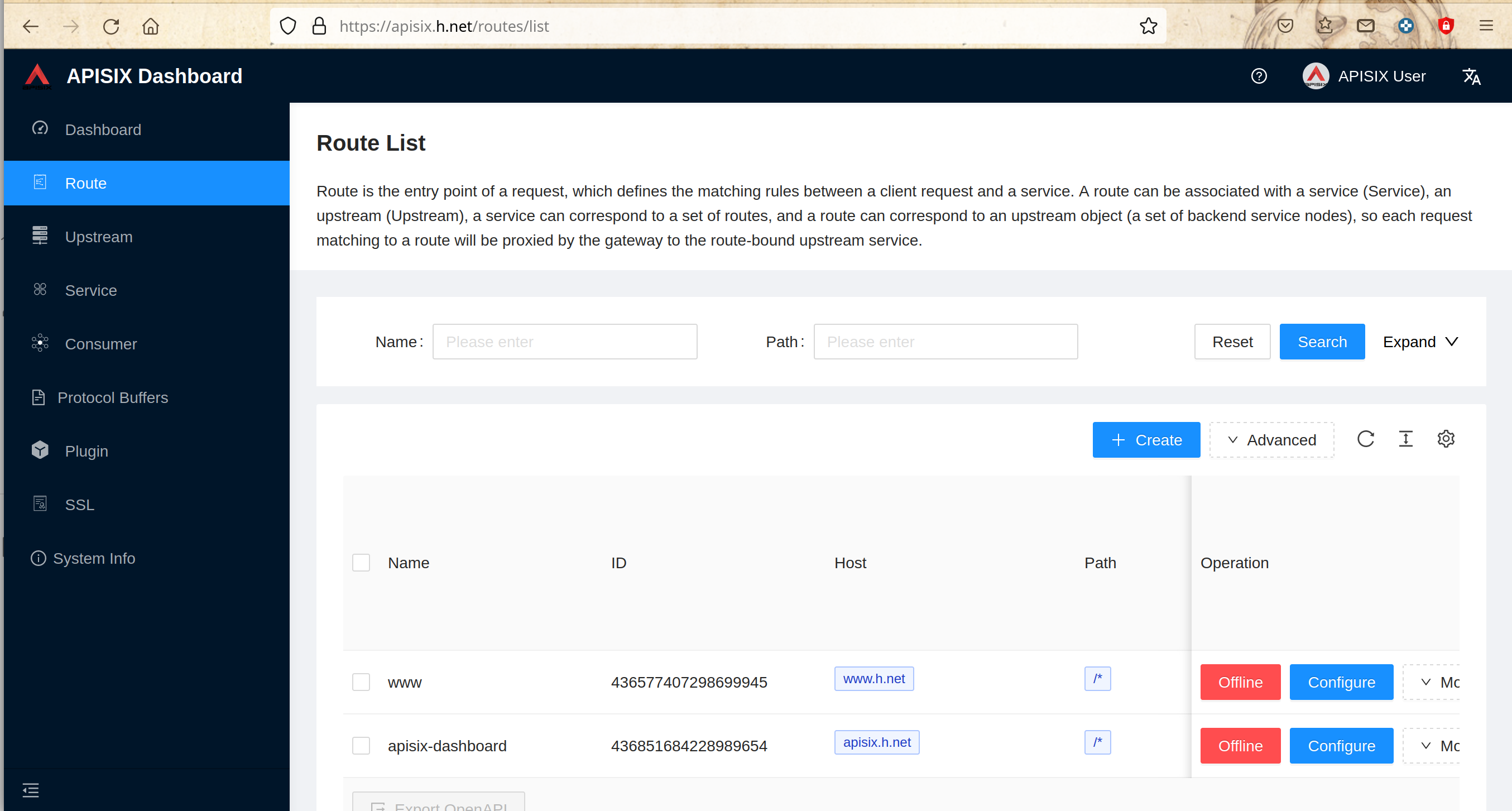
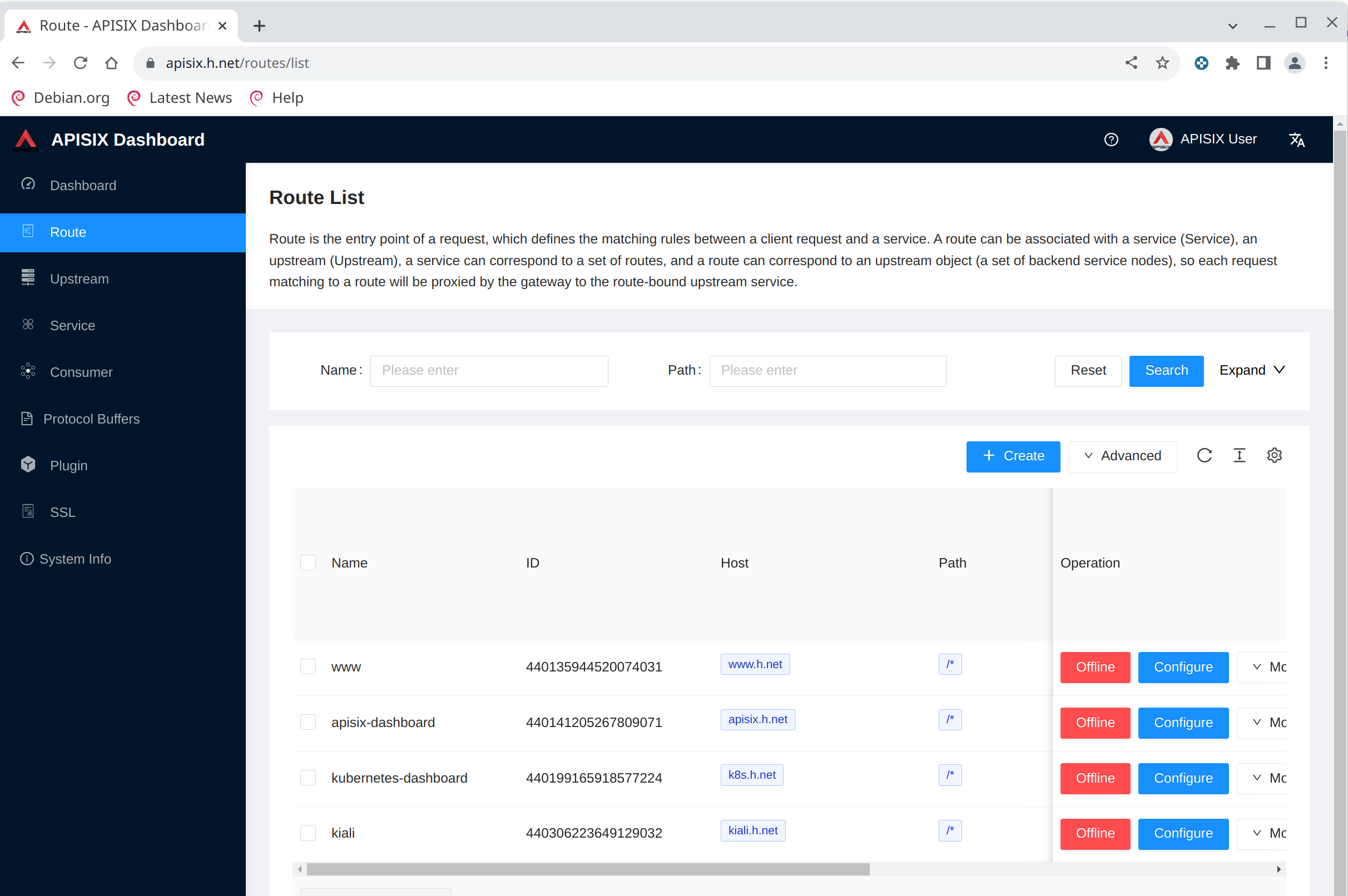
 And now you can see the apisix dashboard
 
-![ad29](https://github.com/MirtoBusico/assets-for-blogs/blob/main/ad29.png)
+![ad29](https://static.apiseven.com/uploads/2023/01/20/dFEXeiAE_48ad29.png)
 
 ## Recap
 

Reply via email to