Yilialinn commented on code in PR #11946:
URL: https://github.com/apache/apisix/pull/11946#discussion_r1998292412
########## docs/en/latest/plugins/skywalking.md: ########## @@ -117,121 +94,83 @@ admin_key=$(yq '.deployment.admin.admin_key[0].key' conf/config.yaml | sed 's/"/ ::: +### Trace All Requests + +The following example demonstrates how you can trace all requests passing through a route. + +Create a Route with `skywalking` and configure the sampling ratio to be 1 to trace all requests: + ```shell -curl http://127.0.0.1:9180/apisix/admin/routes/1 -H "X-API-KEY: $admin_key" -X PUT -d ' -{ - "methods": ["GET"], - "uris": [ - "/uid/*" - ], +curl "http://127.0.0.1:9180/apisix/admin/routes"; -X PUT \ + -H "X-API-KEY: ${admin_key}" \ + -d '{ + "id": "skywalking-route", + "uri": "/anything", "plugins": { - "skywalking": { - "sample_ratio": 1 - } + "skywalking": { + "sample_ratio": 1 + } }, "upstream": { - "type": "roundrobin", - "nodes": { - "10.110.149.175:8089": 1 - } + "nodes": { + "httpbin.org:80": 1 + }, + "type": "roundrobin" } -}' + }' ``` -<!-- You also can complete the above operation through the web interface, first add a route, then add SkyWalking plugin: - - --> - -## Example usage - -First, you need to have your SkyWalking server running. - -You can run it on Docker by: +Send a few requests to the route: ```shell -sudo docker run --name skywalking -d -p 1234:1234 -p 12800:12800 --restart always apache/skywalking-oap-server:8.7.0-es6 +curl -i "http://127.0.0.1:9080/anything"; ``` -:::tip +You should receive `HTTP/1.1 200 OK` responses. -By default, SkyWalking uses H2 storage. You can also use Elasticsearch storage instead. +In [Skywalking UI](http://localhost:8080), navigate to __General Service__ > __Services__. You should see a service called `APISIX` with traces corresponding to your requests: -First, install Elasticsearch. You can do it on Docker by running: +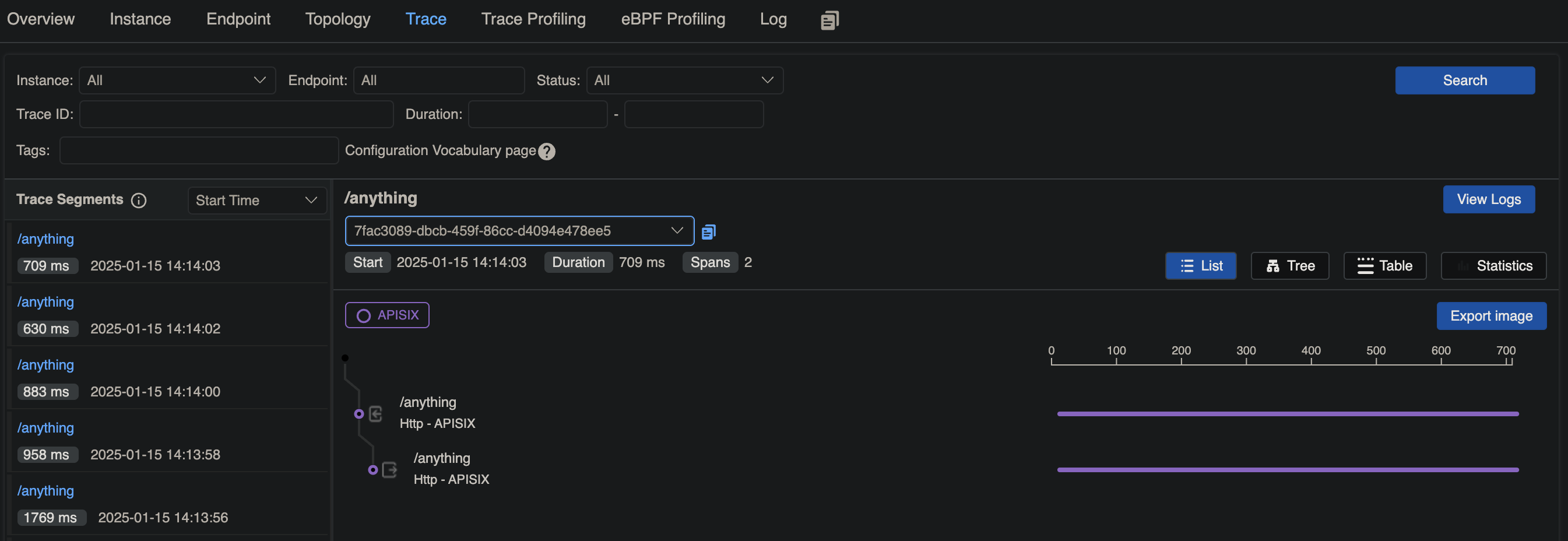 -```shell -sudo docker run -d --name elasticsearch -p 9200:9200 -p 9300:9300 --restart always -e "discovery.type=single-node" elasticsearch:6.7.2 -``` - -Optionally, you can install Elasticsearch management page, elasticsearch-hq: +### Associate Traces with Logs -```shell -sudo docker run -d --name elastic-hq -p 5000:5000 --restart always elastichq/elasticsearch-hq -``` +The following example demonstrates how you can configure the `skywalking-logger` Plugin on a Route to log information of requests hitting the route. -Once you have Elasticsearch installed, you can start a SkyWalking server by running: +Create a Route with the `skywalking-logger` Plugin and configure the Plugin with your OAP server URI: ```shell -sudo docker run --name skywalking -d -p 1234:1234 -p 12800:12800 --restart always --link elasticsearch:elasticsearch -e SW_STORAGE=elasticsearch -e SW_STORAGE_ES_CLUSTER_NODES=elasticsearch:9200 apache/skywalking-oap-server:8.7.0-es6 +curl "http://127.0.0.1:9180/apisix/admin/routes"; -X PUT \ + -H "X-API-KEY: ${admin_key}" \ + -d '{ + "id": "skywalking-logger-route", + "uri": "/anything", + "plugins": { + "skywalking": { + "sample_ratio": 1 + }, + "skywalking-logger": { + "endpoint_addr": "http://192.168.2.103:12800"; + } + }, + "upstream": { + "nodes": { + "httpbin.org:80": 1 + }, + "type": "roundrobin" + } + }' ``` -::: - -You can also install SkyWalking UI to view the data. To run it on Docker: +Generate a few requests to the route: Review Comment: ```suggestion Generate a few requests to the Route: ``` ########## docs/en/latest/plugins/skywalking.md: ########## @@ -117,121 +94,83 @@ admin_key=$(yq '.deployment.admin.admin_key[0].key' conf/config.yaml | sed 's/"/ ::: +### Trace All Requests + +The following example demonstrates how you can trace all requests passing through a route. + +Create a Route with `skywalking` and configure the sampling ratio to be 1 to trace all requests: + ```shell -curl http://127.0.0.1:9180/apisix/admin/routes/1 -H "X-API-KEY: $admin_key" -X PUT -d ' -{ - "methods": ["GET"], - "uris": [ - "/uid/*" - ], +curl "http://127.0.0.1:9180/apisix/admin/routes"; -X PUT \ + -H "X-API-KEY: ${admin_key}" \ + -d '{ + "id": "skywalking-route", + "uri": "/anything", "plugins": { - "skywalking": { - "sample_ratio": 1 - } + "skywalking": { + "sample_ratio": 1 + } }, "upstream": { - "type": "roundrobin", - "nodes": { - "10.110.149.175:8089": 1 - } + "nodes": { + "httpbin.org:80": 1 + }, + "type": "roundrobin" } -}' + }' ``` -<!-- You also can complete the above operation through the web interface, first add a route, then add SkyWalking plugin: - - --> - -## Example usage - -First, you need to have your SkyWalking server running. - -You can run it on Docker by: +Send a few requests to the route: ```shell -sudo docker run --name skywalking -d -p 1234:1234 -p 12800:12800 --restart always apache/skywalking-oap-server:8.7.0-es6 +curl -i "http://127.0.0.1:9080/anything"; ``` -:::tip +You should receive `HTTP/1.1 200 OK` responses. -By default, SkyWalking uses H2 storage. You can also use Elasticsearch storage instead. +In [Skywalking UI](http://localhost:8080), navigate to __General Service__ > __Services__. You should see a service called `APISIX` with traces corresponding to your requests: -First, install Elasticsearch. You can do it on Docker by running: + -```shell -sudo docker run -d --name elasticsearch -p 9200:9200 -p 9300:9300 --restart always -e "discovery.type=single-node" elasticsearch:6.7.2 -``` - -Optionally, you can install Elasticsearch management page, elasticsearch-hq: +### Associate Traces with Logs -```shell -sudo docker run -d --name elastic-hq -p 5000:5000 --restart always elastichq/elasticsearch-hq -``` +The following example demonstrates how you can configure the `skywalking-logger` Plugin on a Route to log information of requests hitting the route. Review Comment: ```suggestion The following example demonstrates how you can configure the `skywalking-logger` Plugin on a Route to log information of requests hitting the Route. ``` ########## docs/en/latest/plugins/skywalking.md: ########## @@ -117,121 +94,83 @@ admin_key=$(yq '.deployment.admin.admin_key[0].key' conf/config.yaml | sed 's/"/ ::: +### Trace All Requests + +The following example demonstrates how you can trace all requests passing through a route. Review Comment: ```suggestion The following example demonstrates how you can trace all requests passing through a Route. ``` ########## docs/en/latest/plugins/skywalking.md: ########## @@ -117,121 +94,83 @@ admin_key=$(yq '.deployment.admin.admin_key[0].key' conf/config.yaml | sed 's/"/ ::: +### Trace All Requests + +The following example demonstrates how you can trace all requests passing through a route. + +Create a Route with `skywalking` and configure the sampling ratio to be 1 to trace all requests: + ```shell -curl http://127.0.0.1:9180/apisix/admin/routes/1 -H "X-API-KEY: $admin_key" -X PUT -d ' -{ - "methods": ["GET"], - "uris": [ - "/uid/*" - ], +curl "http://127.0.0.1:9180/apisix/admin/routes"; -X PUT \ + -H "X-API-KEY: ${admin_key}" \ + -d '{ + "id": "skywalking-route", + "uri": "/anything", "plugins": { - "skywalking": { - "sample_ratio": 1 - } + "skywalking": { + "sample_ratio": 1 + } }, "upstream": { - "type": "roundrobin", - "nodes": { - "10.110.149.175:8089": 1 - } + "nodes": { + "httpbin.org:80": 1 + }, + "type": "roundrobin" } -}' + }' ``` -<!-- You also can complete the above operation through the web interface, first add a route, then add SkyWalking plugin: - - --> - -## Example usage - -First, you need to have your SkyWalking server running. - -You can run it on Docker by: +Send a few requests to the route: Review Comment: ```suggestion Send a few requests to the Route: ``` -- This is an automated message from the Apache Git Service. To respond to the message, please log on to GitHub and use the URL above to go to the specific comment. To unsubscribe, e-mail: [email protected] For queries about this service, please contact Infrastructure at: [email protected]

