This is an automated email from the ASF dual-hosted git repository.

juzhiyuan pushed a commit to branch master
in repository https://gitbox.apache.org/repos/asf/apisix-website.git
The following commit(s) were added to refs/heads/master by this push:
new a45f5c6 docs: add contribution guidelines (#776)
a45f5c6 is described below
commit a45f5c67b309fdf049553f8c95f627b348abc92c
Author: yilinzeng <[email protected]>
AuthorDate: Tue Nov 30 17:07:26 2021 +0800
docs: add contribution guidelines (#776)
---
README.md | 2 +
website/docs/general/blog-contributing-guide.md | 347 ++++++++++++++++++++++++
website/docs/general/sidebars.json | 1 +
3 files changed, 350 insertions(+)
diff --git a/README.md b/README.md
index 95d6fd8..f2a1423 100644
--- a/README.md
+++ b/README.md
@@ -5,6 +5,8 @@
The website of [Apache APISIX®](https://apisix.apache.org/), a cloud-native
microservices api gateway.
+If you want to write a blog or fix some blog-related issues, please read
[Apache APISIX Blog Contributing
Guide](/website/docs/general/blog-contributing-guide.md) first. Then create a
pull request.
+
## Usage
```sh
diff --git a/website/docs/general/blog-contributing-guide.md
b/website/docs/general/blog-contributing-guide.md
new file mode 100644
index 0000000..68c3b52
--- /dev/null
+++ b/website/docs/general/blog-contributing-guide.md
@@ -0,0 +1,347 @@
+---
+id: blog
+title: Blog Contributing Guide
+keywords:
+- API gateway
+- APISIX
+- Apache APISIX
+- blog
+- how to write a blog
+description: This article is a set of guidelines for contributors who want to
write blogs. This guideline will teach you how to contribute if you want to add
a new blog, or modify existing blog contents.
+---
+
+## Overview
+
+This guideline will teach you how to contribute if you want to add a new blog,
or modify existing blog contents.
+
+If you find an issue on current documents, please feel free to [file an
issue](https://github.com/apache/apisix-website/issues/new) and let the
community know about it, or you can [sumbit a pull
request](https://github.com/apache/apisix-website/pulls) to fix or update. Both
actions are welcome and recommended.
+
+The blogs are written in two languages: English and Chinese. We encourage
contributors to add blogs in their preferred language. It is completely up to
you. We can handle translations and ask you to do a pull request review later.
+
+English blogs are located in the `website/blog` directory, in which they are
categorized by year, month and date. For example,
`website/blog/2021/11/22/develop-apisix-ingress-with-nocalhost-in-kubernetes.md`
means that a blog named
`develop-apisix-ingress-with-nocalhost-in-kubernetes.md` was published on
November 22nd, 2021, and it is located in the `website/blog/2021/11/22`
directory. Once it is reviewed and megered, the URL should be:
`https://apisix.apache.org/blog/2021/11/22/develop- [...]
+
+Similarly, Chinese blogs are located in
`website/i18n/zh/docusaurus-plugin-content-blog` directory and follow the same
patterns described above.
+
+## What you can contribute
+
+We encourge contributors and users to write blogs about how they contribute or
use Apache APISIX, or help us fix typos and update contents in existing blogs.
+
+### Add a new blog
+
+To add a new blog, please perform the following steps:
+
+1. Find the right place to store your blog.
+ 1. If you plan to submit a blog written in **English**, please create a
markdown file under `website/blog` directory.
+ 2. If you plan to submit a blog written in **Chinese**, please create a
markdown file under `website/i18n/zh/docusaurus-plugin-content-blog` directory.
+ 3. If you cannot find an existing year, month, or date directory that fits
your desired published date, you can go ahead and create such directory on your
own.
+
+2. Create a markdown file in the directory. Please make sure that the file
name is written in English with **NO** capitalized letters. During review
session, we may suggest changing it to achieve better SEO performance (Yes,
currently some files names contain capitalized letters, we are working on it,
see [Issue #713](https://github.com/apache/apisix-website/issues/713)).
+
+3. Add text, images, diagrams, charts to the markdown file.
+ 1. There is nothing much to say about adding text.
+ 2. To add images, please upload images to by using [this public image CDN
service](https://markdown.apiseven.com) , and copy the links from there.
+ 3. To add charts or diagrams, we are happy to see any sort of charts and
diagrams. From previous experience, charts with 4 columns or less are the
perfect size displayed on screen.
+
+4. Optional: run it locally to inspect any typos or formatting issues left
behind. Although we implemented lint and error checks in the repository, we
suggest running it locally to avoid repeated work. To run it locally, please
run `cd website`, and then run `yarn start` commands in your terminal.
+
+5. Submit a pull request to our repository.
+
+#### Blog's header information
+
+Our blogs start with a header sections containing fields such as `title`,
`author`, `authorURL`, `authorImageURL`, `keywords`, `description`, and `tags`.
+
+While `title` and `author` are starightforward, the other fields might be a
bit confusing for first-time contributors. Explanations of each field is shown
below. Please note that these fields could change over time.
+
+```markdown
+title: "blog's title"
+author: "blog's author"
+authorURL: "author's GitHub ID"
+authorImageURL: "author's GitHub Image"
+keywords:
+- keywords 1
+- keywords 2
+- keywords 3
+- keywords 4
+- keywords 5
+description: description of this blog
+tags: [tag1]
+```
+
+##### title
+
+Required field, the title of the article, the standard expression in the form
of `title: "title"`.
+
+##### author
+
+Required field, the article's author name, the standard form of expression for
`author: "author"`.
+
+1. Community author: if you are willing to provide your real name, use your
real name, if not, use your GitHub account name.
+
+2. Business case authors: please provide real name, such as John Doe.
+
+##### authorURL
+
+For business users or business cases, you can leave this item blank. Because
GitHub is personal, and in the case of a business case, the person represents
his company rather than himself, it is recommended that you leave this blank to
avoid unnecessary controversy. This does not mean leave `authorURL`: blank, it
means just delete the entire line that corresponds to it, including the
variable name.
+
+##### authorImageURL
+
+The author's GitHub avatar, it is related with `authorURL`. For the same
reason described above, this is an optional field. See below for how to get
the avatar.
+
+##### keywords
+
+Required field, keyword, which is used to enhance better SEO performance.
Usually the first three keywords are "APISIX", "Apache APISIX", "API Gateway",
and the last two are the article's own keywords.
+
+##### description
+
+Required field, the description, which is used to enhance better SEO
performance. Usually you can summarize the first or last paragraph of the
article, forming about 120 words of text, and put it here.
+
+##### tags
+
+Required field, tag, which is used to categorize the blog. Each post has and
can only have one tag. If more than one tag is suitable, please choose the most
suitable one. The available tags and explanations are as follows. Please note
that these tags and rules of applying tags could change over time.
+
+- **Community**: community related, e.g. "How to contribute to an open source
project without writing code?"
+- **Events**: event-related, for example: online live stream, event previews,
meetups, and online meeting, etc.
+- **Interview**: Interviews, e.g., Dr. Yang Li interview, Summer of
Programming interview.
+- **Practical Case**: Best practices, easily confused with Technology. The
factors that determine whether an article is a Technology or a Practical Case
are: the content of the article and the subject of the description. For
example, if the article is about "Running Apache APISIX on xxx platform", then
it is a Practical Case; for example, if the article is about technical stuff,
"Apache APISIX v.s. Envoy", then it is Technology.
+- **Release**: Release notes, this is better understood. It should be noted
that the release notes inside the blog are polished, while the release notes
inside the release are written by developers.
+- **Security**: Security vulnerability notification and methods to bypass
security vulnerabilities, currently there are only two articles, very good to
identify, generally have CVE-xxxxxxx is it.
+- **Technology**: Technical articles, easily confused with Practical Case. The
factors that determine whether an article is a Technology or a Practical Case
are: the content of the article and the subject of the description. For
example, if the article is about "Running Apache APISIX on xxx platform", then
it is a Practical Case; for example, if the article is about technical stuff,
"Apache APISIX v.s. Envoy", then it is Technology.
+- **User Case**: User Case, this is also very straightforward. Please tell us
how you use Apache APISIX and your feelings about Apache APISIX.
+
+We can help authors to use a better category once a pull request is submitted.
+
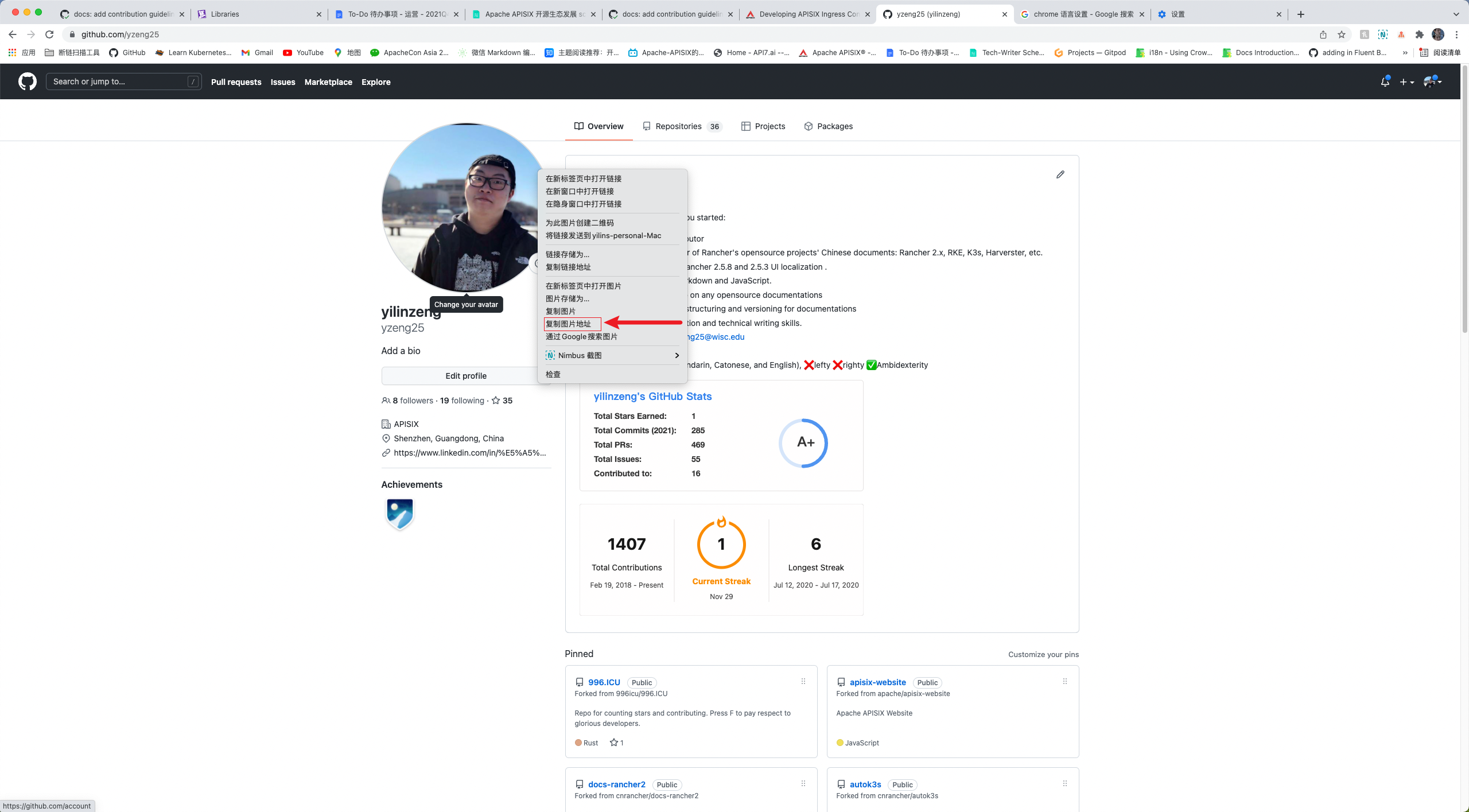
+#### How to get the authorImageURL
+
+1. Open Chrome or your preffered browser.
+2. Enter the author's GitHub address to access the author's GitHub home page.
+3. Right click on the author's avatar, and click "copy image address".
+4. Paste image address to the authorImageURL field.
+
+
+#### truncate and overview
+
+```markdown
+> overview
+
+<!--truncate-->
+```
+
+An overview is entered starting with `>` and a space followed by texts. The
overview can be your own summary of the article, or it can be the first
paragraph of the article with a summary description. When you are done, type
`<! --truncate-->`. `<! --truncate--->` serves to display the `<!
--truncate--->` above the blog overview, or if there is no overview, nothing
will be displayed; if there is an overview but no `<! --truncate--->`, it will
show the whole thing. For more information, p [...]
+
+#### Difference between Description and Overview
+
+Some people may ask: why should we add the same contents in two fields? First
of all, they are indeed both summary text. Second, they are different in the
following way: description is used for SEO enhancements, overview is used to
display contents on the blog page.
+
+### Fix typos or formats
+
+1. Locate the file. Chinese blogs are located in
`website/i18n/zh/docusaurus-plugin-content-blog` directory. English blogs are
located in the `website/blog` directory.
+2. Fix the typos or formats.
+3. Submit a pull request to our repository.
+
+## Before you contribute
+
+### Commit message style
+
+1. The initial/first commit message should follow this style: `docs: type in
your actual commit message`. Otherwise, the CI tests would fail and you would
need to modify the commit message.
+2. The later commit messages would be nice if you follow these style (it is
totally fine if you do it your way):
+ 1. `update: type in your actual commit message`
+ 2. `fix: type in your actual commit message`
+
+### Pull request title guide
+
+Pull request title is usually generated from the first commit message, this is
why we need a uniformed message for the first commit message. It is easier to
maintain this way. Remember this is repository for website and blog, titles
start with prefix `docs:` can help us track down particular pull requests.
+
+## How to contribute via git command line
+
+### Local repository configuration
+
+1. Open your browser and visit https://github.com/apache/apisix-website.
+2. Click 'fork' in the upper right corner to fork it to your own repository.
+3. Copy your own remote repository address.
+4. Open your terminal, and type in the following commands. Change to your
desired directory to store the files, and git clone it from remote.
+
+ ```sh
+ cd {path or directory name} # change to your desired directory
+ git clone 'https://github.com/{your GitHub Username}/apisix-website' #
After forking the repo to your own GitHub, please clone your own repo to local
+ ```
+
+5. View the relationship between your repository and your remote repository.
The reuslt should be two lines containing 'origin' messages only.
+
+ ```sh
+ git remote -v
+ ```
+
+6. Now you need to add the main repository as 'upstream'.
+
+ ```sh
+ git remote add upstream https://github.com/apache/apisix-website.git
+ ```
+
+ To verify that 'upstream' is added: run git remote -v , the result should
be 4 lines, 2 with 'origin' and 2 with 'upstream'.
+
+These steps conclude the process of adding and configuring a local repository.
Next, let's see how to add a new blog, modify contents, and how to resolve
conflicts.
+
+### Add a new blog
+
+1. Switch to the apisix-website directory.
+
+ ```sh
+ cd apisix-website
+ ```
+
+2. Then find out how many branches there are and which branch you are
currently in.
+
+ ```sh
+ git branch
+ ```
+
+ Ideally, there should be few branches and they should stay on the branch
where the last change was made or on the master branch.
+
+3. Create a new branch and specify that it is upstream of the master branch of
the GitHub master repository.
+
+ ```sh
+ git checkout -b {branch name} upstream/master # replace {branch name} with
actual branch name
+ ```
+
+4. Pull the latest changes from the master branch in main repository.
+
+ ```sh
+ git fetch upstream master
+ ```
+
+5. Synchronize changes to the local branch.
+
+ ```sh
+ git rebase
+ ```
+
+6. Add new blog.
+
+7. When you're done editing blogs, run `git add` command to temporarily store
them.
+
+ ```sh
+ git add .
+ ```
+
+8. Then run `git commit` to record your changes.
+
+ ```sh
+ git commit -m "docs: brief message about this change" # message should be
concise and shorter than 50 characters
+ ```
+
+9. Finally, run git push to push the changes to the remote repository.
+
+ ```sh
+ git push origin
+ ```
+
+10. Visit GitHub website in your browser, create a pull request, and edit the
change information.
+
+11. Complete your pull request.
+
+### Fix typos or formats
+
+1. First switch to the apisix-website path.
+
+ ```sh
+ cd apisix-website
+ ```
+
+2. Then find out how many branches there are and which branch you are
currently in.
+
+ ```sh
+ git branch
+ ```
+
+ Ideally, there should be few branches and they should stay on the branch
where the last change was made or on the master branch.
+
+3. Create a new branch and specify that it is upstream of the master branch of
the GitHub master repository.
+
+ ```sh
+ git checkout -b {branch name} upstream/master # replace {branch name} with
actual branch name
+ ```
+
+4. Pull the latest changes from the master branch in main repository.
+
+ ```sh
+ git fetch upstream master
+ ```
+
+5. Synchronize changes to the local branch.
+
+ ```sh
+ git rebase
+ ```
+
+6. Fix typos or formats.
+
+7. When you're done making changes, run `git add` command to temporarily store
them.
+
+ ```sh
+ git add .
+ ```
+
+8. Then run `git commit` to record your changes.
+
+ ```sh
+ git commit -m "docs: brief message about this change" # message should be
concise and shorter than 50 characters
+ ```
+
+9. Finally, run git push to push the changes to the remote repository.
+
+ ```sh
+ git push origin
+ ```
+
+10. Open the GitHub code repository in your browser, create the PR, and edit
the change information.
+
+11. Complete your pull request.
+
+### Resolving conflicts
+
+#### Why does conflict occur
+
+Conflict can occur when you submit a PR, and the reason for the conflict is
simple: when you make a local change, someone else has committed the PR and
merged it into master, and the master you pulled at the time is not the latest
version anymore. GitHub is confused because it has no way to determine which of
the two versions of the same file prevails. So it throws the problem to the
person who created it: whoever's pull request caused the conflict is in charge
of the problem.
+
+#### How to resolve conflict
+
+##### Rebase is a good method
+
+1. Since the master pulled at the time is out of date, then pull the latest
again.
+
+ ```sh
+ git fetch upstream master
+ ```
+
+2. Sync the latest to this local branch.
+
+ ```sh
+ git rebase
+ ```
+
+3. Handle conflict locally.
+
+4. After you're done, run `git add`, `git commit`, and `git push -f` again.
+
+##### Cherry-pick is an alternative
+
+1. Create a new branch locally.
+
+ ```sh
+ git checkout -b {new branch name} upstream/master
+ ```
+
+2. Pull the latest changes from the remote master repository.
+
+ ```sh
+ git fetch upstream master
+ ```
+
+3. Move all changes from the original branch to the new branch.
+
+ ```sh
+ git cherry-pick {commit number}
+ ```
+
+4. Handle conflict locally.
+5. Run `git add`, `git commit`, and `git push` once.
diff --git a/website/docs/general/sidebars.json
b/website/docs/general/sidebars.json
index f5b3683..c6c0b4e 100644
--- a/website/docs/general/sidebars.json
+++ b/website/docs/general/sidebars.json
@@ -5,6 +5,7 @@
"2fa",
"subscribe-guide",
"contributor-guide",
+ "blog",
"committer-guide",
"release-guide",
"community",

