SylviaBABY commented on a change in pull request #817:
URL: https://github.com/apache/apisix-website/pull/817#discussion_r773647315
########## File path: website/blog/2021/12/22/google-logging.md ########## @@ -0,0 +1,208 @@ +--- +title: Apache APISIX Integrates with Google Cloud Logging to Improve Log Processing +authors: + - name: "Jinchao Shuai" + title: "Author" + url: "https://github.com/shuaijinchao"; + image_url: "https://avatars.githubusercontent.com/u/8529452?v=4"; + - name: "Yilin Zeng" + title: "Technical Writer" + url: "https://github.com/yzeng25"; + image_url: "https://avatars.githubusercontent.com/u/36651058?v=4"; +keywords: +- Apache APISIX +- Google Cloud +- Google Logging +- APISIX +- API Gateway +description: This article will explain how to configure and use the Google Cloud Logging service in Apache APISIX. +tags: [Technology] +--- + +> This article will explain how to configure and use the Google Cloud Logging service in Apache APISIX. + +<!--truncate--> + + + +Logging is an important infrastructure for distributed systems. It can help developers observe the status of service operation, improve the efficiency of service troubleshooting and diagnosis, and conduct multi-dimensional analysis to improve the overall stability and operational efficiency of the system. + +[Google Cloud Logging](https://cloud.google.com/logging/) is a real-time log management service provided by Google Cloud, offering EB-level storage, search, analysis, and alerting services. Google Cloud Logging's log browser allows you to search, sort, and analyze logs easily and efficiently, and Google Cloud Logging also provides saved queries and rich graphical features to make log screening results retrievable and more intuitive. + +Apache APISIX has previously supported the integration of [HTTP Logger](https://github.com/apache/apisix/blob/master/docs/en/latest/plugins/http-logger.md) , [TCP Logger](https://github.com/apache/apisix/blob/master/docs/en/latest/plugins/tcp-logger.md), [Kafka Logger](https://github.com/apache/apisix/blob/master/docs/en/latest/plugins/kafka-logger.md), [UDP Logger](https://github.com/apache/apisix/blob/master/docs/en/latest/plugins/udp-logger.md), [RocketMQ Logger](https://github.com/apache/apisix/blob/master/docs/en/latest/plugins/rocketmq-logger.md), [SkyWalking Logger](https://github.com/apache/apisix/blob/master/docs/en/latest/plugins/skywalking-logger.md), [Aliyun Cloud Logging(SLS)](https://github.com/apache/apisix/blob/master/docs/en/latest/plugins/sls-logger.md) and many other open source and cloud logging service solutions. + +Recently, Apache APISIX has also added support for Google Cloud Logging, giving users a new logging solution when using Apache APISIX as a gateway: use [google-cloud-logging](https://github.com/apache/apisix/blob/master/docs/en/latest/plugins/google-cloud-logging.md) to forward Apache APISIX request logs to the Google Cloud Logging service for analysis and storage. + +When the plugin is enabled, Apache APISIX will take the request context information in Log Phase and serialize it into Google Cloud Logging's [LogEntry](https://cloud.google.com/logging/docs/reference/v2/rest/v2/LogEntry), then submit the serialized log data to the batch queue, and when the batch queue triggers a user-set time or entry threshold, the log data will be forwarded to Google Cloud Logging service via Google Cloud API to the Google Cloud Logging service. + +This article will explain how to configure and use the Google Cloud Logging service in Apache APISIX. + +## Configure Google Cloud + +1. Open your browser and visit Google Cloud Homepage. +2. Enter your username and password to log in to the Google Cloud console. +3. Click the Google Cloud console left menu and select "IAM & Admin > Create a Project" to start creating a project. + 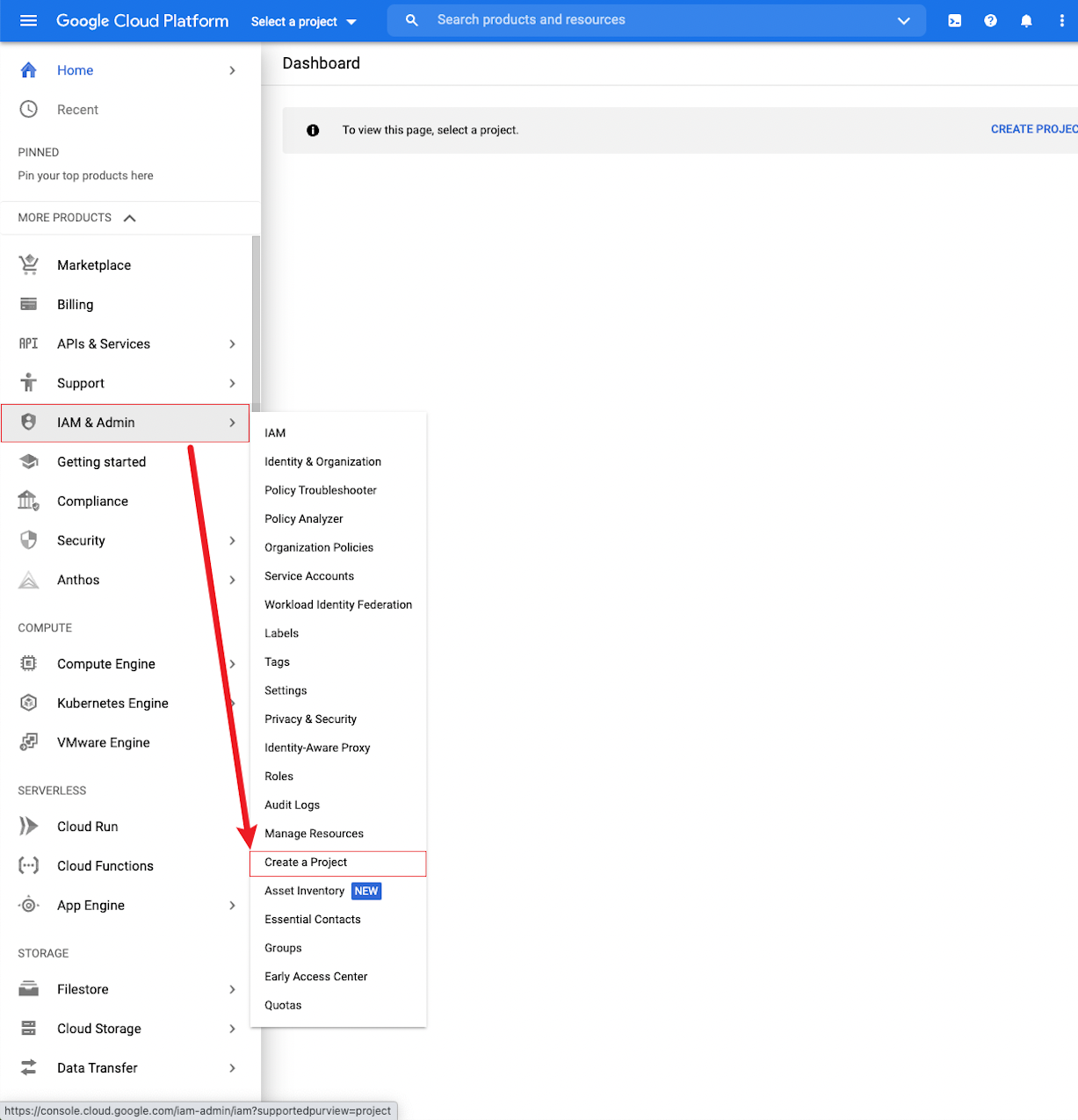 +4. Enter a project name, select an organization name, and click "CREATE" to create the project. + 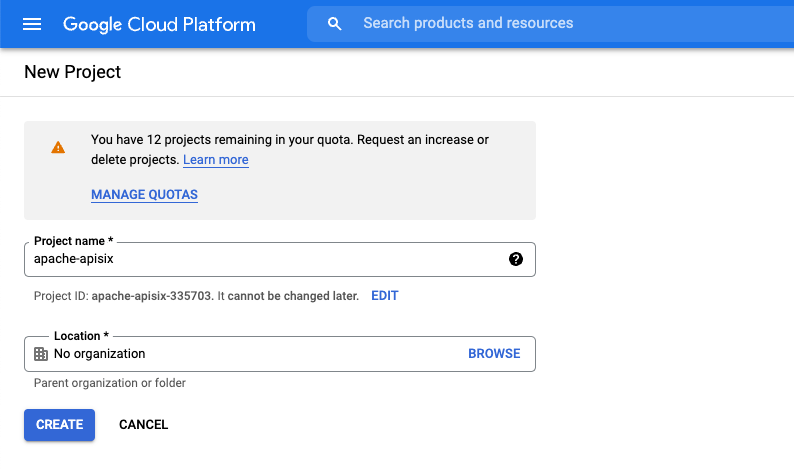 +5. When the project is created successfully, the top right corner of the console indicates that the creation was successful. + 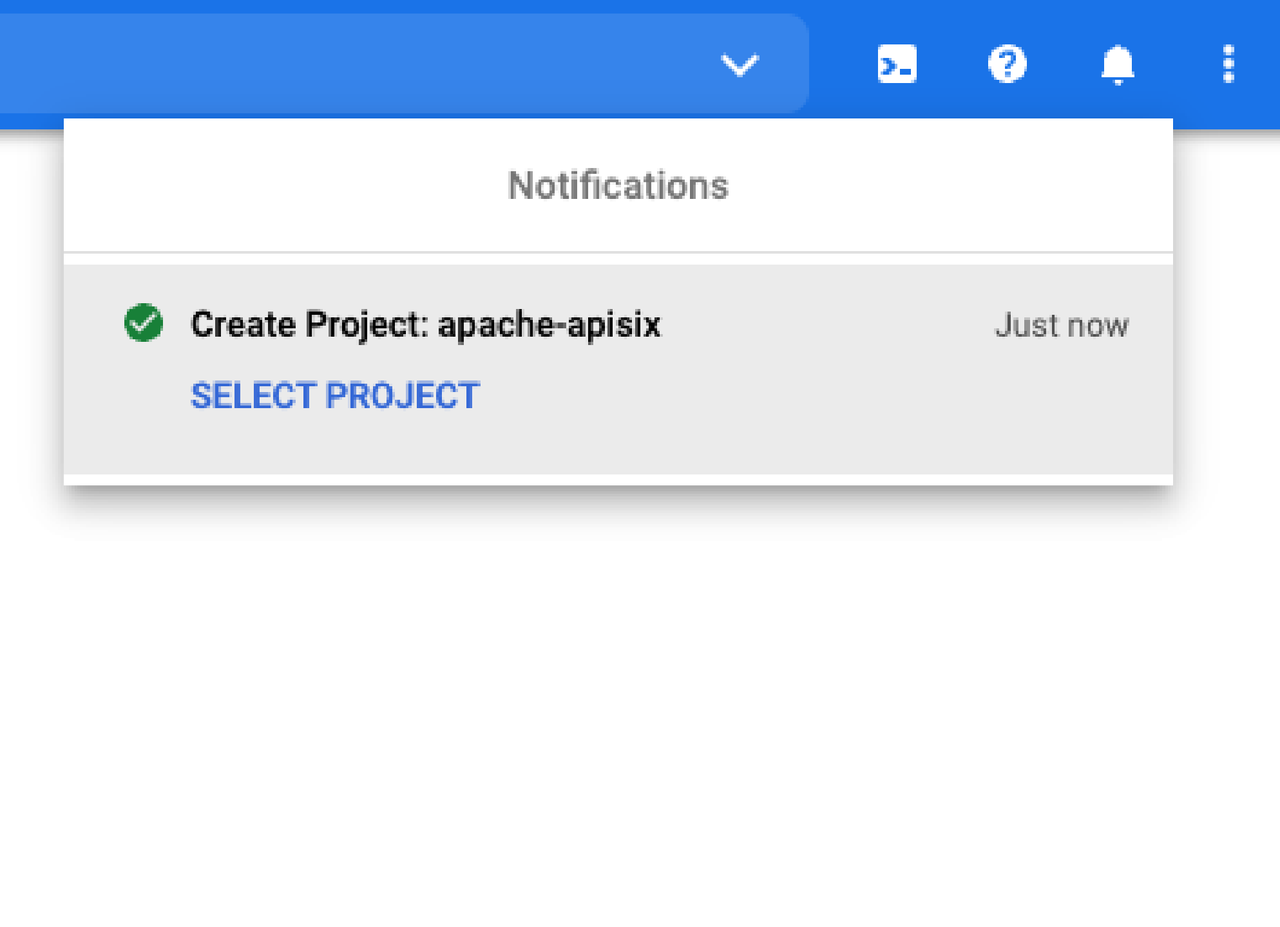 +6. Click in the window to select the project, or select the project operation path in the top navigation bar of the console home page. After selecting the project, you will be redirected to the console home page, where you can already see the data about the current project in the top navigation bar and the project information in the information center. + 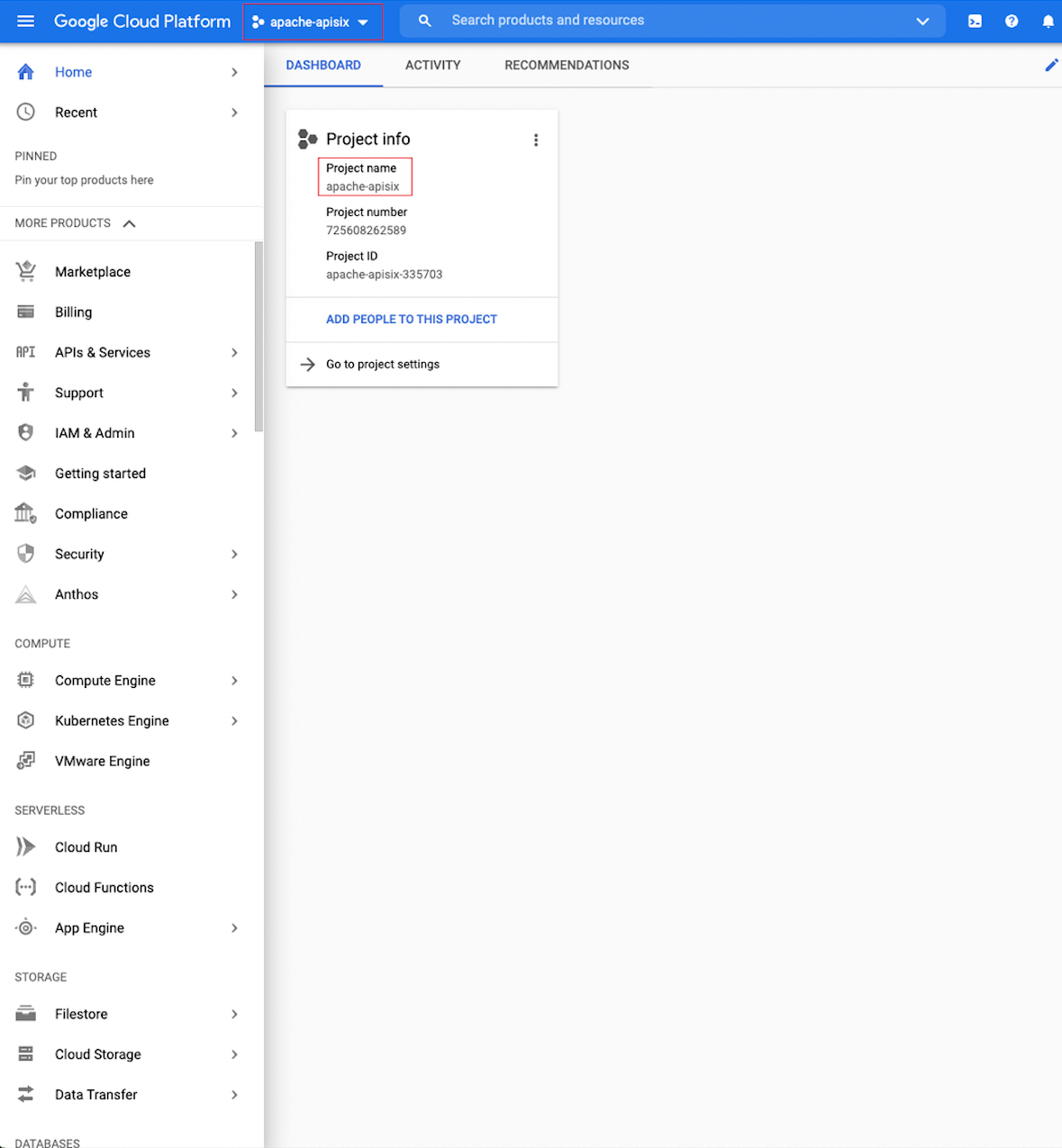 +7. After you finish creating the project, you need to create a service account for the project. Please go back to the Google Cloud console home page and click "IAM & Admin > Service Account" on the left menu to start creating a service account. + 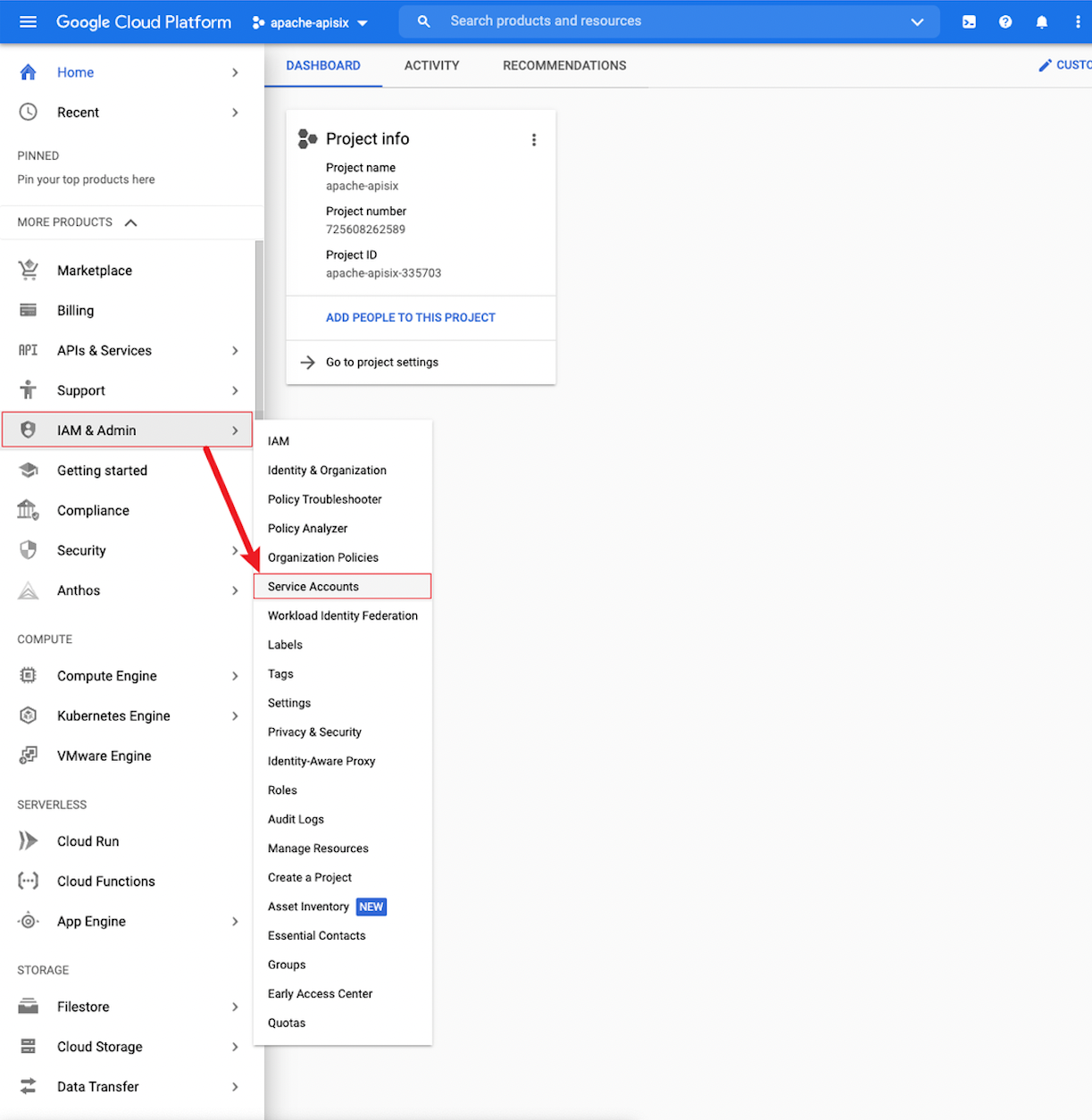 +8. Click "CREATE SERVICE ACCOUNT" to create the service account. + 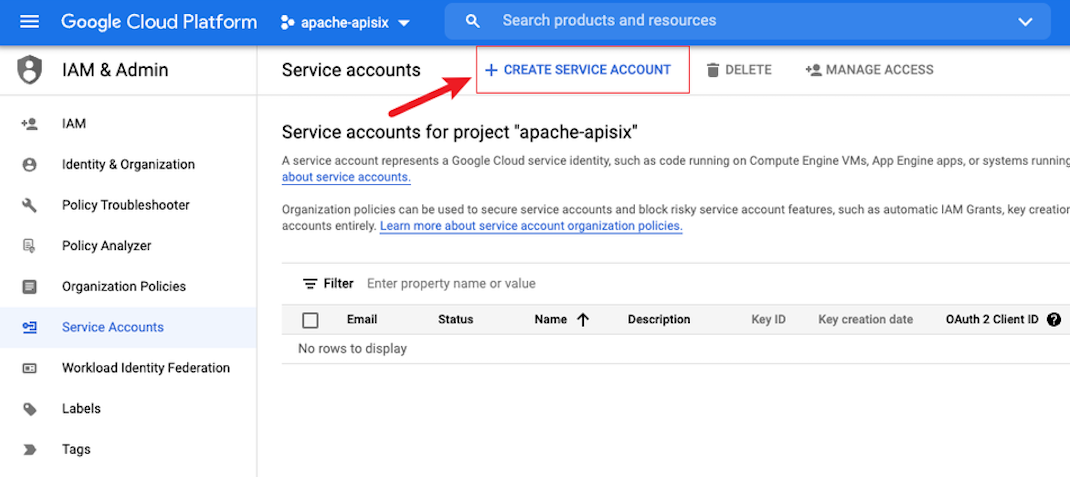 +9. Enter the service account name and ID (the ID usually follows the account generation), and then click "CREATE AND CONTINUE". + 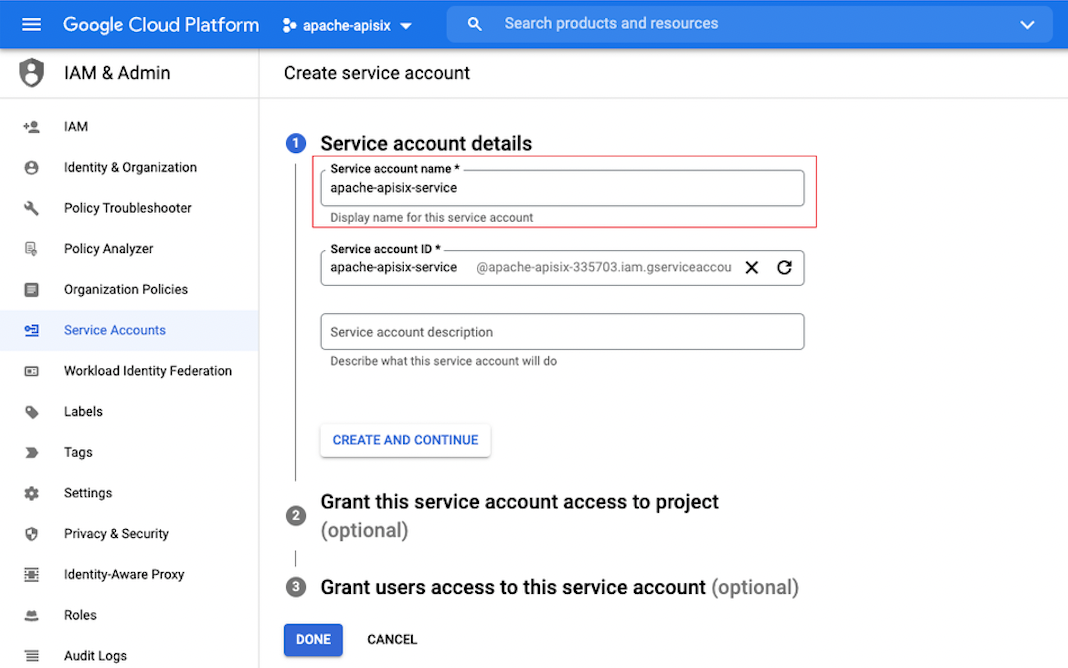 +10. Click on "Role" and type "Logging Admin" in the search box to search for this role and select "Logging Admin" as the role. + 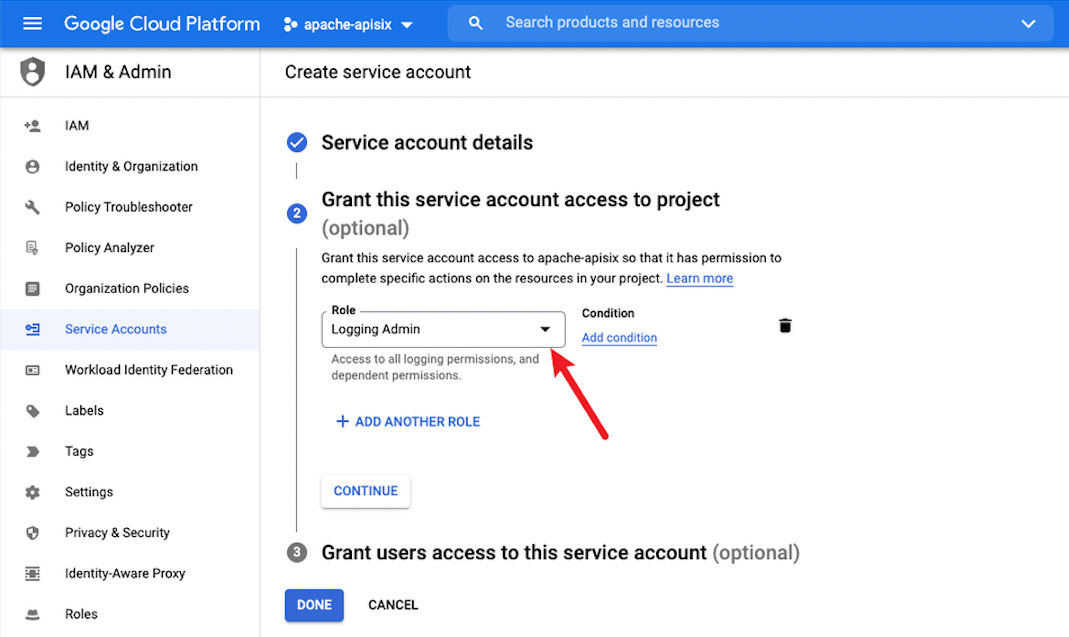 +11. Click "DONE" to complete the service account creation and jump to the service account home page. At this point you can see the account you just created and its details in the list. + 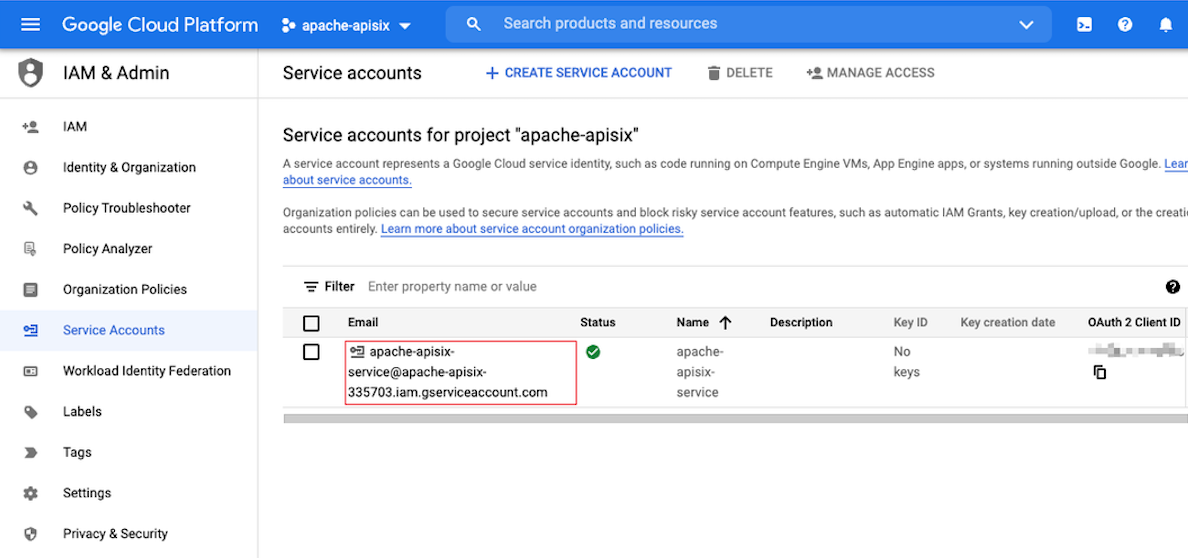 +12. Click "Manage keys" in the last column of the service account to enter the secret key management interface. + 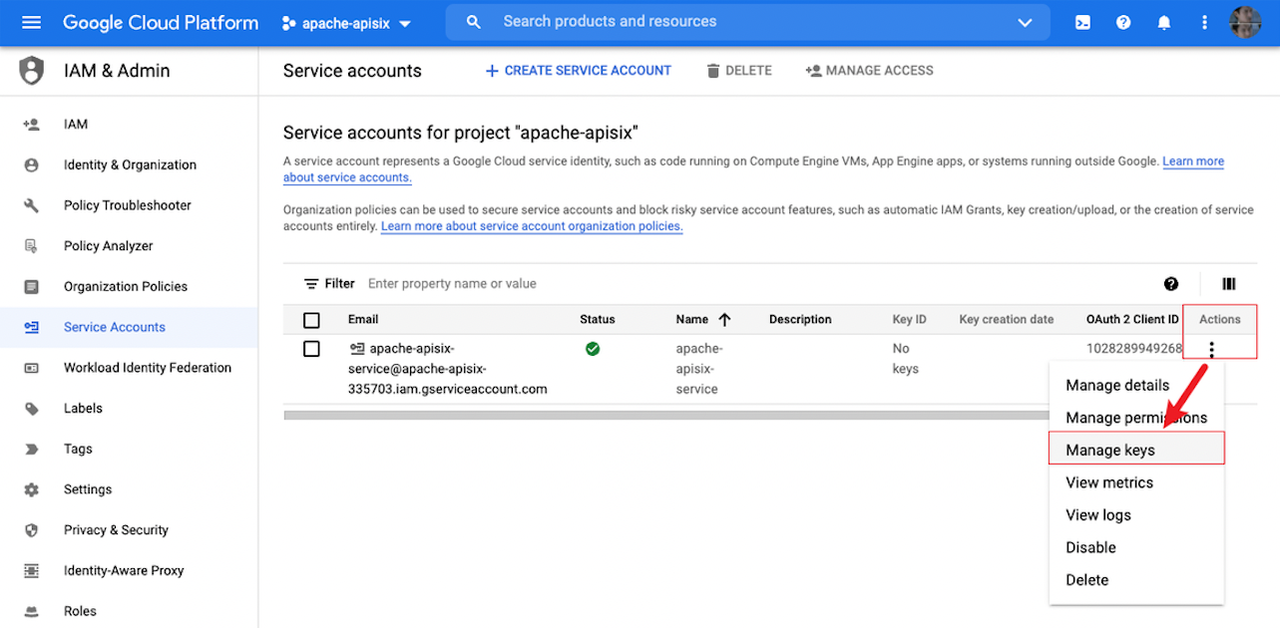 +13. Click "ADD KEY > Create new key" to start creating a new secret key. + 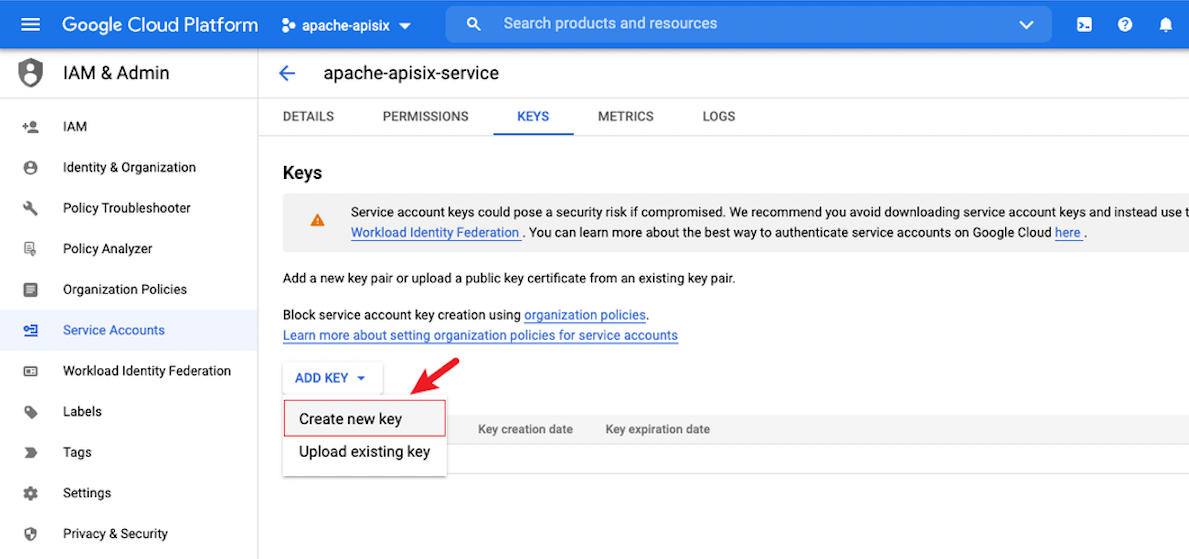 +14. Select the secret key type as "JSON" in the pop-up page, and then click "CREATE" to create a new secret key. + 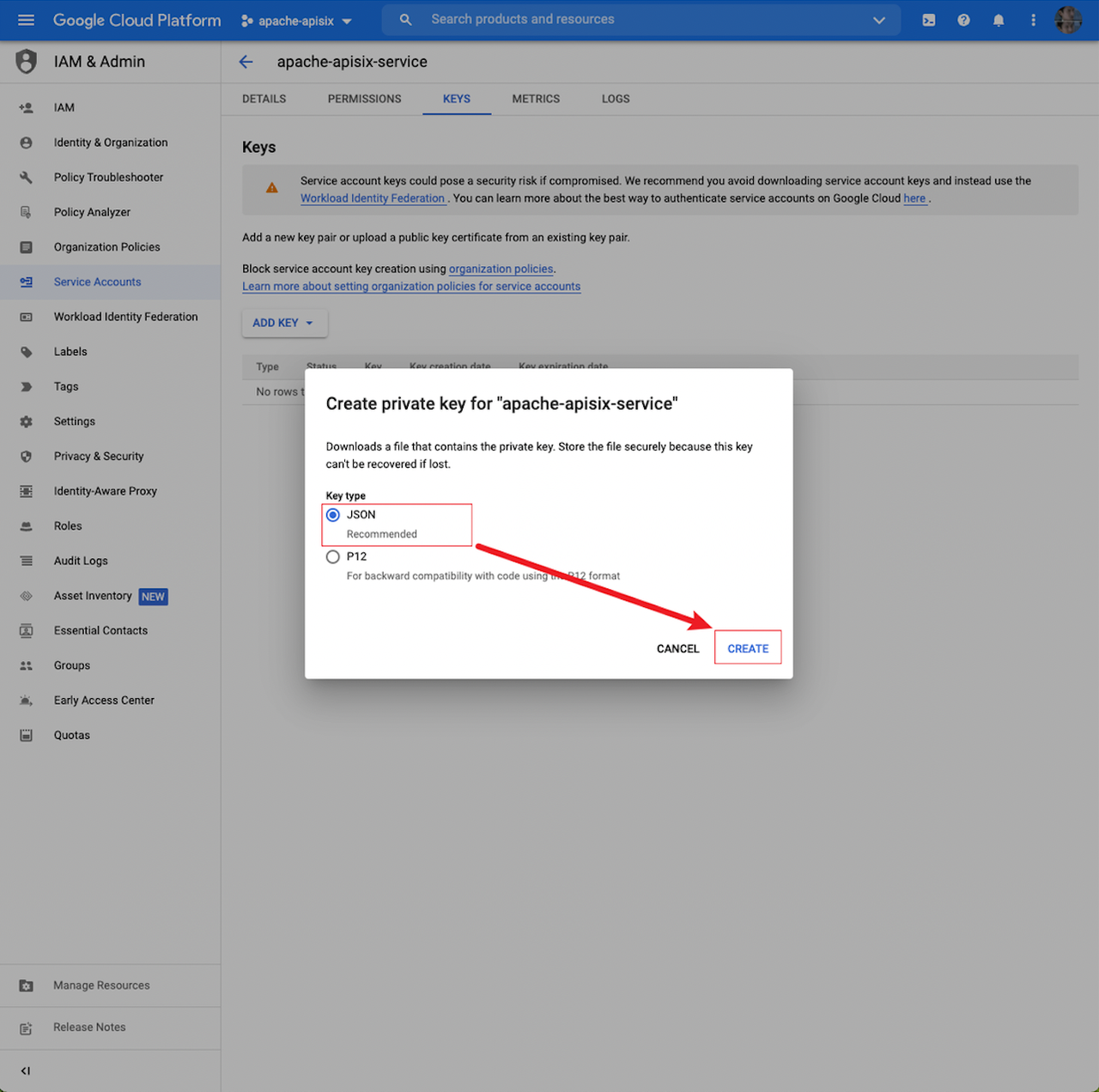 +15. The private key information will be automatically downloaded to the system default Downloads directory through your browser . When you enable google-cloud-logging plugin, you need to use the information in this private key, so please save the private key file. + 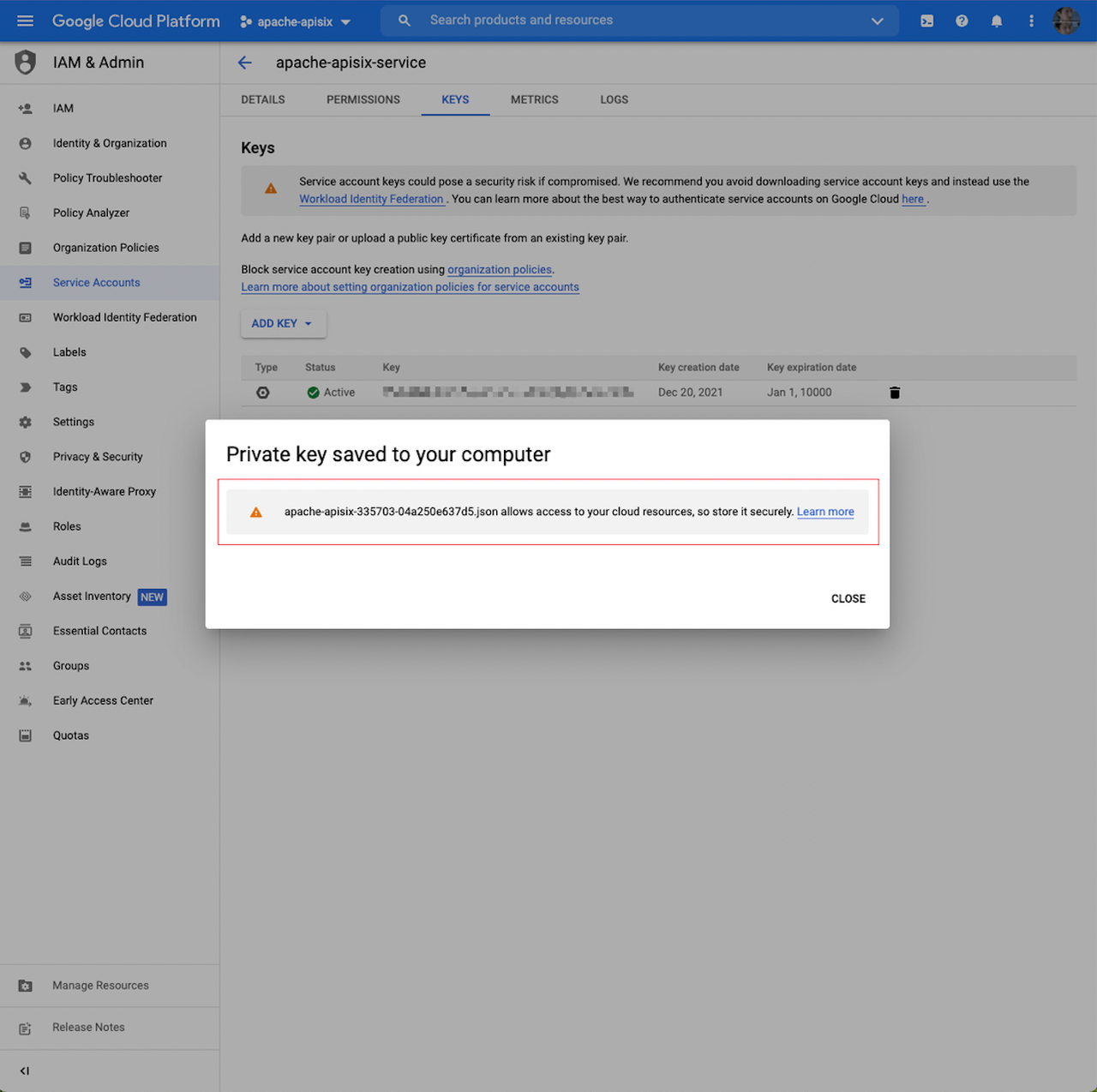 + +## Configure Apache APISIX + +### Enable google-cloud-logging plugin + +#### Option 1: Upload key file configuration + +1. Upload the private key file to the Apache APISIX node server. +2. Configure the file path to the google-cloud-logging. auth_file configuration item, as shown below: Review comment: ```suggestion 2. Configure the file path to the `google-cloud-logging. auth_file` configuration item, as shown below: ``` -- This is an automated message from the Apache Git Service. To respond to the message, please log on to GitHub and use the URL above to go to the specific comment. To unsubscribe, e-mail: [email protected] For queries about this service, please contact Infrastructure at: [email protected]














