yzeng25 commented on a change in pull request #837:
URL: https://github.com/apache/apisix-website/pull/837#discussion_r785590353
########## File path: website/blog/2022/01/11/building-apisix-in-ubuntu-for-arm.md ########## @@ -0,0 +1,249 @@ +--- +title: "How to build Apache APISIX in ARM Ubuntu" +authors: + - name: "Qi Guo" + title: "Author" + url: "https://github.com/guoqqqi"; + image_url: "https://avatars.githubusercontent.com/u/72343596?v=4"; +keywords: +- Apache APISIX +- arm +- ubuntu +- Apple Macbook Pro M1 +description: By reading this article, you will learn how to build Apache APISIX (M1 chip environment) in ARM Ubuntu from source code. +tags: [Technology] +--- + +> By reading this article you will learn how to build Apache APISIX (M1 chip environment) in ARM Ubuntu from source code. The ARM Ubuntu system is installed with the help of [https://multipass.run/](https://multipass.run/). + +<!--truncate--> + +## Clone source code + +First follow the [official documentation](https://apisix.apache.org/zh/docs/apisix/how-to-build#%E9%80%9A%E8%BF%87%E6%BA%90%E7%A0%81%E5%8C%85%E5%AE%89%E8%A3%85). Clone the Apache APISIX source code repository and go to the project directory. Review comment: ```suggestion First follow the [official documentation](https://apisix.apache.org/docs/apisix/how-to-build/). Clone the Apache APISIX source code repository and go to the project directory. ``` ########## File path: website/blog/2022/01/11/building-apisix-in-ubuntu-for-arm.md ########## @@ -0,0 +1,249 @@ +--- +title: "How to build Apache APISIX in ARM Ubuntu" +authors: + - name: "Qi Guo" + title: "Author" + url: "https://github.com/guoqqqi"; + image_url: "https://avatars.githubusercontent.com/u/72343596?v=4"; +keywords: +- Apache APISIX +- arm +- ubuntu +- Apple Macbook Pro M1 +description: By reading this article, you will learn how to build Apache APISIX (M1 chip environment) in ARM Ubuntu from source code. +tags: [Technology] +--- + +> By reading this article you will learn how to build Apache APISIX (M1 chip environment) in ARM Ubuntu from source code. The ARM Ubuntu system is installed with the help of [https://multipass.run/](https://multipass.run/). + +<!--truncate--> + +## Clone source code + +First follow the [official documentation](https://apisix.apache.org/zh/docs/apisix/how-to-build#%E9%80%9A%E8%BF%87%E6%BA%90%E7%A0%81%E5%8C%85%E5%AE%89%E8%A3%85). Clone the Apache APISIX source code repository and go to the project directory. + +```shell +git clone https://github.com/apache/apisix.git +cd apisix +git checkout release/2.11 +``` + +## Installing Dependencies + +1. Install the dependencies required for the project in one click via an automation script, running the following command in the **project root** directory. + +```shell +bash utils/install-dependencies.sh +``` + +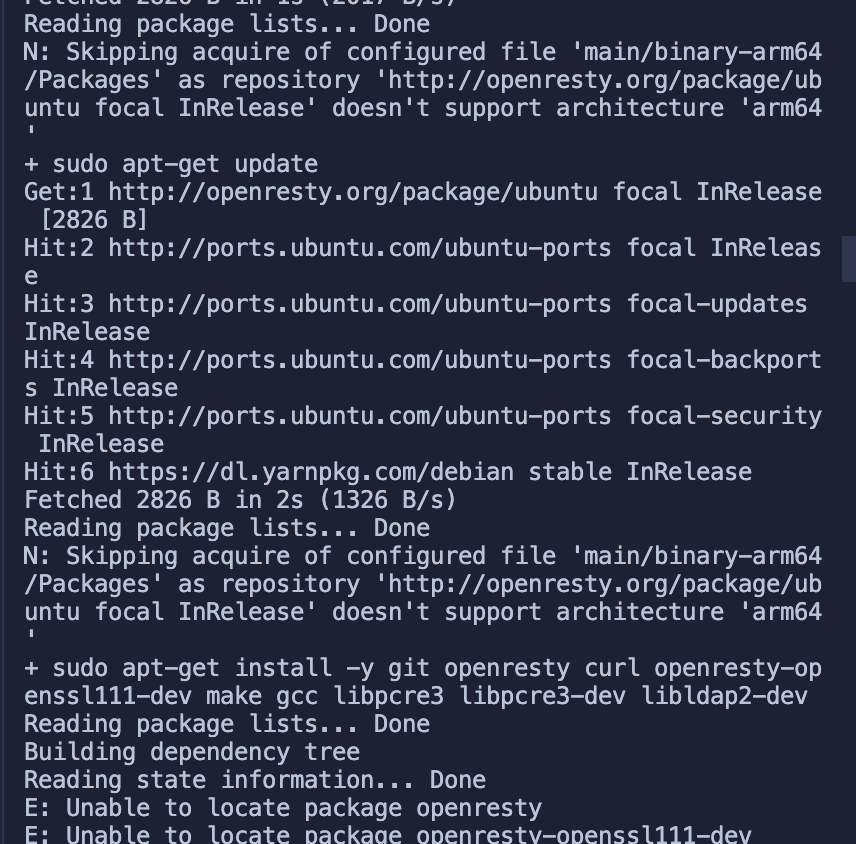 + +The error message indicates that this is due to a failure to successfully install `OpenResty`. The root cause is that there are no sources for the `ARM 64` platform by default. + +2. Here we install `OpenResty` manually, the installation steps can be found at [https://openresty.org/cn/linux-packages.html#ubuntu](https://openresty.org/cn/linux-packages.html#ubuntu). + +- Step 1: Install the several dependencies required to import the GPG public key (they can be removed at any time after the entire installation process is complete). + +```shell +sudo apt-get -y install --no-install-recommends wget gnupg ca-certificates +``` + +- Step 2: Import our GPG key. + +```shell +wget -O - https://openresty.org/package/pubkey.gpg | sudo apt-key add - +``` + +The import was successful as shown in the figure below. + +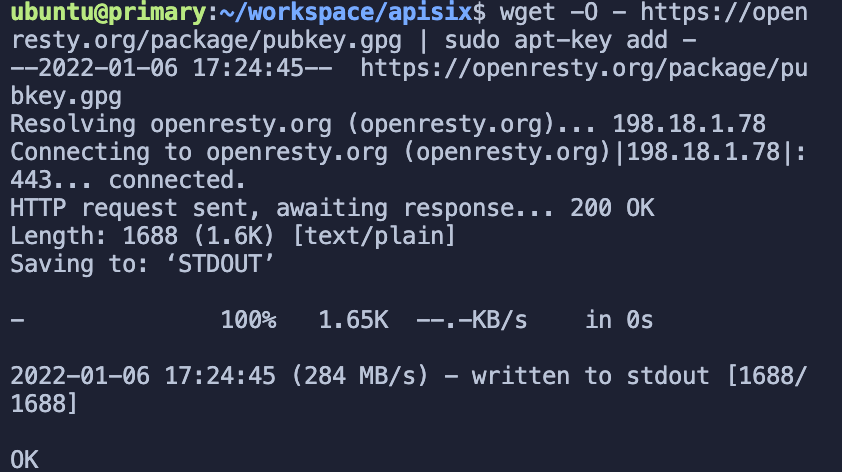 + +- Step 3: Add the official OpenResty APT repository. For x86_64 or amd64 systems, the following command can be used. + +```shell +echo "deb http://openresty.org/package/ubuntu $(lsb_release -sc) main" \ + | sudo tee /etc/apt/sources.list.d/openresty.list +``` + +- And for ARM64 or aarch64 systems, the following command can be used: (I am running this command on M1, the previous one reports an error) + +```shell +echo "deb http://openresty.org/package/arm64/ubuntu $(lsb_release -sc) main" \ + | sudo tee /etc/apt/sources.list.d/openresty.list +``` + +- Step 4: Update the APT Index. + +```shell +sudo apt-get update +``` + +The package can then be installed like this, e.g. `OpenResty`. + +```shell +sudo apt-get -y install openresty +``` + +- Step 5: (Optional) The package and the corresponding associated package can be deleted by the following command. + +```shell +sudo apt-get -y install --no-install-recommends software-properties-common +``` + +Successful installation of `OpenResty`. + +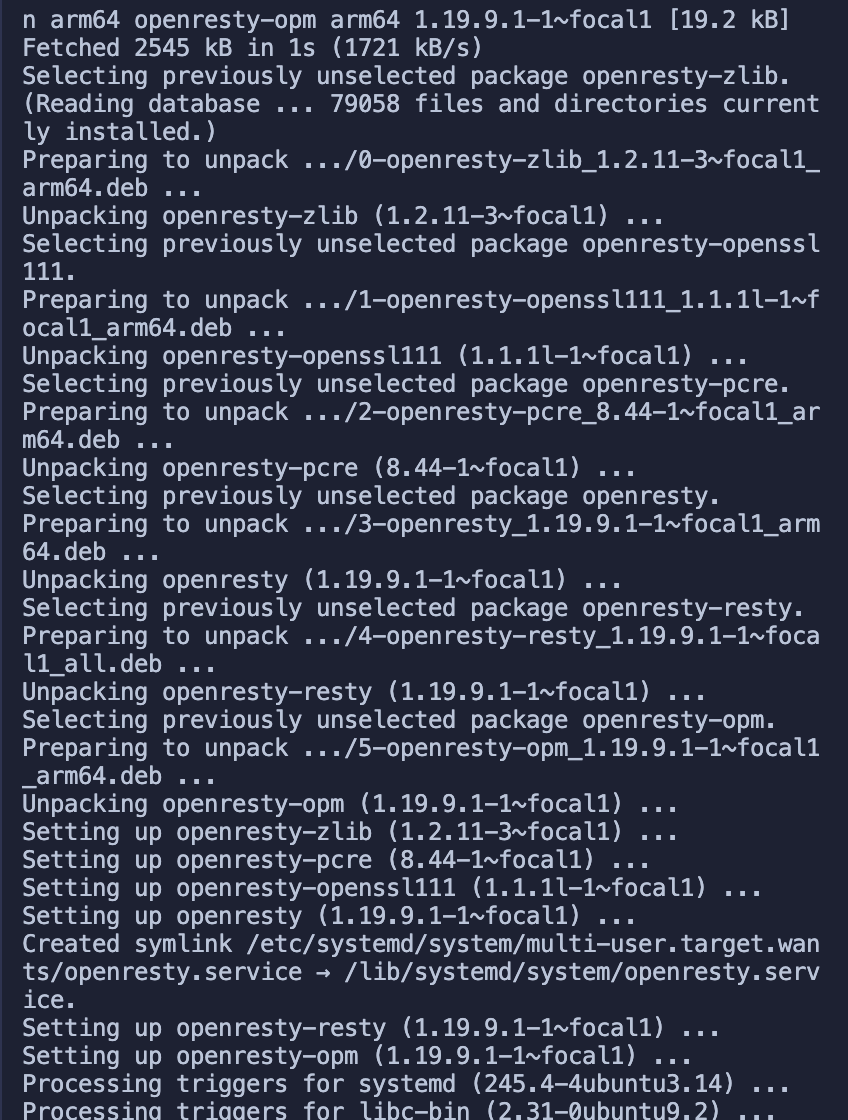 + +3. Rerun the installation dependency script (refer to step 1) +4. Next, run the command `LUAROCKS_SERVER=https://luarocks.cn` to install the dependencies. + +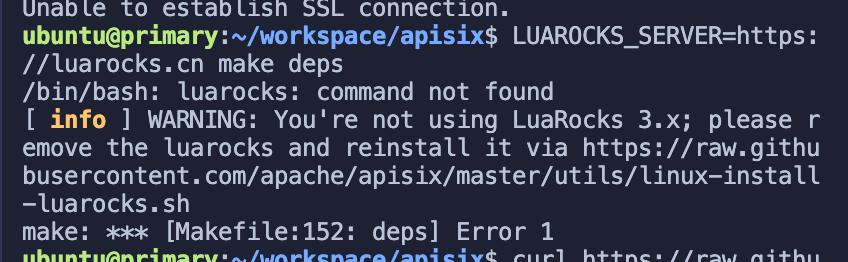 + +Simply run the following command. + +```shell +curl https://raw.githubusercontent.com/apache/apisix/master/utils/linux-install-luarocks.sh -sL | bash - +``` + +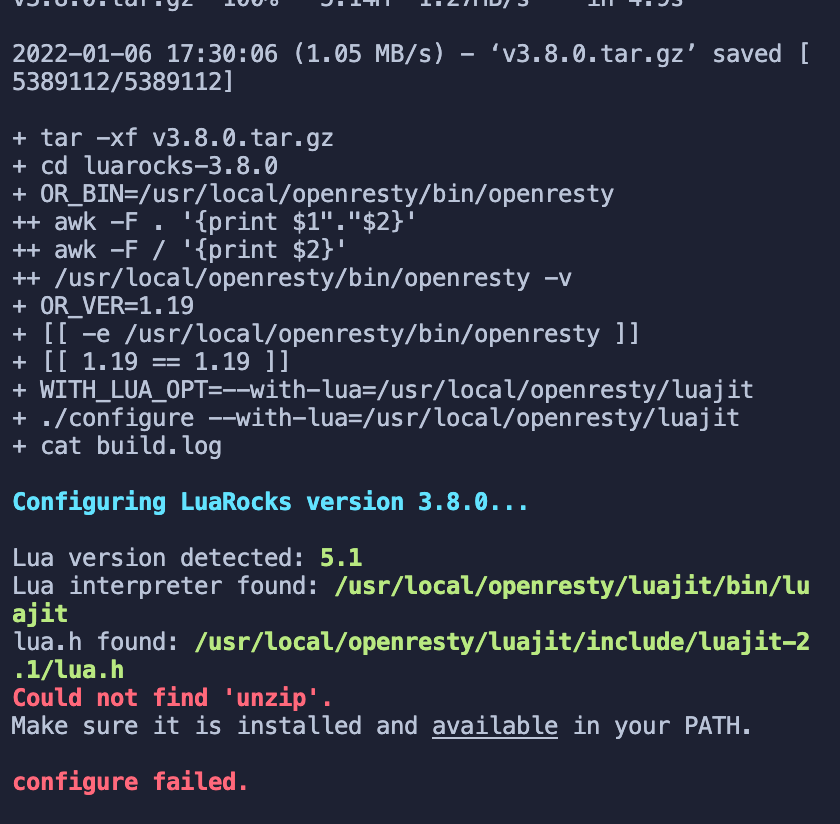 + +Another error message appears and we run the following command. + +```shell +sudo apt install wget sudo unzip +``` + +We then re-run. + +```shell +curl https://raw.githubusercontent.com/apache/apisix/master/utils/linux-install-luarocks.sh -sL | bash - +``` + +We then proceeded to run the command to install the dependencies: `LUAROCKS_SERVER=https://luarocks.cn make deps` +Finally it worked, there were indeed too many problems. + +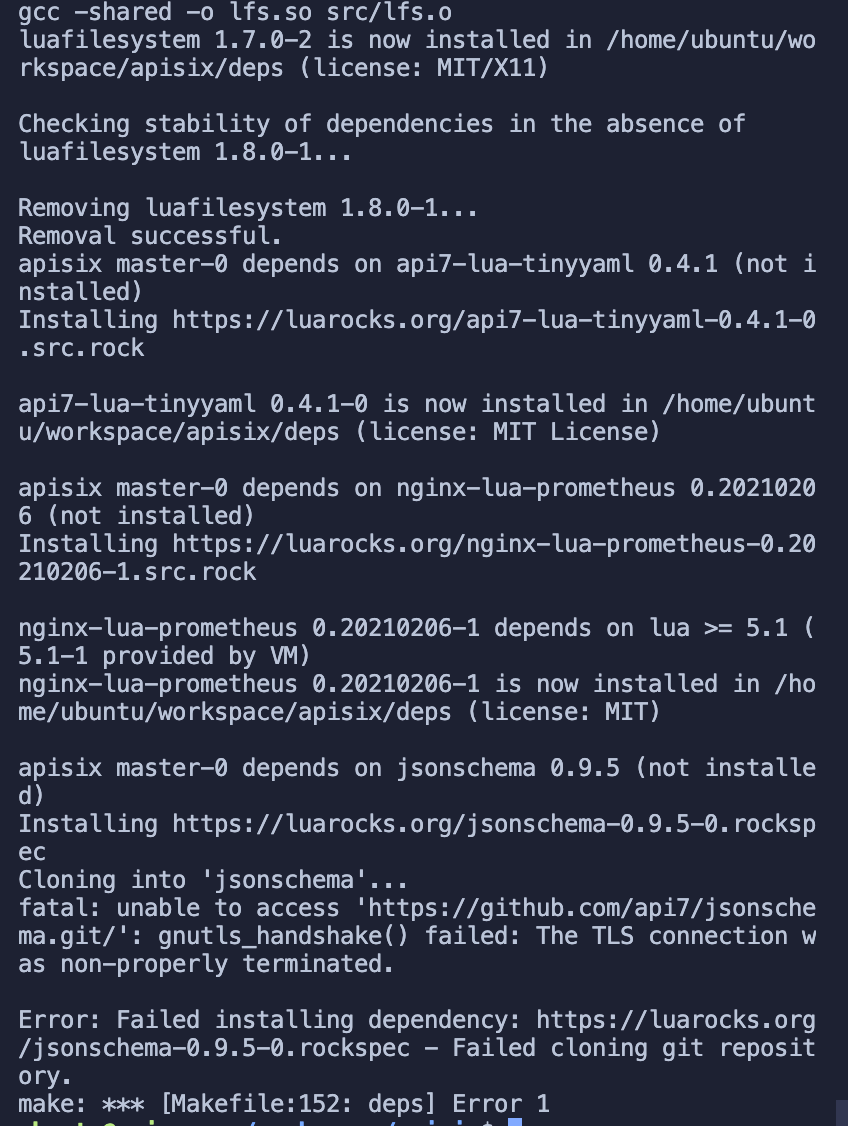 + +Most of the dependencies have been successfully installed, but there is a new error message. +Here it looks like the two repositories have not been successfully cloned, but that's fine, try running them backwards first. + +5. Installing APISIX commands + +```shell +make install +# If you get an insufficient permissions message, use `sudo make install` +``` + +Success: + +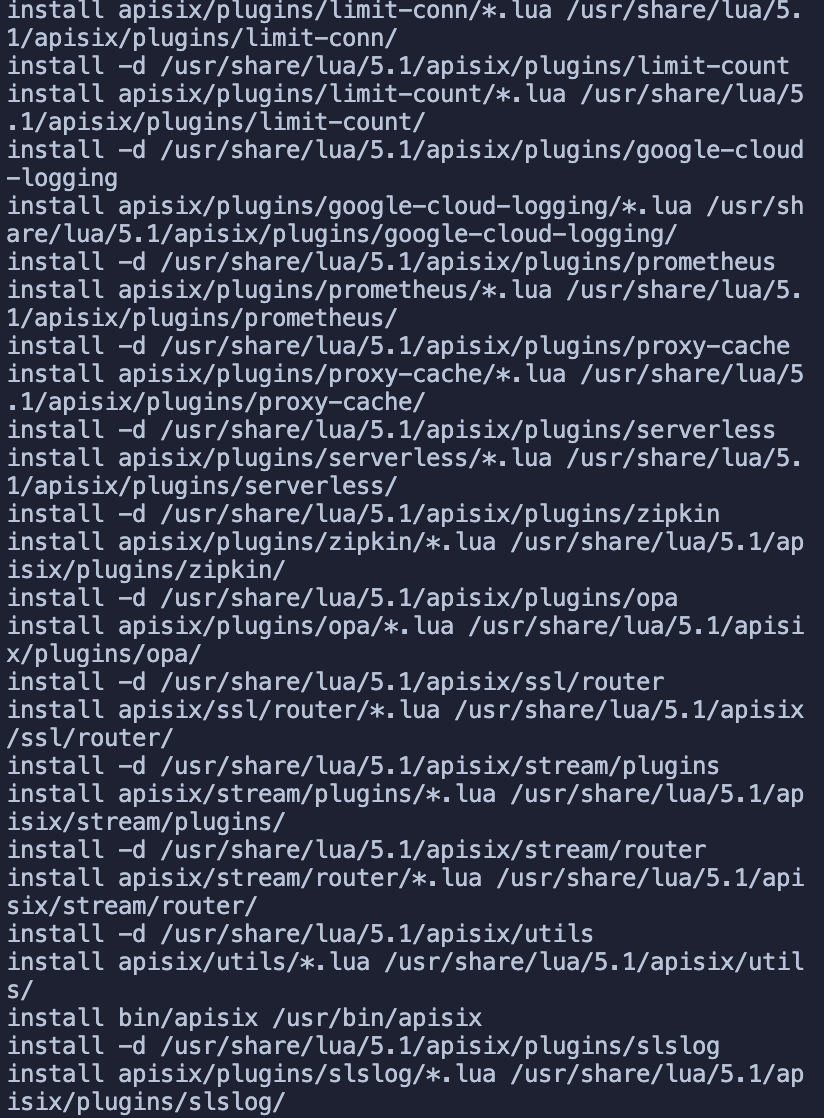 + +## Install etcd + +### Installing etcd Error Guide + +Before starting APISIX you need to install etcd, refer to the [official documentation](https://apisix.apache.org/docs/apisix/2.10/install-dependencies/#ubuntu-1604--1804). + +> As the tutorial is not written for arm, etcd was installed successfully, but it did not run because the x86 binary was used to start it by default, so it did not run. (You can skip this section and go directly to the section on running the etcd service in Docker) + +- Download etcd. + +```shell +wget https://github.com/etcd-io/etcd/releases/download/v3.4.13/etcd-v3.4.13-linux-amd64.tar.gz +``` + +- Decompress the etcd. + +```shell +tar -xvf etcd-v3.4.13-linux-amd64.tar.gz && cd etcd-v3.4.13-linux-amd64 && sudo cp -a etcd etcdctl /usr/bin/ +``` + +Success: + +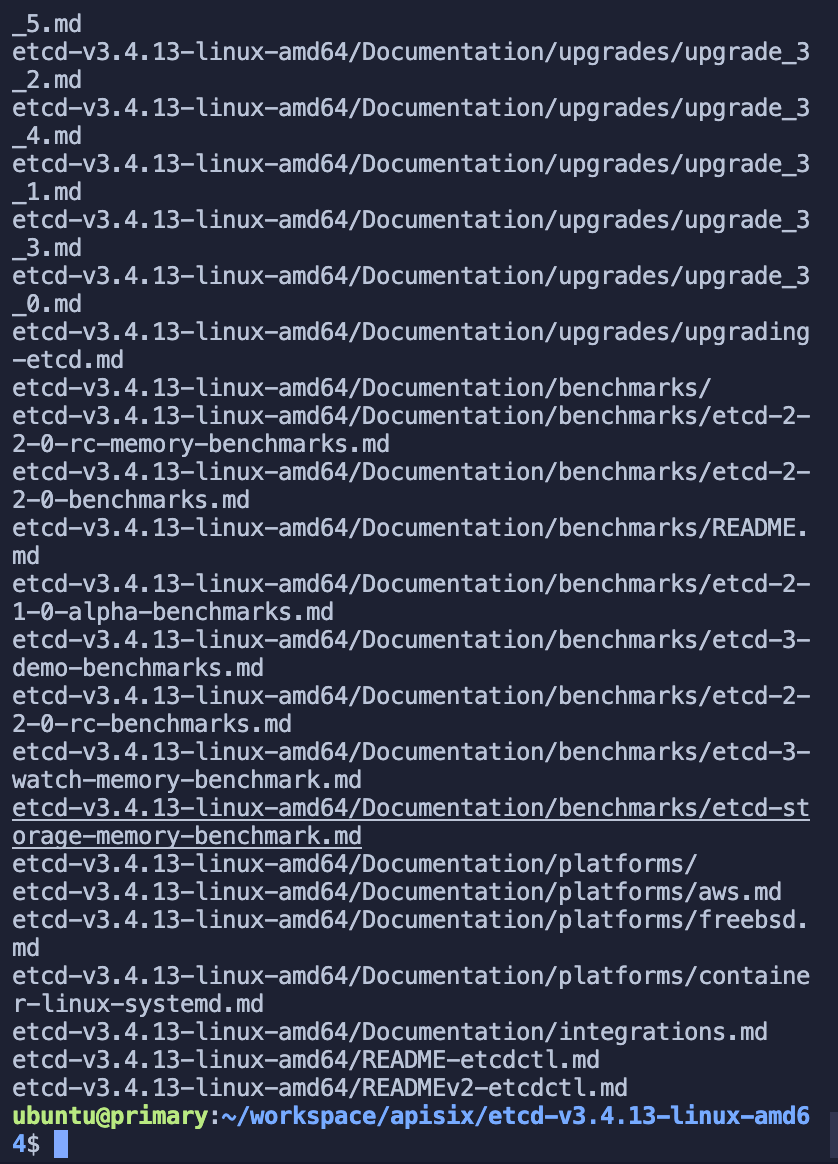 + +- Start the etcd service + +```shell +nohup etcd & +``` + +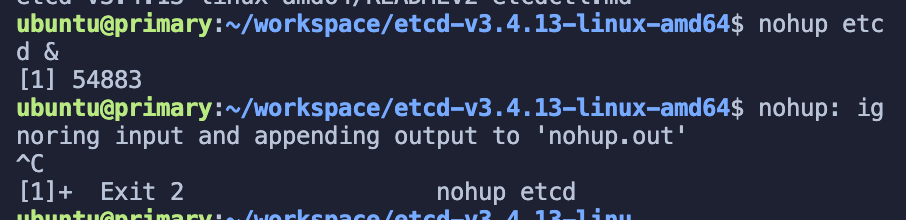 + +Then when I ran Apache APISIX later I found that etcd was reporting an error. + +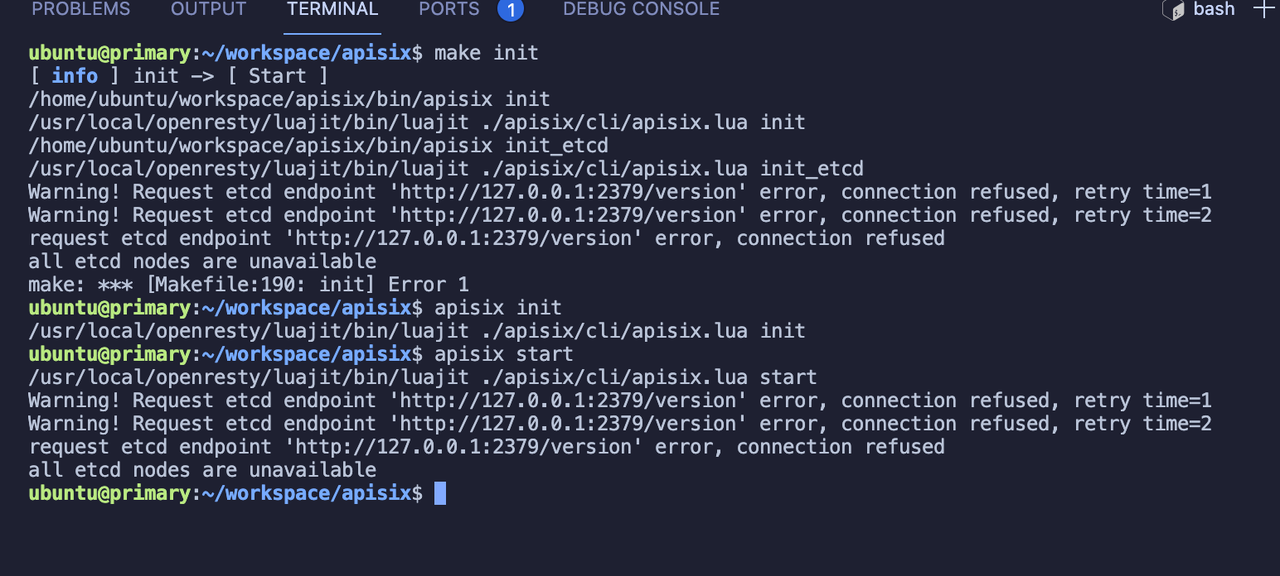 + +In the end, I found that running etcd naked on ARM Ubuntu was too problematic, with all sorts of errors, so I decided to run docker instead~. + +### Running the etcd service in Docker + +1. Installing Docker + +```shell +sudo apt install docker.io +``` + +Tip: Common docker commands: (add sudo before the command if you get no permission error) + +- View a list of all containers `docker ps -a` +- View the list of running containers `docker ps` +- View the list of images `docker image list` +- Delete all containers `docker container prune` +- Delete all images `docker image prune -f -a` + +More references: [Docker Getting Started Tutorial - Ruan Yifeng's Weblog](https://www.ruanyifeng.com/blog/2018/02/docker-tutorial.html). + +2. Pull and run etcd + +```shell +sudo docker run -d --name etcd -p 2379:2379 -e ETCD_UNSUPPORTED_ARCH=arm64 -e ETCD_LISTEN_CLIENT_URLS=http://0.0.0.0:2379 -e ETCD_ADVERTISE_CLIENT_URLS=http://0.0.0.0:2379 gcr.io/etcd-development/etcd:v3.5.1-arm64 +``` + +Note: This image requires a proxy to be turned on. +Success: + +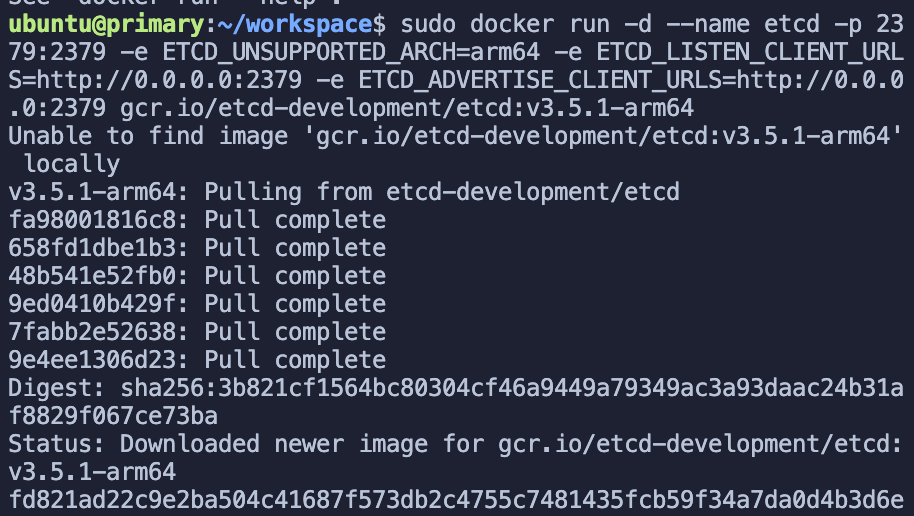 + +Verify that etcd has started successfully. + +```shell +sudo docker ps -a +``` + +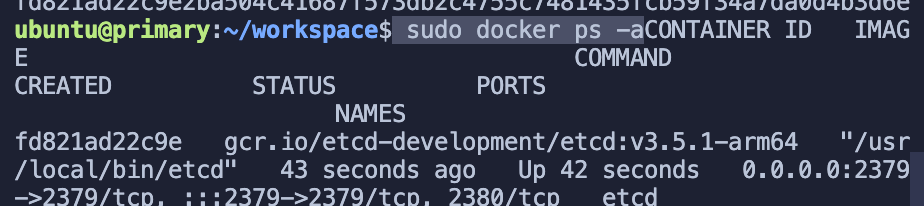 + +As you can see, etcd has been successfully started. + +## Starting Apache APISIX + +All dependencies have been prepared and we can now start Apache APISIX ~ refer directly to How to build APISIX [official documentation](https://apisix.apache.org/docs/apisix/how-to-build). + +- Installing dependencies + +```shell +make deps +make install +``` + +- Initialise dependencies and start APISIX + +```shell +apisix init + +# start APISIX +apisix start + +# stop APISIX +apisix stop +``` + +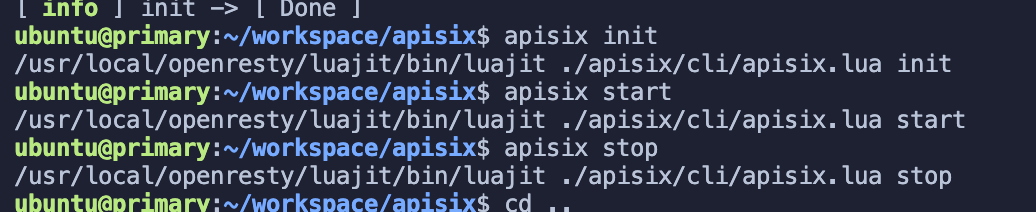 + +No more error messages, perfect finish! + +## Summary + +In general, there are two problems: the installation of APISIX dependencies and the etcd part of arm. The etcd part can be solved directly with docker, but there are also some pitfalls when pulling images, which I won't show here. + +If you have better suggestions, you are welcome to contribute to the Apache APISIX [build documentation](https://apisix.apache.org/zh/docs/apisix/how-to-build#%E9%80%9A%E8%BF%87%E6%BA%90%E7%A0%81%E5%8C%85%E5%AE%89%E8%A3%85) and leave your suggestions to help more people. Review comment: ```suggestion If you have better suggestions, you are welcome to contribute to the Apache APISIX [build documentation](https://apisix.apache.org/docs/apisix/how-to-build/) and leave your suggestions to help more people. ``` -- This is an automated message from the Apache Git Service. To respond to the message, please log on to GitHub and use the URL above to go to the specific comment. To unsubscribe, e-mail: [email protected] For queries about this service, please contact Infrastructure at: [email protected]













