TidBITS#881/28-May-07
=====================
  Issue link: <http://db.tidbits.com/issue/881>
  Our gaze wanders far and wide this week, with Jeff Carlson offering
  a review of Ovolab's Geophoto, a tool for giving your photos
  location tags and then browsing through them via a cartographic
  interface. Jeff also alerts us to the latest security update from
  Apple, passes on tips for making multiple-page documents in Adobe
  Illustrator, and points to a useful shopping list for HD video
  editing gear. Not to be outdone in the tip department, Adam collects
  oodles of scroll wheel-related tips, notes that MacLink Plus 16 can
  read Word and Excel 2007 for Windows documents, and expresses both
  amusement and alarm about the latest news from the copyright front.

Articles
    Security Update 2007-005 Released
    Copyright Fun and Games
    MacLinkPlus Deluxe Converts Word/Excel 2007 Documents
    DealBITS Winners: SmileOnMyMac's PageSender
    Making Pages in Adobe Illustrator
    Scroll Wheel Tips
    A Personal Shopper for HD Video Editing Gear
    Geophoto Puts Your Photos on the Map
    Hot Topics in TidBITS Talk/28-May-07
    Take Control News/28-May-07


------------ This issue of TidBITS sponsored in part by: --------------

* READERS LIKE YOU! Support TidBITS with a contribution today!
  <http://www.tidbits.com/about/support/contributors.html>
  Special thanks this week to James Bradbury, Tony Meyer,
  Kevin Patfield, and James Gower for their generous support!

* SMALL DOG ELECTRONICS: TidBITS Exclusive for May 28 - Jun 4:
  MacBook 13" 1.83 GHz Core 2 Duo 512/60/combo/AP/BT (white),
  new, PLUS 3-year AppleCare plan. Save $119 - now only $1189!
  Learn more and order at <http://www.smalldog.com/tb/>

* FETCH SOFTWORKS: Fetch 5.2 introduces WebView, the easy way
  to view files in a browser and copy Web addresses from Fetch.
  Also with FTPS support, droplet shortcuts, and more.
  Download your free trial version! <http://fetchsoftworks.com/>

* WebCrossing Neighbors Creates Private Social Networks
  Create a complete social network with your company or group's
  own look. Scalable, extensible and extremely customizable.
  Take a guided tour today <http://www.webcrossing.com/tour>

* Bare Bones Software's BBEdit 8.6 -- Latest version offers a
  major interface overhaul, new prefs, text clippings, improved
  JavaScript, new Ruby/SQL/YAML/Markdown support, code folding.
  Over 160 new features in all! <http://www.barebones.com/>.

* MARK/SPACE, INC: Introducing SyncTogether, Mac-to-Mac syncing
  of contacts, calendar events and tasks, notes and more. Perfect
  for a single user with multiple Macs or groups that need to sync
  selected iCal calendars. <http://www.markspace.com/bits>

* Microsoft's MacBU: Supporting Mac users with Office 2004.
  Supporting the Mac community through tech support newsgroups,
  user group appearances, our new team blog, and more!
  Check out our team blog at <http://blogs.msdn.com/macmojo/>

* DealBITS: Get the word out about your product AND generate sales!
  It's easy: give away a few copies and offer a discount to entrants.
  A DealBITS drawing is quick to set up and can easily pay for itself.
  For more info and rates, visit <http://www.tidbits.com/dealbits/>.

---------- Help support TidBITS by supporting our sponsors ------------


Security Update 2007-005 Released
---------------------------------
  by Jeff Carlson <[EMAIL PROTECTED]>
  article link: <http://db.tidbits.com/article/9005>

  Apple has released its fifth Mac OS X security update of 2007 to
  patch a number of potential vulnerabilities. Security Update
  2007-005 makes changes to CoreGraphics, iChat, VPN, BIND, crontabs,
  PPP, and other components, in most cases correcting problems that
  require either local user access or access to the Mac via a local
  network. However, several fixes are more important. An update to
  BIND prevents a possible remote denial of service attack (but
  because it reportedly overwrites the BIND launchd plist file, it may
  both turn BIND off and cause other changes to be lost, a potential
  problem for Mac OS X Server machines), a new version of fetchmail
  prevents possible disclosure of passwords, and a fix for
  CoreGraphics in Mac OS X 10.4 provides additional verification of
  PDF files to avoid possible crashes when opening maliciously crafted
  PDFs. The update is available via Software Update or for download in
  four varieties: for Mac OS X 10.4.9 as Universal (29.2 MB) and
  PowerPC (15.7 MB) installers; and for Mac OS X 10.3.9 Client (42.5
  MB) and Server (56 MB) systems.

<http://docs.info.apple.com/article.html?artnum=305530>
<http://www.apple.com/support/downloads/securityupdate2007005universal.html>
<http://www.apple.com/support/downloads/securityupdate2007005ppc.html>
<http://www.apple.com/support/downloads/securityupdate20070051039client.html>
<http://www.apple.com/support/downloads/securityupdate20070051039server.html>


Copyright Fun and Games
-----------------------
  by Adam C. Engst <[EMAIL PROTECTED]>
  article link: <http://db.tidbits.com/article/9006>

  In the fun category, Professor Eric Faden of Bucknell University has
  created a video review of copyright principles. You're probably
  thinking, "How could anyone make a video about a legal concept even
  mildly entertaining?" But Faden's truly inspired video works on many
  levels because it consists entirely of extremely short clips (often
  no more than one word) from a wide variety of animated Disney
  movies. It's thanks in large part to Disney that copyright - which
  was designed to encourage creativity by giving the creator control
  over copying for a limited time - now lasts for the life of the
  creator plus 75 years, or, for a work of corporate authorship, 95
  years. But thanks to the short length of the clips, its non-profit
  educational nature, and the fact that it would in no way affect the
  potential market for the copyrighted works, Faden's video
  undoubtedly falls under fair use.

<http://cyberlaw.stanford.edu/documentary-film-program/film/a-fair-y-use-tale>
<http://en.wikipedia.org/wiki/Sonny_Bono_Copyright_Term_Extension_Act>
<http://en.wikipedia.org/wiki/Fair_use>

  Moving from fun to games, the latest idiocy to emanate from the U.S.
  Department of Justice is a legislative proposal (in other words,
  something the DoJ would like Congress to turn into law) that would
  criminalize copyright infringement. (For a selection of entirely
  reasonable, real-world copyright infringements that could be
  criminalized by this proposal, see my article, "J.D. Lasica's
  Darknet: People in the Copyright Wars," 2006-06-05.) Under this
  proposal, the RIAA wouldn't have to settle for extracting money from
  citizens who may have infringed copyright; instead, they could just
  get the federal government to take away the miscreants' computers
  and throw them in prison. That's right - the DoJ wants people who
  even attempt to infringe copyright to be liable for property
  forfeiture and prison time, just like drug dealers.

<http://politechbot.com/docs/doj.intellectual.property.protection.act.2007.051407.pdf>
<http://db.tidbits.com/article/8552>

  And to make sure that none of these attempted copyright
  infringements go undetected, the DoJ wants to allow law enforcement
  to wiretap personal communications in copyright infringement
  investigations. The sheer audacity of this proposal is astonishing -
  it's hard to do more than sputter, "But but but!" as you read it.
  But what you can do is write to your elected representatives to urge
  them to oppose this proposal if it is introduced; the Electronic
  Frontier Foundation has a tool that makes it easy.

<http://action.eff.org/site/Advocacy?id=299>


MacLinkPlus Deluxe Converts Word/Excel 2007 Documents
-----------------------------------------------------
  by Adam C. Engst <[EMAIL PROTECTED]>
  article link: <http://db.tidbits.com/article/9007>

  Thanks to Jim Dewitt, who alerted me that DataViz's venerable
  MacLinkPlus Deluxe, now at version 16, also includes read-only
  support for the file formats used by Word 2007 and Excel 2007 under
  Windows. So, if Microsoft's free beta converter doesn't work for you
  (see "Microsoft Office Open XML File Format Converter in Beta,"
  2007-05-21), and you want an alternative to Panergy's docXConverter,
  check out MacLinkPlus Deluxe. DataViz deserves kudos for sticking
  with the conversion game for so long and with such a large list of
  file formats. My experience is that conversions are seldom perfect,
  but any automatic tool that brings you closer to the desired result
  is a good thing.

<http://www.dataviz.com/products/maclinkplus/>
<http://db.tidbits.com/article/8995>
<http://www.panergy-software.com/products/docxconverter/features.html>


DealBITS Winners: SmileOnMyMac's PageSender
-------------------------------------------
  by Adam C. Engst <[EMAIL PROTECTED]>
  article link: <http://db.tidbits.com/article/8999>

  Congratulations to Paul Michaelis of pmds-search.com, Gerry Swislow
  of certif.com, and Scott Gay of mcleodusa.net, whose entries were
  chosen randomly in last week's DealBITS drawing and who received a
  copy of SmileOnMyMac's PageSender, worth $40. Thanks to the 412
  people who entered this DealBITS drawing (and who received a
  discount on PageSender), and we hope you'll continue to participate
  in the future!

<http://db.tidbits.com/article/8876>
<http://www.smileonmymac.com/pagesender/>


Making Pages in Adobe Illustrator
---------------------------------
  by Jeff Carlson <[EMAIL PROTECTED]>
  article link: <http://db.tidbits.com/article/9008>

  When writing about the end of FreeHand last week (see "Farewell
  FreeHand," 2007-05-21), I mentioned one of the features that Adobe
  Illustrator still lacks, the capability to create multiple pages
  within a document.

<http://db.tidbits.com/article/8997>

  A few readers quickly pointed out that multiple pages are possible,
  though not as easy to implement as in FreeHand. Charles A. Reeves,
  Jr. wrote:

  "I'll admit to never using FreeHand, so I don't know how it handles
  multiple pages, but it is possible to do multi-page documents in
  Illustrator. I do it all the time, and in fact have several booklets
  I publish which I print directly from Illustrator. Just go to
  Document Setup and create an artboard that is big enough so that all
  the pages will fit on it and is a multiple of the document page
  size, and then click the button next to Tile Full Pages. A simple
  example would be a two page document. Make the artboard 11 inches
  high by 17 inches wide. When you go back to the document window you
  will have two side-by-side pages with little non-printing numbers
  "1" and "2" in the lower left corners. You may have to pull up Page
  Setup and select the printer and letter size, and then click on the
  Page Tool to get the pages oriented correctly."

  John M. Stafford pointed out a feature that I was unaware of (since
  I need to use Illustrator only occasionally):

  "Since version 10, Illustrator automatically includes a PDF in each
  document. So in the case of your two-sided postcard, use Acrobat Pro
  and combine the two sides. Now open the resulting document in
  Illustrator, and on open it will present a dialog asking which page
  you wish to edit."

  Lastly, long-time reader Brendon Cheves of Hot Door, Inc. pointed me
  to his company's MultiPage plug-in ($100) for Illustrator, which
  looks like what I'm accustomed to in FreeHand.

<http://www.hotdoor.com/multipage/index.php>

  So, the next time a client needs me to massage an Illustrator file,
  I'll have a better idea of how to think like Illustrator, not
  FreeHand. Thanks for the tips!


Scroll Wheel Tips
-----------------
  by Adam C. Engst <[EMAIL PROTECTED]>
  article link: <http://db.tidbits.com/article/9003>

  Thanks to our buddy Bill Rabel in Seattle for the impetus to write
  this article. After Mark Anbinder wrote in "Call Me 'Two Finger'
  Mark" (2007-05-21) about how he was surprised to find himself
  addicted to two-finger scrolling on his MacBook (which is equivalent
  to using a scroll wheel or Mighty Mouse scroll ball), Bill went
  spelunking and found a trick I hadn't previously known, causing me
  to look for other scroll wheel tips. (And if you're interested in
  the history of the scroll wheel, check out "The Evolution of
  Scrolling: Reinventing the Wheel," 2004-12-13.)

<http://db.tidbits.com/article/8991>
<http://db.tidbits.com/article/7925>


**Scroll Horizontally** -- Many applications, such as word processors,
  are oriented vertically, so scrolling up and down with the scroll
  wheel is intuitive. But what about applications like Microsoft Excel
  and ProVUE Development's Panorama database, which often require
  scrolling horizontally? Just hold down the Shift key and your scroll
  wheel switches to controlling the horizontal scroll bar instead of
  the vertical scroll bar. Applications must support this Mac OS X
  feature explicitly, so it may not be universal to all applications
  with a horizontal scroll bar.


**Zoom In, Zoom Out** -- Hold down the Control key while you scroll
  with the scroll wheel and Mac OS X 10.4.8 or later will zoom the
  screen smoothly. Mac OS X has long provided screen zooming (see the
  Universal Access preference pane), but it required keyboard
  shortcuts that were awkward and jerky. Screen zooming isn't just for
  those who have trouble reading too-small text or for presenters who
  want to focus on a particular part of the screen, though; it's also
  great for zooming tiny Internet videos up to full-screen size. Of
  course, they pixelate more at larger sizes, but that's fine if
  you're sitting further back from the screen anyway. The only
  downside is that it's hard to get the mouse pointer out of the
  picture when you're zoomed in on a video; normally you want the
  pointer to stay in the zoomed screen.

  A further tip: if you take a selection screenshot with
  Command-Shift-4 or Snapz Pro X while zoomed in, the screenshot
  reflects your zoom level properly (trying to take a screenshot of an
  entire window while zoomed doesn't work, though).


**Scroll to Switch Applications** -- I'm not sure if this is any
  easier or not, but if you press Command-Tab, let up on the Tab key,
  and then use your scroll wheel, Mac OS X will scroll the selection
  in the application switcher. Of course, you can also just keep
  pressing Tab, which seems easier, or hover the mouse pointer over an
  application's icon to select it.


**Per-Frame Advance in QuickTime Player and iMovie HD 6** -- Want to
  see if animators hid secret messages in individual frames of a film?
  If you can open it in QuickTime Player, using the scroll wheel
  pauses playback and then either advances or rewinds a frame at a
  time. It's probably a little easier to do with a real scroll wheel
  that has little detents as you scroll. Alas, this trick doesn't work
  in iTunes, DVD Player, or VLC, though you can play .m4v files from
  the iTunes Store in QuickTime Player.

  The same trick works in iMovie HD 6, too, but with a caveat. The
  scrolling seems to work only as a per-frame preview; if you press
  the left or right arrow keys, which also rewind or advance per
  frame, the video jumps back to the point where you started
  scrolling.


**Tab History Navigation in Mozilla-based Browsers** -- Here's the tip
  Bill found. If you use Firefox or Camino with tabbed browsing, hold
  down the Option key and turn the scroll wheel to scroll backward and
  forward in the tab's history. These browsers navigate back or
  forward one page for every scroll detent. It's a fast way to move
  back through a lot of pages in a tab, though it's easy to overshoot
  your target. Oddly, Netscape and Mozilla use Shift as the modifier
  key to navigate through a tab's history, and Safari and OmniWeb
  don't have the feature at all.


**Change Font Size in Firefox and Camino** -- It's all too common to
  run across a Web page with text that's too small to read (Geoff
  Duncan explained this in "Why Windows Web Pages Have Tiny Text,"
  1999-02-15). All Web browsers make it easy to expand or shrink text,
  usually with Command-+ and Command--, but you can also use the
  scroll wheel to do this in Firefox and Camino. Just hold down
  Command-Control and scroll to adjust text size.

<http://db.tidbits.com/article/5284>


**Slow Down Text Scrolling in Firefox** -- Normally, if you're
  scrolling through a long Web page, the speed accelerates as you turn
  the wheel. That's good, since it means you can get to the bottom of
  a page quickly if you want. But at times you might want a slower
  scrolling speed so you don't accidentally scroll past where you're
  reading. Hold down the Command key while scrolling in Firefox and
  scrolling will slow to what seems to be an almost fixed rate. It
  might be useful if you prefer to keep your eyes in one spot on the
  page and scroll the text past that spot.


**Zoom In and Out in Word and Excel** -- Speaking of small text... In
  Microsoft Word and Excel, if you find yourself squinting to read
  text at the default font size, you can zoom in and out with the
  scroll wheel. In Word, hold down Command-Control and scroll to
  change the zoom level by 10 percent increments per detent. In Excel,
  hold down Control-Option to zoom in and out by 15 percent
  increments. If you're using two-finger scrolling on a trackpad,
  zooming in and out in this fashion may be hard to control.


**Control Time with iCal** -- In iCal's Day and Week view, you
  normally see the hours from 8 AM to 6 PM, or whatever you've set in
  iCal's General preference pane. But by holding down Option and
  rolling your scroll wheel, you can increase or decrease the number
  of hours that appear in Day or Week views without opening the
  preferences window. Note that the changes are persistent, but they
  aren't reflected in the preferences window.


**Scroll Through the Years in iPhoto** -- In iPhoto 6's Calendar pane,
  Apple gave us funny little up and down arrows on either side of the
  pane's title for scrolling through the years. An easier way to
  scroll forward and backward in time in that pane is to use the
  scroll wheel - just make sure the mouse pointer is over that portion
  of the screen first.

  There is one notable place where the scroll wheel doesn't match up
  to dragging the scroller in the scroll bar. In iPhoto 6, when you
  scroll by dragging the scroller, iPhoto pops up a translucent
  display containing the name and date of the current film roll,
  updating it smoothly as you drag. Alas, that doesn't work if you
  scroll with a scroll wheel, so here's hoping that iPhoto 7 rectifies
  that situation.


A Personal Shopper for HD Video Editing Gear
--------------------------------------------
  by Jeff Carlson <[EMAIL PROTECTED]>
  article link: <http://db.tidbits.com/article/9009>

  When friends and family need to buy a new computer or accessories,
  they often turn to me for advice. I've learned over the years that
  they're usually not looking for one of my "history of computing"
  answers that explains not only how much RAM the computer should
  have, but how RAM works and why more is better - they just want to
  know how much to get, and where to get it inexpensively. So, I'll
  spend a few minutes online and work up a couple of options.

  However, my experience extends only so far, and although I've
  written several editions of a book on video editing ("iMovie HD 6 &
  iDVD 6 for Mac OS X: Visual QuickStart Guide"), I've not had to deal
  in the higher realm of editing uncompressed high-definition video.

<http://www.amazon.com/exec/obidos/ASIN/0321423275/tidbitselectro00/ref=nosim>

  Fortunately, Mike Curtis lives and breathes HD. His Web site, HD for
  Indies, is geared toward independent filmmakers who are focused more
  on getting great footage and creating a movie than on the ins and
  outs of pushing HD video through a system.

<http://www.hdforindies.com/>

  If you're looking to edit your own indie feature or starting a
  business editing video for others, Mike has taken on the role of
  personal shopper and put together three recommended Mac-based
  editing systems. In addition to the computer (all Mac Pro machines,
  but not necessarily the most powerful ones), Mike's picks include
  LCDs and video monitors, RAM, graphics cards, HD capture devices,
  and multiple storage options. The bundles range in price from $9,000
  for an entry-level system capable of editing uncompressed HD footage
  to $23,000 for a well-equipped system.

<http://silverado.cc/shop/home.php?cat=107>

  He's worked out a deal with Silverado Systems (and he gets a cut of
  the order), but all the information is there, with notes and
  explanation, if you prefer an alternate vendor.

  I've followed Mike's site for a while, and even though I don't shoot
  HD video, it's always an entertaining and insightful read.


Geophoto Puts Your Photos on the Map
------------------------------------
  by Jeff Carlson <[EMAIL PROTECTED]>
  article link: <http://db.tidbits.com/article/9010>

  Photography is a visual medium, and yet our tools for locating
  digital photos are mostly textual and temporal. When you open
  iPhoto, you can visually scan through the pictures, but that becomes
  a problem in large libraries when hundreds of thumbnails streak by
  as you drag the scroller. Instead, you're more likely to search
  according to date: scrolling down the page, the names and capture
  dates of iPhoto's film rolls appear. Or, if you're thorough, you may
  set up photo albums that describe their contents ("Africa Trip," for
  example). In each case, you're using a text-dependent, non-visual
  approach to finding images.

  Now, think about how your mind locates images. In addition to
  knowing roughly when the photographs were taken ("March," or
  "Spring," or "Sometime in the last two years"), you no doubt
  associate a location such as "home," "Los Angeles," or "Africa."
  Unless you had the foresight to set up albums or keywords with that
  specific information (and instead of "Los Angeles," the location
  could have also been specific nearby areas such as "Glendale" or
  "Anaheim"), there's no good way to use that information in your
  search. At least, not in iPhoto or most other photo-cataloging
  applications.

  Ovolab's $20 Geophoto looks to add that visual element to finding
  your pictures, as well as images from around the world. Geophoto
  lets you place your photos on a map, so you can easily find the ones
  you've taken in Montana, Madrid, or Pretoria. It also lets you
  subscribe to photo feeds over the Internet, whether or not those
  images are tagged with geographic data. A trial version of Geophoto
  1.3 is a 42.5 MB download; it's a universal binary and requires Mac
  OS X 10.4 and a graphics card with at least 64 MB of VRAM.

<http://www.ovolab.com/geophoto/>


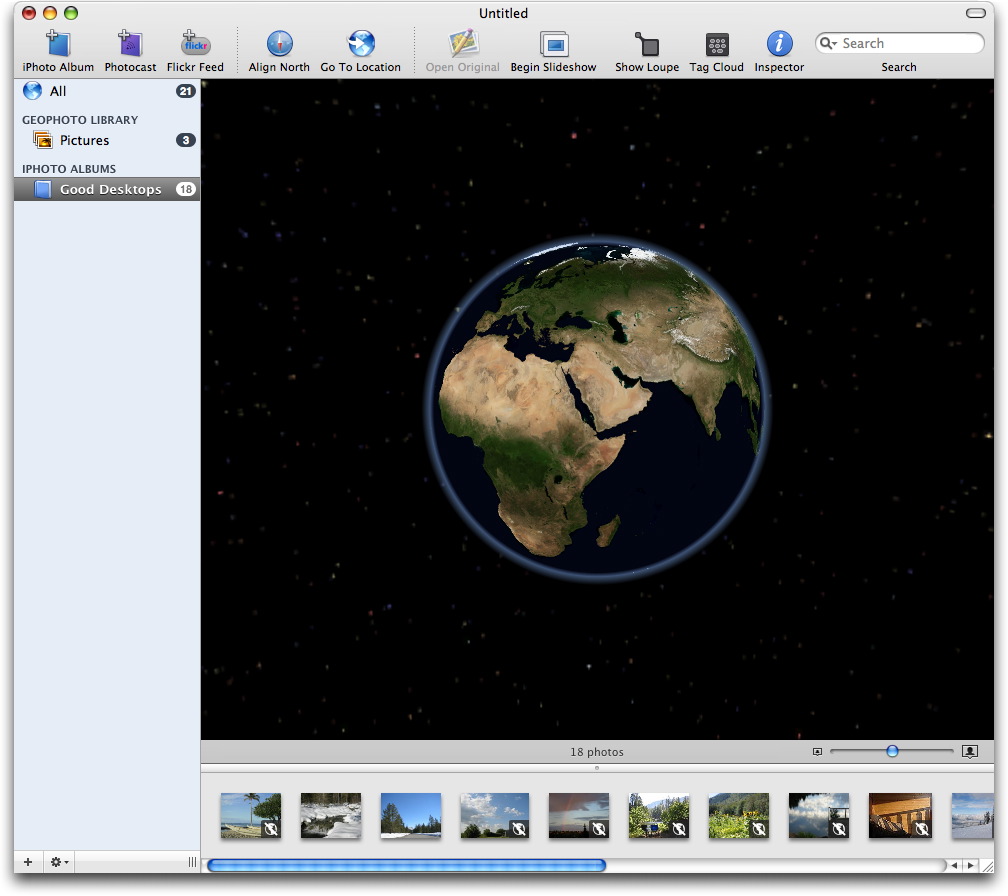
**Get Out the Map** -- Geophoto opens with a slowly rotating satellite
  image of the Earth, which you can manipulate by clicking and
  dragging with the mouse. It feels very much like starting up Google
  Earth. Zoom in or out using the mouse's scroll wheel, menu commands,
  or keyboard shortcuts.

<http://www.google.com/earth/>

  (An aside: The keyboard command for zooming in is Command-+, with
  the plus sign being a long-established common shorthand for "zoom
  in." However, you actually must press Command-Shift-= because the
  plus sign is the shifted character on the equal sign's key. I
  understand the literal context at work, that you're not zooming in
  by pressing "Command-equals." But since Command-= does nothing
  except produce a system beep indicating you pressed the wrong
  button, why not map that key to zoom in too? You can get around this
  by pressing Command and the plus sign on an extended keyboard's
  number pad, but that doesn't help laptop users. Geophoto is by no
  means the only culprit in this regard, but merely the program where
  I want to put my foot down and beg developers to anticipate such
  minor user interface annoyances so users aren't compelled to write
  lengthy parenthetical asides like this.)

  Photo albums appear in a sidebar list to the left of the globe and
  the photos themselves run horizontally across a pane at the bottom
  of the window. Initially, a new Geophoto library is empty. To start
  adding photos, you can drag photo files to the Geophoto Library
  Pictures collection, but it's more likely that you already have a
  bunch of photos stored in iPhoto. If that's the case, you can import
  iPhoto albums directly by clicking the iPhoto Album button and
  selecting an album. Geophoto doesn't duplicate the photo files
  (thankfully, so it doesn't chew up hard disk space), but only
  references the files linked to your iPhoto library

<http://www.tidbits.com/resources/2007-05/geophoto_interface.jpg>

  Another way to add photos - either your own or those of others - is
  to subscribe to online photo feeds - either an iPhoto photocast or a
  photostream from Flickr. This is a fun and interesting feature that
  provides an ongoing selection of photos that's refreshed manually or
  when you launch Geophoto. You can specify a Flickr group (for
  example, the Flowers group) to see the 20 most recent photos without
  going to the Web, a handy feature if you want to view photos from
  several groups at once. Even if you're not as interested in
  attaching geographical information to pictures, Geophoto turns out
  to be a nice image browser for online feeds.

<http://www.flickr.com/>
<http://www.flickr.com/groups/florus/>

  You can also subscribe to the feed of a specific Flickr user, but
  you must take a roundabout way to get to it. The dialog asks for one
  or more tags (words describing the image; "geotagged" is
  automatically filled in) and the user's name. It seems odd that I
  can't instead just enter the URL of the RSS feed that appears at the
  bottom of every user's photos page.

  Unless you imported photos that already contain mapping information,
  the thumbnail images in the strip at the bottom of the window
  display a globe icon with a slash through it. The next step is to
  place your images on the map, which, surprisingly, is one of
  Geophoto's shortcomings.


**Mark the Spot** -- Geophoto offers a few different ways to tag your
  photos with location data; these methods range from easy to
  maddening, depending on how precise you want to get.

  Of course, the real solution to recording location metadata will
  require that digital cameras have built-in GPS capabilities. A few
  cameras already do this, and there are various accessories and
  techniques for existing cameras, but until such capabilities are
  widespread, you can use Geophoto's tools.

<http://www.google.com/search?q=digital+camera+GPS>

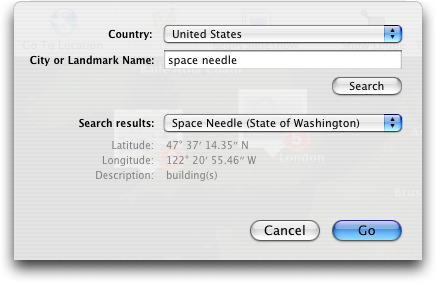
  The preferred method seems to be Go To Location, a button and menu
  item (but not a keyboard shortcut) that displays a Mac OS X sheet
  with a Country pop-up menu and a field in which you can type a city
  or landmark name. Search results appear at the bottom of the sheet
  in another pop-up menu. Although most of my queries were successful,
  I encountered a few strange results, too: the search located teeny
  Bitter Lake in Seattle, but not the larger and more scenic Green
  Lake, although Green Lakes in Wisconsin, Alaska, and other states
  appeared. Actually, while typing just "green lake" brought no
  correct results, typing "green lake washington" popped up several
  options that did appear to be in Washington, but weren't the one I
  was looking for.

<http://www.tidbits.com/resources/2007-05/go_to_location_sheet.jpg>
<http://en.wikipedia.org/wiki/Bitter_Lake_(Seattle)>
<http://en.wikipedia.org/wiki/Green_Lake_(Seattle)>

  Another method is to drag a photo or album directly onto the globe.
  If you're not zoomed in very far, this approach could result in your
  Paris vacation photos being displayed in Brussels or Berlin or
  Warsaw. So you'll find yourself zooming in on sections of continent
  looking for more specific areas as you get closer to the ground.
  Bringing up the contextual menu (Control-click or right-click)
  offers a Zoom In command that centers the mouse pointer's location
  in the window, which helps somewhat.

  But you'll soon get frustrated, because Geophoto ships with a
  limited amount of geographic detail. Unlike Google Earth, or
  Google's satellite maps on the Web, zooming in doesn't automatically
  increase the resolution of the terrain. To move beyond a thick soup
  of blurry pixels, you need to open Geophoto's preferences, click the
  Imagery button, and download the next-best quality of satellite
  images. I say "next-best" because there's no option to just download
  the highest resolution; you need to increase your view of the world
  in waves, downloading one set of files, then the next, and so on,
  four or five times.

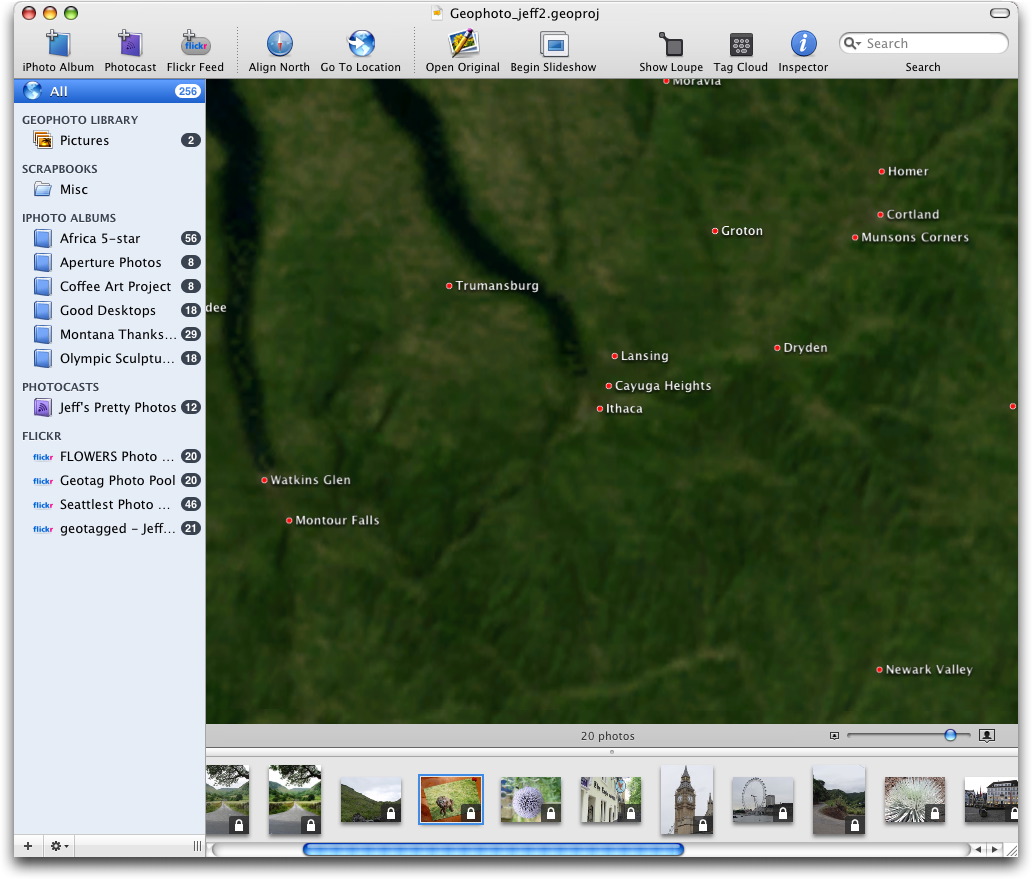
  The highest-resolution data (an average of 0.13 miles per pixel) is
  still pretty far away. Performing a search for Cornell University
  yields a patch of Earth roughly 50 miles square. I can zoom in
  further, but I have to take it on faith that dragging photos from
  the strip to the middle of the map will put them at the right place.

<http://www.tidbits.com/resources/2007-05/geophoto_cornell.jpg>

  Fortunately, there are two options for fine-tuning your photo
  placement.

  Selecting a photo and bringing up the Inspector reveals a Set button
  next to the Latitude and Longitude fields (which are not editable,
  so you can't plug in those values if you happen to know them).
  Clicking Set takes you to the Go To Location sheet; after you get a
  search result, clicking the Set button positions your photo at that
  location.

  (Selecting one or more photos in the strip and using the Set button
  is more efficient than finding a location and dragging photos onto
  it. However, Geophoto's highly visual approach discourages one from
  looking for solutions in dialogs or palettes. Also, the introductory
  sticky notes that appear the first time the program is launched
  emphasize dragging photos to the globe and make no mention of the
  Set Location approach; you have to stumble upon it or find a
  reference in the getting started PDF.)

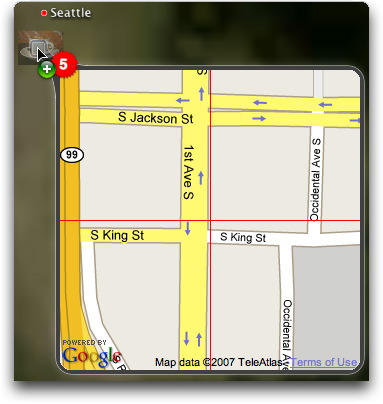
  The other option is to display the Loupe. In traditional
  photography, a loupe is a magnifying glass that you place over
  negatives on a light table to inspect the quality of the images you
  shot. In Geophoto, the Loupe bridges the gap between the
  middle-altitude view of the globe's highest resolution and street
  level. Within the Loupe's square field of view is a Google street
  map; the resolution depends on how far you're zoomed in on the map.
  Holding the spacebar and moving the mouse keeps the Loupe stationary
  and moves only its contents if you're looking for something in
  particular, but clicking the mouse jumps you right back to where you
  were before pressing the spacebar.

<http://www.tidbits.com/resources/2007-05/geophoto_loupe.jpg>

  If you find a more accurate location for your photo (like the city
  block where the picture was taken), you can move the picture to a
  new spot by Command-clicking it and dragging. A red crosshair
  appears to help you pinpoint, but its movement can be jerky
  depending on your zoom level.

<http://www.tidbits.com/resources/2007-05/geophoto_crosshair.jpg>

  Basically, placing your photos with any degree of accuracy beyond
  city level is a lot of work. Perhaps this is because we've all seen
  how the operation should work: like Google Maps on the Web or Google
  Earth, where the image resolution dynamically increases as you move
  closer to your destination. Using Google Earth and the Yahoo Maps
  feature in Flickr, for example, I was able to pinpoint the parking
  lot from where I shot a photo on Seattle's waterfront. Geophoto
  couldn't offer that level of detail, and even in cases where you
  might be able to narrow a location down to a city block, it's not
  easy to get there.

<http://maps.google.com/>
<http://www.flickr.com/map/>
<http://www.flickr.com/photos/jeffcarlson/477982194/>

  Adobe Photoshop Elements 5.0 under Windows provides just this type
  of geotagging, giving you a window to an interactive map that lets
  you drill down with usable resolution. (Photoshop Elements wasn't
  updated beyond version 4.0 for the Mac.) Geophoto should adopt the
  same approach.

<http://www.adobe.com/products/photoshopelwin/>

  If you're looking for specificity, the better approach is to tag the
  images with geographic data using Flickr's tools, then import them
  as a Flickr feed in Geophoto. However, I don't have a sense of how
  precise most people want to get. It may be enough to drop a folder
  full of images onto London to differentiate that set from photos
  taken in Seattle.

  That leads to another problem, one which Geophoto is more adept at
  handling.


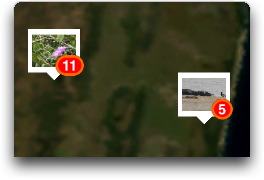
**Find It Again** -- Once you start adding large numbers of photos to
  Geophoto, you'll find yourself in the same situation that brought
  you to the program in the first place: searching for the photos you
  want to view. Assuming you've tagged your photos with locations, you
  can spin the globe and select stacks (multiple photos grouped
  together) based on their thumbnails; a slider in the lower-right
  corner of the screen controls the size of the thumbnail previews.
  But especially when you're zoomed out, the stacks merge together so
  you're still seeing only one thumbnail image with a number
  indicating how many photos are in the stack, not everything you've
  shot. (I actually like the way this effect operates, because visual
  clutter can be just as bad as scarcity when looking for something.)

<http://www.tidbits.com/resources/2007-05/geophoto_stacks.jpg>

  Geophoto's tools for locating photos in its database are smooth and
  quick. Double-click a thumbnail to zoom one magnification level with
  the photo set centered, up to the globe's maximum resolution. From
  there use the other zoom features to get closer if necessary.

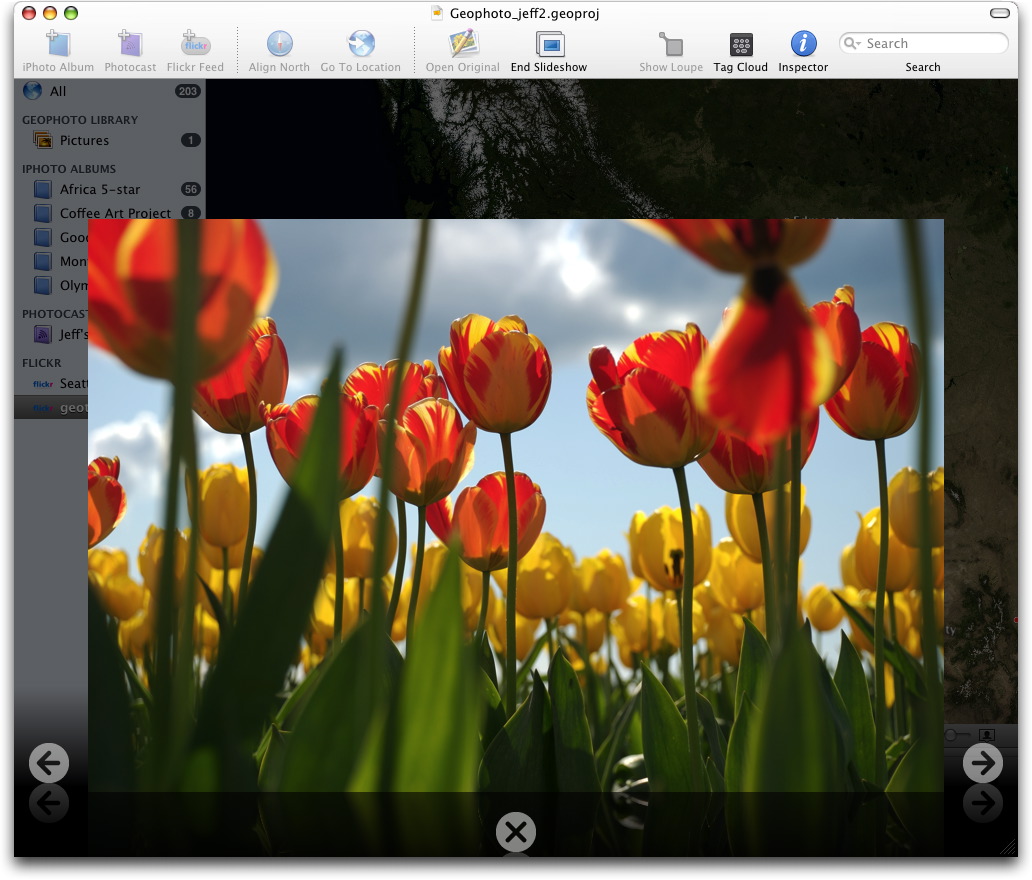
  But even zoomed out, clicking a group of photos makes them all
  appear in the strip at the bottom of the screen. From there you can
  double-click an image to view it at full size in an attractive
  slideshow screen.

<http://www.tidbits.com/resources/2007-05/geophoto_slideshow.jpg>

  A Search field actively narrows the number of visible images by
  searching the photos' metadata, such as title and description, much
  the way the iTunes Search field finds songs as you type. And
  providing further textual filtering, a Tag Cloud floating palette
  lists every tag, with some sized larger than others to denote more
  frequent usage. Click a tag to view the photos it describes, as well
  as the other tags applied to those photos.

  What I find most interesting about Geophoto, despite its
  difficulties in applying geographic data, is its focus on
  exploration. In fact, I'd go so far as to say that Geophoto is
  primarily a fun application for photo discovery, and secondarily a
  tool that serious photographers might use to geotag their picture
  libraries.

  For example, I've already mentioned how it's possible to maintain a
  running collection of the most recent images uploaded to Flickr
  groups. But you can also create new, custom Flickr feeds by
  positioning your mouse pointer on the map and choosing Find Flickr
  Photos in this Location from the contextual menu. Geophoto casts a
  virtual net over the area visible in the globe area and grabs 20
  geotagged images. (It's not as entertaining as FlickrVision, but not
  as fleeting either.)

<http://flickrvision.com/>


**Photos in the Real World** -- The proliferation of digital cameras
  is dramatically altering photography, democratizing it in a way that
  I think few people thought would be so pervasive. Geophoto
  contributes, too, by enabling you to export the location data back
  to the photos in your iPhoto library (choose Update Original with
  Location Information from the Item menu); the metadata is added to
  the image file. So if you applied a location in Geophoto, you can
  upload it from iPhoto to Flickr (or another service that can pull
  the data out of the file's metadata) with the location intact.

  People all over the planet are not only snapping pictures, they're
  uploading and sharing the images with anyone who happens to stumble
  into their corner of the world - a corner that's easier to find when
  spotlighted on a globe. Geophoto may be only an early and somewhat
  awkward solution to this desire, but it shows where we - or at least
  our digital photos - will be going.


Hot Topics in TidBITS Talk/28-May-07
------------------------------------
  by TidBITS Staff <[EMAIL PROTECTED]>
  article link: <http://db.tidbits.com/article/9011>

**Backwards from DVD to iMovie?** Is it possible to extract the video
  from a DVD without requiring an intermediate conversion application?
  (1 message)

<http://emperor.tidbits.com/TidBITS/Talk/1303/>


**Other scrolling utilities** -- Mark's article on two-fingered
  scrolling brings up a suggestion for a utility that works on older
  Macs. (1 message)

<http://emperor.tidbits.com/TidBITS/Talk/1304/>


**Keeping Home (Desktop) and Hearth (Notebook) together** -- Readers
  share their solutions for keeping data on multiple machines in sync.
  (5 messages)

<http://emperor.tidbits.com/TidBITS/Talk/1305/>


**Recording Streaming Video-Audio** -- Who needs to take notes during
  class when the class has a video stream? Here are some suggestions
  for capturing that stream to disk for later viewing. (5 messages)

<http://emperor.tidbits.com/TidBITS/Talk/1306/>


Take Control News/28-May-07
---------------------------
  by Adam C. Engst <[EMAIL PROTECTED]>
  article link: <http://db.tidbits.com/article/9012>

**One Day Left in Take Control Sale** -- Here's a quick reminder that,
  because of the Memorial Day holiday in the United States, our 50
  percent-off sale on all Take Control ebooks continues through
  29-May-07.

<http://www.takecontrolbooks.com/catalog.html?14@@!pt=TB881&cp=CPN70518TB17>


$$

This is TidBITS, a free weekly technology newsletter providing timely
news, insightful analysis, and in-depth reviews to the Macintosh and
Internet communities. Feel free to forward to friends; better still,
please ask them to subscribe!

Non-profit, non-commercial publications and Web sites may reprint or
link to articles if full credit is given. Others please contact us. We
do not guarantee accuracy of articles. Caveat lector. Publication,
product, and company names may be registered trademarks of their
companies. TidBITS ISSN 1090-7017.

Copyright 2007 TidBITS: Reuse governed by Creative Commons license.

Contact us at:    <[EMAIL PROTECTED]>
TidBITS Web site: <http://www.tidbits.com/>
License terms:    <http://www.tidbits.com/terms/>
Full text search: <http://www.tidbits.com/search/>
Subscriptions:    <http://www.tidbits.com/about/list.html>
Account help:     <http://www.tidbits.com/about/account-help.html>


--
If you want to unsubscribe or change your address, use this link
http://emperor.tidbits.com/webx?unsub@@.3c557dc4!u=306a67f9