I tried the Gmail app when it was first released, and it was accessible,
although I recall it was a bit tricky getting into the area where you
wanted to compose your message. I ended up preferring the native Mail
app on IOS, but I should check out the Gmail app again.
On 03/30/2015 10:48 AM, Mary Otten wrote:
4 tricks every Gmail for iOS user should know | Macworld
I just read this MacWorld article, and it looks interesting. I really
don't like Gmail, especially the web-based interface. But this app could
make it good, or at least better. So, the question, has anyone tried
Gmail for iOS, and how accessible was it?
Check out the link below and I think you'll see some good features here.
Mary
http://www.macworld.com/article/2899067/4-tricks-every-gmail-for-ios-user-should-know.html#tk.nl_iostip


  4 tricks every Gmail for iOS user should know

There’s more to the recently revamped Gmail app for iOS
<https://itunes.apple.com/us/app/gmail-email-from-google/id422689480?mt=8>
than pretty Material Design: It also comes with some new features that
will make Google App users’ lives a heck of a lot easier. You can
respond to a message straight from Notification Center, open attachments
in other apps, and more. Read on for four Gmail tricks—some new, some
old, all awesomely helpful.


    Set a vacation responder

gmailtips
<http://images.techhive.com/images/article/2015/03/gmailtips-100574698-large.png>


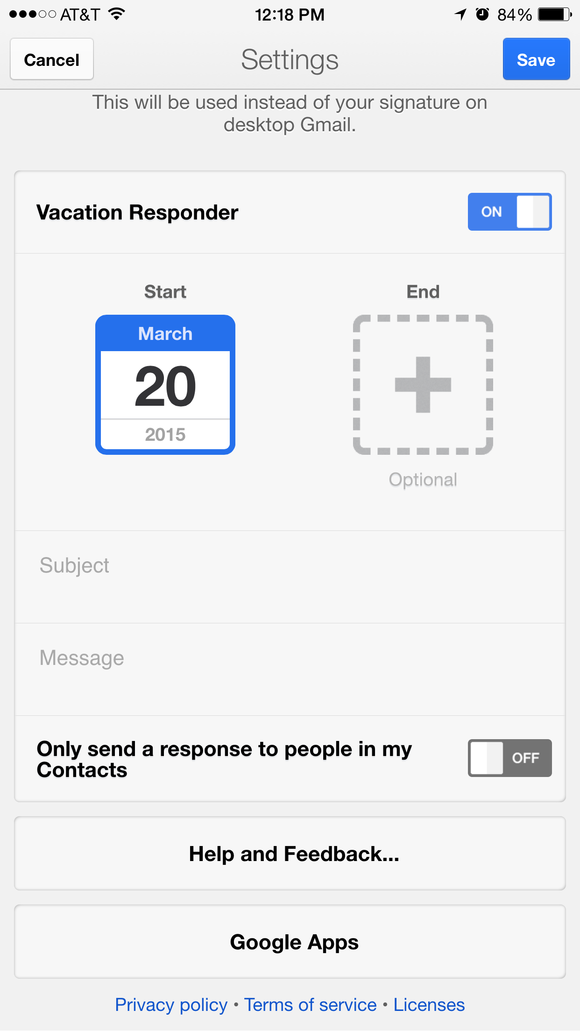
Set your vacation responder on the fly.

You can set a vacation reminder directly from the Gmail app, perfect for
letting friends, loved ones, and coworkers know that you won’t be
replying for a good long while.

Tap the menu button in the top-left corner of the page, then tap the
Settings button (the one shaped like a gear) next to your email address.

Flip the Vacation Responder switch, then fill in the blanks—you know,
start and end dates, subject line, message, and so on. Tap the Save button.

Bonus tip: Any vacation message you set in the web version of Gmail will
automatically sync with the Vacation Responder settings for the Gmail
app, and vice versa.


    Shush an annoying email thread

gmailtips2
<http://images.techhive.com/images/article/2015/03/gmailtips2-100574697-large.jpg>


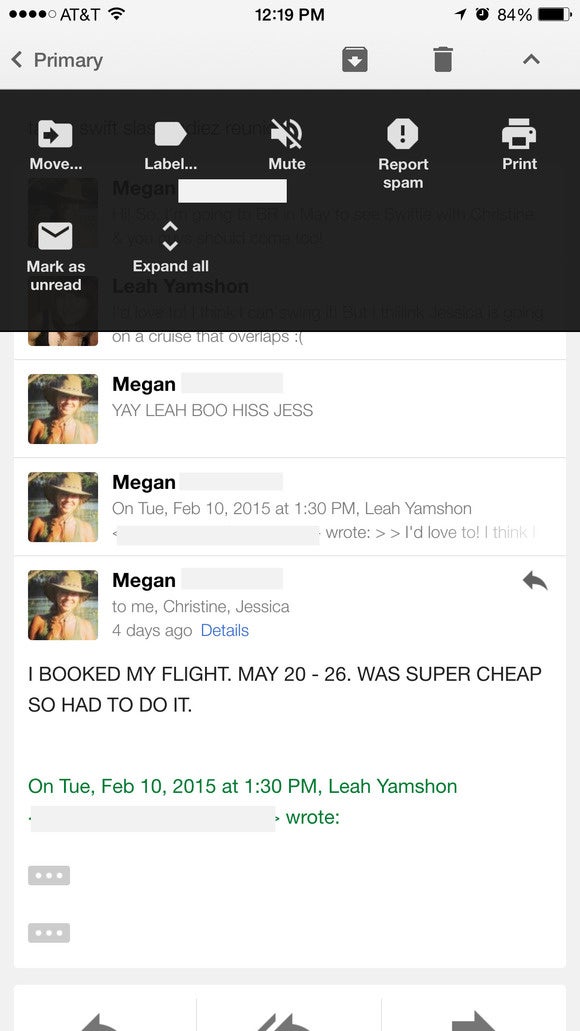
Mute and un-mute conversations as you please.

Some group messages are super helpful, but other times you'll find
yourself wondering how you got thrown into to a conversation that just
won't fizzle out. Gmail makes it easy to “mute” an annoying message
thread—like the kind where everyone chimes in with a “congrats!” or “so
cute!” or “see you there”...over and over again.

Once muted, the thread won’t appear in your inbox again unless you’re
the only person in the To field.

See a message thread you’d like to mute? Open it, tap the down-arrow
menu in the top corner of the screen, then tap /Mute/.

Want to unmute a message? Search for “is:muted,” open the muted message
you’d like to unmute, then move it back to the inbox. That’ll clear the
thread’s Muted label, and you'll once again receive every message sent
to the group.


    Swipe between message threads

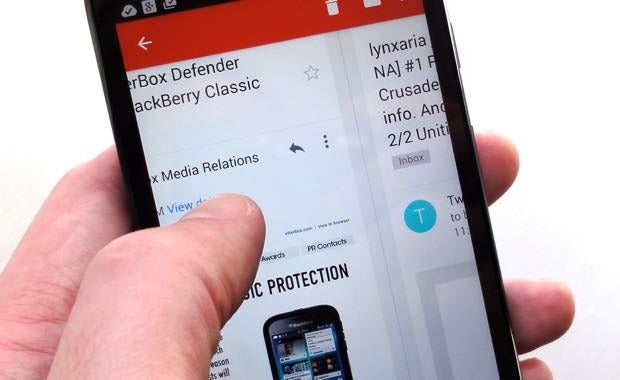
Here’s a handy little Gmail feature that’s easy to miss. Want to read
the next message thread in your inbox? No need to tap the /Back/ button
to return to the inbox screen. Instead, just swipe from right to left
(for older threads) or left to right (for more recent threads).

gmail app tricks swipe between message threads 6
<http://images.techhive.com/images/article/2015/03/gmail_app_tricks_swipe_between_message_threads_6-100573993-orig.jpg>
Image: Ben Patterson

Want to read the next message thread in your inbox? Just swipe one way
or the other. It works the same on Android and iOS.


    Attach big Google Drive files to your messages

gmailtips3
<http://images.techhive.com/images/article/2015/03/gmailtips3-100574666-large.png>


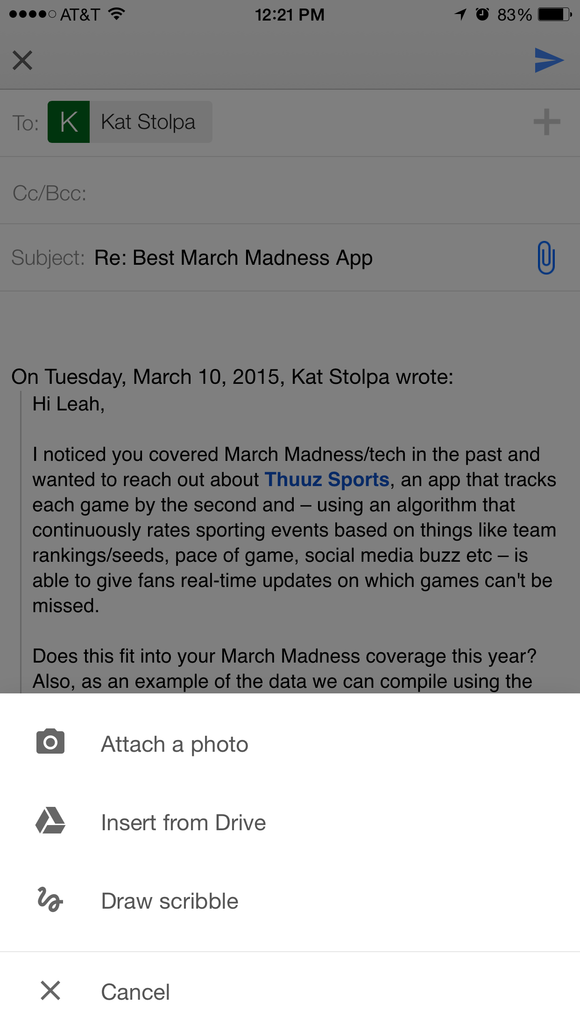
Attaching a file from Google Drive is just like attaching any other file.

With a little help from Google Drive, you can send a massive file—as in,
say, more than a few GB—to a friend via email, or deliver a large batch
of files.

Don’t have a Google Drive account? Well, if you’re using Gmail, you’ve
actually got one <http://drive.google.com> already.

First, you’ll need to load the files you want to send into Google Drive.
Open your Google Drive account, then drag the file you want to send onto
the webpage. The file should begin uploading automatically.

Next, open the Gmail app, compose a new message or reply to an existing
one, tap the Attach button (it looks like a paperclip), then tap /Insert
from Drive/.

Find the file you want to send, tap it, then tap the Attach button again.

Have any other Gmail for iOS tips you’d like to share? Let us know in
the comments below.


Sent from my iPhone

--
The following information is important for all members of the viphone
list. All new members to the this list are moderated by default. If you
have any questions or concerns about the running of this list, or if you
feel that a member's post is inappropriate, please contact the owners or
moderators directly rather than posting on the list itself. The archives
for this list can be searched at
http://www.mail-archive.com/[email protected]/.
---
You received this message because you are subscribed to the Google
Groups "VIPhone" group.
To unsubscribe from this group and stop receiving emails from it, send
an email to [email protected]
<mailto:[email protected]>.
To post to this group, send email to [email protected]
<mailto:[email protected]>.
Visit this group at http://groups.google.com/group/viphone.
For more options, visit https://groups.google.com/d/optout.
--
Christopher (CJ)
chaltain at Gmail

--
The following information is important for all members of the viphone list. All
new members to the this list are moderated by default. If you have any
questions or concerns about the running of this list, or if you feel that a
member's post is inappropriate, please contact the owners or moderators
directly rather than posting on the list itself. The archives for this list can
be searched at http://www.mail-archive.com/[email protected]/.
---
You received this message because you are subscribed to the Google Groups "VIPhone" group.
To unsubscribe from this group and stop receiving emails from it, send an email
to [email protected].
To post to this group, send email to [email protected].
Visit this group at http://groups.google.com/group/viphone.
For more options, visit https://groups.google.com/d/optout.