ernjvr opened a new pull request #2767: storage traffic type reset ui fix URL: https://github.com/apache/cloudstack/pull/2767 ## Description <!--- Describe your changes in detail --> In the Add Zone Wizard, when a user lands on the Physical Network page, by default the first Physical Network gets initialized with the 3 Traffic Types: Guest, Management and Public. When a user drags the Management or Public Traffic Types from the first Physical Network to a second or nth Physical Network and then clicks the next button to go to the next screen, and then decides to click the previous button to go back to the Physical Network screen, the UI initializes the physicalNetwork again and thus moves these Traffic Types back to their original position in the first Physical Network as if it is the first time the user navigated to this page. A fix was made so that when a user clicks the previous button to go back to the Physical Network screen, it does not initialize the physicalNetwork again, therefore leaving the user-defined Traffic Type configuration as it was before the next button was clicked. For example, dragging the Management and Storage Traffic Types to Physical Network 2 does not move back when clicking the 'Previous' button. 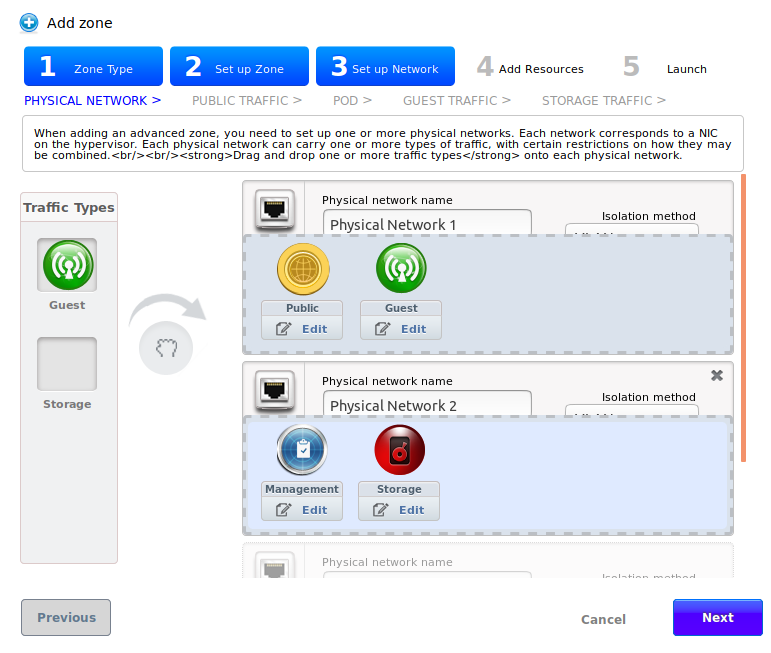 <!-- For new features, provide link to FS, dev ML discussion etc. --> <!-- In case of bug fix, the expected and actual behaviours, steps to reproduce. --> Actual Behaviour: In the Add Zone Wizard, when a user lands on the Physical Network page, by default the first Physical Network gets initialized with the 3 Traffic Types: Guest, Management and Public. When a user drags the Management or Public Traffic Types from the first Physical Network to a second or nth Physical Network and then clicks the next button to go to the next screen, and then decides to click the previous button to go back to the Physical Network screen, the UI initializes the physicalNetwork again and thus moves these Traffic Types back to their original position in the first Physical Network as if it is the first time the user navigated to this page. Expected Behaviour: In the Add Zone Wizard, when clicking the previous button to go back to the Physical Network screen, it must not initialize the physicalNetwork again, therefore leaving the user-defined Traffic Type configuration as it was before the next button was clicked. To reproduce: Navigate and click Infrastructure in the left pane. Click Zones and click the 'Add Zone' button to create a new zone. The 'Add Zone' wizard will appear and select 'Advanced' on the Zone Type screen. Fill in the required field on the 'set up Zone' page and click next. On the Physical Network screen, drag the Management and/or the Public traffic types to another Physical Network. Drag the Storage traffic type to the physical network. 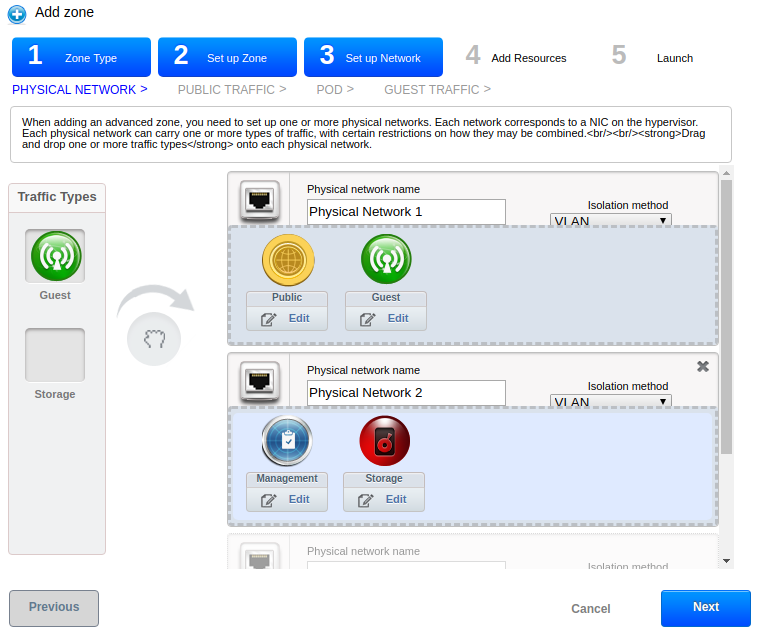 After adding a label for each traffic type, click the next button to proceed to the Public Traffic screen and then click the Previous button. This will show that the Management traffic type is moved back to Physical Network 1: 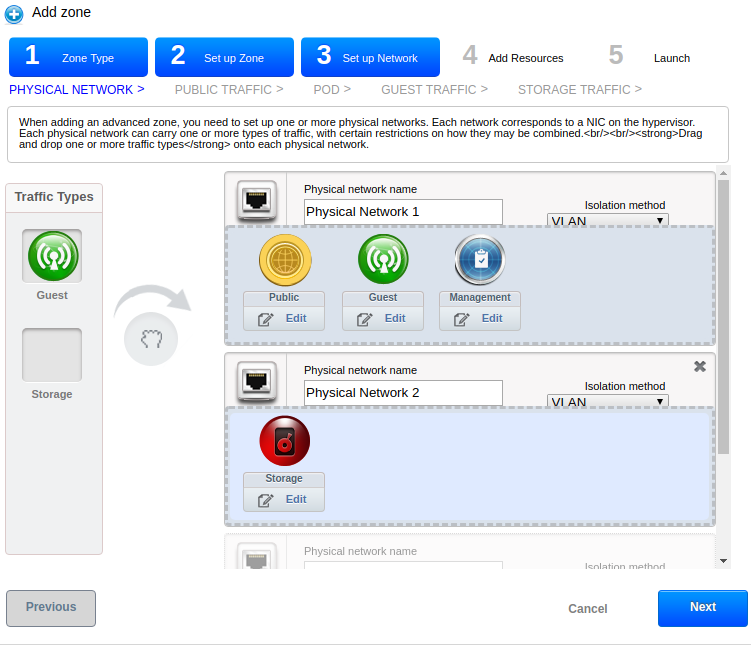 ## Types of changes <!--- What types of changes does your code introduce? Put an `x` in all the boxes that apply: --> - [ ] Breaking change (fix or feature that would cause existing functionality to change) - [ ] New feature (non-breaking change which adds functionality) - [x] Bug fix (non-breaking change which fixes an issue) - [ ] Enhancement (improves an existing feature and functionality) - [ ] Cleanup (Code refactoring and cleanup, that may add test cases) ## GitHub Issue/PRs <!-- If this PR is to fix an issue or another PR on GH, uncomment the section and provide the id of issue/PR --> <!-- When "Fixes: #<id>" is specified, the issue/PR will automatically be closed when this PR gets merged --> <!-- For addressing multiple issues/PRs, use multiple "Fixes: #<id>" --> <!-- Fixes: # --> ## Screenshots (if appropriate): ## How Has This Been Tested? Manually. Navigate and click Infrastructure in the left pane. Click Zones and click the 'Add Zone' button to create a new zone. The 'Add Zone' wizard will appear and select 'Advanced' on the Zone Type screen. Fill in the required field on the 'set up Zone' page and click next. On the Physical Network screen, drag the Management and/or the Public traffic types to another Physical Network. Drag the Storage traffic type to the physical network. After adding a label for each traffic type, click the next button to proceed to the Public Traffic screen and then click the Previous button. This will show that the Management traffic type has not moved back to Physical Network 1. <!-- Please describe in detail how you tested your changes. --> Environment: KVM hypervisor Create Advanced Zone. <!-- Include details of your testing environment, and the tests you ran to --> <!-- see how your change affects other areas of the code, etc. --> ## Checklist: <!--- Go over all the following points, and put an `x` in all the boxes that apply. --> <!--- If you're unsure about any of these, don't hesitate to ask. We're here to help! --> - [x] I have read the [CONTRIBUTING](https://github.com/apache/cloudstack/blob/master/CONTRIBUTING.md) document. - [x] My code follows the code style of this project. - [ ] My change requires a change to the documentation. - [ ] I have updated the documentation accordingly. Testing - [ ] I have added tests to cover my changes. - [ ] All relevant new and existing integration tests have passed. - [ ] A full integration testsuite with all test that can run on my environment has passed.
----------------------------------------------------------------
This is an automated message from the Apache Git Service.
To respond to the message, please log on GitHub and use the
URL above to go to the specific comment.

For queries about this service, please contact Infrastructure at:
[email protected]


With regards,
Apache Git Services



