Startrekzky commented on code in PR #444:
URL:
https://github.com/apache/incubator-devlake-website/pull/444#discussion_r1118460439
########## docs/Configuration/BitBucket.md: ########## @@ -8,21 +8,21 @@ Visit config-ui: `http://localhost:4000` and go to `Connections` page. ### Step 1 - Add Data Connections - + #### Connection Name Name your connection. #### Endpoint URL -This should be a valid REST API endpoint for BitBucket: `https://api.bitbucket.org/2.0/`. The endpoint URL should end with `/`. +This should be a valid REST API endpoint for BitBucket Cloud: `https://api.BitBucket.org/2.0/`. The endpoint URL should end with `/`. Review Comment: This should be lowercase😂? ########## docs/Configuration/BitBucket.md: ########## @@ -47,20 +47,88 @@ If you are behind a corporate firewall or VPN you may need to utilize a proxy se DevLake uses a dynamic rate limit to collect BitBucket data. You can adjust the rate limit if you want to increase or lower the speed. -The maximum rate limit for different entities in BitBucket(Cloud) is [60,000 or 1,000 requests/hour](https://support.atlassian.com/bitbucket-cloud/docs/api-request-limits/). Please do not use a rate that exceeds this number. +The maximum rate limit for different entities in BitBucket(Cloud) is [1,000 requests/hour](https://support.atlassian.com/BitBucket-cloud/docs/api-request-limits/). But we find it can run when we try a rate limit of more than 1000/h. So you can try the bigger maximum if your repo is big enough. + +<!-- 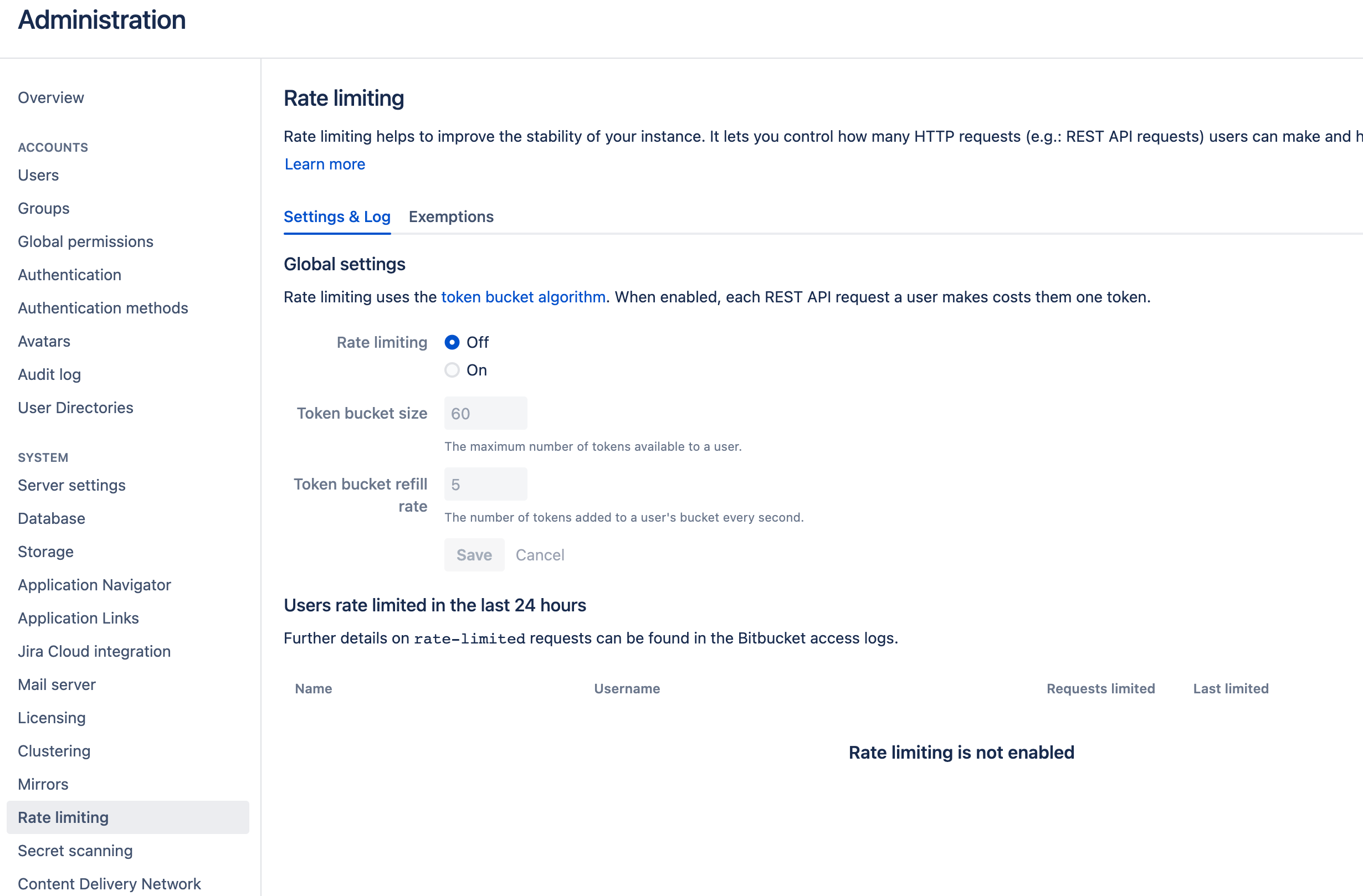 --> #### Test and Save Connection Click `Test Connection`, if the connection is successful, click `Save Connection` to add the connection. - ### Step 2 - Configure Blueprint -Similar to other beta plugins, BitBucket does not support `project`, which means, you can only collect BitBucket data via blueprint's advanced mode. +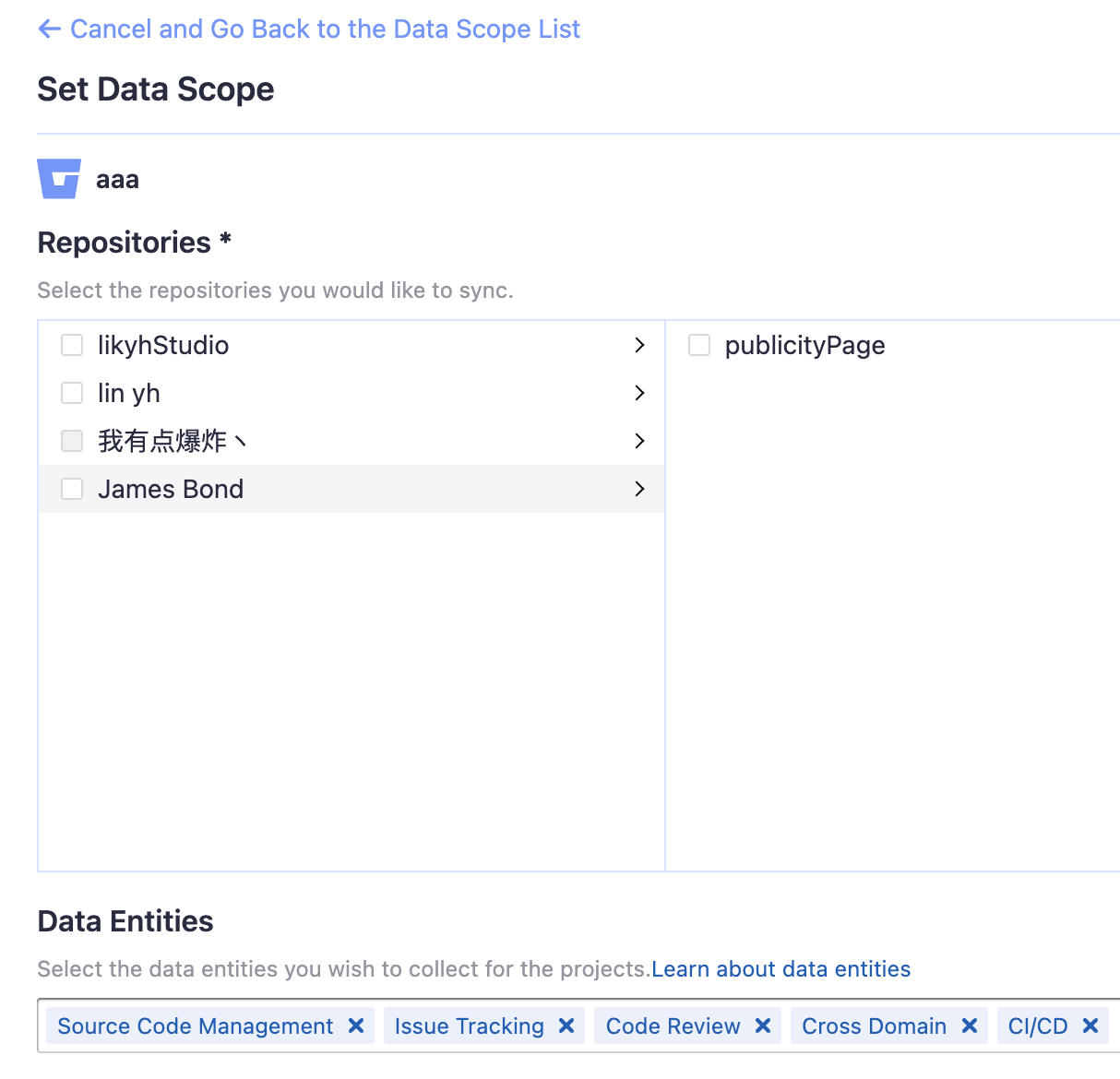 + +#### Repositories + +Select the BitBucket repos to collect. + +#### Data Entities + +Usually, you don't have to modify this part. However, if you don't want to collect certain BitBucket entities, you can unselect some entities to accelerate the collection speed. + +- Issue Tracking: BitBucket issues, issue comments, etc. Review Comment: Have we collected BitBucket issue comments? If not, delete it. ########## docs/Configuration/BitBucket.md: ########## @@ -47,20 +47,88 @@ If you are behind a corporate firewall or VPN you may need to utilize a proxy se DevLake uses a dynamic rate limit to collect BitBucket data. You can adjust the rate limit if you want to increase or lower the speed. -The maximum rate limit for different entities in BitBucket(Cloud) is [60,000 or 1,000 requests/hour](https://support.atlassian.com/bitbucket-cloud/docs/api-request-limits/). Please do not use a rate that exceeds this number. +The maximum rate limit for different entities in BitBucket(Cloud) is [1,000 requests/hour](https://support.atlassian.com/BitBucket-cloud/docs/api-request-limits/). But we find it can run when we try a rate limit of more than 1000/h. So you can try the bigger maximum if your repo is big enough. + +<!--  --> #### Test and Save Connection Click `Test Connection`, if the connection is successful, click `Save Connection` to add the connection. - ### Step 2 - Configure Blueprint -Similar to other beta plugins, BitBucket does not support `project`, which means, you can only collect BitBucket data via blueprint's advanced mode. + + +#### Repositories + +Select the BitBucket repos to collect. + +#### Data Entities + +Usually, you don't have to modify this part. However, if you don't want to collect certain BitBucket entities, you can unselect some entities to accelerate the collection speed. + +- Issue Tracking: BitBucket issues, issue comments, etc. +- Source Code Management: BitBucket repos, refs, commits, etc. +- Code Review: BitBucket PRs, PR comments, etc. +- CI/CD: BitBucket Pipelines, BitBucket Deployments, etc. +- Cross Domain: BitBucket accounts, etc. Please go to the `Blueprints` page and switch to advanced mode. See how to use advanced mode and JSON [examples](AdvancedMode.md). +### Step 3 - Adding Transformation Rules (Optional) + +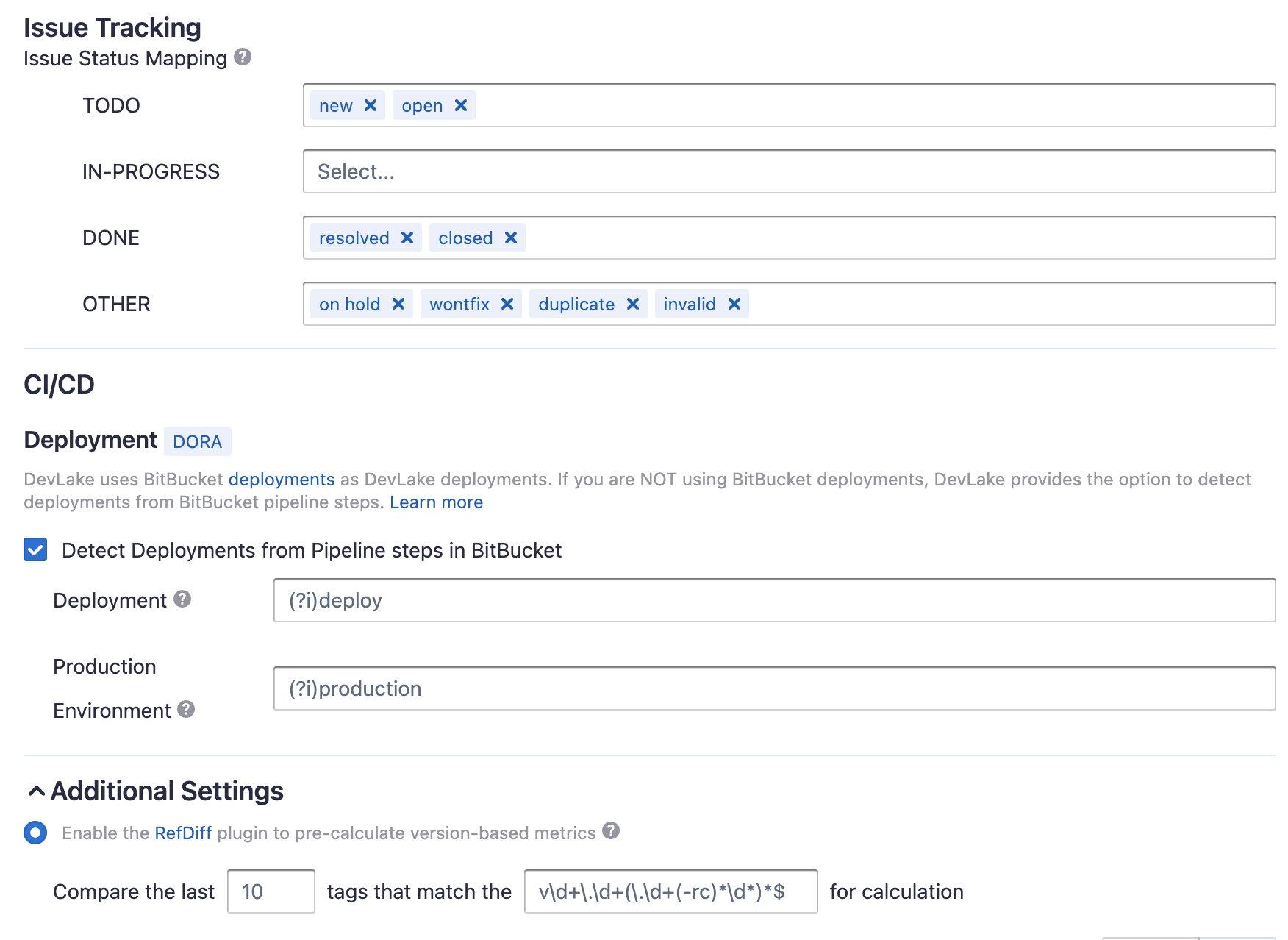 + +Without changing default transformation rules, you can still view the Metrics dashboard. However, if you want to view pre-built dashboards, the following transformation rules, especially "Type/Bug", should be added.<br/> + +Each BitBucket repo has at most ONE set of transformation rules. + +#### Issue Tracking + +- TODO: the issues with selected states can be recognized not start issues. + Review Comment: No blank line here. ########## docs/Configuration/BitBucket.md: ########## @@ -47,20 +47,88 @@ If you are behind a corporate firewall or VPN you may need to utilize a proxy se DevLake uses a dynamic rate limit to collect BitBucket data. You can adjust the rate limit if you want to increase or lower the speed. -The maximum rate limit for different entities in BitBucket(Cloud) is [60,000 or 1,000 requests/hour](https://support.atlassian.com/bitbucket-cloud/docs/api-request-limits/). Please do not use a rate that exceeds this number. +The maximum rate limit for different entities in BitBucket(Cloud) is [1,000 requests/hour](https://support.atlassian.com/BitBucket-cloud/docs/api-request-limits/). But we find it can run when we try a rate limit of more than 1000/h. So you can try the bigger maximum if your repo is big enough. + +<!--  --> #### Test and Save Connection Click `Test Connection`, if the connection is successful, click `Save Connection` to add the connection. - ### Step 2 - Configure Blueprint -Similar to other beta plugins, BitBucket does not support `project`, which means, you can only collect BitBucket data via blueprint's advanced mode. + + +#### Repositories + +Select the BitBucket repos to collect. + +#### Data Entities + +Usually, you don't have to modify this part. However, if you don't want to collect certain BitBucket entities, you can unselect some entities to accelerate the collection speed. + +- Issue Tracking: BitBucket issues, issue comments, etc. +- Source Code Management: BitBucket repos, refs, commits, etc. +- Code Review: BitBucket PRs, PR comments, etc. +- CI/CD: BitBucket Pipelines, BitBucket Deployments, etc. +- Cross Domain: BitBucket accounts, etc. Please go to the `Blueprints` page and switch to advanced mode. See how to use advanced mode and JSON [examples](AdvancedMode.md). +### Step 3 - Adding Transformation Rules (Optional) + + + +Without changing default transformation rules, you can still view the Metrics dashboard. However, if you want to view pre-built dashboards, the following transformation rules, especially "Type/Bug", should be added.<br/> + +Each BitBucket repo has at most ONE set of transformation rules. + +#### Issue Tracking + +- TODO: the issues with selected states can be recognized not start issues. + +- IN-PROGRESS: The issues statuses that indicate an issue is work in progress. +- DONE: The issue statuses that indicate an issue is completed. +- OTHER: Other issues statuses that can not be mapped to the above three statuses. + +#### CI/CD + +This set of configurations is used for calculating [DORA metrics](../DORA.md). + +BitBucket has several key CI entities: `pipelines`, `pipeline steps`, and `deployments`. A Bitbucket pipeline contains several pipeline steps. Each pipeline step defined with a deployment key can be mapped to a BitBucket deployment. + +Each Bitbucket pipeline is converted to a cicd_pipeline in DevLake's domain layer schema and each Bitbucket pipeline step is converted to a cicd_task in DevLake's domain layer. + + +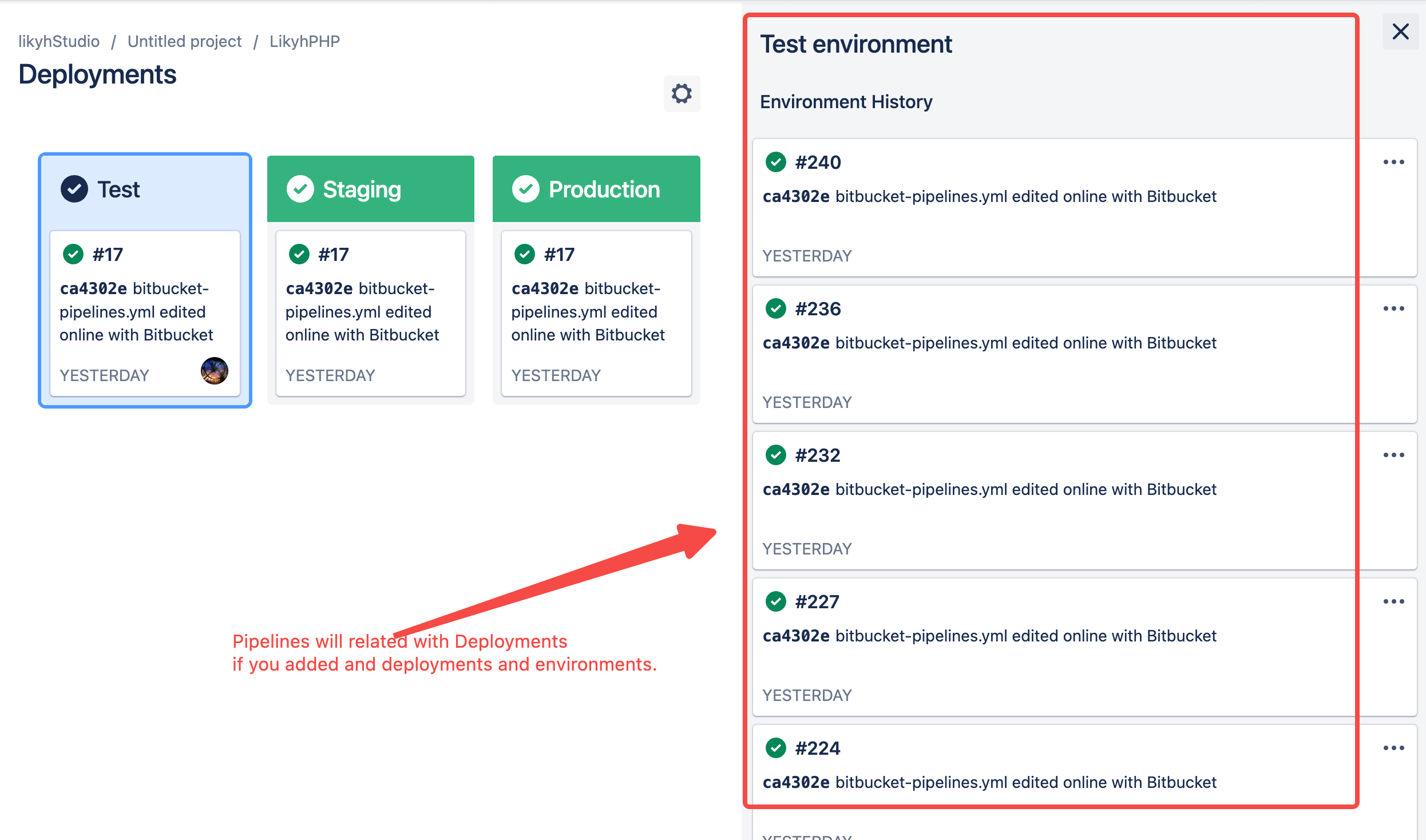 Review Comment: 1. Annotation change: If a pipeline step defines `deployment` with a value (usually means envrionment), this pipeline step is also a BitBucket deployment. Their relationship is 1:1 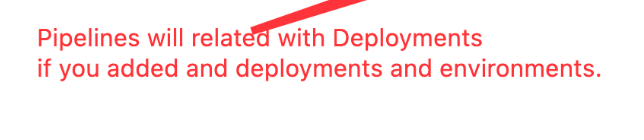 2. Add a screenshot of how to define deployment and environment in `.yaml` to explain point 1. For example, 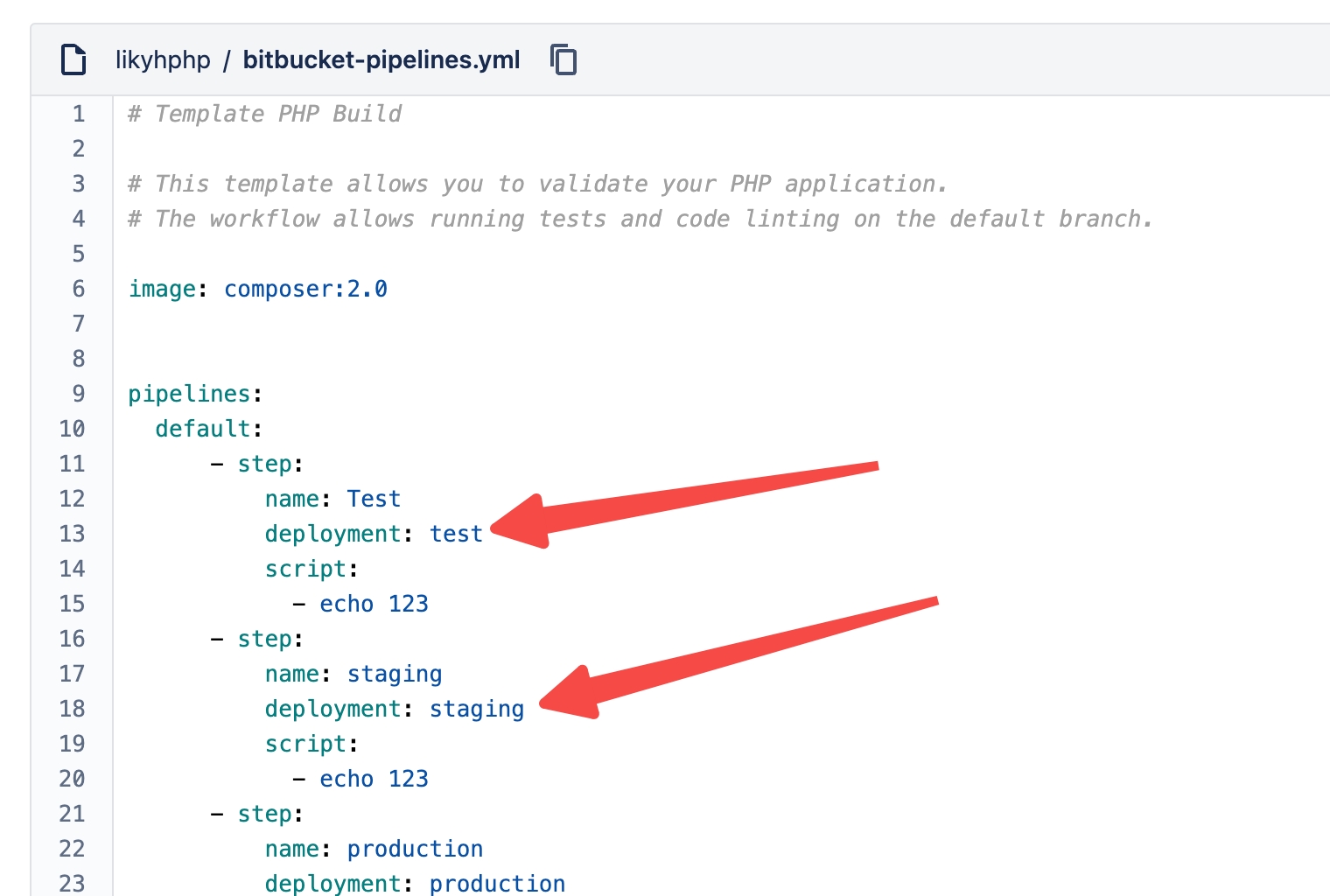 ########## docs/Configuration/BitBucket.md: ########## @@ -47,20 +47,88 @@ If you are behind a corporate firewall or VPN you may need to utilize a proxy se DevLake uses a dynamic rate limit to collect BitBucket data. You can adjust the rate limit if you want to increase or lower the speed. -The maximum rate limit for different entities in BitBucket(Cloud) is [60,000 or 1,000 requests/hour](https://support.atlassian.com/bitbucket-cloud/docs/api-request-limits/). Please do not use a rate that exceeds this number. +The maximum rate limit for different entities in BitBucket(Cloud) is [1,000 requests/hour](https://support.atlassian.com/BitBucket-cloud/docs/api-request-limits/). But we find it can run when we try a rate limit of more than 1000/h. So you can try the bigger maximum if your repo is big enough. + +<!--  --> #### Test and Save Connection Click `Test Connection`, if the connection is successful, click `Save Connection` to add the connection. - ### Step 2 - Configure Blueprint -Similar to other beta plugins, BitBucket does not support `project`, which means, you can only collect BitBucket data via blueprint's advanced mode. + + +#### Repositories + +Select the BitBucket repos to collect. + +#### Data Entities + +Usually, you don't have to modify this part. However, if you don't want to collect certain BitBucket entities, you can unselect some entities to accelerate the collection speed. + +- Issue Tracking: BitBucket issues, issue comments, etc. +- Source Code Management: BitBucket repos, refs, commits, etc. +- Code Review: BitBucket PRs, PR comments, etc. +- CI/CD: BitBucket Pipelines, BitBucket Deployments, etc. +- Cross Domain: BitBucket accounts, etc. Please go to the `Blueprints` page and switch to advanced mode. See how to use advanced mode and JSON [examples](AdvancedMode.md). +### Step 3 - Adding Transformation Rules (Optional) + + + +Without changing default transformation rules, you can still view the Metrics dashboard. However, if you want to view pre-built dashboards, the following transformation rules, especially "Type/Bug", should be added.<br/> Review Comment: Why here is a `especially "Type/Bug", should be added.`? ########## docs/Configuration/BitBucket.md: ########## @@ -8,21 +8,21 @@ Visit config-ui: `http://localhost:4000` and go to `Connections` page. ### Step 1 - Add Data Connections - + #### Connection Name Name your connection. #### Endpoint URL -This should be a valid REST API endpoint for BitBucket: `https://api.bitbucket.org/2.0/`. The endpoint URL should end with `/`. +This should be a valid REST API endpoint for BitBucket Cloud: `https://api.BitBucket.org/2.0/`. The endpoint URL should end with `/`. DevLake will support BitBucket Server in the future. #### Authentication -BitBucket `username` and `app password` are required to add a connection. Learn about [how to create a BitBucket app password](https://support.atlassian.com/bitbucket-cloud/docs/create-an-app-password/). +BitBucket `username` and `app password` are required to add a connection. Learn about [how to create a BitBucket app password](https://support.atlassian.com/BitBucket-cloud/docs/create-an-app-password/). Review Comment: So does this one. ########## docs/Configuration/BitBucket.md: ########## @@ -47,20 +47,88 @@ If you are behind a corporate firewall or VPN you may need to utilize a proxy se DevLake uses a dynamic rate limit to collect BitBucket data. You can adjust the rate limit if you want to increase or lower the speed. -The maximum rate limit for different entities in BitBucket(Cloud) is [60,000 or 1,000 requests/hour](https://support.atlassian.com/bitbucket-cloud/docs/api-request-limits/). Please do not use a rate that exceeds this number. +The maximum rate limit for different entities in BitBucket(Cloud) is [1,000 requests/hour](https://support.atlassian.com/BitBucket-cloud/docs/api-request-limits/). But we find it can run when we try a rate limit of more than 1000/h. So you can try the bigger maximum if your repo is big enough. + +<!--  --> #### Test and Save Connection Click `Test Connection`, if the connection is successful, click `Save Connection` to add the connection. - ### Step 2 - Configure Blueprint -Similar to other beta plugins, BitBucket does not support `project`, which means, you can only collect BitBucket data via blueprint's advanced mode. + + +#### Repositories + +Select the BitBucket repos to collect. + +#### Data Entities + +Usually, you don't have to modify this part. However, if you don't want to collect certain BitBucket entities, you can unselect some entities to accelerate the collection speed. + +- Issue Tracking: BitBucket issues, issue comments, etc. +- Source Code Management: BitBucket repos, refs, commits, etc. +- Code Review: BitBucket PRs, PR comments, etc. +- CI/CD: BitBucket Pipelines, BitBucket Deployments, etc. +- Cross Domain: BitBucket accounts, etc. Please go to the `Blueprints` page and switch to advanced mode. See how to use advanced mode and JSON [examples](AdvancedMode.md). +### Step 3 - Adding Transformation Rules (Optional) + + + +Without changing default transformation rules, you can still view the Metrics dashboard. However, if you want to view pre-built dashboards, the following transformation rules, especially "Type/Bug", should be added.<br/> + +Each BitBucket repo has at most ONE set of transformation rules. + +#### Issue Tracking + +- TODO: the issues with selected states can be recognized not start issues. + +- IN-PROGRESS: The issues statuses that indicate an issue is work in progress. +- DONE: The issue statuses that indicate an issue is completed. +- OTHER: Other issues statuses that can not be mapped to the above three statuses. + +#### CI/CD + +This set of configurations is used for calculating [DORA metrics](../DORA.md). + +BitBucket has several key CI entities: `pipelines`, `pipeline steps`, and `deployments`. A Bitbucket pipeline contains several pipeline steps. Each pipeline step defined with a deployment key can be mapped to a BitBucket deployment. + +Each Bitbucket pipeline is converted to a cicd_pipeline in DevLake's domain layer schema and each Bitbucket pipeline step is converted to a cicd_task in DevLake's domain layer. + + + + +If you are using BitBucket Deployments and Environments, DevLake will consider the pipeline steps with deployment as a deployment and use the environment type of deployment in cicd_task. Review Comment: How does DevLake tell if a BitBucket pipeline step is a deployment? The pipeline steps (defined in the .yaml) with the `deployment` key are considered as `DevLake deployments`. The value of the `deployment` key will be considered as the environment of DevLake deployments. These DevLake deployments will be recorded in table.cicd_tasks in DevLake's domain layer, with `type` = 'deployment' and `environment` = '{BitBucket-pipeline-step.deployment.value}', differentiating from other CI tasks. ########## docs/Configuration/BitBucket.md: ########## @@ -47,20 +47,88 @@ If you are behind a corporate firewall or VPN you may need to utilize a proxy se DevLake uses a dynamic rate limit to collect BitBucket data. You can adjust the rate limit if you want to increase or lower the speed. -The maximum rate limit for different entities in BitBucket(Cloud) is [60,000 or 1,000 requests/hour](https://support.atlassian.com/bitbucket-cloud/docs/api-request-limits/). Please do not use a rate that exceeds this number. +The maximum rate limit for different entities in BitBucket(Cloud) is [1,000 requests/hour](https://support.atlassian.com/BitBucket-cloud/docs/api-request-limits/). But we find it can run when we try a rate limit of more than 1000/h. So you can try the bigger maximum if your repo is big enough. + +<!--  --> #### Test and Save Connection Click `Test Connection`, if the connection is successful, click `Save Connection` to add the connection. - ### Step 2 - Configure Blueprint -Similar to other beta plugins, BitBucket does not support `project`, which means, you can only collect BitBucket data via blueprint's advanced mode. + + +#### Repositories + +Select the BitBucket repos to collect. + +#### Data Entities + +Usually, you don't have to modify this part. However, if you don't want to collect certain BitBucket entities, you can unselect some entities to accelerate the collection speed. + +- Issue Tracking: BitBucket issues, issue comments, etc. +- Source Code Management: BitBucket repos, refs, commits, etc. +- Code Review: BitBucket PRs, PR comments, etc. +- CI/CD: BitBucket Pipelines, BitBucket Deployments, etc. +- Cross Domain: BitBucket accounts, etc. Please go to the `Blueprints` page and switch to advanced mode. See how to use advanced mode and JSON [examples](AdvancedMode.md). +### Step 3 - Adding Transformation Rules (Optional) + + + +Without changing default transformation rules, you can still view the Metrics dashboard. However, if you want to view pre-built dashboards, the following transformation rules, especially "Type/Bug", should be added.<br/> + +Each BitBucket repo has at most ONE set of transformation rules. + +#### Issue Tracking + +- TODO: the issues with selected states can be recognized not start issues. + +- IN-PROGRESS: The issues statuses that indicate an issue is work in progress. +- DONE: The issue statuses that indicate an issue is completed. +- OTHER: Other issues statuses that can not be mapped to the above three statuses. + +#### CI/CD + +This set of configurations is used for calculating [DORA metrics](../DORA.md). + +BitBucket has several key CI entities: `pipelines`, `pipeline steps`, and `deployments`. A Bitbucket pipeline contains several pipeline steps. Each pipeline step defined with a deployment key can be mapped to a BitBucket deployment. + +Each Bitbucket pipeline is converted to a cicd_pipeline in DevLake's domain layer schema and each Bitbucket pipeline step is converted to a cicd_task in DevLake's domain layer. + + + + +If you are using BitBucket Deployments and Environments, DevLake will consider the pipeline steps with deployment as a deployment and use the environment type of deployment in cicd_task. + +Or if you're using BitBucket pipelines to conduct `deployments`, please select "Detect Deployments from Pipeline steps in BitBucket", and input the RegEx in the following fields: Review Comment: The following paragraphs should be updated according to BitBucket's transformation page as below.  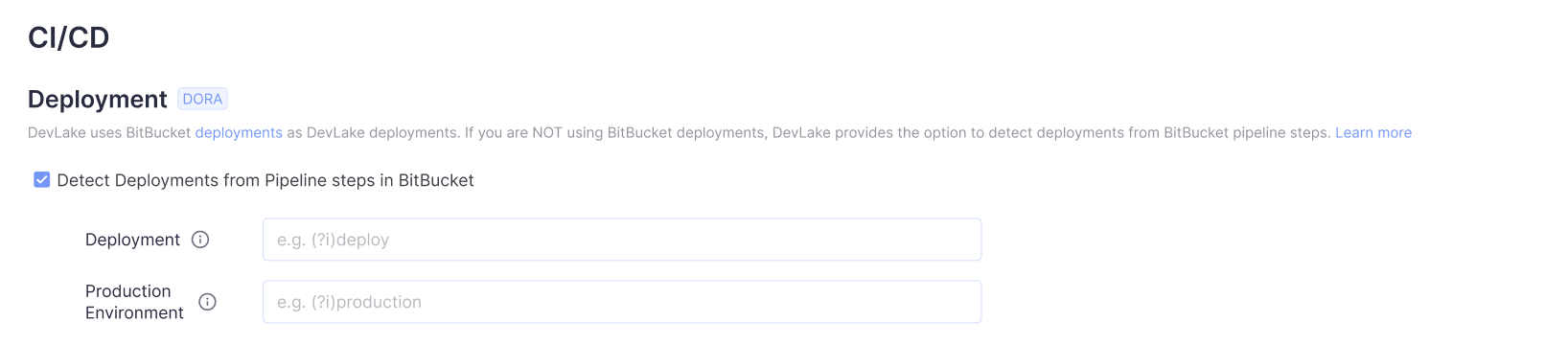 -- This is an automated message from the Apache Git Service. To respond to the message, please log on to GitHub and use the URL above to go to the specific comment. To unsubscribe, e-mail: [email protected] For queries about this service, please contact Infrastructure at: [email protected]










