On 12/28/2016 05:28 PM, laredotornado wrote:
> Hi,
>
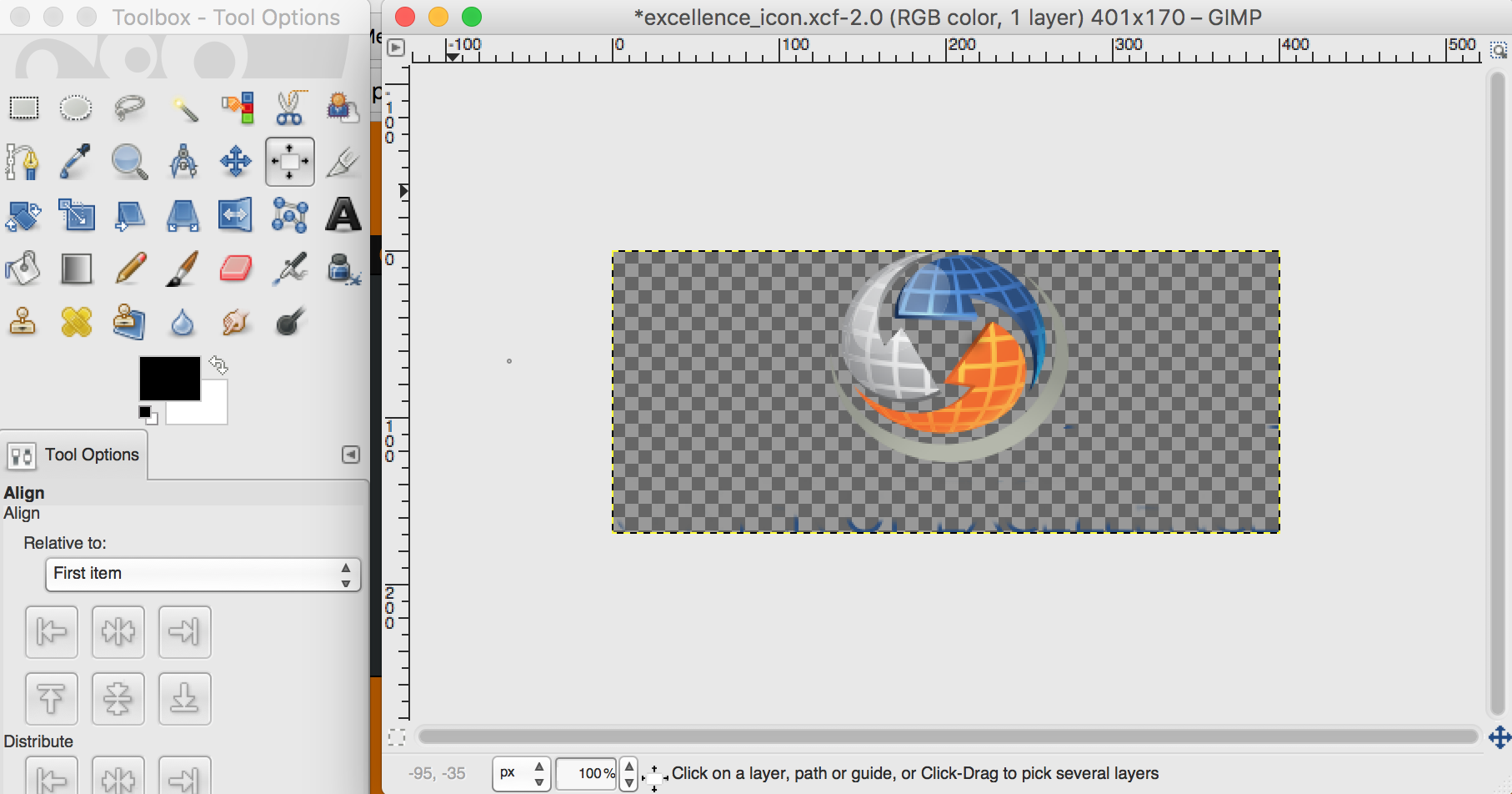
> I'm using Gimp 2.8.18 on Mac Sierra.  I opened an image, erased a few things,
> and now want to shrink the canvas to only capture the image.  I tried "Image"
> ->
> "AutoCrop Image" and "Image" -> "Fit Canvas to Image" from the menu, but
> neither
> of them did anything.  My image remains as you see it in my screen shot.  This
> is a PNG image, so not sure if that affects thinngs . How do I eliminate all
> the
> unnecessary space around my image and keep only the image itself?
>
>  - Dave
>
> Attachments:
> *
> http://www.gimpusers.com/system/attachments/408/original/Screen_Shot_2016-12-28_at_4.23.34_PM.png
Hey Dave,

I see some blue clutter across the bottom of the image in your screen
shot:  Automatic cropping (by layer or image) won't remove that.  The
Crop tool (its button in the main toolbox looks like an Xacto knife)
will crop the image to whatever box you put on the screen.  With the
crop tool active, click and drag to make your box, adjust your box (its
corners and edges turn into click-and-drag handles when the mouse
pointer is over them), click in the middle of it and zap, there ya go.

:o)


_______________________________________________
gimp-user-list mailing list
List address:    [email protected]
List membership: https://mail.gnome.org/mailman/listinfo/gimp-user-list
List archives:   https://mail.gnome.org/archives/gimp-user-list