Apakah ada yg sukses setting IMAP Gmail setelah 2 step verification ini
dijalankan?
Sepertinya komputer minta password terus dan selalu failed :-(

Cheers,
Bambang SN
On Mar 8, 2014 4:51 PM, "Defriando Riza" <[email protected]> wrote:

> Cuma mau share aja, buat yang advance user mungkin sudah menggunakan..tapi
> buat yang baru pake robot ijo, siapa tau berguna...
>
> <http://phandroid.s3.amazonaws.com/wp-content/uploads/2014/03/onlineSecurity.jpg>
>
> Security can sometimes sound like a boring topic to your average Joe
> Schmo, but it’s actually very important. You simply don’t want to give
> people the means to sneak into your accounts and access all your sensitive
> data if you can’t help it.
>
> Sometimes you can’t help it, with even the biggest corporations sometimes
> letting sneaky, malicious people gain access to customer accounts right
> under their noses. (We’re looking at you,
> Target<http://phandroid.com/2013/12/19/target-security-breach/>and
> Evernote <http://phandroid.com/2013/03/04/evernote-hack-password-reset/>.)
>
> Your Twitter account? Yelp? Maybe not as important, but your e-mail stores
> a ton of sensitive info. In Android land that usually means your Gmail /
> Google account, and if you haven’t already, you should further protect your
> account by enabling 2-step verification.
>
> First, though, it’s important to know what 2-step verification is, and how
> it can ensure no one but you can get into your account.
>
> *What is 2-step verification?*
>
> Imagine a system where no one can login to your account unless they have
> your actual phone in their physical possession — that’s exactly what 2-step
> verification in Gmail equips you with. It’s an extra layer of security that
> makes it a lot more difficult for people to do their dirty bidding.
>
> Think of it like a safe that not only needs the access code, but also
> requires the safe owner’s iris to be scanned before giving you access. Now
> apply that to your Gmail account with 2-step verification — even if the
> perpetrators had your exact username and password, they wouldn’t be able to
> fully access your account until they verify their authenticity using your
> phone.
>
> <http://phandroid.s3.amazonaws.com/wp-content/uploads/2014/03/google-2step-banner.png>
>
> Even that isn’t 100% foolproof, though — just like you could probably find
> your way into a safe by physically breaking its lock, nothing’s keeping
> people from stealing your phone. But the chances of someone having both
> your account information and your phone in their possession are slim, and
> we imagine most “hackers” wouldn’t go through the trouble of trying to
> track down someone’s phone to get into their account (unless you happen to
> be some high-ranking government official with highly valued information).
>
> *How 2-step verification works in Gmail*
>
> The name of the feature is actually a bit self-explanatory — it requires
> two different login steps before you can gain full access to your account.
> To illustrate that concept, here is the simple login process in list form:
>
> Sign into your account like normal using your username and password.A
> one-use code will be sent to your phone via text message, voice call or a
> mobile app. Get the code and enter it into the login form.
>
> And that’s literally it. Of course, it’d be inconvenient for people to do
> this every single time they wanted to login, so Google allows you to set
> trusted devices up so you can login using just a username and password
> after logging in with 2-step for the first time. It wouldn’t be wise to
> trust a library computer, natch, but you might set your home computer up as
> one of the devices that don’t require 2-step logins.
>
> *How to setup 2-step verification in Gmail*
>
> You’re likely salivating at the prospect of getting your account equipped
> with 2-step verification by now, so we’re going to hop right into it. It’s
> actually very simple to get going, so be sure to read each step carefully,
> and fully, before heading off to try it yourself.
>
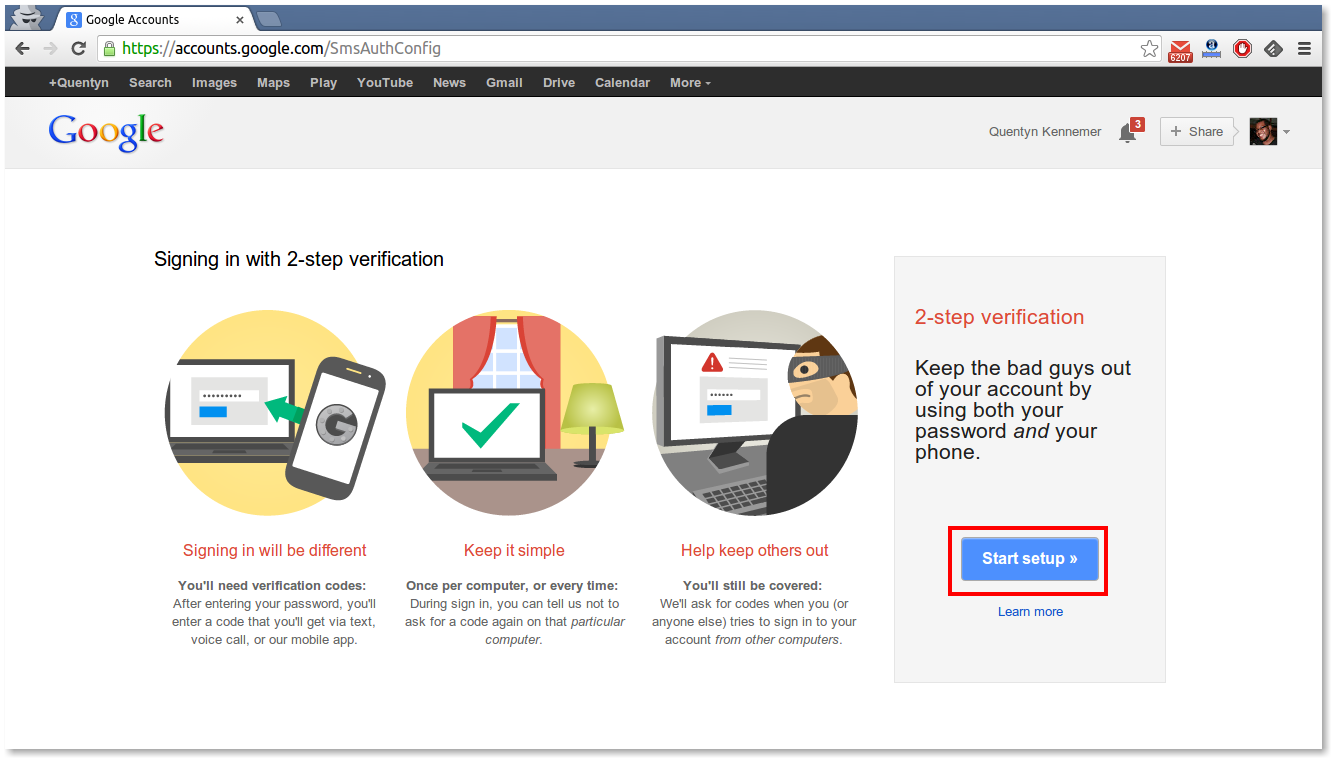
> First, make sure you’re signed into your Gmail or Google account. From
> there, click this link <https://accounts.google.com/SmsAuthConfig>, and
> press the Start Setup Button:
>
> <http://phandroid.s3.amazonaws.com/wp-content/uploads/2014/03/2step-1.png>
>
> Next, Google will ask you for your phone number. If you’ve previously set
> your phone number up with your account, they’ll auto-populate this field
> for you. If not, simply enter it in the “Phone Number” field (taking care
> to select your proper country and using full area codes). Then, decide
> whether you want your code via voice call or SMS. Finally, press the “send
> code” button:
>
>
>
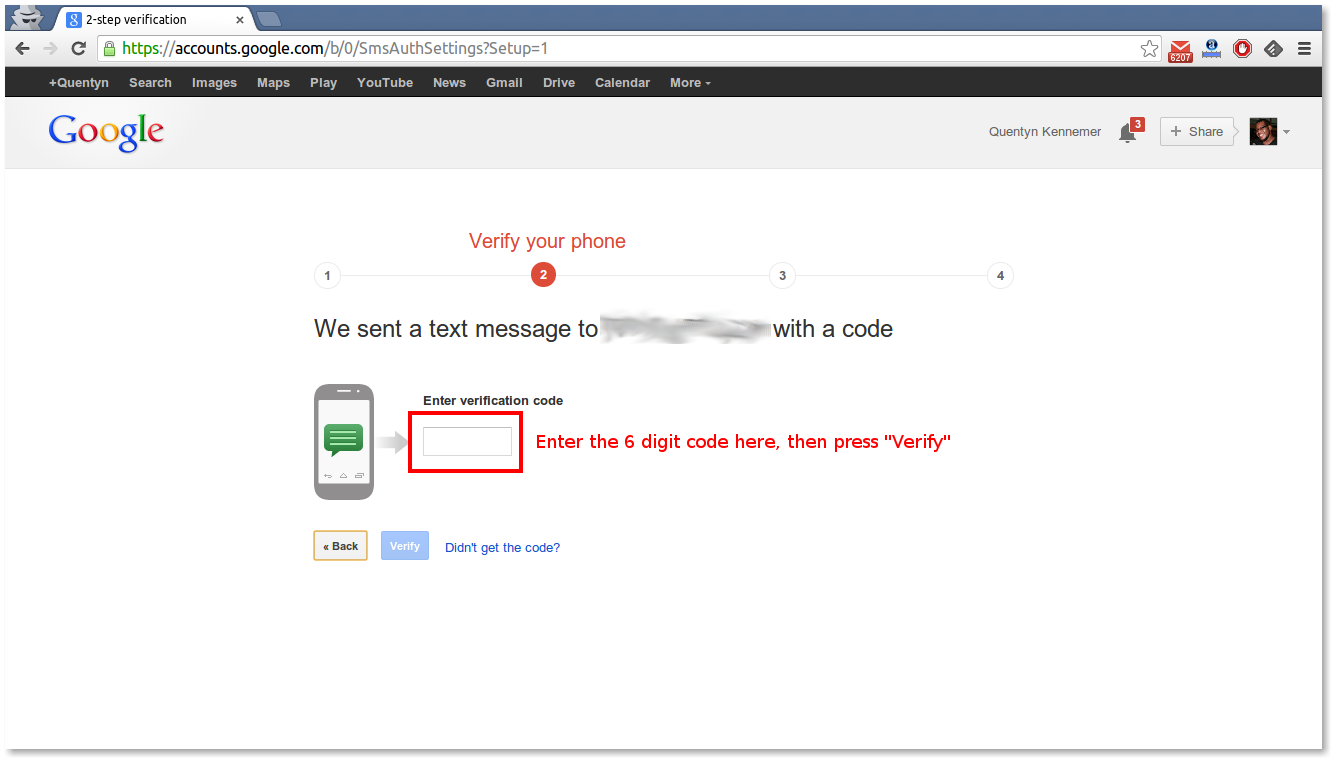
> From here, you should be getting a phone call or a text message with a six
> digit verification number, depending on which option you chose. Make a note
> of that number, and enter it into the page you see below. (If you didn’t
> receive your code, you may need to request another one using the link at
> the bottom of the page.) Once you’re sure the code is correct, press the
> “Verify” button:
>
> <http://phandroid.s3.amazonaws.com/wp-content/uploads/2014/03/2step-31.png>
>
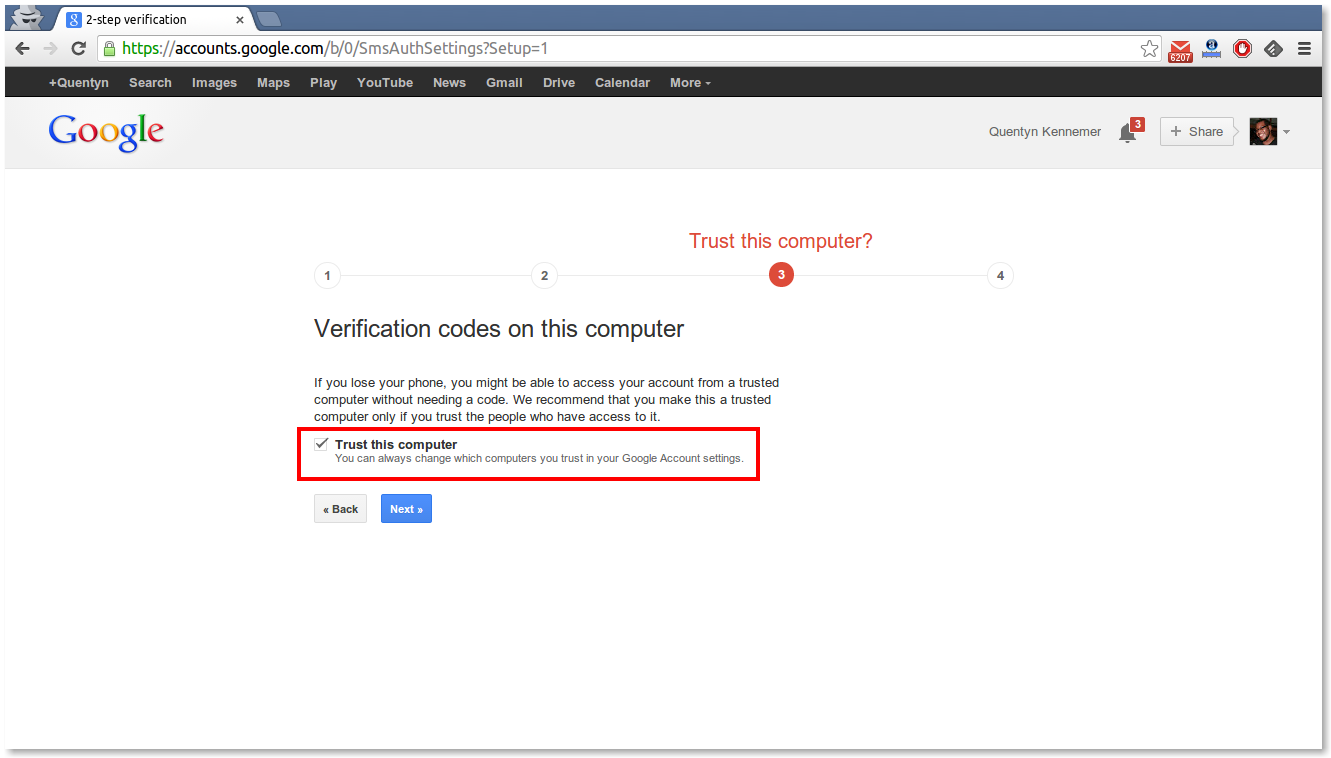
> If you’re doing this on your personal computer, this is where you’ll want
> to set it to be a trusted computer. Simply check the box that says “trust
> this computer,” and hit next. If you aren’t at your personal computer you
> can leave this box unchecked until you get to it. The next time you
> successfully sign in Google will ask if you want to set it as a trusted
> computer:
>
> <http://phandroid.s3.amazonaws.com/wp-content/uploads/2014/03/2step-4.png>
>
> Finally, Google will ask you to confirm everything one last time. If
> you’re confident that you followed everything correctly simply hit the
> “Confirm” button.
>
> <http://phandroid.s3.amazonaws.com/wp-content/uploads/2014/03/2step-51.png>
>
> At this point Google will inform you that you will be signed out of all
> the Google accounts and services you have connected on all of your
> different devices. This is to make sure you are only signing back in with
> devices you authorize, so anyone who might have still been signed into your
> account at this point will be swiftly, promptly, rightly and thoroughly
> kicked out of every corner of your Google account:
>
> <http://phandroid.s3.amazonaws.com/wp-content/uploads/2014/03/2step-6.png>
>
> And you’re done! From now on, Google will ask you to verify your
> authenticity using a code sent to your mobile phone each time you sign in
> on an untrusted computer, and you can rest easy knowing only *you* will
> have everything you need to sign in (so long as you maintain possession of
> your mobile phone).
>
> *Backup plans*
>
> If, for whatever reason, you need to login to your account from an
> untrusted computer and you can’t use your phone, or you are traveling and
> can’t get a proper signal, Google has provided you with a couple of
> different backup plans.
>
> <http://phandroid.s3.amazonaws.com/wp-content/uploads/2014/03/2step-backup.png>
>
> If you have an extra line available to you, Google strongly suggests
> setting it up as a backup phone. That way, you can still have your code
> delivered to you on another trusted phone in the event that your primary
> phone is lost. Setting up your backup phone will take you through the same
> exact process of setting up your primary phone, so be sure to follow the
> instructions above if you want to take care of that.
>
> Google also allows you to print or download backup codes, so you can have
> them handy in the event that you can’t generate a fresh code on the spot.
> It’s a good idea to generate a few different codes and keep them hidden
> someplace safe or someplace that’s convenient for you to access them, and
> only use them as a last resort. You can generate more at any time by
> heading into your account settings.
>
> *Other ways to keep your account safe*
>
> 2-step verification is a powerful tool in and of itself, but you should
> always take care to practice basic account security measures. Some of these
> may sound obvious to a lot of you, but you’d be surprised to learn how many
> people completely disregard these (sometimes unwritten) rules:
>
> Don’t make your password obvious. Using “password” as your password isn’t
> a good idea, for instance. Stay away from using your children or spouse’s
> name, pet names, school mascots and slogans, birthdays, and any other
> personally sentiment words and names that someone can easily guess.Mix your
> password up with both uppercase and lowercase letters, and sprinkle some
> numbers and — if supported — special characters throughout.Use a password
> that’s at least 8 characters long.Never show or tell your password to
> anyone else.Never use your password on a site that isn’t Google’s. To be
> safe, you can check the URL of the site you’re currently on by looking at
> the address bar of your browser, and check the site’s security certificate
> by looking for a lock icon.Change your password as often as possible. For
> some, this could be as much as once per week, while others may be more
> comfortable doing it once per month. Either way, you shouldn’t go too long
> without changing it.
>
> Using these tips will go a very long way in making sure your account stays
> secure. Whether your account is for signing up for online promotions or
> used to communicate in a corporate setting, you’ll want to take every
> measure you can to make sure unwanted eyes are kept out. We urge you to
> take heed to these tips if you aren’t already, and go on with your life
> without worrying about undesirable cyber foes.
>
> *Any other tips?*
>
> Have we missed something? Have an extra tip you want to share? We want to
> hear it, and so does everyone else! Be sure to drop any other hints or
> thoughts into the comments section below, and let us know if you have any
> questions about anything discussed in the guide above!
>
> Read full article at
> http://<http://phandroid.com/2014/03/07/google-2-step-verification-101/>
> phandroid.com<http://phandroid.com/2014/03/07/google-2-step-verification-101/>
> /2014/03/07/<http://phandroid.com/2014/03/07/google-2-step-verification-101/>
> google <http://phandroid.com/2014/03/07/google-2-step-verification-101/>
> -2-step-verification-101/<http://phandroid.com/2014/03/07/google-2-step-verification-101/>
>
> @Q 4.1.2
> Japri : [email protected]
>
> --
> ==========
> ID-Android on YouTube
> https://www.youtube.com/watch?v=0u81L8Qpy5A
> --------------------
> Aturan Umum ID-ANDROID >> http://goo.gl/NfzSGB
>
> Join Forum ID-ANDROID >> http://forum.android.or.id
> ==========
> ---
> Anda menerima pesan ini karena berlangganan grup "[id-android] Indonesian
> Android Community " Grup Google.
> Untuk berhenti berlangganan dari grup ini dan berhenti menerima email dari
> grup, kirim email ke [email protected].
> Kunjungi grup ini di http://groups.google.com/group/id-android.
>

--
==========
ID-Android on YouTube
https://www.youtube.com/watch?v=0u81L8Qpy5A
--------------------
Aturan Umum  ID-ANDROID >> http://goo.gl/NfzSGB

Join Forum   ID-ANDROID >> http://forum.android.or.id
==========
---
Anda menerima pesan ini karena Anda berlangganan grup "[id-android] Indonesian
Android Community " dari Grup Google.
Untuk berhenti berlangganan dan berhenti menerima email dari grup ini, kirim
email ke id-android+berhenti [email protected] .
Kunjungi grup ini di http://groups.google.com/group/id-android.