Administrator Administrator [http://community.jboss.org/people/admin] modified
the document:
"Using the RESTEasy Simple Project Example in JBDS 3"

To view the document, visit: http://community.jboss.org/docs/DOC-14693

--------------------------------------------------------------
JAX-RS (JSR-311) is a new JCP specification that provides a Java API for
RESTful Web Services over the HTTP protocol. Resteasy is a portable
implementation of this specification which ships with EAP 5 and is supported by
JBoss/Red Hat by subscription. This wiki is not meant to explain JAX-RS or
RESTEasy, but to provide developers with a quickstart to get going with
developing RESTEasy Web Services within JBoss Developer Studio (JBDS). For
additional details about RESTEasy, please see the
http://www.redhat.com/docs/en-US/JBoss_Enterprise_Application_Platform/5.0.0/html/RESTEasy/index.html
 RESTEasy Reference Guide.

(A good portion of this Wiki page was copied and modified from
http://community.jboss.org/docs/DOC-14677 here - many thanks to Gary
Lamperillo.)

>From JBDS you have access to a sample RestEasy web project to get you started.

First you have to decide whether you want to use m2eclipse (Eclipse/Maven
integration) to resolve the RESTEasy dependencies in the sample project or
manipulate the sample project's build path yourself. Both options are
straightforward, but installing m2eclipse is the simpler path for getting the
project up and running quickly.

To install m2eclipse:


1. In the main Eclipse menu, select Help -> Install New Software. This brings
up the "Install" dialog.
2. Click "Add" to add a new update site to the list. Type "m2eclipse" as the
Name and " http://m2eclipse.sonatype.org/update-dev/
http://m2eclipse.sonatype.org/update-dev/"; as the Location. Click OK.
3. When the list of available software for install appears, click the box
beside "Maven Integration" and click "Finish." Follow the remaining steps as
prompted to ensure the software is installed properly.

To create the example project in your workspace:


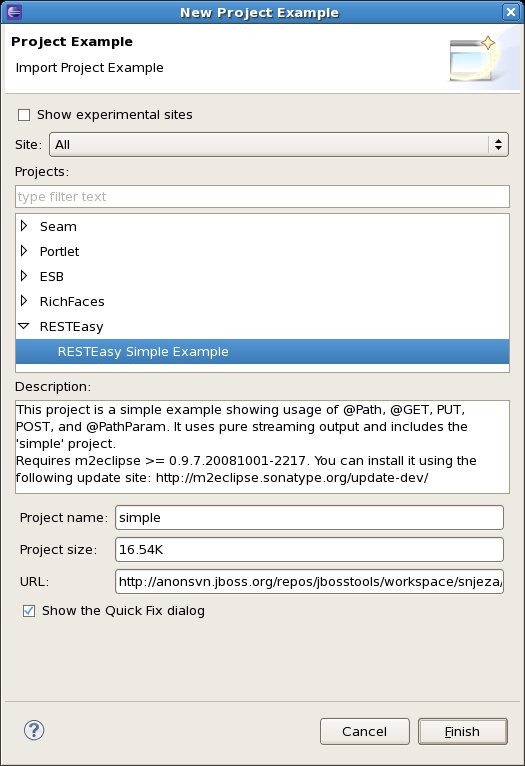
1. In the Eclipse main menu, select Help -> Project Examples. This brings up
the "New Project Examples" dialog, which provides many different sample
projects.

http://community.jboss.org/servlet/JiveServlet/showImage/102-14693-4-1902/New_Project_Example_RESTEasy.jpg

http://community.jboss.org/servlet/JiveServlet/downloadImage/102-14693-4-1902/410-600/New_Project_Example_RESTEasy.jpg

2. In the "New Project Examples" dialog, scroll to find "RESTEasy" and select
the "RESTEasy Simple Example." Click "Finish" to continue.
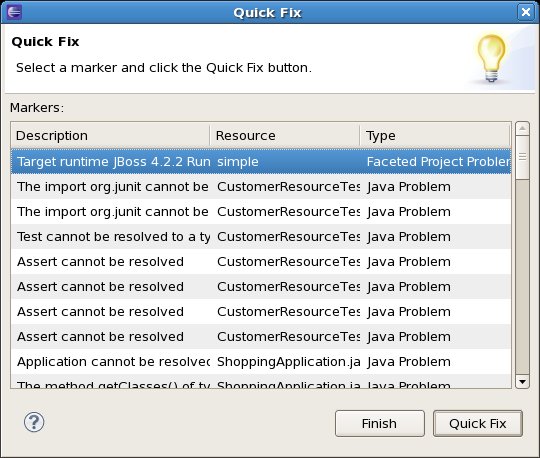
3. The "Quick Fix" dialog appears, presenting a long list of things that need
to be addressed to make the example work in your environment. Don't panic.
We're going to fix one thing here and then the rest will be taken care of later
in this process. (Note that if you use m2eclipse, you'll only see the Target
runtime issue and have to fix that before you're up and running.

The first "fix" in the list is for the target runtime. Select it and click
"Quick Fix."

http://community.jboss.org/servlet/JiveServlet/showImage/102-14693-4-1903/Quick_Fix_Dialog.jpg

http://community.jboss.org/servlet/JiveServlet/downloadImage/102-14693-4-1903/448-380/Quick_Fix_Dialog.jpg

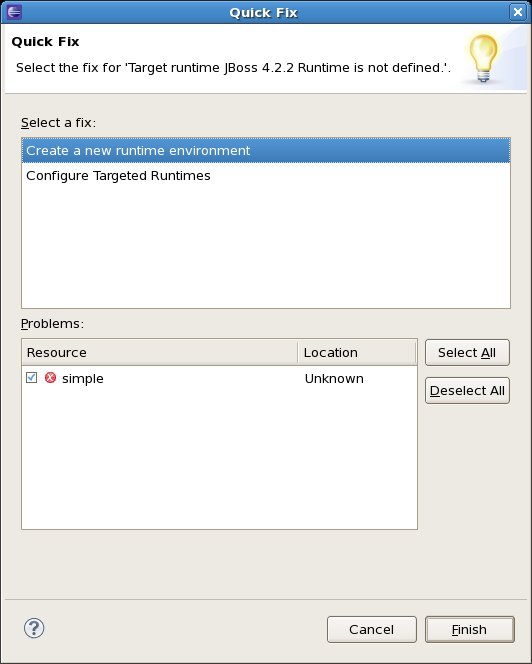
4. This brings up the "Quick Fix" dialog. The target runtime the project is
expecting doesn't exist in your environment, but we're going to point it to an
EAP 5.0 or SOA-P 5.0 instance.

http://community.jboss.org/servlet/JiveServlet/showImage/102-14693-4-1904/Quick_Fix_Target_Runtime.jpg

http://community.jboss.org/servlet/JiveServlet/downloadImage/102-14693-4-1904/448-560/Quick_Fix_Target_Runtime.jpg
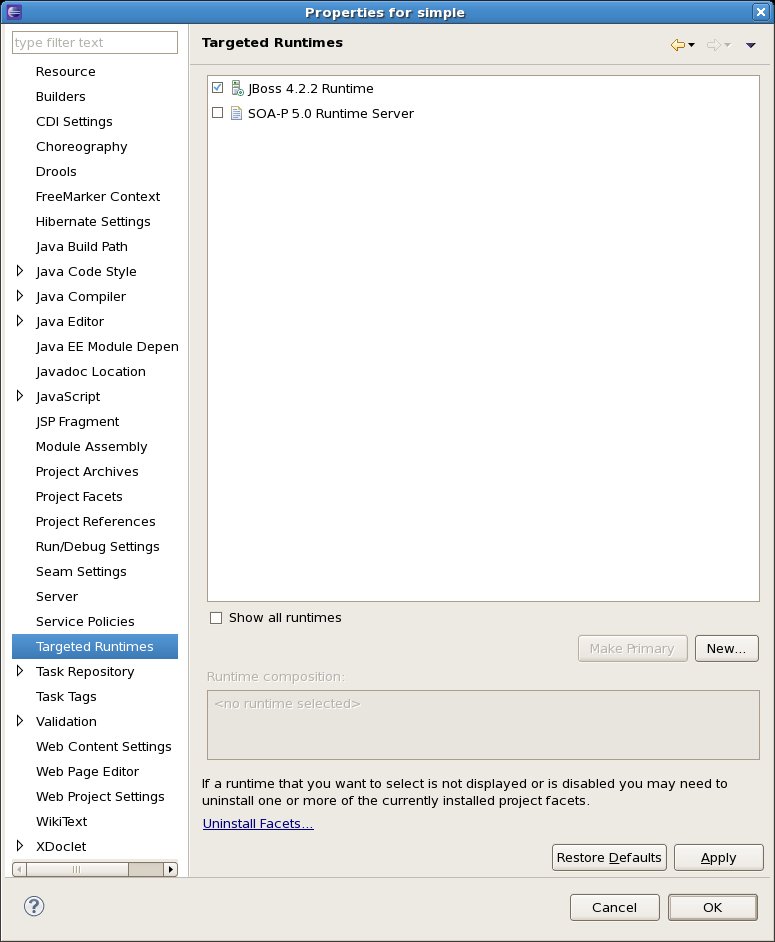
  1. If you already have a Targeted Runtime configured in your environment, you
can select "Configure Targeted Runtimes" and click "Finish." This brings up the
Properties dialog for the project.  Select "Targeted Runtimes" and then check
the box beside the runtime you've already created in the list. Click "OK" to
close the dialog and move on.

http://community.jboss.org/servlet/JiveServlet/showImage/102-14693-4-1905/Quick_Fix_Target_Runtime_Existing.jpg

http://community.jboss.org/servlet/JiveServlet/downloadImage/102-14693-4-1905/449-546/Quick_Fix_Target_Runtime_Existing.jpg

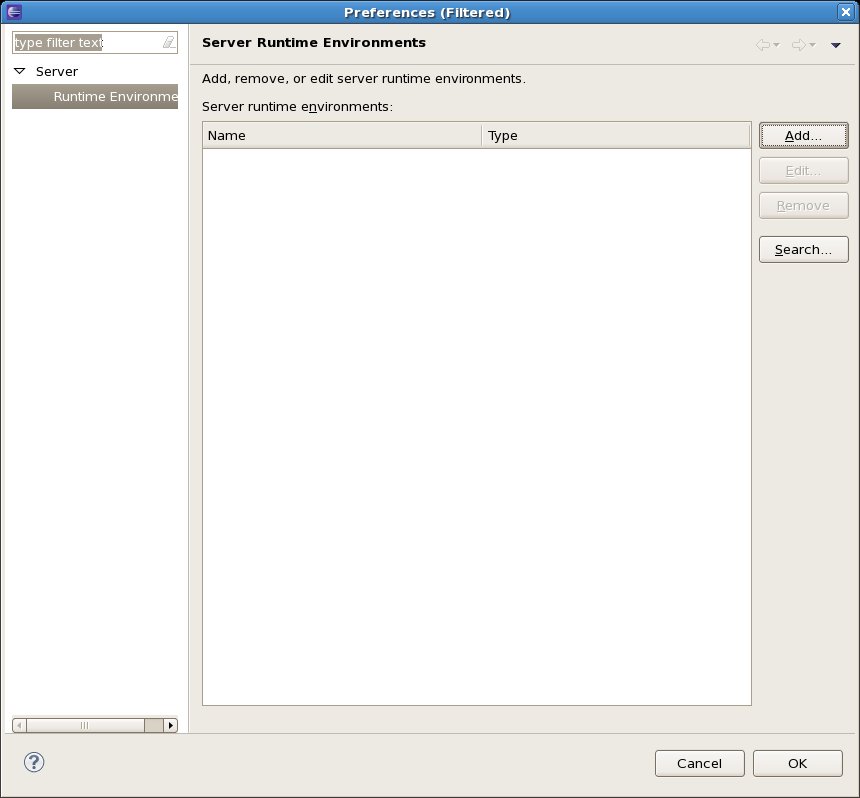
2. If you don't already have a Targeted Runtime configured, you can select
"Create a new runtime environment" and click "Finish." This brings up a
preferences dialog where you can configure a new Runtime Environment. Click
"Add."

http://community.jboss.org/servlet/JiveServlet/showImage/102-14693-4-1906/Quick_Fix_Target_Runtime_New1.jpg

http://community.jboss.org/servlet/JiveServlet/downloadImage/102-14693-4-1906/449-416/Quick_Fix_Target_Runtime_New1.jpg
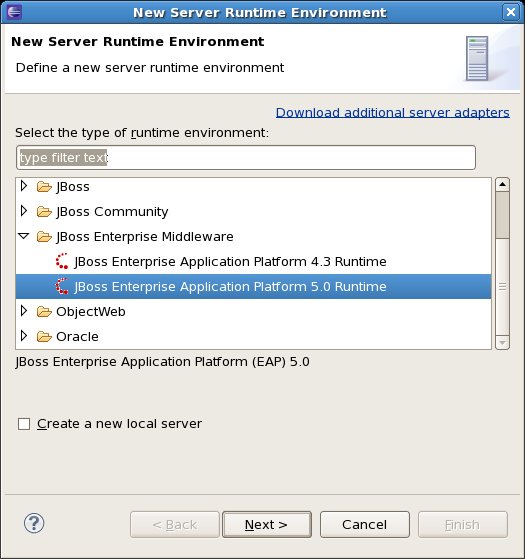
 This brings up the "New Server Runtime Environment" dialog. Select "JBoss
Enterprise Middleware -> JBoss Enterprise Application Platform 5.0 Runtime."
This is the same type you can use for both SOA-P 5.0 and EAP 5.0. Click "Next."

http://community.jboss.org/servlet/JiveServlet/showImage/102-14693-4-1907/Quick_Fix_Target_Runtime_New2.jpg

http://community.jboss.org/servlet/JiveServlet/downloadImage/102-14693-4-1907/449-478/Quick_Fix_Target_Runtime_New2.jpg
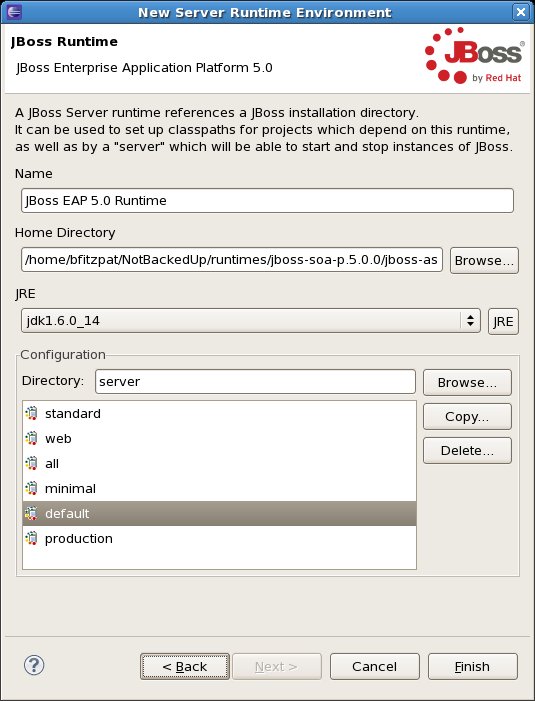
 Now you can give your new runtime a name (or go with the default) and select
the Configuration Directory and server type. Just go with the defaults for now.
Click "Finish" to return to the preferences dialog where you should see your
new runtime in the list. Click "OK" to continue.

http://community.jboss.org/servlet/JiveServlet/showImage/102-14693-4-1908/Quick_Fix_Target_Runtime_New3.jpg

http://community.jboss.org/servlet/JiveServlet/downloadImage/102-14693-4-1908/450-589/Quick_Fix_Target_Runtime_New3.jpg
 +Note: If you get back to the Quick Fix dialog and the Target runtime issue
still exists after creating a new runtime in your environment, follow the steps
from (a) above to resolve the problem.+

5. Now there are still issues in your "Quick Fix" list, but we'll resolve those
in just a moment. Go ahead and click "Finish" to move on.
6. At this point, you have two options. If you installed m2eclipse, it should
have already resolved the missing dependencies using Maven when the project was
downloaded into your workspace. (You should be done with getting the project
working now.) Skip ahead to step 10.

If not, you can modify the build path for your project with a three steps (7,
8, and 9) to resolve the dependencies via your local runtime. The benefit of
defining and adding Build Path libraries to the project is that you will be
able to reuse these libraries for other RESTEasy web service projects.
7. First, you have to add the JUnit 4 library to the project build path.

 1. Right-click on the project. Select Build Path -> Configure Build Path in
the popup menu.

http://community.jboss.org/servlet/JiveServlet/showImage/102-14693-4-1909/Build_Path.jpg

http://community.jboss.org/servlet/JiveServlet/downloadImage/102-14693-4-1909/450-559/Build_Path.jpg

2. On the property page that appears, click "Add Library."

http://community.jboss.org/servlet/JiveServlet/showImage/102-14693-4-1910/Build_Path_JUnit1.jpg

http://community.jboss.org/servlet/JiveServlet/downloadImage/102-14693-4-1910/450-470/Build_Path_JUnit1.jpg

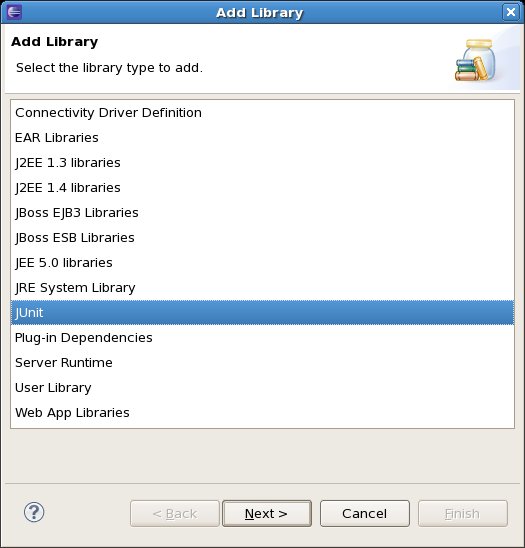
3. In the "Add Library" wizard dialog that appears, select "JUnit". Click
"Next".
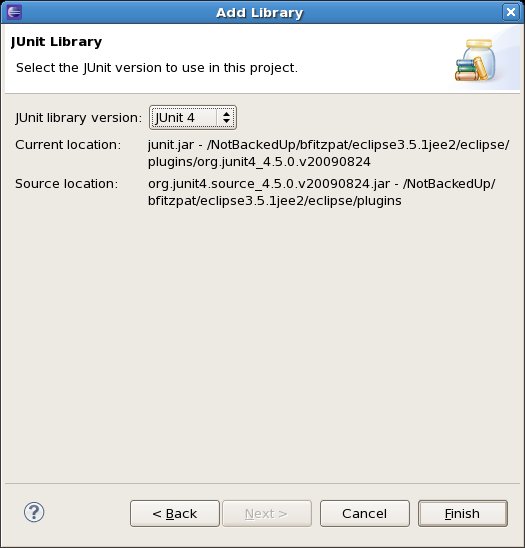
4. Specify JUnit 4 as the version and click "Finish".

http://community.jboss.org/servlet/JiveServlet/showImage/102-14693-4-1911/Build_Path_JUnit2.jpg

http://community.jboss.org/servlet/JiveServlet/downloadImage/102-14693-4-1911/450-469/Build_Path_JUnit2.jpg

5. Back on the property page, click OK.

8. Next, you need to add the RESTEasy libraries to the build path.
1. Right-click on the project. Select Build Path -> Configure Build Path in the
popup menu.
2. On the property page that appears, click "Add Library."

http://community.jboss.org/servlet/JiveServlet/showImage/102-14693-4-1912/Build_Path_REST_Libs1.jpg

http://community.jboss.org/servlet/JiveServlet/downloadImage/102-14693-4-1912/449-468/Build_Path_REST_Libs1.jpg

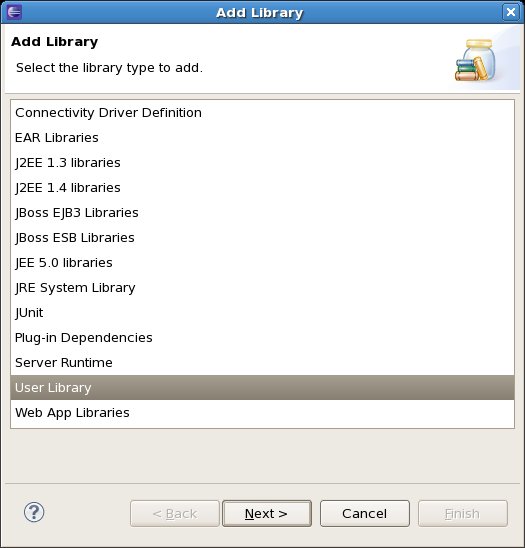
3. In the "Add Library" wizard dialog that appears, select "User Library".
Click "Next".

http://community.jboss.org/servlet/JiveServlet/showImage/102-14693-4-1913/Build_Path_REST_Libs2.jpg

http://community.jboss.org/servlet/JiveServlet/downloadImage/102-14693-4-1913/450-469/Build_Path_REST_Libs2.jpg

4. On the "User Library" page of the wizard, click the "User Libraries..."
button.

http://community.jboss.org/servlet/JiveServlet/showImage/102-14693-4-1914/Build_Path_REST_Libs3.jpg

http://community.jboss.org/servlet/JiveServlet/downloadImage/102-14693-4-1914/449-410/Build_Path_REST_Libs3.jpg

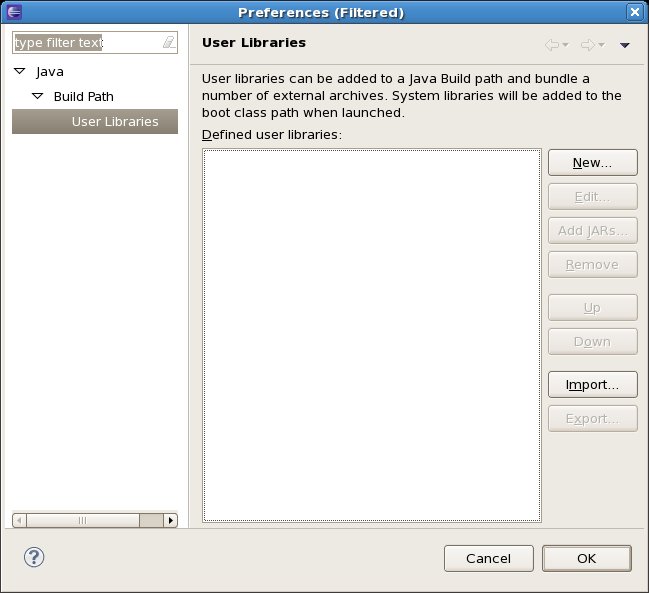
5. On the User Libraries Preferences page that appears, click "New."
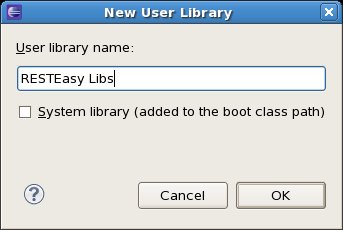
6. Give it a name like "RESTEasy Libs" and click "OK."

http://community.jboss.org/servlet/JiveServlet/showImage/102-14693-4-1915/Build_Path_REST_Libs4.jpg

http://community.jboss.org/servlet/JiveServlet/downloadImage/102-14693-4-1915/343-230/Build_Path_REST_Libs4.jpg

7. Back on the User Libraries Preferences page, with your library selected,
click "Add JARs..."
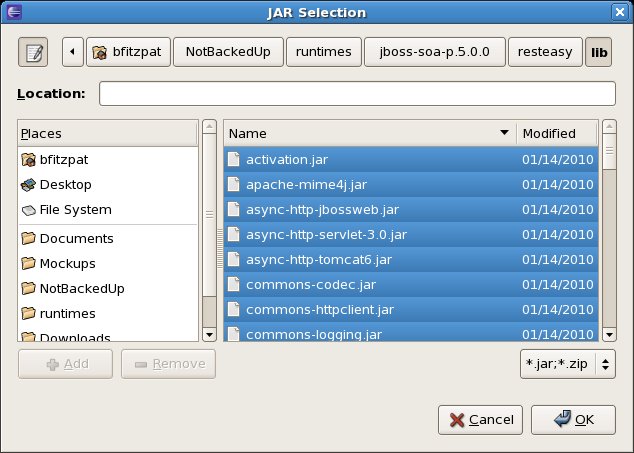
8. Navigate in the JAR Selection dialog to find your EAP 5 or SOA-P 5 runtime
directory and locate the "resteasy/lib" directory beneath it. Select the
following jars:
* jaxrs-api.jar
* jyaml.jar
* resteasy-atom-provider.jar
* resteasy-jaxb-provider.jar
* resteasy-jaxrs.jar
* resteasy-multipart-provider.jar
* resteasy-yaml-provider.jar
* scannotation.jar

http://community.jboss.org/servlet/JiveServlet/showImage/102-14693-4-1916/Build_Path_REST_Libs5.jpg

http://community.jboss.org/servlet/JiveServlet/downloadImage/102-14693-4-1916/448-320/Build_Path_REST_Libs5.jpg


9. Click "OK".
10. Back on the "Add Library" wizard page click "Finish".
11. Back on the property page, click OK.

9.
10. Lastly, you need to make sure your JUnit and RESTEasy Libs jars are added
to the deployment package.

 1. Right-click on the project. Select "Properties" in the popup menu.
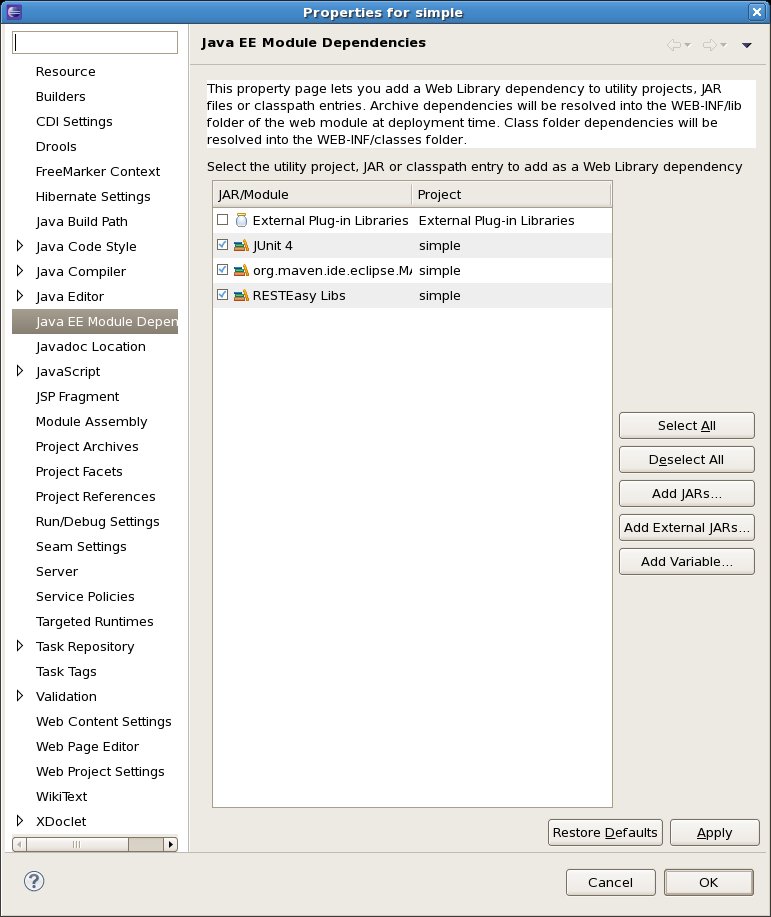
2. Find and select "Java EE Module Dependencies" in the list on the left of the
Properties dialog.
3. Look for "JUnit 4" and check the box beside it.
4. Look for your User Library "RESTEasy Libs" and check the box beside it.

http://community.jboss.org/servlet/JiveServlet/showImage/102-14693-4-1917/Module_Dependencies.jpg

http://community.jboss.org/servlet/JiveServlet/downloadImage/102-14693-4-1917/450-535/Module_Dependencies.jpg

5. Click Apply and then OK or just OK. The JUnit 4 and RESTEasy libraries will
now be deployed in the WEB-INF/lib folder automatically at deploy time.

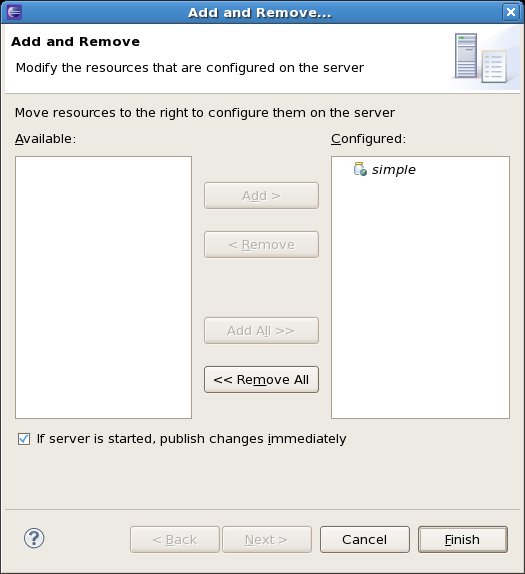
11. At this point you should be able to Clean the example project and add it to
the Server.

http://community.jboss.org/servlet/JiveServlet/showImage/102-14693-4-1918/Add_To_Server.jpg

http://community.jboss.org/servlet/JiveServlet/downloadImage/102-14693-4-1918/450-492/Add_To_Server.jpg

12. To test the sample project, we'll need a REST client to test with. We have
found the  https://addons.mozilla.org/en-US/firefox/addon/9780 RESTClient
plugin for Firefox (which comes from the Google Chrome Project) to be very
useful. Download and install the plugin to perform the tests.
13. Let's give the Simple Shopping Application a Customer Record. Copy the
following without spaces and CR/LF (to avoid xerces exceptions at the server)
to the Request Body Section of the RESTClient:

<customer>
<first-name>Bill</first-name>
<last-name>Burke</last-name>
<street>256 Clarendon Street</street>
<city>Boston</city>
<state>MA</state><zip>02115</zip>
<country>USA</country>
</customer>

14. The Web.xml and the RestEasy Implementation Class are responsible for
deciding what the final URL will look like and what methods are supported
(again this is not a RESTEasy tutorial, go to the Reference Guide discussed for
more info). The URL to use for this test case is
http://localhost:8080/simple/rest-services/customers
http://localhost:8080/simple/rest-services/customers. Using this url and a Post
method, we will create the first customer record with the RESTClient.

+Note: You may need to add the following request header by selecting the "Add
Request Header" button:+

+     name=content-type+
+     value=application/xml+

+This ensures the request content type is consumable by the service POJO.+

http://community.jboss.org/servlet/JiveServlet/showImage/102-14693-4-1919/REST_Client1.jpg

http://community.jboss.org/servlet/JiveServlet/downloadImage/102-14693-4-1919/449-397/REST_Client1.jpg

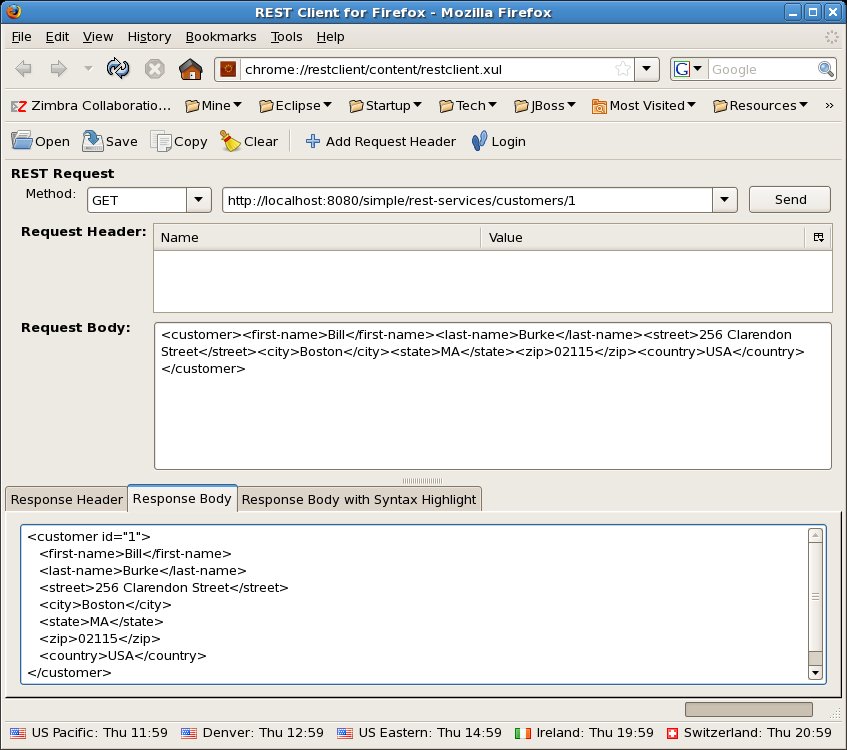
15. We can now use the Get Method and pass the id of 1 to get the first
customer record. Click on the Response Body tab to see the same record that you
previously posted to the server.

http://community.jboss.org/servlet/JiveServlet/showImage/102-14693-4-1920/REST_Client2.jpg

http://community.jboss.org/servlet/JiveServlet/downloadImage/102-14693-4-1920/450-398/REST_Client2.jpg

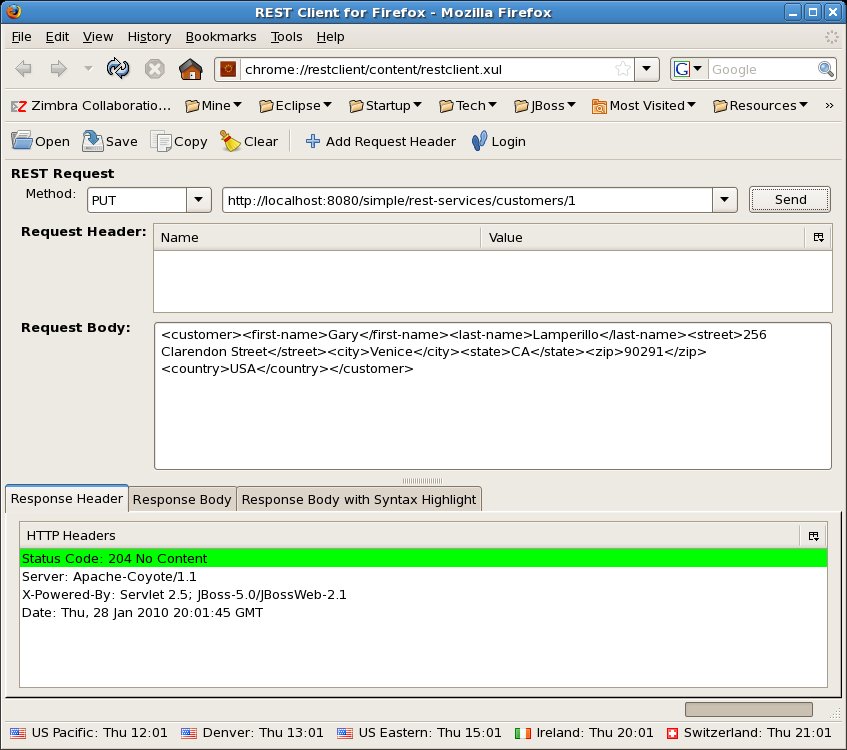
16. Now Let's Update the record with the Put Method, copy the following to the
Request Body, change the method to Put, and click Send:

<customer>
<first-name>Gary</first-name>
<last-name>Lamperillo</last-name>
<street>256 Clarendon Street</street>
<city>Venice</city>
<state>CA</state>
<zip>90291</zip>
<country>USA</country>
</customer>

http://community.jboss.org/servlet/JiveServlet/showImage/102-14693-4-1921/REST_Client3.jpg

http://community.jboss.org/servlet/JiveServlet/downloadImage/102-14693-4-1921/450-398/REST_Client3.jpg

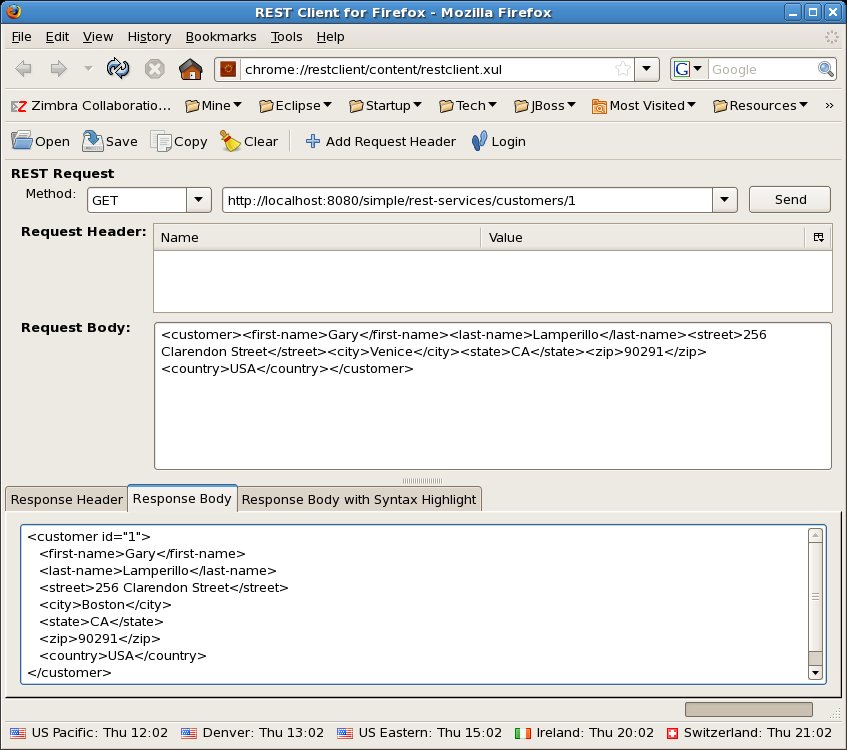
17. Again verify that the Record has changed with a Get Method call on the
Customer Record ID 1.

http://community.jboss.org/servlet/JiveServlet/showImage/102-14693-4-1922/REST_Client4.jpg

http://community.jboss.org/servlet/JiveServlet/downloadImage/102-14693-4-1922/447-395/REST_Client4.jpg

You have just completed a RESTEasy and JBDS tutorial, now you can take a rest!
--------------------------------------------------------------

Comment by going to Community
[http://community.jboss.org/docs/DOC-14693]

Create a new document in JBoss Tools at Community
[http://community.jboss.org/choose-container!input.jspa?contentType=102&containerType=14&container=2128]
_______________________________________________
jboss-user mailing list
[email protected]
https://lists.jboss.org/mailman/listinfo/jboss-user