Max Rydahl Andersen [http://community.jboss.org/people/maxandersen] modified
the blog post:
"JBoss Tools Shift Happens in M4"

To view the blog post, visit:
http://community.jboss.org/community/tools/blog/2011/11/09/jboss-tools-shift-happens-in-m4

--------------------------------------------------------------
Shift Happens in the last planned milestone of JBoss Tools 3.3. Read on for
more...
 http://in.relation.to/service/File/10824
http://in.relation.to/service/File/10824
h4. 3.3 M4 (Shift Happens)
[ http://www.jboss.org/tools/download/dev Download] [
http://download.jboss.org/jbosstools/updates/development/indigo/ Update Site] [
http://docs.jboss.org/tools/whatsnew What's New] [
http://www.jboss.com/index.html?module=bb&op=viewforum&f=201 Forums] [
http://jira.jboss.com/jira/browse/JBIDE JIRA] [ http://twitter.com/jbosstools
Twitter]

JBoss Tools is a set of plugins for Eclipse that complements, enhances and goes
beyond the support that exist for JBoss and related technologies in the default
Eclipse distribution.

This time around we are adding in a central hub for users called JBoss Central,
support for OpenShift, some OSGi magic, Runtime downloads and more...

h2. Installation

As always, get and install
http://www.eclipse.org/downloads/packages/eclipse-ide-java-ee-developers/indigor
 Eclipse 3.7 (Indigo) JEE bundle - with the JEE bundle you majority of the
dependencies letting you save bandwidth:

Once you have installed Eclipse, you either find us on
http://marketplace.eclipse.org/content/jboss-tools-indigo  Eclipse Marketplace
under "JBoss Tools (Indigo)" or use our update site directly.

The updatesite URL to use from Help > Install New Software... is:

 http://download.jboss.org/jbosstools/updates/development/indigo/
http://download.jboss.org/jbosstools/updates/development/indigo/


h3. JBoss Central
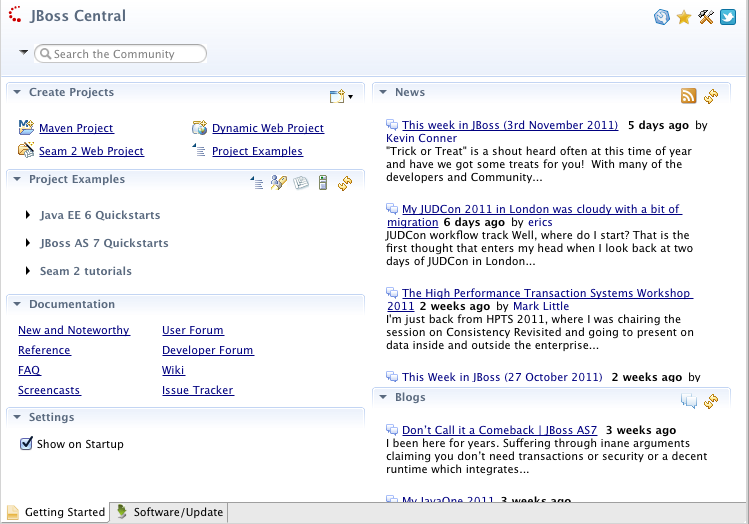
First time you install JBoss Tools M4 you will be greeted with what we've named
JBoss Central. JBoss Central is a hub for getting easy access to Project
Wizards, Examples, jboss.org news and additional Eclipse plugin installation.

 http://docs.jboss.org/tools/whatsnew/images/jbosscentraleditor.png
http://docs.jboss.org/tools/whatsnew/images/jbosscentraleditor.png

It will show up on every startup by default which if you don't want it can be
disabled in preferences. The editor will also show up when there are new
updates to JBoss Tools plugins installed.

If you want to open central later you can find it under *Help > JBoss Central*.

h3. OpenShift Express
OpenShift Express by Red Hat provides free, auto-scaling platform-as-a-service
for Java, Ruby, PHP, Perl and Python applications. Until now to use it you've
had to use command line tools like git and rhc-* commands; with JBoss Tools
support for OpenShift you can do all of the hard work in the comfort of Eclipse.

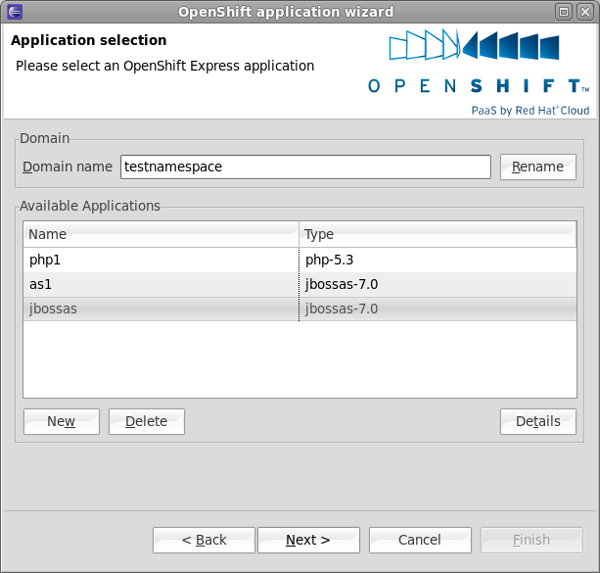
To get started use the OpenShift Express Application Wizard available from
*File > New > OpenShift*.

 http://docs.jboss.org/tools/whatsnew/openshift/images/applications.png
http://docs.jboss.org/tools/whatsnew/openshift/images/applications.png

If you are a new user the wizard will walk you through the needed steps to
setup an account, create domain and create applications.
If an existing user with existing applications it will allow you to log in,
choose an application and import the project into Eclipse and in case of it
being a JBoss 7 type application we will even setup a server for you in Eclipse
server view that allows you to easily publish directly to OpenShift.

This publish is behind a scenes just a Git commit & push which you can also do
from command line or manually via eGit in Eclipse - but with the server adapter
integration you get a simple and easy way of doing it without having to deal
with git manually.

h2. Materialize Library
Eclipse likes to encapsulate jar library access in Classpath Container's and
sometimes these classpath containers are great to begin with but for various
reasons you might want to decouple your Eclipse projects from the plugin
providing the classpath container or maybe you've used one of the great Project
Examples or quickstarts we provide via JBoss Central but you don't want to use
Maven to manage your libraries/build then this feature also comes handy.

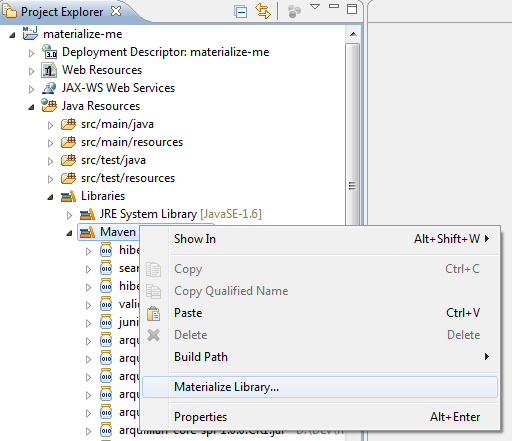
We've added an experimental feature named "Materialize Library" which is
available in the context menu of classpath containers in Eclipse.


http://docs.jboss.org/tools/whatsnew/core/images/materialize-lib-context-menu.png

http://docs.jboss.org/tools/whatsnew/core/images/materialize-lib-context-menu.png


Once you click that JBoss Tools will present you with a dialog asking where to
put the libraries and once you press Ok your project will no longer be
dependent on the classpath container, but instead have a copy of the jars and
all configured as it was inside Java Build path still; allowing you to more
easy build and migrate your project to another setup if need be.


h3. Richfaces 4
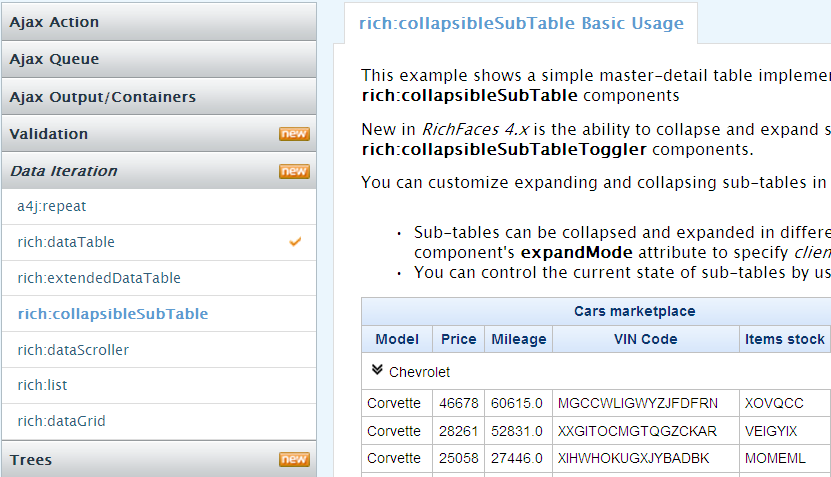
We've implemented support in the visual page editor for the new and update JSF
components in Richfaces 4.


 http://docs.jboss.org/tools/whatsnew/vpe/images/3.3.0.M4/8950.png
http://docs.jboss.org/tools/whatsnew/vpe/images/3.3.0.M4/8950.png

h3. CDI & Seam Solder
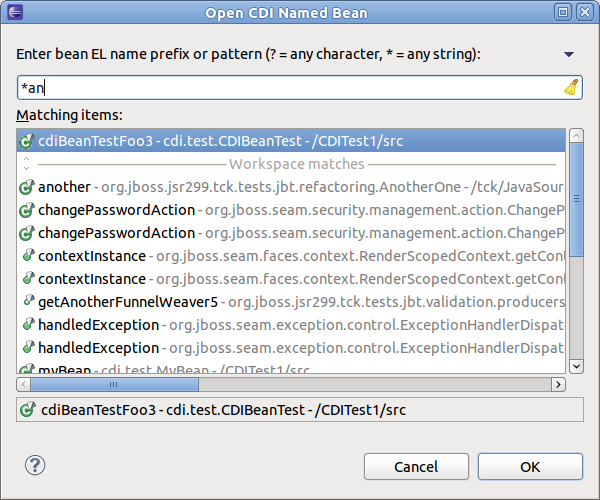
The CDI tooling this time around continues to add more quick fixes, improved
navigation and adds a "Open Named CDI Bean" dialog for easy lookup of named CDI
beans.

 http://docs.jboss.org/tools/whatsnew/cdi/images/3.3.0.M4/openNamed.png
http://docs.jboss.org/tools/whatsnew/cdi/images/3.3.0.M4/openNamed.png

It also adds support for the new package naming in Seam 3.1.Beta4 for the
Solder and Config modules, while still maintaing support for previous Seam 3
releases.

h3. Forge in Color
Forge console now has better editing, is now using color rendering and is made
easily available with the new Ctrl+4 (or Cmd+4 on OSX) shortcut.

 http://docs.jboss.org/tools/whatsnew/forge/images/3.3.0.M4/forge_colors.png
http://docs.jboss.org/tools/whatsnew/forge/images/3.3.0.M4/forge_colors.png

h2. JBoss OSGi
The JBoss adapter now supports dragging Eclipse PDE (OSGi) projects to the
server and it will use the default PDE export to create and bundle the archive.

h2. Runtime downloads
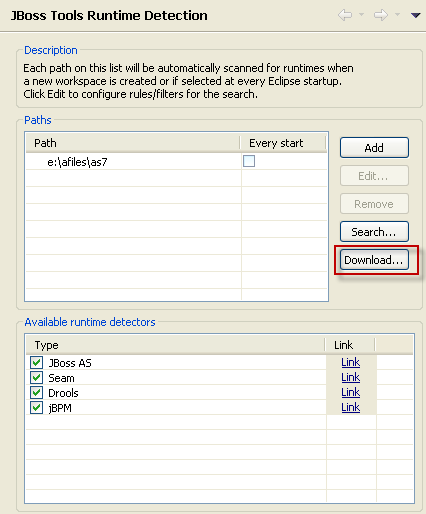
JBoss Tools now provide easy access to download runtimes such as JBoss AS and
Seam (more to be added in the future).
This feature are directly available from JBoss Tools Runtime Detection
preference page.

 http://docs.jboss.org/tools/whatsnew/as/images/runtimedownload1.png
http://docs.jboss.org/tools/whatsnew/as/images/runtimedownload1.png
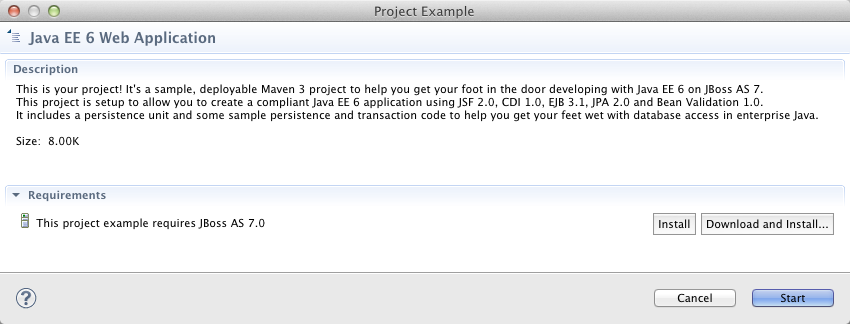
or via use of Project Examples that requries a runtime.
 http://docs.jboss.org/tools/whatsnew/images/jbosscentraldownloadas.png
http://docs.jboss.org/tools/whatsnew/images/jbosscentraldownloadas.png

The downloaded runtimes will be installed in a directory of your choosing and
will be configured to be ready for use within Eclipse/JBoss Tools.

h3. And more...
There are additional screenshot and features to browse over at
http://docs.jboss.org/tools/whatsnew/ What's New & Noteworthy

This is our last planned milestone, beta is next thus its time to make your
voice heard and speak up if there are features that aren't giving you what you
need.

Leave a comment to let us know!

And as always,
Have fun!
--------------------------------------------------------------

Comment by going to Community
[http://community.jboss.org/community/tools/blog/2011/11/09/jboss-tools-shift-happens-in-m4]
_______________________________________________
jboss-user mailing list
[email protected]
https://lists.jboss.org/mailman/listinfo/jboss-user