At 09:50 AM 3/8/2008, Lin MacDonald wrote:

Hi Lin,
Set Var vCrew_ID integer = NULL
set Var vTodayDate Date = #date
set var vEnv# integer = NULL
DIALOG 'Enter your Crew ID:' vCrewID vEndKey 1 CAPTION 'Sort
Clause A' ICON QUESTION
DIALOG 'Enter Today''s date:' vTodayDate vEndKey 1 CAPTION 'Sort
Clause B' ICON QUESTION
DIALOG 'Enter the Envelope#:' vEnv# vEndKey 1 CAPTION 'Sort Clause
C' ICON QUESTION
print pettycsh where Crew_ID = .vCrew_ID and toddate = .vTodayDate
and env# = .vEnv# order +
By Crew_ID, toddate, env#, recno
clear var vCrew_ID
clear var vTodayDate
clear var vEnv#
return
-It asks for the Crew_ID, but still shows the last one entered?
FYI, DIALOG command requires a TEXT variable that can be converted
to appropriate data type right after the command.
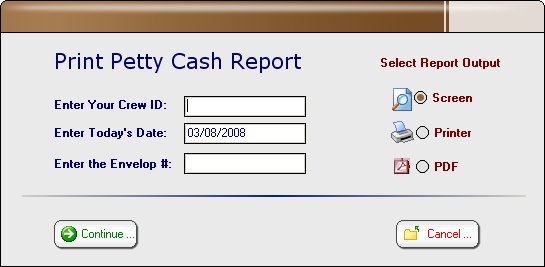
-Rather than have 3 separate Dialog boxes appear, is there a way to
combine them all into one?
Yes!
The best approach to handle such scenario is to create a "Variable
Form" with all cool stuff to
validate actual variables as well as provide options to PRINT all
supported OPTIONS.
For a sample form, take a look at the "AskScreenPrinter" form
included with RRBYW14. Add the
required variables and you should be good to go.
You may also take a look at the "SearchAndPrintInv" and
"SelfDesigndReports" forms in RRBYW14
to get more ideas.

And, here's one for you!

http://www.razzak.com/sampleapplications/files/PrintPettyCashRpt.jpg

To incorporate this PrintPettyCashRpt variable form in your application,
you may download the PrintPettyCashRpt.zip file that includes two files
(PrintPettyCashRpt.frm and PrintPettyCashRpt.lob).

http://www.razzak.com/sampleapplications/files/PrintPettyCashRpt.zip

Unzip the fie in your default database folder, start R:BASE 7.6 for Win,
CONNECT the database and use RUN PrintPettyCashRpt.frm at the R> prompt
to load PrintPettyCashRpt form.

You may use this form using the double-click on the Database Explorer
or EDIT USING PrintPettyCashRpt at the R> prompt or in a command file.

To understand the entire technique of automating the whole process of
collecting variables, verifying user input and then finally printing
the report on SCREEN, PRINTER or as PDF, make sure to review the
"On Before Start EEP" and the Custom EEP behind the [Continue] button.

You may copy, change and/or recycle this form in any way you wish.

Enjoy and make sure to have fun!

Very Best R:egards,
Razzak.