Tuesday, April 10, 2012

Tip of the Day: Displaying a Cue Banner in DB/Variable Edit Fields
Product: R:BASE eXtreme 9.5 (32/64)
Build..: 9.5.1.10410 (RC) or higher
Section: Forms (DB Edit and Variable Edit Controls)
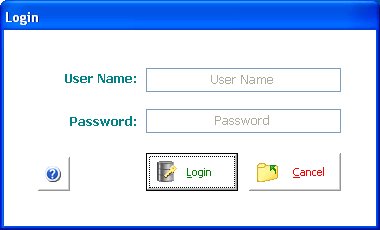
Did you know that you can display cue banner in DB Edit and Variable
Edit Fields?

Cue banners (aka watermarks) are text hints that can be displayed as
a prompt to the user inside an DB Edit or Variable Edit control. This
is a line of 'greyed out' text which can be used to prompt the user
for the information s/he is expected to enter in that box. For example
if the edit control receives a search string, the cue banner may read
"Enter search text here". When the user clicks in the box, the text
goes away and s/he can type entry as usual.

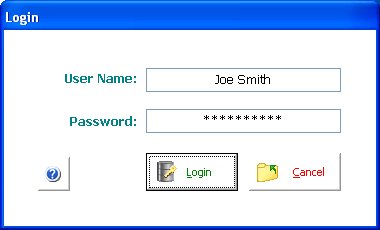
Once the focus lands on the field, or when keystrokes are entered,
the cue banner disappears. An optional setting can be used so the
hint remains until keystrokes are pressed (Windows Vista, 7, and
higher only).

The PROPERTY command can also be used to specify the cue banner for
the DB/Variable Edit fields.

Example:
-- Form On After Start Custom EEP
   PROPERTY DB_UserName CUEBANNER 'User Name'
   PROPERTY DB_Password CUEBANNER 'Password'
   RETURN

   http://www.razzak.com/tips/CueBanner_1.jpg
   http://www.razzak.com/tips/CueBanner_2.jpg

Stay productive, my friends!

Very Best R:egards,

Razzak.

www.razzak.com
www.Razzak.com
www.RazzakMemon.com

--- RBASE-L
================================================
TO POST A MESSAGE TO ALL MEMBERS:
Send a plain text email to [email protected]

(Don't use any of these words as your Subject:
INTRO, SUBSCRIBE, UNSUBSCRIBE, SEARCH,
REMOVE, SUSPEND, RESUME, DIGEST, RESEND, HELP)
================================================
TO SEE MESSAGE POSTING GUIDELINES:
Send a plain text email to [email protected]
In the message SUBJECT, put just one word: INTRO
================================================
TO UNSUBSCRIBE:
Send a plain text email to [email protected]
In the message SUBJECT, put just one word: UNSUBSCRIBE
================================================
TO SEARCH ARCHIVES:
Send a plain text email to [email protected]
In the message SUBJECT, put just one word: SEARCH-n
(where n is the number of days). In the message body,
place any
text to search for.
================================================