TidBITS#931/02-Jun-08
=====================
  Issue link: <http://db.tidbits.com/issue/931>
Apple has released Mac OS X 10.5.3, fixing a wide variety of
problems and addressing numerous security vulnerabilities. Figuring
out exactly what has changed is nearly impossible, but Adam looks at
what Apple claims (along with a report of a troubling Photoshop
problem under 10.5.3), and Glenn focuses in on a notable improvement
to Back to My Mac. Moving from news to rumor, we announce the
release of the second edition of "Take Control of .Mac," after which
author Joe Kissell contemplates the rumors that Apple will be
renaming the online service shortly. Adam also shares a useful tip
for seeing dictionary definitions for words in documents as you
point at them, and looks in detail at the TomTom Go 720 car
navigation GPS. In the TidBITS Watchlist this week, we cover the
releases of Delicious Library 2.0, Logic Express Update 8.0.2, the
Digital Camera RAW Compatibility Update 2.1, and Keyboard Maestro
3.1.
Articles
Mac OS X 10.5.3 Update Resolves Numerous Issues
Security Update 2008-003 / Mac OS X 10.5.3 Fix Flaws
Back to My Mac Communicates Faults in 10.5.3
Tip: See Dictionary Definitions in Real Time
Take Control News: Maximize Your .Mac Membership
Updated .Mac Book to Require Major Find-and-Replace?
Back in the Saddle with the TomTom Go 720 GPS
TidBITS Watchlist: Notable Software Updates for 02-Jun-08
Hot Topics in TidBITS Talk/02-Jun-08
------------ This issue of TidBITS sponsored in part by: --------------
* READERS LIKE YOU! Support TidBITS with a contribution today!
<http://www.tidbits.com/about/support/contributors.html>
Special thanks this week to Jerry T. White, Dan O'Donnell,
John & Nichola Collins, and David Illig for their generous support!
* GET FETCH 5 FOR FREE! Fetch Softworks makes Fetch, the original
Macintosh FTP client, free for educational and charitable use.
Fetch 5.3 includes a new look and Leopard technology support.
Apply today at <http://fetchsoftworks.com/edapply>!
* WebCrossing Neighbors Creates Private Social Networks
Create a complete social network with your company or group's
own look. Scalable, extensible and extremely customizable.
Take a guided tour today <http://www.webcrossing.com/tour>
* MARK/SPACE, INC: If you have a smartphone, we can sync it!
Sync your address book, calendar, notes, music, pictures, and
more from your BlackBerry, Windows Mobile or Palm OS mobile
phone to your Mac. <http://www.markspace.com/bits>
* MARK/SPACE, INC: Take it with you! The Missing Sync makes
it easy to synchronize contacts, calendars, notes, photos
and more from your Mac to your BlackBerry, Palm OS, or
Windows Mobile phone. <http://www.markspace.com/bits>
* VMware Fusion. The most seamless way to run Windows on your Mac.
Backed by nearly a decade of proven virtualization technology.
Try VMware Fusion today for free, or order online for only $79.
Visit: <http://www.tidbits.com/about/support/vmware-fusion.html>
* Make friends and influence people by sponsoring TidBITS!
Put your company and products in front of tens of thousands of
savvy, committed Macintosh users who actually buy stuff.
More information: <http://db.tidbits.com/advertising.html>
---------- Help support TidBITS by supporting our sponsors ------------
Mac OS X 10.5.3 Update Resolves Numerous Issues
-----------------------------------------------
by Adam C. Engst <[EMAIL PROTECTED]>
article link: <http://db.tidbits.com/article/9632>
Apple has released Mac OS X 10.5.3 Update to fix a wide variety of
problems in key Leopard features and to block numerous security
vulnerabilities (see "Security Update 2008-003 / Mac OS X 10.5.3 Fix
Flaws," 2008-05-29). Although Apple does provide more detail about
what was changed than is normal for the company, the release notes
are still rather terse and seldom give any indication of the
severity or frequency of the bugs that were fixed.
<http://support.apple.com/kb/HT1141>
<http://db.tidbits.com/article/9633>
That said, it strikes me as important that 10.5.3:
* Addresses an issue with stuttering video and audio playback on
certain USB devices.
* Fixes an issue in which certain attached hard drives may not show up
in the Finder.
* Addresses reliability issues with screen sharing via iChat.
* Addresses stability issues when dragging large attachments into a
message in Mail.
But honestly, the fixes that I'm most interested in seeing are those
related to wireless networking and to Time Machine, because basic
network reliability is essential in today's world, and because
backup software has to be rock solid or users will lose faith in it.
Only two specific fixes are listed for AirPort, including
improvements to 802.1X behavior and reliability, and improved
reliability when using Time Capsule via AirPort. However, I've heard
rumblings from users that 10.5.3 may also fix other problems that
had caused network slowdowns and more.
10.5.3 includes a number of Time Machine-related fixes, including
better compatibility with Time Capsule, issues related to backing up
laptops running on battery power, compatibility problems with
Aperture 2, reliability problems when performing a full restore, and
reliable storage of Mail messages and attachments. I also gather
that a problem that could cause a Time Machine sparse image file to
become damaged has been fixed. In addition, the update eliminates a
spurious alert message about a backup volume lacking enough free
space and avoids disabling function keys after using Time Machine.
The closest I can find to a new feature in 10.5.3 is additional raw
image support for several unspecified cameras; see Apple's Raw
Support page for Aperture for the current list. Apple historically
adds support for new digital cameras in operating system updates, so
this isn't surprising. What is surprising is the subsequent
appearance of Digital Camera RAW Compatibility Update 2.1, which
adds support for new cameras such as the Canon EOS Digital Rebel
XSi, a separate 2.4 MB update that appeared shortly after the 10.5.3
update.
<http://www.apple.com/aperture/specs/raw.html>
<http://www.apple.com/support/downloads/digitalcamerarawcompatibilityupdate21.html>
As with any system update, we recommend making a backup of your
startup hard drive before installation. When Apple applies changes
to so many areas of the operating system, some incompatibilities are
bound to crop up. For example, we received reports of file
corruption in Photoshop CS2 and CS3 when saving image files stored
on a network volume. (According to feedback in Adobe's online
support forums, a workaround to the problem is to choose Save As
instead of Save when saving the file.) As is always the case, there
are lots of complaints about unusual problems in Apple's discussion
forums, so if you're seeing crashes or other troublesome behavior,
it's worth looking for fellow sufferers and possible solutions
there.
<http://discussions.apple.com/thread.jspa?messageID=7279472�>
<http://www.adobeforums.com/webx/.59b56503>
<http://discussions.apple.com/category.jspa?categoryID=235>
Mac OS X 10.5.3 Update is available via Software Update and as both
delta (420 MB, for updating from Mac OS 10.5.2) and combo (536 MB,
for updating from any previous version of Mac OS X 10.5) standalone
updaters. The size you see in Software Update may vary, but will
likely be smaller; my MacBook reported that it needed to download
only 198 MB. Note that you must have at least 1.5 GB of free space
to install and optimize the update - you can usually free a lot of
space in use by virtual memory swap files merely by restarting.
<http://www.apple.com/support/downloads/macosx1053update.html>
<http://www.apple.com/support/downloads/macosx1053comboupdate.html>
Shortly after the release of Mac OS X 10.5.3 Update, Apple also took
the wraps off Mac OS X Server 10.5.3 Update, which fixes numerous
issues specific to Leopard Server. Areas seeing improvements include
file services, directory services, the Active Directory Plugin,
client management, collaboration services, DHCP service, DNS
service, mail service, Portable Home Directory synchronization,
Server Assistant, System Image Utility, and Workgroup Manager.
<http://support.apple.com/kb/HT1142>
Mac OS X Server 10.5.3 Update is available via Software Update or as
either delta (489 MB) or combo (632 MB) standalone updates. Servers
running Mac OS X Server 10.5.3 can be administered only with the
10.5.3 versions of Server Admin Tools, which are included in Mac OS
X Server 10.5.3 Update and are also available as a standalone
download.
<http://www.apple.com/support/downloads/macosxserver1053update.html>
<http://www.apple.com/support/downloads/macosxserver1053comboupdate.html>
<http://support.apple.com/kb/HT1283>
<http://www.apple.com/support/downloads/serveradmintools1053.html>
Security Update 2008-003 / Mac OS X 10.5.3 Fix Flaws
----------------------------------------------------
by Adam C. Engst <[EMAIL PROTECTED]>
article link: <http://db.tidbits.com/article/9633>
Apple has released Security Update 2008-003 for Mac OS X 10.4.11 to
extend the security fixes included in Mac OS X 10.5.3 and Mac OS X
Server 10.5.3 to systems running Mac OS X 10.4 Tiger. Most notable
among the fixes is one that blocks the iCal vulnerability publicized
recently by Core Security Services (see "Unpatched iCal Security
Flaws Present Low Risk," 2008-05-22). The reason for Apple's
foot-dragging on the iCal vulnerabilities is now clear - if Security
Update 2008-003 had been the only release necessary, it could likely
have happened on the schedule Apple originally promised. But
coordinating a full update to Mac OS X 10.5.3 simultaneously is a
much taller order, and Apple undoubtedly wanted to avoid releasing
Security Update 2008-003 separately from Mac OS X 10.5.3 Update.
<http://support.apple.com/kb/HT1897>
<http://db.tidbits.com/article/9624>
A wide variety of other vulnerabilities have been eliminated in this
release, including the following. I list these not because anyone is
likely to have encountered them, nor to scare everyone into updating
(although that's a good idea). Instead, I'm providing the details to
give a sense of just how many security vulnerabilities are found,
reported, and patched on a regular basis. As much as there's no need
to become paranoid, security really is a big deal in our
increasingly networked world.
* AFP Server now checks to make sure that a file or folder being
served is inside a folder designated for sharing; previously a
connected user could access files and folders for which permission
was available, even if not contained within shared folders.
* The Apache Web server in Mac OS X 10.4.11 is updated to version
2.0.63 to fix several vulnerabilities, including one that could lead
to cross-site scripting. (Mac OS X 10.5 and Mac OS X Server 10.5
both ship with Apache 2.2.x.)
* Applications like TextEdit that use AppKit are no longer vulnerable
to arbitrary code execution from maliciously crafted files; this fix
is necessary only for Mac OS X 10.4.11.
* Apple Type Services and CoreGraphics now prevent crashes or
arbitrary code execution stemming from opening a maliciously crafted
PDF, or printing one containing a maliciously crafted embedded font.
* Safari's SSL handling has been updated to prompt the user before
responding to client certificate requests from Web servers;
previously Safari merely sent the first client certificate in the
keychain, which could have led to disclosure of sensitive
information.
* Mac OS X now alerts users to more potentially unsafe content types,
including files used by Automator, Help, Safari, and Terminal.
* Flash Player Plug-in 9.0.124.0 resolves multiple issues, some of
which could lead to arbitrary code execution.
* A fix in the International Components for Unicode prevents the
disclosure of sensitive information caused by visiting a maliciously
crafted Web site.
* Image Capture now prevents information disclosure via its embedded
Web server through improved URL handling, and also prevents a local
user from manipulating files with the privileges of another user.
* The Mac OS X kernel is no longer vulnerable to a remote system
shutdown triggered by sending a maliciously crafted packet to a
system configured to use IPsec or IPv6.
* In Mac OS X 10.4, when sending mail through an SMTP server over
IPv6, Mail could disclose sensitive information to message
recipients and mail server administrators. Mail's uninitialized
memory buffer could also have been exploited to cause crashes or
arbitrary code execution.
* The Mongrel HTTP server for Ruby is updated to version 1.1.4 to
block a bug that could allow a remote attacker to read arbitrary
files.
Security Update 2008-003 is most easily installed via Software
Update because otherwise you must pick the right version to
download: for the desktop versions of Mac OS X 10.4, choose either
PowerPC (72 MB) or Intel (111 MB), and for Mac OS X Server, choose
either PowerPC (88.9 MB) or Universal (118 MB).
<http://www.apple.com/support/downloads/securityupdate2008003ppc.html>
<http://www.apple.com/support/downloads/securityupdate2008003intel.html>
<http://www.apple.com/support/downloads/securityupdate2008003serverppc.html>
<http://www.apple.com/support/downloads/securityupdate2008003serveruniversal.html
significantly significantly>
Back to My Mac Communicates Faults in 10.5.3
--------------------------------------------
by Glenn Fleishman <[EMAIL PROTECTED]>
article link: <http://db.tidbits.com/article/9636>
In Mac OS X 10.5.3, Apple added troubleshooting messages to its Back
to My Mac remote access service. Back to My Mac requires one of two
kinds of automated port mapping technologies to punch through
typical home routers that create private networks typically
unreachable from the rest of the Internet.
<http://support.apple.com/kb/TS1626>
Often, Back to My Mac doesn't work when activated - via the Back to
My Mac view in the .Mac system preference pane - and previously had
no way of offering diagnostics. You had to feel around somewhat
blindly, like the allegorical visually impaired men and the
elephant, trying to describe a problem through virtual
protuberances.
The new feedback messages appear below the status line that notes
whether Back to My Mac is turned on or off. Apple lists three
warning notices and one failure notice that can now appear. If
everything is working properly, a green dot appears; if the network
is inactive and .Mac can't be reached, a red dot appears; the
troubleshooting messages appear alongside a yellow dot.
The three troubleshooting messages address three extremely common
cases that otherwise could require a lot of sleuthing to sort out.
**NAT-PMP or UPnP Is Not Enabled** -- These two port-mapping
technologies allow a computer on a local network attached to a
router to request public Internet ports from the router on its
wide-area network port connected to the Internet. Back to My Mac
uses this information to publish DNS records via .Mac that provide a
roadmap for other Back to My Mac-enabled computers you control to
find each other. (See "Punching a Hole for Back to My Mac,"
2007-11-17, and "Punch Through NAT with Port Map's Port Forwarding,"
2008-04-16, for more background on automatic port mapping.)
<http://db.tidbits.com/article/9322>
<http://db.tidbits.com/article/9568>
Apple says that without one of these two protocols active on your
router, you can't make the Mac you're examining remotely reachable,
but if the Mac has a publicly routable IP address or if you use
manual port mapping to expose its Back to My Mac ports, then it can
be accessed from another computer.
**Double NAT Configurations** -- The dreaded double NAT occurs when
you or your ISP nests two private networks, one within the other.
Some ISPs use network address translation (NAT) to prevent their
users from running servers and as one component in a security plan
to keep outsiders from reaching into their subscribers' networks. If
you attach a router to a broadband modem from an ISP that uses NAT,
the computers on the router's local network are double NATed, and
Back to My Mac can't punch through two layers.
This can also happen if you are casual about your networking
configuration and extend a network by plugging a cable from the WAN
(wide area network) port of one router into a LAN (local area
network) port of another. You can avoid that problem by setting the
router plugged into another router to bridge mode. (With any Apple
Wi-Fi gear, launch AirPort Utility, select your router, click Manual
Setup, click the Internet pane, and choose Off (Bridge Mode) from
the Connection Sharing pop-up menu.)
**.Mac Cannot Be Reached** -- This third troubleshooting message
appears when there's a live Internet connection, but Back to My Mac
cannot contact the .Mac service in the way it needs to in order to
set up Back to My Mac. Apple suggests two causes: a firewall
(perhaps in a corporate setting) that blocks outbound queries to
port 5354, and a DNS proxy (a rare thing for typical users) that
blocks certain queries needed to make Back to My Mac function.
These troubleshooting messages should go a long way towards helping
users with a starting point for making Back to My Mac work. In fact,
it should reduce frustration because the first two troubleshooting
messages described by Apple sometimes can't be overcome - and it's
better to know when you can't do something (and might need to switch
ISPs to solve the problem) than to pound your head against a wall.
If you'll excuse me, I need to go and revise my in-progress book,
"Take Control of Back to Your Mac," which was nearing its final
production phase. Apple's updates in 10.5.3 allow me to remove
several pages of troubleshooting information that Mac OS X can now
summarize for you. (The book should be out in a couple of weeks,
along with a companion volume, "Take Control of Screen Sharing in
Leopard.")
<http://www.takecontrolbooks.com/back-to-my-mac.html>
<http://www.takecontrolbooks.com/leopard-screen-sharing.html>
Tip: See Dictionary Definitions in Real Time
--------------------------------------------
by Adam C. Engst <[EMAIL PROTECTED]>
article link: <http://db.tidbits.com/article/9634>
I've just run across a useful little variant in how you can use Mac
OS X's built-in dictionary service to see definitions of words in
your documents. You undoubtedly know that you can Control-click or
right-click any word and choose Look Up in Dictionary to display a
little pop-up definition (some applications instead launch the full
Dictionary application). And you may know that if you press
Command-Control-D, the little dictionary pop-up appears for the word
currently under the pointer. But if you press Command-Control-D
_and_ keep holding the Command and Control keys down, in either
Tiger or Leopard, that little dictionary pop-up stays on screen and
changes to define whatever word is under it as you move the pointer
around. Try it yourself, or watch my brief screencast demonstrating
the feature.
<http://www.tidbits.com/resources/2008-05/Definitions-screencast.mov>
This feature works only in certain Mac OS X-native applications that
support Apple's built-in dictionary, so it definitely won't work in
Microsoft Word or Eudora, which use their own dictionaries, or in
Firefox, which is barely a Macintosh app. However, it does work fine
in the current versions of Mail, iChat, TextEdit, Safari, BBEdit,
TextWrangler, iCab, NetNewsWire, Skype, Toast, and many others
(thanks to folks on TidBITS Talk for testing).
<<a href="/webx?50@@.3cc3c9eb">Zack Zwicky, "Tip: See Dictionary Definitions in
Real Time" #, 30 May 2008 5:33 am</a>>
Why might you want to use this trick? If you're editing a document
that contains a number of unfamiliar words, it could be a fast way
to learn their definitions. Or imagine that you're translating a
document into another language, or learning a new language. I'd have
been ecstatic to have a feature like this when I was learning
Ancient Greek and Latin back in college, since looking up words in a
separate dictionary slows down reading significantly.
Take Control News: Maximize Your .Mac Membership
------------------------------------------------
by Adam C. Engst <[EMAIL PROTECTED]>
article link: <http://db.tidbits.com/article/9638>
We've just released the second edition of "Take Control of .Mac," by
Joe Kissell. When you think of Apple's .Mac service, what probably
comes to mind is having a mac.com email address or storing files on
your iDisk. However, beyond those common uses, .Mac offers many
other powerful features - Groups lets you set up mailing lists and
members-only Web sites; .Mac Sync helps you coordinate bookmarks,
calendars, contacts, keychains, and more among your Macs; Mail lets
you read your mac.com account's email in a Web browser; and HomePage
lets you make a simple Web site. .Mac also integrates with the
whizzy new photo/movie Web Galleries in iLife '08 and Aperture 2,
facilitates iCal-based calendar sharing, and serves as a default
host for Web sites you make with iWeb. In the 193-page second
edition of "Take Control of .Mac," Joe explains all of .Mac's
features, walking you through both getting started and going beyond
the common features to get your money's worth from your
$99.95-per-year .Mac subscription. This second edition has been
completely revised to take into account .Mac-related changes due to
Leopard and iLife '08.
<http://www.takecontrolbooks.com/dot-mac.html?14@@!pt=TB931>
Of course, our timing is impeccable, what with rumors swirling about
how Apple may be planning to rename .Mac to (shudder) "Mobile Me" -
see this post and its followup by Dmitry at Blogging Robots. But,
there's nothing to do about it until we know more, which probably
won't be until the keynote of Apple's Worldwide Developers
Conference on 09-Jun-08. It wouldn't be at all surprising to see
Apple add more iPhone integration with .Mac, and with Apple's
increasing focus on devices like the iPhone and iPod, the .Mac name
may be heading the way of the service's previous moniker, iTools.
Remember that?
<http://blog.codingrobots.com/2008/05/30/mac-re-branding-is-coming/>
<http://blog.codingrobots.com/2008/05/30/mobile-me-is-the-new-name-of-mac-heres-the-confirmation/>
Updated .Mac Book to Require Major Find-and-Replace?
----------------------------------------------------
by Joe Kissell <[EMAIL PROTECTED]>
article link: <http://db.tidbits.com/article/9637>
Whenever we release a new Take Control book, we realize that it will
eventually need an update (whether small or large), and that one day
it will probably become obsolete. We always hope that we can enjoy
at least a few months of sales before Apple sends us back to the
drawing board to realign the manuscript with their latest reality -
after all, we're already busy working on the next set of titles.
Well, the second edition of my "Take Control of .Mac" was published
last week - and if recent rumors prove to be true, the book might
already be just days away from needing an update!
<http://www.takecontrolbooks.com/dot-mac.html>
I'd been planning this major overhaul to one of my longest books for
quite some time, largely to update it with information on iLife '08
and Leopard. I didn't notice anything significantly new relating to
.Mac in Mac OS X 10.5.3, released just a day before my book, that
seemed to warrant any last-minute changes.
But now comes a string of reports that Apple may be on the verge of
renaming .Mac. Apparently the first hint came more than a week ago
on the Russian-language site Deep Apple, on which there's a
screenshot of some strings buried in a pre-release version of iCal
that imply .Mac is going to get a new name. This discovery was
followed up, after the final release of 10.5.3, with a post on
Blogging Robots providing similar information found in the new
versions of Safari and Mail. As John Gruber reported in Daring
Fireball, Apple has a trademark for the name "Mobile Me," and since
Apple may want to extend aspects of .Mac to devices like the iPhone
and iPod touch that are not Macs, perhaps that's what they call the
rebranded service.
<http://www.deepapple.com/news/30776.html>
<http://blog.codingrobots.com/2008/05/30/mac-re-branding-is-coming/>
<http://daringfireball.net/2008/05/mobile_me>
Or maybe "Mobile Me" is just one face of a forthcoming Apple
service. Apple has also registered the domain me.com as well as a
series of domains ending in ".me" (nominally the top-level domain
for Montenegro) - including apple.me, ipod.me, and itunes.me. So the
new service could conceivably be called - shudder - "Me" or ".Me" or
something similarly annoying.
<http://daringfireball.net/2008/05/me>
<http://www.macworld.co.uk/business/news/index.cfm?newsid=21323>
My feelings about this matter are as follows:
* I've always thought that ".Mac" was a silly name, and would be glad
to see it replaced with _almost_ anything else, though changing the
name to either "Me" or ".Me" would be, in my opinion, making a bad
matter worse.
* "Mobile Me" is only very slightly less silly, and it reminds me
worryingly of Windows Me, which even die-hard Windows fans thought
was a ridiculous follow-up to Windows 98. (As noted in Wikipedia, "A
PC World article dubbed Windows Me the "Mistake Edition" and listed
it as the fourth 'Worst Tech Product of All Time.'" Just saying.)
Adam Engst mentioned that his thoughts about the name went in a
different, but equally unfortunate direction. He said "Mobile Me"
evoked an unholy marriage of the Mini-Me character from the Austin
Powers movies and the saccharine My Little Pony toys. Eww.
<http://en.wikipedia.org/wiki/Windows_Me>
<http://en.wikipedia.org/wiki/Mini-Me>
<http://en.wikipedia.org/wiki/My_little_pony>
* I would be slightly irritated to have to do a massive
find-and-replace to update my book, especially if it messed up all
the page breaks, which any name longer than four characters will do.
I'd get over it, however.
* I would be more than slightly irritated to have to completely revise
the book less than two weeks after its release, if it turns out that
(as Gruber speculates) the impending change involves much more than
just the name, but includes entirely new services. I'd be very
_glad_ for .Mac (or Mobile Me or whatever) to have more
capabilities, of course, just not very glad to have to document them
all _right now_.
Of course, as of today, we have nothing but rumor to go on. We don't
know if a change will occur, or of what sort, or when - though smart
money is on _something_ happening at Apple's upcoming Worldwide
Developers Conference, which begins 09-Jun-08.
<http://developer.apple.com/wwdc/>
If yet another update to "Take Control of .Mac" is indeed needed in
a couple of weeks, needless to say, I'll set aside my irritation and
get right on it. But if the name changes to "Me," I hereby
preemptively forbid anyone to make fun of the title "Take Control of
Me."
Back in the Saddle with the TomTom Go 720 GPS
---------------------------------------------
by Adam C. Engst <[EMAIL PROTECTED]>
article link: <http://db.tidbits.com/article/9628>
It has been about a year and a half since my last review of a car
navigation GPS, a consumer electronics field of which I'm
inordinately fond, because the little buggers are so darn useful
when driving in unfamiliar environs. See our "Find Yourself with
GPS" series for the full set of reviews of different devices.
<http://db.tidbits.com/series/1264>
Although I'm sure progress has been made by Garmin and Magellan,
I've been wanting to check out devices from TomTom. TomTom's GPSes
are generally regarded as being as good as or better than those from
the better-known Garmin and Magellan. But perhaps more important,
TomTom has long provided Macintosh software for downloading new
maps, voices, and other customizations to the device.
Until now in these reviews, I've barely mentioned the idea that
you'd want to connect one of these devices to your Mac because,
quite frankly, I don't see much point in it beyond basic geekery.
(And yes, I'm aware that it's possible to come up with examples of
such use, like sharing of trip routes or route planning on the
computer, but I've never felt any desire for such things.) The
attraction of the class of devices I've been reviewing is that they
provide a simple-to-use and complete package, with all the maps you
generally need stored internally, and with nearly everything the
device can do accessible from its own touch-screen interface. The
"nearly" comes into play should you wish to download updated maps,
something that may be worth doing every 12 to 18 months, depending
on how quickly the roads change in the areas where you drive. Since
map updates are often not free, useful only to a subset of users,
and necessary only infrequently, the fact that you couldn't connect
the devices I have previously reviewed to the Mac (as opposed to
Windows) didn't seem like a major problem.
But readers disagreed, and took me to task for not making a bigger
deal of the lack of Mac compatibility. So in choosing the $399.95
TomTom Go 720 to review, I am capitulating to reader wishes, and I
can now say, from hard-won experience, that the capability to
connect a standalone car navigation GPS to the Mac is indeed as
annoying and distracting as I thought it would be. But before I get
into that...
<http://www.tomtom.com/products/product.php?ID=383>
**Drums in the Distance** -- Physically, the TomTom Go 720 is nice and
simple, without extraneous buttons to get in the way during normal
usage. In fact, it has only a single power button, although it takes
some getting used to, since powering up the unit requires holding
the button down for 4 to 6 seconds, whereas powering it down happens
immediately. As a result, I would sometimes find myself thinking I
hadn't pressed the button properly to turn it on, then let up and
press down again, only to discover that it was in fact powering up
and my second press had turned it off. I presume the delay in
turning on is aimed at preventing the unit from being turned on
accidentally when in a pocket or suitcase.
That's potentially important because the 720 has a lithium-ion
battery, so you can use it outside the car while walking or biking.
Although TomTom claims a 5 hour battery life, it lasted barely half
that in my testing. Around town you might be able to get by on the
battery, but for trips, you'll certainly need to keep it plugged
into your car's power outlet via the included USB car charger. It
also charges from its dock when connected to your Mac via USB, so
you may be able to get away with treating it more like a cell phone
if you don't want to plug it in when in the car.
Normally, keeping a GPS plugged in while in the car isn't a big
deal, but the stubby suction cup mount that ships with the 720 has a
sufficiently small range of motion that I was forced to mount it
fairly high on the windshield, right under the rear view mirror,
thus draping the power cable through my field of vision. With
previous units, I've been able to mount the GPS much lower, so that
it's right above the dashboard. This is likely to affect only cars
with slanted windshields, and if it bothers you, TomTom sells
several alternative mounting options that provide for greater
flexibility.
<http://www.tomtom.com/products/accessories/accessories_tab.php?Product=383>
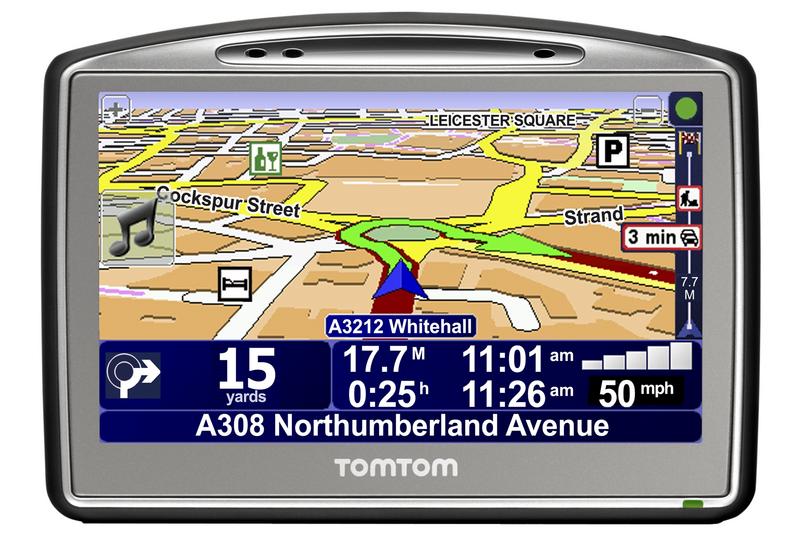
The TomTom Go 720 has a 4.3-inch widescreen (16:9) color LCD that
shows 480 by 272 pixels. The display is clear and attractive, and
you can choose from a wide variety of color schemes or even
customize one to your liking. Although we don't have another model
with which to compare, both Tonya and I noticed independently that
bright sunlight tended to wash out the screen, and the stubby window
mount caused it to be closer to us, making it harder for Tonya to
watch the display from the passenger seat than if it had been
mounted lower and further away.
<http://www.tidbits.com/resources/2008-05/tomtom-go-720.jpg>
A variety of accessories extend the 720's capabilities
significantly, although I didn't receive any of these to test. A
Bluetooth-based remote control ($59.95) lets you control the device
without reaching out to use the touch-screen. An iPod Connect &
Audio Cable ($29.95) enables you to control your iPod through the
720's touchscreen, and to play the audio through its internal
speaker, automatically pausing the music for spoken directions. The
RDS-TMC Traffic Receiver ($129.95) receives information about
traffic incidents via FM (in cities with the appropriate service)
and integrates them into its routing calculations. These last two
accessories use the same jack on the 720, so they can't be used
simultaneously. After the first 12 months, getting traffic
information requires a $59.95-per-year subscription.
Speaking of Bluetooth and FM, the 720 uses Bluetooth to enable
hands-free calling via a Bluetooth-capable cell phone (it wouldn't
talk to the Mac via Bluetooth), and an integrated FM transmitter
lets you route sounds through your car stereo. Since the 720 has its
own player for MP3 music and audiobooks, that may be welcome.
**Bang the Rocks Together, Guys** -- In basic usage, the TomTom Go 720
proved quick, accurate, and as useful as any of the previous devices
I've used. Its main interface is based around a navigation screen
with up to six buttons, one of which is an arrow to cycle forward
through additional screens. The single arrow approach is entirely
functional, but back and forward arrows might have made for faster
navigation.
The only problem with this approach is that there are so many
screens that it can take some time to find key functions, such as
Clear Route (necessary if you change your mind about where you're
going and don't need new directions). TomTom is clearly aware that
this is a concern, and in fact, buried deep in the preferences (on
the eighth and final preference screen) is an option for showing
fewer options, shades of Microsoft Word's Short Menus interface of
yesteryear. There's even a QuickMenu option that puts a permanent
icon on the screen that lets you access the TomTom Jukebox, report a
traffic enforcement camera, mark the location of a map error, add
the position to your favorites, call a phone number, and a number of
other features.
<http://en.wikipedia.org/wiki/Traffic_enforcement_camera>
Entering addresses and finding points of interest is extremely easy,
with the 720 guessing at what you're typing as you go. You can even
switch between an ABCDE keyboard and a QWERTY keyboard, the latter
of which I found much easier to use.
Once you start navigating, the 720 acts like all other GPSes,
warning you about upcoming turns several times before the actual
turn, and, if you've chosen a computer voice, speaking the street
names as well. One particularly nice feature was that it tells you,
when navigating complicated intersections, to keep left or keep
right, which is often necessary for getting onto the right road.
I found the voices somewhat frustrating, since one of TomTom's major
selling points is that you can download and switch among different
voices (some, such as John Cleese's, cost a few dollars). You can
even record your own voice and submit it to TomTom's Web site for
others to use. But these are all sampled voices, and as such cannot
read street names to you, as can the synthesized computer voices.
There's nothing wrong with the computer voices, but it's a crying
shame that you can't have John Cleese reading you most of the
directions, with a computer voice co-anchor chiming in with street
names. Interestingly, if you record your own voice, you can mix it
with a computer voice for reading street names.
There was one other problem with the sampled voices. Because they
don't speak street names, I found it was easier, if I was having a
conversation and not paying attention to the map, to miss an
instruction. The 720 of course took my error in stride and rerouted
me instantly, but had I been using a computer voice that alerted me
to the street name, or if it had something like the tones that
Magellan GPSes play when you're supposed to turn, I might not have
missed those turns. On the plus side, the 720 recalculated new
routes nearly instantly, and without obscuring the main map, as did
the Magellan RoadMate 6000T.
The map display is three-dimensional (you can switch to 2-D as well)
and extremely easy to interpret, and you can set not only the color
schemes, as I mentioned earlier, but also the level of detail, which
points of interest are shown, and more. Similarly, the data displays
that tell you how far to the next turn, how far you have left to go
in the trip, how long you have left, the estimated arrival time, and
your speed, are customizable. Two minor nits with the display.
First, the time remaining is shown as "0:28 hrs" rather than "28
min" until the minutes are single digits. And second, although the
distance remaining is shown in decimal miles (like ".5 miles"),
short distances to the next turn are given in yards, and all the
built-in voices give their directions in yards as well. Perhaps it's
a British sensibility or something that's easier for American
football fans, but I found myself translating 800 yards into .5
miles each time I heard it, rather than just envisioning the
distance in my head, something that didn't trouble me with either
decimal miles or, for shorter distances, feet.
In real-world usage on several trips to unfamiliar areas, the 720
navigated admirably, routing us accurately and without confusion.
Only once did we take a local shortcut that it disagreed with
initially, though it later admitted (via reduced distance and time
estimates) that our route was better. We were also able to use its
point-of-interest database to find restaurants and gas stations as
necessary while on trips, and although its knowledge of the many
fine Ithaca-area points of interest wasn't impressive, it's easy to
add you own points of interest. Oddly, it lacks the trip computer
feature of Garmin GPSes that tracks your total distance, travel
time, and average speed. It's not essential, but on long trips to
visit relatives, the question of how long it took and what route we
took always comes up.
**Spontaneous Combustion** -- Most of my initial usage came before I
ever tried to connect the TomTom Go 720 to my Mac. Aside from a few
quibbles here and there - I once tried playing an audiobook, and
from then on, the 720 insisted on starting an audiobook every time I
turned it on - it was a largely positive experience. Then I decided
to see what the TomTom Home software would do for me.
The installation process was horrid. The CD's Finder window
displayed all sorts of inscrutably named files, and when I found and
double-clicked Install TomTom Home, I was presented with this
delightful dialog. Who knew being asked if you live in the United
States or Canada was a Yes/No question?
<http://www.tidbits.com/resources/2008-05/TomTom-Home-installer.png>
Immediately after launch, TomTom Home informed me that an update to
TomTom Home itself was available, but when I clicked the underlined
text (it seemed to be mixing application and browser metaphors),
TomTom Home opened a window that displayed the TomTom Web site's
user registration page. I dutifully registered, and was shown yet
another pseudo-Web page from which I could theoretically download
the update. Each time I tried, TomTom Home went into a tight loop
and had to be force quit. Luckily, I was able to visit the TomTom
Web site in a normal browser and download the update with no
trouble.
Once launched, TomTom Home immediately displayed various map and GPS
updates that I supposedly needed, so I let it download and install
them. Once it was done, it told me to disconnect my device from the
computer without giving any hint that this might be an action to
perform carefully. This seemed wrong, and indeed, when I removed the
720 from its dock, Mac OS X promptly chided me for removing a device
without ejecting it first. Oops! Such an improper eject has never
actually caused a problem for me before, but in this case, the 720
refused to start up normally. I could put it back in the dock and
use it via TomTom Home, but it would no longer work otherwise. This
was indisputably my fault - I should have known better even if the
software didn't make it clear and the fact isn't mentioned in the
PDF-based manual accessed via the Web. But if I can make this
mistake, someone less familiar with Mac OS X would likely make it as
well.
Some searches turned up discussions from other users who had
experienced this problem too, but the steps for reviving the unit
didn't work for me (in essence, they suggested deleting the main
application from the device, then reinstalling it, with each step
punctuated with a 15-second pressing of the reset button with a
paperclip). Finally, I called TomTom, and after the first guy lost
me while researching the problem, I spoke to a woman who was
sufficiently knowledgeable to walk me through the steps of copying
the maps off the 720, reformatting its 2 GB flash drive using Disk
Utility, reinstalling the software via TomTom Home, and copying the
maps back on. (She actually had me run a TomTom ClearFlash utility
first, which she said solved all sorts of wacky problems, but it
didn't help me.)
Although I recovered basic functionality with this
reformat-and-reinstall approach (and the problem that caused an
audiobook to play every time I turned on the unit went away), it
took me a while to find where to reload (one at a time) the computer
voices and startup/shutdown screens via TomTom Home. TomTom Home
also made it possible to download new voices, new car icons, new
points of interest (including a list of all Apple Stores), and more.
Most items were free, having been submitted by other TomTom users,
but a few, such as the locations of traffic enforcement cameras in
Europe and Australia, cost a few dollars.
But I'm getting ahead of myself. Although it is a Macintosh
application, TomTom Home attempts to mimic the on-screen interface
of the TomTom GPSes, with the same multiple screens of six
navigation buttons, one of which is an arrow that takes you to the
next screen. It's easy to use, but clumsy - it's basically a Web
interface, with the main useful menu item being Device > Disconnect,
which properly ejects the unit so you can disconnect it. Many of its
functions involve connecting to the Web to download data, something
that failed at least 10 percent of the time (the support technician
said that TomTom had just released new maps, so their servers were
overloaded). Sometimes it gives up on actually displaying
information itself and instead loads a page in your default Web
browser, but what usually happened is that my Web browser would come
to the front and load the page, and when I returned to TomTom Home,
there would be a weird dialog telling me that it was going to load
the page in my Web browser. The application itself crashed four
times, although it didn't seem to cause any problems when it did.
To give you a better feel for the TomTom Home application, I've
created a 5-minute screencast about it.
<http://www.tidbits.com/resources/2008-05/TomTom-Home-screencast.mov>
**Final Beats** -- I'm having trouble summarizing my thoughts about
the TomTom Go 720. On the one hand, it performed admirably when used
out of the box, and although I had a few quibbles with its
interface, it was generally easy and enjoyable to use, particularly
after I had spent some time going through all of the screens and
setting a wide variety of preferences. And most important, it
navigated with aplomb, guiding me to previously unknown destinations
with no stress.
Where my stress level rose significantly was in connecting the 720
to my Mac and using TomTom Home. Although it was a frustrating
experience, I freely admit that it was my mistake in disconnecting
without dismounting that caused most of the trouble. Still, the
application is clumsy and fussy, and not the sort of thing I would
use regularly.
Where the TomTom Go 720 stands out from the crowd (and this is
likely true of other models from TomTom as well) is in its
customizability. No other GPS I've used provides anywhere near the
same breadth of options (remember those eight screens of
preferences?). But the marquee customization feature of TomTom's
GPSes is the capability to download new voices, and for that, along
with map updates, regular GPS satellite location tweaks, and more,
you need to run TomTom Home and treat your GPS like a computer
peripheral.
And that's where we come to the crux of the matter. The TomTom Go
720 offers a higher level of customization than any other GPS I've
used so far, but for that, you must be willing to put up with lousy
Mac software. If you just want your GPS to get you where you're
going, you will either want to ignore TomTom Home most of the time,
or stick with a simpler unit.
TidBITS Watchlist: Notable Software Updates for 02-Jun-08
---------------------------------------------------------
by TidBITS Staff <[EMAIL PROTECTED]>
article link: <http://db.tidbits.com/article/9631>
* Keyboard Maestro 3.1 from Stairways Software enhances the macro
utility with a slew of new capabilities for working with the
clipboard, most notably a new Clipboard History Switcher that lets
users see and paste previous clipboard contents. Keyboard Maestro
3.1 can also now filter the contents of the clipboard before
pasting, run clipboard contents through BBEdit Text Factories, and
put specific text (including variables) on the clipboard. Other
changes in 3.1 include full scripting support so any Keyboard
Maestro action can be automated via AppleScript, a change in the way
the clipboard is restored after using a clipboard action, and
support for simulated keystrokes in the Insert Text action. ($36
new, free upgrades for 3.0 users, 5.6 MB)
<http://www.keyboardmaestro.com/>
<http://www.keyboardmaestro.com/documentation/3/whatsnew>
* Digital Camera RAW Compatibility Update 2.1 from Apple extends raw
file compatibility for Aperture 2 and iPhoto '08 for the Canon EOS
Digital Rebel XSi/Kiss Digital x2/450D, Epson R-D1, Leaf AFi 7, Leaf
AFi 6, Leaf AFi 5, Pentax K200D, and Pentax K20D. The update
requires Mac OS X 10.4.11 or 10.5.2 and later. (Free update, 2.4 MB)
<http://www.apple.com/support/downloads/digitalcamerarawcompatibilityupdate21.html>
* Logic Express Update 8.0.2 from Apple "addresses specific customer
and compatibility issues of Logic Express 8.0." We think that means
that it fixes bugs, but you're free to invent your own
interpretation. ($199 new, free update, 73.7 MB)
<http://www.apple.com/support/downloads/logicexpressupdate802.html>
* Delicious Library 2 from Delicious Monster has at long last made its
appearance. The software provides a graphical look at your physical
stuff - media, but now also tools, toys, and clothing - as well as
iTunes music and software. Version 2 was delayed due to some major
functional changes in version 1 midstream, and the company's
decision to go Leopard-only. The company provides an exhaustive list
of new features, which includes a number of options to share one's
whole library or selections thereof, including publishing to .Mac
and Web sites. ($40 new, $20 upgrade if purchased before 01-Dec-07,
free if purchased thereafter)
<http://www.delicious-monster.com/>
<http://www.delicious-monster.com/blog/2007/12/delicious-library-buy-now-upgrade-later.html>
<http://www.delicious-monster.com/downloads/Delicious%20Library%202/DeliciousLibraryVersionTwo.html>
Hot Topics in TidBITS Talk/02-Jun-08
------------------------------------
by Jeff Carlson <[EMAIL PROTECTED]>
article link: <http://db.tidbits.com/article/9640>
**Reorder photos in iPhoto albums** -- Photos can be reordered in
iPhoto, but they must be in an album rather than just in the
library. (3 messages)
<http://emperor.tidbits.com/TidBITS/Talk/2005>
**Migrating from Now Contact to Address Book** -- The way to transfer
contact data would seem to be creating a vCard, but one reader can't
rely on that approach while retaining custom notes and fields in Now
Contact. Any other ideas? (3 messages)
<http://emperor.tidbits.com/TidBITS/Talk/2006>
**Reporting Vulnerabilities** -- Based on last week's article by Rich
Mogull, when should a security researcher report a software
vulnerability? (1 message)
<http://emperor.tidbits.com/TidBITS/Talk/2007>
**Tracking your laptop** -- People are still talking about the stolen
Mac recovered thanks to Back to My Mac, including how to roll your
own solution (3 messages)
<http://emperor.tidbits.com/TidBITS/Talk/2008>
**Back in the Saddle with the TomTom Go 720 GPS** -- Readers get
snarky after reading Adam's review of this GPS device. (3 messages)
<http://emperor.tidbits.com/TidBITS/Talk/2009>
**Switching iPhone's sync home** -- How do you re-associate an iPhone
so it syncs with a laptop on the road instead of the Mac at home or
the office? (1 message)
<http://emperor.tidbits.com/TidBITS/Talk/2010>
**Warning 10.5.3 vs. Time Capsule password** -- An ampersand in a Time
Capsule password can cause trouble. (1 message)
<http://emperor.tidbits.com/TidBITS/Talk/2011>
**Tip: See Dictionary Definitions in Real Time** -- Adam's handy tip
won't work in all applications, but which ones? (10 messages)
<http://emperor.tidbits.com/TidBITS/Talk/2012>
**Delicious Library 2** -- Readers share their experiences with this
highly anticipated software. (5 messages)
<http://emperor.tidbits.com/TidBITS/Talk/2013>
**Mac OS 10.5.3 Update Resolves Numerous Issues** -- Apple may have
solved many problems with 10.5.3, but did they also introduce new
ones? A reader reports problems with the latest system update. (2
messages)
<http://emperor.tidbits.com/TidBITS/Talk/2014>
**Back to My Mac Communicates Faults in 10.5.3** -- Readers share
their wireless networking configurations to ensure data is getting
backup up regularly. (7 messages)
<http://emperor.tidbits.com/TidBITS/Talk/2015>
$$
This is TidBITS, a free weekly technology newsletter providing timely
news, insightful analysis, and in-depth reviews to the Macintosh and
Internet communities. Feel free to forward to friends; better still,
please ask them to subscribe!
Non-profit, non-commercial publications and Web sites may reprint or
link to articles if full credit is given. Others please contact us. We
do not guarantee accuracy of articles. Caveat lector. Publication,
product, and company names may be registered trademarks of their
companies. TidBITS ISSN 1090-7017.
Copyright 2008 TidBITS: Reuse governed by Creative Commons license.
Contact us at: <[EMAIL PROTECTED]>
TidBITS Web site: <http://www.tidbits.com/>
License terms: <http://www.tidbits.com/terms/>
Full text search: <http://www.tidbits.com/search/>
Subscriptions: <http://www.tidbits.com/about/list.html>
Account help: <http://www.tidbits.com/about/account-help.html>
--
If you want to unsubscribe or change your address, use this link
http://emperor.tidbits.com/webx?unsub@@.3c557dc4!u=306a67f9