Hi Chin and Phil,

Thanks , It is working, I installed Wireshark 1.8.2 and WinPCAP and it is
working fine.
Thanks for your Assistance

Regards
Murali

From: Karthik Raguraman, Murali [CCC-OT_IT NE]
Sent: Thursday, September 27, 2012 5:52 PM
To: '[email protected]'
Subject: RE: [Winpcap-users] Win 7 Compatibility

Hi Chin,

Thanks for the update. I will check and let you know.

Thanks and regards
Murali

From: [email protected]
[mailto:[email protected]] On Behalf Of Chin Shi Hong
Sent: Thursday, September 27, 2012 4:55 PM
To: [email protected]
Subject: Re: [Winpcap-users] Win 7 Compatibility


On Tue, Sep 25, 2012 at 12:30 AM, Karthik Raguraman, Murali
<[email protected]<mailto:[email protected]>>
wrote:
Hi Team,

I have installed Wire shark  1.6.5  and Microsoft Visual C++ 2005 SP1
Redistributable x86  as a prerequisite and installed WinPCAP 4.1.2 , but I get
the below errors :

[cid:[email protected]]

And

[cid:[email protected]]

Please Assist me on this.

Thanks in Advance

Warm Regards

Murali Karthik R

_______________________________________________
Winpcap-users mailing list
[email protected]<mailto:[email protected]>
https://www.winpcap.org/mailman/listinfo/winpcap-users

To Karthik,

If you had installed WinPcap, then please do the following steps:

1.     Reboot/Restart your computer.
2.     Logon to Windows with administrator account.
3.     Run device manager by go to Start -> right click on "Computer" -> click
"Properties" -> click "Device Manager".
4.     In Device Manager, click on "view" menu -> enable "Show hidden devices".
5.     Expand "Non-Plug and Play Drivers".
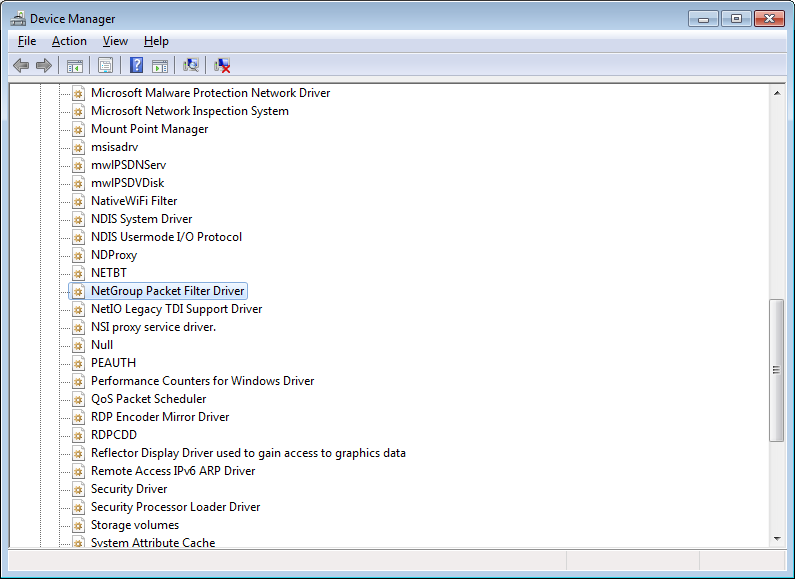
6.     Under "Non-Plug and Play Drivers", search for "NetGroup Packet Filter
Driver" (as what you see I selected in screenshot at
http://i854.photobucket.com/albums/ab103/cshong/Screenshots/NPF_DM.png ). If
you cannot find it, please tell us by replying to this email.
7.     If  "NetGroup Packet Filter Driver" is there, right click on it -> click
on "Properties".
8.     In  "NetGroup Packet Filter Driver Properties", go to "Driver" tab, then
check the current status whether it has been started or not. If it has not been
started, start it by clicking the "Start" button".
9.     Change the startup type to "Automatic" if you want the service to be
started automatically.
10.  Click "Ok" button.
After the above steps has been done, please test again and tell us the result.

Regards,
<<inline: image001.png>>
<<inline: image002.png>>
_______________________________________________
Winpcap-users mailing list
[email protected]
https://www.winpcap.org/mailman/listinfo/winpcap-users