TidBITS#964/09-Feb-09
=====================
  Issue link: <http://db.tidbits.com/issue/964>
  Today's big technology news is the announcement of Amazon's Kindle 2
  ebook reader, which adds increased storage, new features, and an
  improved industrial design, but no changes in terms of what it can
  display. In addition to looking at the Kindle 2, Adam focuses on the
  possibility that Kindle ebooks will appear on other devices, and
  notes iPhone-compatible versions of Safari Books Online and Google
  Book Search. Google has been busy in other areas, too, tweaking the
  interface to Gmail and releasing Google Earth 5.0 with information
  about oceans, Mars, and a neat time travel capability. Also in this
  issue, Adam unveils our TipBITS feature for sharing staff- and
  reader-contributed tips, David Weintraub raves about the
  collaborative benefits of Dropbox, Jeff Carlson reveals 10 secret
  features of iMovie '09, and Doug McLean looks at Apple's updates to
  iWork '08. In the TidBITS Watchlist, we note the releases of Things
  1.0.3, Firefox 3.0.6, GarageBand 5.0.1, PageSender 4.4, BBEdit
  9.1.1, and Twitterrific 3.2.

Articles
    Apple Releases iWork '08 Update
    Read and Share Tips with TipBITS
    DealBITS Discount: Save 50% on MathMagic Equation Editor
    Amazon Announces Kindle 2 Ebook Reader
    More Ebooks Available for the iPhone/iPod touch
    Gmail Adds Move To and Label Menus to Toolbar
    Google Earth 5.0 Adds Oceans, Mars, and Time Travel
    10 Secrets of iMovie '09
    Dropbox: A Collaborator's Dream
    TidBITS Watchlist: Notable Software Updates for 09-Feb-09
    ExtraBITS for 09-Feb-09
    Hot Topics in TidBITS Talk for 09-Feb-09


------------ This issue of TidBITS sponsored in part by: --------------

* READERS LIKE YOU! Support TidBITS with a contribution today!
  <http://www.tidbits.com/about/support/contributors.html>
  Special thanks this week to Leonard Krill, Douglas Frick,
  Bob Dahl, and Robert Andrew Enzminger for their generous support!

* Fetch Softworks: Fetch 5.3 has WebView, the easy way
  to view files in a browser and copy Web addresses from Fetch.
  Also a new look for Leopard, droplet shortcuts, and more.
  Download your free trial version! <http://fetchsoftworks.com/>

* WebCrossing Neighbors Creates Private Social Networks
  Create a complete social network with your company or group's
  own look. Scalable, extensible and extremely customizable.
  Take a guided tour today <http://www.webcrossing.com/tour>

* MARK/SPACE, INC: Take it with you! The Missing Sync makes
  it easy to synchronize contacts, calendars, notes, photos
  and more from your Mac to your BlackBerry, Palm OS, or
  Windows Mobile phone. <http://markspace.com/bits>

* VMware Fusion. The most seamless way to run Windows on your Mac.
  Backed by nearly a decade of proven virtualization technology.
  Try VMware Fusion today for free, or order online for only $79.
  Visit: <http://www.tidbits.com/about/support/vmware-fusion.html>

* Microsoft's MacBU: Supporting Mac users with Office 2008.
  Is your Office up-to-date? Make sure you're running the latest
  versions of Word, Excel, PowerPoint, and Entourage by choosing
  Check for Updates from the Help menu of any Office application!

* ConceptDraw Office adds real business power to Microsoft Office
  and Apple's iWork. Whether you need project management, business
  graphics, or mind mapping, it's all easily created on your Mac!
  Buy today for only $499! <http://www.conceptdraw.com/tb>

* MacSpeech Dictate -- unleash the power of your voice with
  award-winning speech recognition solutions for the Mac.
  It's so easy to use - just talk! Now with spelling and
  phrase training. <http://tidbits.com/about/support/macspeech.html>

---------- Help support TidBITS by supporting our sponsors ------------


Apple Releases iWork '08 Update
-------------------------------
  by Doug McLean <[email protected]>
  article link: <http://db.tidbits.com/article/10051>

  Apple has quietly released minor updates for the three applications
  in the iWork '08 suite: Keynote, Pages, and Numbers. The support
  notes for the Pages 3.0.3 update and the Numbers 1.0.3 update, are
  terse and essentially uninformative: "This update addresses general
  compatibility issues." The Keynote 4.0.4 update notes give a little
  more information, stating that it primarily addresses compatibility
  issues with Microsoft PowerPoint 2007 and 2008. Pages 3.0.3 (27.3
  MB), Numbers 1.0.3 (26.1 MB), and Keynote 4.0.4 (31.3 MB) are
  available via Software Update or from the pages linked here.

<http://support.apple.com/downloads/Pages_Update>
<http://support.apple.com/downloads/Numbers_Update>
<http://support.apple.com/downloads/Keynote_Update>

  As much as it's disrespectful to professional users to restrict the
  release notes so completely, these updates send the much-appreciated
  message that Apple will continue to support the iWork '08
  applications despite the recent release of iWork '09.

  This practice is similar to Microsoft's continued support of
  Microsoft Office 2004, which, though supplanted by Office 2008, is
  still widely used. Although iWork '09 costs only $79, many users,
  especially those working in offices or schools with fixed budgets,
  may not wish to purchase the new version, particularly if iWork '08
  already meets their needs. So it's good to see Apple extending the
  bug fixes and patches that are presumably included with iWork '09 to
  users of the previous version.


Read and Share Tips with TipBITS
--------------------------------
  by Adam C. Engst <[email protected]>
  article link: <http://db.tidbits.com/article/10055>

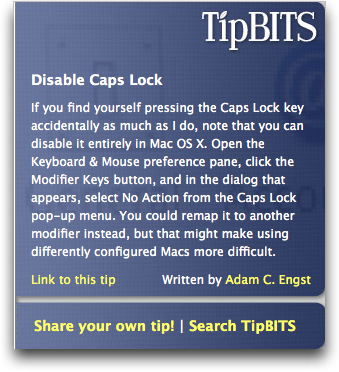
  Today we're announcing something that those of you who frequent our
  Web site have been enjoying for a few months: TipBITS. TipBITS
  appears in a box on the right side of our site and displays a new
  Mac-, iPhone-, or iPod-related tip every time you load a page,
  pulling tips randomly from an ever-growing selection.

<http://www.tidbits.com/resources/2009-02/TipBITS.png>

  Tips come from three main sources: TidBITS staff members, TidBITS
  readers, and our corporate sponsors.

  For us, TipBITS is a nice way to share some of the brief advice and
  tricks we've discovered over years of using Macs, iPods, and
  iPhones. Sure, we could write articles for each item, but most tips
  are so short that they don't warrant an individual article. Plus,
  we're loading some of the tips from our Take Control books into
  TipBITS as a way of showing how useful our books can be for those
  who haven't yet tried them.

  TipBITS also gives us a way to keep evergreen information in front
  of our Web site visitors. Although most of the articles in our
  archive are interesting primarily from a historical standpoint, a
  good number contain content that's still relevant and useful. We try
  to expose that information by linking to related articles (look for
  the Related Articles box on the right of each article's Web page)
  and by providing a search field on every page, but too few people
  will happen across those useful articles in normal browsing through
  our site.


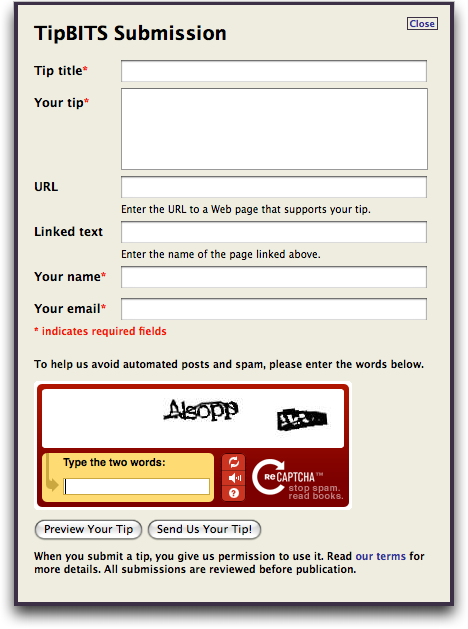
**User-Contributed Content** -- Of course, we have no pretensions that
  we've included every imaginable useful tip. And that's where the
  Share Your Own Tip link comes in. Click it, and a form appears, into
  which you can enter your own tip. Tips comprise a title and body,
  and, optionally, a link to additional information for which you can
  specify a URL and page name. We also ask for your name, so your tip
  properly credits you, and your email address, which we don't publish
  but keep only in case we need to contact you about your tip.

<http://www.tidbits.com/resources/2009-02/TipBITS-submissions.png>

  A Preview Your Tip button lets you see exactly how your tip will
  look, and once you're ready to post, the Send Us Your Tip button
  will do the honors. We use reCAPTCHA to keep spammers out, and while
  we realize it's a slight annoyance for real people, at least your
  efforts are going to help digitize old books and newspapers.

<http://recaptcha.net/learnmore.html>

  We do check and edit all tips before posting to make sure they're
  appropriate, accurate, and clearly written. (Hey, we're editors, we
  can't resist.) Oh, and please don't just copy-and-paste someone
  else's words - we realize tips can't all be entirely original, but
  please do write them yourself since we're not looking to rip off
  other sites. Once we approve a tip, it will go into random rotation
  on the site.

  Tip submission is open to everyone, and if you have a favorite tip,
  I strongly encourage you to share it.

  We're particularly trying to encourage our long-term corporate
  sponsors - companies like Microsoft, Bare Bones, Fetch Softworks,
  and Mark/Space - to submit tips about their products, since we know
  many TidBITS readers would benefit from the information.


**What's Appropriate?** So what sort of tips are we looking for? Quite
  simply, anything related to using Apple and Macintosh technology
  that's both useful and isn't inherently obvious. We're not looking
  for news or any sort of time-sensitive information - the goal of
  TipBITS is to show tips that will be appropriate for a long time.
  (And if you see a tip that isn't correct or has become obsolete, do
  let us know.)

  Ideally, tips should be about a paragraph long - the TipBITS
  interface isn't designed for very long tips. If you have something
  that's more than a few paragraphs, let me know and perhaps it would
  make a good article.

  Of course, the best way to get a feel for what's appropriate in
  terms of topic and length is to read through a bunch of our existing
  tips. Just visit the TidBITS Web site and click around through
  various articles to load new tips.


**Searching and Linking** -- Although our main goal was to provide
  more useful tips for people browsing on the TidBITS Web site, we
  know that people will want to find particular tips they've seen
  before, or will want to see if we have tips on particular topics.

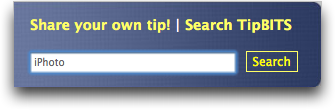
  To that end, there's a Search TipBITS link that, when clicked,
  reveals a search field. Enter a search term, hit Return or click the
  Search button, and the results show up instantly. Since tips are
  short, the full text of each matching tip appears.

<http://www.tidbits.com/resources/2009-02/TipBITS-search.png>

  Plus, the title of each tip is a permanent link to that tip, should
  you wish to share it via email, Twitter, or a blog post. There's
  also a Link To This Tip link in the main TipBITS box that provides
  the permanent link.

  We have a few more ideas for TipBITS, ranging from RSS feeds to
  daily Twitter posts, but we'd like to concentrate on building up the
  database of tips from which TipBITS pulls before we put much more
  work into the back end.

  So, please, check out TipBITS, contribute a few of your favorite
  tips, and tell your friends about it!


DealBITS Discount: Save 50% on MathMagic Equation Editor
--------------------------------------------------------
  by Adam C. Engst <[email protected]>
  article link: <http://db.tidbits.com/article/10054>

  Congratulations to C. Dale Flowers of cdale.com, Erik Wessel-Berg of
  iet.ntnu.no, and Joe Pitt of yahoo.com, whose entries were chosen
  randomly in the last DealBITS drawing and who received a copy of
  MathMagic Personal Edition, worth $89.95. If you didn't win, don't
  fret, because you can save 50 percent on any version of MathMagic
  Personal Edition or MathMagic Pro Edition through 17-Feb-09 when you
  order using coupon code TIDBITS from MathMagic's offer page. Thanks
  to the 423 people who entered this DealBITS drawing, and we hope
  you'll continue to participate in the future!

<http://db.tidbits.com/article/10042>
<http://www.mathmagic.com/product/pe.html>
<http://www.mathmagic.com/order/dealbits.html>


Amazon Announces Kindle 2 Ebook Reader
--------------------------------------
  by Adam C. Engst <[email protected]>
  article link: <http://db.tidbits.com/article/10056>

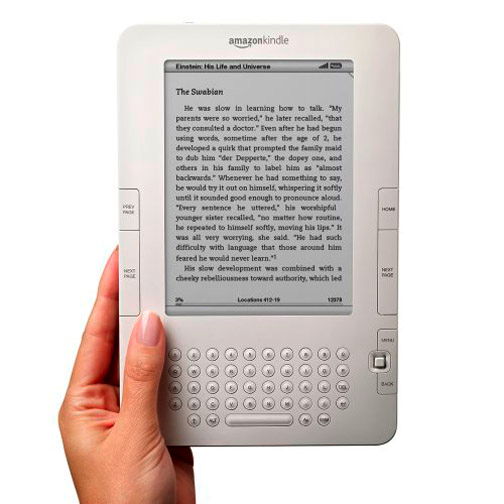
  At a press conference today, Amazon.com announced the Kindle 2, the
  second generation of the bookseller's ebook reader. The redesigned
  Kindle - thinner, with a refined industrial design, and featuring
  text-to-speech capabilities - sells for $359 and is available for
  pre-order now, with shipments starting on 24-Feb-09.

<http://www.amazon.com/dp/B00154JDAI/?tag=tidbitselectro00>

  The Kindle 2 improves on the original Kindle in a number of ways.
  It's less than half as thick (0.36 inches, or 9.1 mm) as the
  previous model while retaining basically the same dimensions (8 by
  5.3 inches, or 20.4 by 13.5 cm) and weight (10.2 ounces, or 289 g).
  And although the screen remains the same size (6-inch diagonal) and
  shows the same number of pixels (600 by 800), it now offers 16
  shades of gray (up from 4) for clearer text and crisper images.

  Amazon refined the Kindle's industrial design as well. Its corners
  are rounded, and the device is more symmetrical than before, giving
  it a sleeker look. The next and previous page buttons are smaller,
  and click inward to prevent accidental page changes when you pick up
  the Kindle by its edge. Gone is the awkward navigation slider,
  replaced with a 5-way controller that's reminiscent of the
  nipple-like joystick controller used for a long time by PC laptops
  from IBM and other manufacturers. Curiously missing is some sort of
  a light to make the Kindle usable in dimly lit situations.

<http://www.tidbits.com/resources/2009-02/Kindle2.jpg>
<http://en.wikipedia.org/wiki/Pointing_stick>

  Moving to the inside, Amazon beefed up the Kindle 2's battery,
  claiming a 25-percent improvement. The original Kindle's battery
  life was already impressive, thanks to the miserly power usage of
  the E-Ink screen, and Amazon is now saying that the Kindle 2 will
  let you read for up to 4 days with the Kindle's 3G wireless access
  on, or up to 2 weeks with it off. As always, battery life varies
  with usage, and in areas where there's only the older 1xRTT coverage
  instead of EVDO, the Kindle's battery will drain more quickly. The
  Kindle 2 can also now charge via USB as well as from its included
  power adapter.

  Also supposedly improved is page turn time. Unlike a normal LCD
  display, where every pixel is addressable independently and
  instantaneously, E-Ink screens must be written a screen at a time,
  and that process isn't quick. With the original Kindle, there was a
  noticeable page flash as the page was redrawn; Amazon is claiming
  20-percent faster page turns with the Kindle 2. Without being able
  to compare them side-by-side, it's hard to know if a faster page
  flash will be less distracting. Many Kindle owners have said that
  they don't find the page flash disconcerting, though there were also
  plenty of people who found it sufficiently annoying that they either
  didn't buy a Kindle or returned one. Despite Amazon's claims,
  TechCrunch has a video that shows no speed improvement at all.

<http://www.crunchgear.com/2009/02/09/video-kindle-2-as-slow-as-the-original/>

  Another enhancement that may appeal to serious Kindle users is the
  massively increased internal storage. Whereas the original Kindle
  had about 180 MB of space available for storing content, the Kindle
  2 provides a whopping 1.4 GB of storage, which Amazon says is enough
  for 1,500 books. Though this sounds good and is a no-brainer given
  the cost of memory, I tend to think it's irrelevant in most cases,
  given the number of books most people would buy.

  Perhaps the most significant new feature in the Kindle 2 is the
  addition of text-to-speech. The Kindle 2 offers male and female
  voices that can be sped up or slowed down and turns the pages
  automatically to sync with the text that's being read. Most
  interesting is the way that the Kindle 2 lets you switch between
  reading onscreen to having the text read to you, enabling multiple
  modes of interacting with the same text without needing to find your
  place each time you switch. The sample of the voice I heard on
  Amazon's promotional videos sounded good, but not as good as the
  Alex voice in Mac OS X 10.5 Leopard. It would be nice if the Kindle
  2 had a sleep-timer capability, as does the iPod, so you could have
  a book read to you as you go to sleep at night, something we find
  highly effective (see "iPods Defeating Insomnia", 2005-02-25).

<http://db.tidbits.com/article/8004>

  When it comes to the Kindle's internal software and Amazon's
  policies, I can't find any indication that anything has changed. In
  particular, it seems that Amazon has not improved the layout
  capabilities of the Kindle 2 at all. The original Kindle can't
  handle even HTML tables, much less CSS styling, making it acceptable
  only for text in very simple layouts. That's fine for novels, but
  completely worthless for modern magazines and highly designed books
  that go beyond a simple column of text with the occasional picture.

  Also unchanged is the fact that Amazon sells only DRM-protected
  books, which is sad in comparison to the company's sales of DRM-free
  music. I'm sure the requirement for DRM-protected books comes from
  the publishers, but you'd think that publishers would have more
  foresight after the recording industry was finally dragged (kicking,
  screaming, and suing everyone in sight) to realize that DRM didn't
  help their business. That's especially true with books, where
  sharing has long been built into the culture. We have intentionally
  avoided buying certain books for the Kindle because we wanted to
  have the option to share them with friends and family.

  And of course, although the Kindle provides access to 230,000 books,
  along with lots of newspapers and blogs and Wikipedia, it offers
  only an experimental Web browser. That may be because the 3G
  wireless access from Sprint that Amazon provides as part of the
  Kindle's purchase price would be far more heavily used were the
  Kindle to be a halfway decent Web browser. And as before, if you
  want to convert your own documents so you can read them on the
  Kindle, you can either get the documents converted for free and
  transfer them to the Kindle via USB yourself, or pay $0.10 per
  document to have the converted document sent to your Kindle
  wirelessly.

  In the end, the Kindle 2 is a welcome update to the original Kindle
  design, but still doesn't change the ebook game in the way that the
  iPod did for digital music. I can't see most existing Kindle owners
  paying another $359 to replace their existing Kindles (though you
  can at least transfer all your purchased ebooks to a new Kindle for
  free). Were Apple to create a larger-screened version of the iPod
  touch to compete with the Kindle, I think it would eat the Kindle
  for lunch.


More Ebooks Available for the iPhone/iPod touch
-----------------------------------------------
  by Adam C. Engst <[email protected]>
  article link: <http://db.tidbits.com/article/10059>

  Although Amazon.com's new Kindle 2 ebook reader is garnering most of
  the headlines in the ebook world at the moment, I think a pair of
  mobile-related announcements from Google and Safari Books Online may
  make more of a difference for the future of ebook reading.


**Google Book Search** -- Last week, Google announced a mobile version
  of Google Book Search, which gives you access to 1.5 million public
  domain books in the United States (and 500,000 in other countries)
  from your iPhone, Android-based phone, or other Web-enabled mobile
  phone.

<http://booksearch.blogspot.com/2009/02/15-million-books-in-your-pocket.html>

  The only new piece here is the mobile-optimized versions of the
  books, which required that Google use optical character recognition
  to extract the text from the page images made by scanning physical
  books. Needless to say, there are plenty of recognition errors, but
  you can tap on any paragraph to see the image of the original.

  Although the normal version of Google Book Search offers limited
  previews of in-copyright books, along with purchase links,
  preview-only books aren't yet included in the mobile version of
  Google Book Search. I imagine it's only a matter of time before that
  changes.

  Of course, the mobile version of Google Book Search works only when
  you're online, rendering it less useful than an actual iPhone app
  that would let you read when you're on a plane, unable to pick up 3G
  wireless data service, or using an iPod touch out of range of a
  Wi-Fi network. For that, one of the ebook apps in the App Store
  would be better. I wouldn't be surprised to see either Google or
  another company figuring out how to make books from Google Book
  Search available offline in the future as well.

  To visit Google Book Search from your iPhone or iPod touch, go to
  http://books.google.com/m.

<http://books.google.com/m>


**Safari Books Online** -- Coinciding with O'Reilly's Tools of Change
  for Publishing conference, Safari Books Online announced a beta
  version of the subscription-based library service. With Safari Books
  Online, you (or more commonly, your organization) pay a subscription
  fee that gives you access to thousands of technical books from
  O'Reilly, Peachpit Press, Prentice-Hall, Microsoft Press, lynda.com,
  and others. And - full disclosure here - although they're not quite
  all available yet, we're working with O'Reilly to add our current
  Take Control ebooks to Safari Books Online as well.

<http://toc.oreilly.com/2009/02/safari-books-online-goes-mobil.html>

  If you have a Safari Books Online account, point your iPhone to
  http://m.safaribooksonline.com to login and see how it works. It
  will launch officially on 23-Feb-09, so there may be quirks until
  then. As with Google Book Search, the mobile version of Safari Books
  Online requires that you be online.

<http://m.safaribooksonline.com/>


**Amazon Ebooks on the iPhone?** Although the specifics aren't yet
  clear, Amazon has started to talk about making their 230,000 ebook
  titles available on mobile devices other than the Kindle. In the
  Kindle 2 press release, there's the following ambiguous quote:
  "Kindle 2 will also sync with a range of mobile devices in the
  future."

<http://phx.corporate-ir.net/phoenix.zhtml?c=176060&p=irol-newsArticle&ID=1254544>

  Plus, last week, Amazon spokesman Drew Herdener told the New York
  Times, "We are excited to make Kindle books available on a range of
  mobile phones. We are working on that now."

<http://www.nytimes.com/2009/02/06/technology/internet/06google.html>

  It's hard to imagine exactly how all this would work, given some of
  the technical limitations. First, Amazon's Whispernet system uses
  the Sprint network - does that imply that only Sprint-compatible
  mobile phones would be supported? I can't see Amazon negotiating 3G
  data service plans with every carrier out there when they haven't
  even been able to make the Kindle available outside the United
  States. That points instead to Amazon allowing connections over the
  Internet, but that would then cause potentially large charges for
  mobile phone subscribers who don't have unlimited data plans.

  And then there's the question of DRM. Decoding DRM protection
  requires special software, which Amazon would have to write for
  multiple mobile phone platforms - iPhone, Windows Mobile, Symbian,
  etc. That's not inconceivable, but it seems like a lot of work, and
  potentially a tricky distribution issue for devices other than the
  iPhone and iPod touch.

  Finally, although it's easy to imagine a decent iPhone app for
  downloading and reading Kindle ebooks from Amazon's Web site,
  Apple's SDK agreement restricts applications from providing access
  to other online stores without permission. Apple tends to do things
  that benefit Apple, so I could see Apple withholding that permission
  unless Amazon coughed up a percentage of sales made through its
  iPhone app.

    "Without Apple's prior written approval, an Application may not provide,
unlock or enable additional features or functionality through distribution
mechanisms other than the App Store."

  In short, although none of these issues are insurmountable, there
  are many technical and contractual stumbling blocks that could
  prevent Kindle ebooks from appearing on the iPhone and iPod touch
  any time soon. I certainly hope I'm wrong, but I'm not holding my
  breath.


Gmail Adds Move To and Label Menus to Toolbar
---------------------------------------------
  by Adam C. Engst <[email protected]>
  article link: <http://db.tidbits.com/article/10050>

  One of the disconcerting things about Web applications is that they
  can change in small ways underneath your very feet. This morning, I
  checked mail in Gmail and saw that I needed to edit an article for
  Doug, but when I came back to reply to his message, I noticed that
  the Gmail toolbar had changed, both in style and contents. Luckily,
  Google's engineers posted on the Gmail Blog to explain the changes
  (which may not be available for all users for a day or so - Google
  rolls changes out in waves, which is another disconcerting aspect of
  how Web applications update).

<http://gmailblog.blogspot.com/2009/02/new-ways-to-label-with-move-to-and-auto.html>

  Stylistically, the buttons became large and more rectangular, and
  Google also added a pair of menus: Move To and Labels. On first
  glance, the menus seem redundant, since they both contain all the
  labels you've created. (I must admit, I had a brief moment of glee
  seeing Gmail's interface designers come up with something that's at
  least visually similar to Eudora's Mailbox and Transfer menus.)

  Here's the trick. Gmail doesn't really do folders, as we think of
  them. Instead, it offers labels, which are in many ways more
  powerful and flexible, since you can apply multiple labels to any
  given message. For instance, you could have a label for messages to
  or from your closest colleague along with a label for a particular
  project you're both working on, and any given message could have one
  or both of those labels.

  But if you're used to folders, it can take a little time to
  understand how labels can be most effectively used (and to be
  honest, I'm still largely using labels as though they were folders).
  People who are new to Gmail often find the labels confusing, and
  have trouble mapping between folders and labels. Further confusing
  the issue is how Gmail implements IMAP, where labels do become
  folders in your email client.

  So the point of the Move To menu, much like Eudora's Transfer menu,
  is to apply the selected label and then archive the message, which
  essentially removes the Inbox label. Archived messages appear in the
  All Mail collection in Gmail, and if any other labels are attached,
  they'll appear in those collections as well. In other words, users
  accustomed to putting messages in folders will probably find the
  Move To menu a familiar way of filing messages away.

  Although the Labels menu appears similar to Move To, selecting an
  item from it merely applies the selected label to the current
  message or selected messages. Checkboxes make it possible to apply
  multiple labels quickly. Previously, the labels were accessible only
  at the bottom of the More Actions menu, but given the dominance of
  labels within the Gmail interface, it makes sense to promote them to
  a top-level control.

  In my ongoing real-world test of Gmail via its Web interface, I'm
  doing pretty well. The main commands that I find myself missing from
  Eudora are Send Again (to resend a sent message) and Redirect. Send
  Again hasn't been a major loss, since it's easy enough to copy and
  paste text from a previously sent message, or to use Forward and
  tweak the headers. But I do bemoan the loss of Redirect, which
  enables forwarding of any given message to any arbitrary address in
  such a way that it appears to the new recipient that it came from
  the original sender. Not having Redirect is frustrating, but not a
  deal-breaker.


Google Earth 5.0 Adds Oceans, Mars, and Time Travel
---------------------------------------------------
  by Doug McLean <[email protected]>
  article link: <http://db.tidbits.com/article/10049>

  Google Earth 5.0, the latest version of the popular 3D earth
  visualization tool, unleashes several major new features and loads
  of additional content. New additions announced by Google include the
  capability to view 3D bathymetric maps of the ocean's floor, thumb
  through historic maps and satellite imagery, explore the surface of
  Mars, and record journeys within Google Earth to share with other
  users.

<http://earth.google.com/tour.html>
<http://googleblog.blogspot.com/2009/02/dive-into-new-google-earth.html>


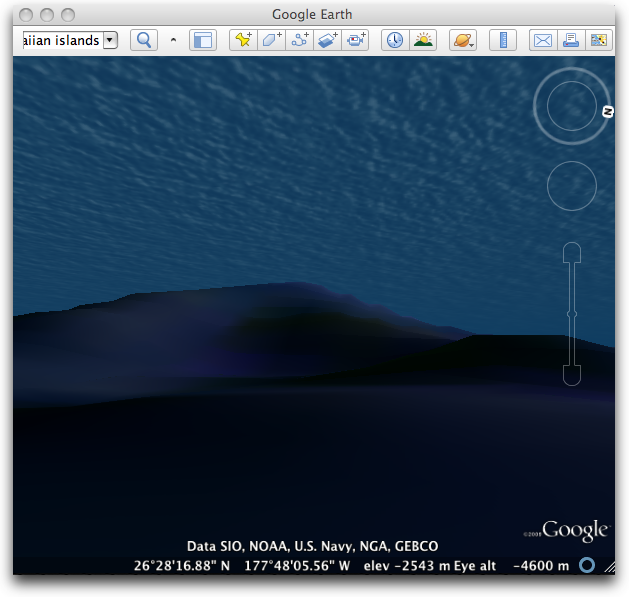
**The Oceans** -- While technically Google Earth has always included
  the oceans, until now that's consisted only of an expanse of blue
  with low resolution shading to indicate varying depths. In the new
  Google Earth 5.0, you can dive below the ocean's surface and explore
  the 3D terrain of the floor, as well as watch videos and gather
  information from various data points. The data points consist of
  text, videos, and links, which cover subjects ranging from animal
  tracking patterns and surf spots, to shipwrecks and historic
  expeditions. A great deal of this content is provided by National
  Geographic and Cousteau Ocean World. I had fun just plunging beneath
  the waters, crawling around, and randomly popping up to see where
  I'd travelled. To activate the Oceans layer, check the box next to
  Oceans under the Layer section of the sidebar.

<http://www.tidbits.com/resources/2009-02/Google-Earth-Ocean.png>


**Historical Imagery** -- The next best thing to time travel, the new
  Historical Imagery feature enables users to view maps and photos of
  any given location throughout recent history. While the timeline is
  limited by the scope of Google's image archive, for some locations
  this still means looking at imagery 60 or 70 years old. For most
  locations in the United States though, information appears to date
  back only as far the late 1980s at best. However, for the launch of
  version 5.0 the Google team did put together some historic data sets
  for San Francisco and Las Vegas which are definitely worth checking
  out. This new feature is loaded with potential, and provides an easy
  way to explore the development of neighborhoods, cities, and the
  changing face of the environment. To activate the historic imagery
  feature, and its timeline slider, click the clock icon in the top
  menu bar.


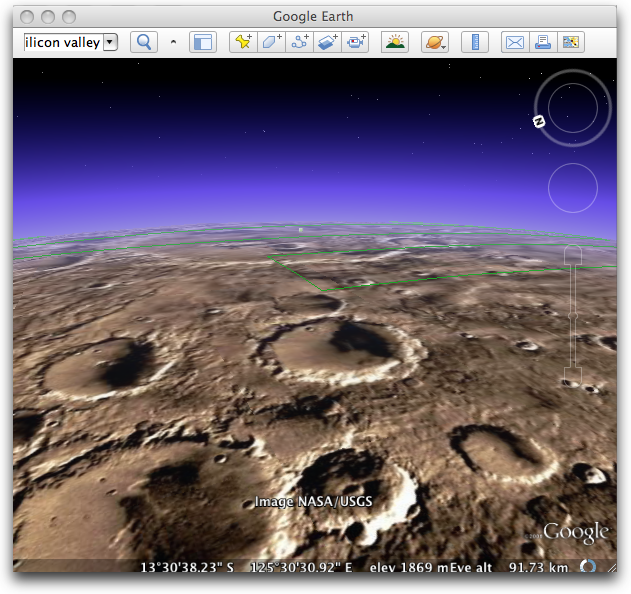
**Mars** -- Thanks to a collaboration with NASA researchers, Google
  Earth 5.0 introduces a new mode wherein users can explore the Red
  Planet. As one might expect, the 3D terrain imagery for Mars isn't
  great, but Google does include other information such as significant
  landmarks, featured satellite imagery, day/night infrared shots, and
  excerpts from the book "A Traveler's Guide to Mars." To activate the
  Mars mode click and hold the, um, Saturn icon in the top menu bar
  and select Mars.

<http://www.workman.com/products/9780761126065/>
<http://www.tidbits.com/resources/2009-02/Google-Earth-Mars.png>


**Touring** -- Designed to make Google Earth even more of a shared
  experience, the Touring feature enables users to record journeys
  within Google Earth, along with accompanying narration. Likewise,
  users can download and watch tours that have been created by others.
  Check out Google's Lat Long Blog to find a handful of great Google
  Earth tours for download, including a Jimmy Buffett concert tour and
  a tour exploring the shrinking of the Aral Sea in Central Asia since
  the 1960s.

<http://google-latlong.blogspot.com/>

  Unfortunately, the recording controls are fairly limited. For
  example, there's no pause button, so tours must be recorded straight
  through from start to finish. Also, there's currently no built-in
  way to export the file for viewing in a program other than Google
  Earth. Hopefully, in subsequent releases this feature will be
  further fleshed out as it might be nice to share these tours via
  YouTube or Facebook. To activate the Touring feature, click the
  movie camera icon in the top menu bar.

  Google Earth continues to demonstrate a commitment to fun and
  interactive education with these excellent new features. Whether
  you're a newcomer to the program or a veteran user, I highly
  recommend checking out version 5.0. It's a 35 MB download, and is
  available from the Google Earth Web page.

<http://earth.google.com/>

  One caveat - installing Google Earth 5.0 also requires that you
  install the omnipresent Google Software Update, which has generated
  complaints among those who want more control over what's running on
  their Macs and when updates are downloaded and installed. At the
  moment, there is no supported method of disabling Google Software
  Update or running it only at specified times.


10 Secrets of iMovie '09
------------------------
  by Jeff Carlson <[email protected]>
  article link: <http://db.tidbits.com/article/10052>

  I'm one of those people who thought iMovie '08 was pretty much okay.
  It advanced consumer video editing on the Mac in several ways, such
  as having live transitions and effects that don't require
  re-rendering clips and putting your entire video library at your
  fingers without opening old projects.

  But iMovie '08, having been written from scratch as a new
  application, was sparse in many areas, especially compared to its
  predecessor, iMovie HD 6. The good news is that iMovie '09 restores
  most of iMovie HD's features. (Read my Macworld review of iMovie '09
  for more.) The better news is that iMovie '09 boasts a lot of other
  new features and hidden secrets that aren't immediately apparent.

<http://www.macworld.com/article/138676/2009/02/imovie09.html>

  I'm hard at work on my book iMovie '09 and iDVD for Mac OS X: Visual
  QuickStart Guide (click this link to pre-order it now and help
  support TidBITS), and am enjoying discovering many of iMovie's
  hidden tips and features. Here are 10 things I've discovered that
  aren't entirely obvious.

<http://www.amazon.com/dp/0321601327/?tag=tidbitselectro00>


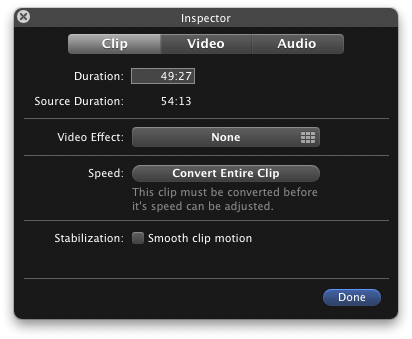
**Double-click Clip to View Inspector** -- iMovie '09 now collects its
  adjustment controls in a new Inspector heads-up-display, instead of
  providing separate floating panels for video and audio adjustments.
  You can select a clip and click the "i" icon in the toolbar, or
  choose an option from the new Action menu that appears on every
  clip, but it's easier to double-click the clip to bring up the
  Inspector. (If you prefer iMovie '08's behavior of double-clicking a
  clip to play it, you can change the action in iMovie's preferences.)

<http://www.tidbits.com/resources/2009-02/imovie_inspector.png>

  iMovie's adjustment controls can also be invoked from the keyboard
  by pressing the following letters (with no modifier key): I for Clip
  adjustments; V for Video adjustments; A for Audio adjustments; and C
  for Cropping, Ken Burns and Rotation adjustments.


**View Your Movie on a Secondary Display** -- iMovie's monitor
  occupies the top-right corner of the program's interface, and it can
  be resized by choosing one of the following sizes from the Window >
  Viewer submenu: Small (Command-8), Medium (Command-9), or Large
  (Command-0). That feature isn't new, although the keystrokes have
  changed from iMovie '08.

  What's cool about iMovie '09 is that if you work with multiple
  displays, iMovie can use one of them as the monitor to play back
  your movie. Choose Window > Viewer on Secondary Display. This
  feature not only gives you a larger preview - it scales to fit the
  screen - but it removes the monitor from the iMovie interface,
  giving you more horizontal room for editing your project.


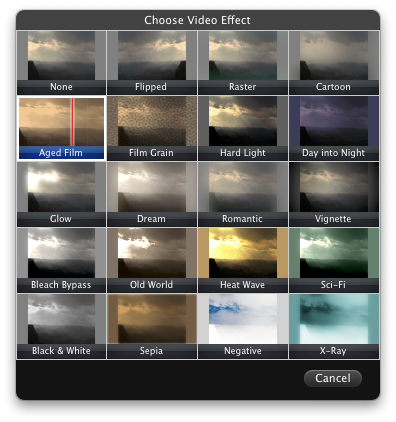
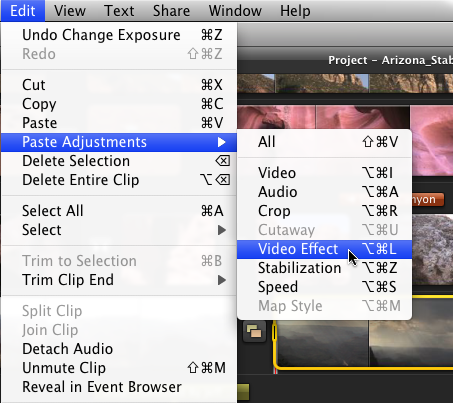
**Copy and Paste Adjustments** -- One of iMovie '09's new features is
  the return of video effects. With a clip selected, bring up the
  Inspector and click the Video Effect button to view the effects
  iMovie offers. Now, let's suppose that you also apply some other
  edits to the clip: increasing the exposure, muting the audio,
  applying image stabilization, changing its speed, etc. Quite a lot
  can happen to one clip, as you can see. If the following clip (or
  other clips) come from the same scene, you'd have to reapply all of
  those adjustments to make them match up.

<http://www.tidbits.com/resources/2009-02/imovie_vid_adjustments.png>

  Instead, Apple expanded on a powerful feature that deserves
  attention. With the adjusted clip selected, choose Edit > Copy or
  press Command-C; all of the adjustments are copied. Then, choose one
  or more clips and choose which edits to apply from the Edit > Paste
  Adjustments submenu, either all at once or piecemeal. iMovie '08
  could paste only video, audio, or crop adjustments. This version
  also adds cutaway edits, video effects, stabilization, speed, and
  map style adjustments.

<http://www.tidbits.com/resources/2009-02/imovie_paste_adjustments.png>


**Move Projects and Events to Other Drives** -- In iMovie '08, events
  (the folders in which raw footage was stored on the hard disk) could
  be kept on your computer's startup disk or on external disks, but
  your movie projects had to be located on the startup disk. iMovie
  '09 lets you choose where projects are stored, too.

  You can also move projects from drive to drive, such as you might
  want to do if your startup disk runs low on space. Relocating event
  files in iMovie '08 required that you move the applicable projects
  in the Finder. Now, drag a project or event to another drive's icon
  in either the Project Library or the Event Library to copy the
  content. In the case of relocating project files, you're given the
  option of copying just the project file or the file and its
  associated event footage, too. (Here's a video example.) To _move_
  the files instead of copy them, hold the Command key while you drag.

<http://www.tidbits.com/resources/2009-02/imovie_copy_project.mov>


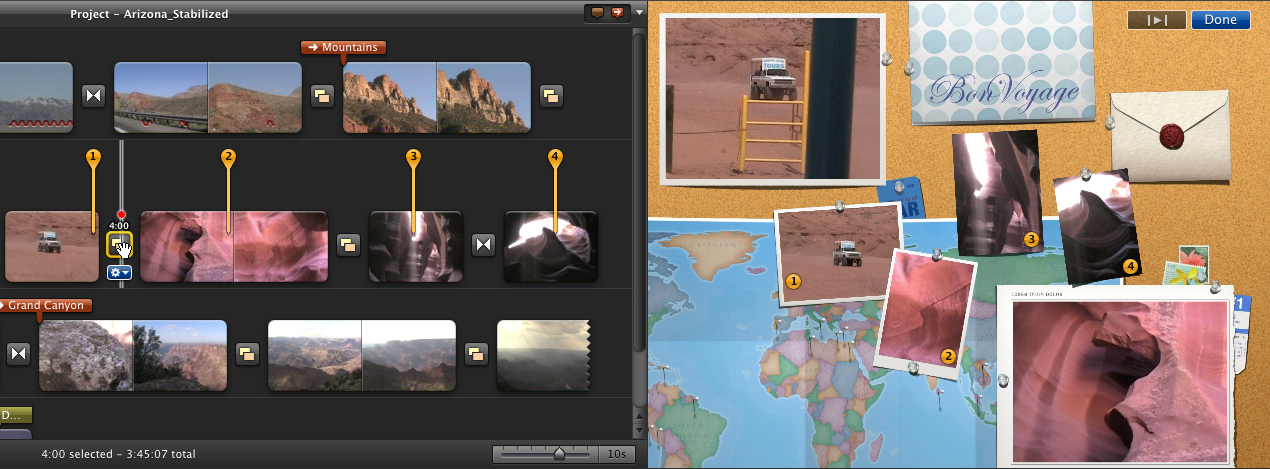
**Choose Which Clips Appear in Theme Transitions** -- iMovie '09
  offers new themes that add motion graphics to your clips,
  specifically to your movie's opening and closing scenes and some
  transitions. Some themes transition between two clips by, for
  example, focusing on one clip "mounted" to a bulletin board, zooming
  out, and then zooming in on the next clip. Other transitions have
  several clips on the bulletin board.

  You can choose which clips appear in which frames. Click one of the
  theme transitions to view a zoomed-out image that displays all of
  the available drop zones. A set of numbered yellow pins appears on
  your footage, each representing one of the drop zones. Drag the pins
  to the areas of your movie you want to appear in the other photos.
  (Here's a video example.)

<http://www.tidbits.com/resources/2009-02/imovie_theme_transition.png>
<http://www.tidbits.com/resources/2009-02/imovie_theme_transitions.mov>


**Consistent Map Styles in Themes** -- Speaking of themes, the
  Bulletin Board theme includes a map tacked onto the background of
  the board. If you already have a map in your project, or you add a
  new map, the map style on the board automatically assumes the same
  style from the project for consistency.


**Add Locations to Travel Maps** -- iMovie includes an internal
  database of 4,000 cities, airports, and other locations for use when
  adding markers to its interactive maps. That's a good start, but
  what if you want a location that isn't included? With a little work,
  you can add it to iMovie's database. (Credit for this tip goes to
  user markstew on Apple's iMovie discussion forums.)

<http://discussions.apple.com/profile.jspa?userID=1546095>

  First, find the latitude and longitude coordinates of your
  destination using a service such as iTouchMap.com. Next, make sure
  iMovie is not running and open the application's package:
  Control-click on the iMovie application icon and choose Show Package
  Contents from the contextual menu. (iMovie, like many applications,
  is a Mac OS X "package," a folder that appears normally as a single
  file.)

<http://itouchmap.com/latlong.html>

  Go to Contents/Resources/ and open the file WorldLocations.txt using
  a text editor. Copy an existing entry similar to the one you're
  about to add; for example, find a city in your state or country.
  Paste that at the end of the list, and change the city name. Then,
  copy the coordinates you looked up on the Web and paste them in
  place of the coordinates in your custom line.

  Save the file, close the folders, and launch iMovie. When you add a
  map and perform a search, your new location appears in the list.


**The Date/Time Title** -- When you add this title style to a clip,
  the clip's actual date and title appear. Only the start time is
  displayed - it won't keep a running clock on your footage - and you
  can't edit the text style. But if you need a quick notation of when
  the clip was shot, this title can save you some work.

<http://www.tidbits.com/resources/2009-02/imovie_datetime_title.png>


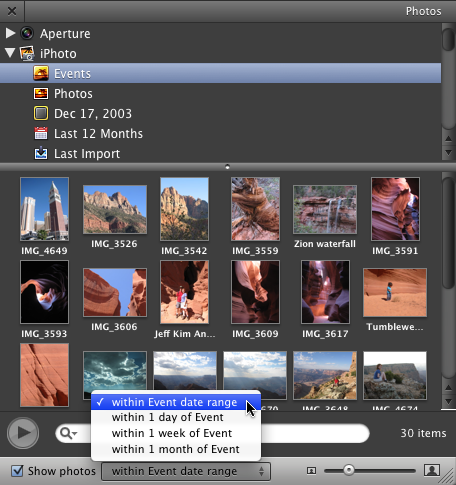
**View Photos from Same Time Period** -- If you're like me, you
  capture not only video during a trip or other occasion, but also a
  lot of still photos. iMovie '09 makes it easier to find the photos
  you shot at the same time.

  Select an event in the Event Library and then click the Photos
  button on the toolbar. At the bottom of the Photos pane is a new
  Show Photos pop-up menu; click its checkbox and then choose a time
  frame (Within Event Date Range, or Within 1 Day/Week/Month of
  Event).

<http://www.tidbits.com/resources/2009-02/imovie_show_photos.png>


**Adjust the Opacity of a Cutaway** -- With the advanced tools enabled
  (an option in iMovie's preferences that unlocks a lot of features),
  you can drag one clip on top of another and create a cutaway - the
  new clip is superimposed on top of the existing one. When you bring
  up the Inspector on the cutaway clip, a new Opacity slider lets you
  adjust how transparent the clip appears.

<http://www.tidbits.com/resources/2009-02/imovie_cutaway_opacity.png>


Dropbox: A Collaborator's Dream
-------------------------------
  by David Weintraub <[email protected]>
  article link: <http://db.tidbits.com/article/10048>

  I am in love. Well, maybe not love. After all, I don't want my wife
  to get jealous of a computer application, but I've found that in the
  few weeks since I've downloaded it, Dropbox has become an important
  part of my computing environment.

<http://www.getdropbox.com/>

  Dropbox is similar to another tool called SugarSync. They both back
  up select folders on your Mac or Windows PC to a remote server. Both
  can also synchronize those folders across a variety of other
  computers. (See "SugarSync Sweetens Online Syncing," 2008-08-30.)

<http://db.tidbits.com/article/9751>

  On the surface, SugarSync seems more sophisticated. For instance, it
  has an actual iPhone app as well as a Windows Mobile phone
  application, whereas Dropbox offers only a Web interface for the
  iPhone and other smartphones. With SugarSync you can select which
  folders to monitor, while Dropbox synchronizes only a single folder
  called "Dropbox." Yet while SugarSync focuses solely on backup and
  synchronization, Dropbox also keeps collaboration in mind.

  When you install Dropbox, it creates a special Dropbox folder in
  your home directory. You have the option of locating it elsewhere on
  your computer, and you can move it later if you choose. Dropbox also
  adds a special Dropbox icon in the menu bar (or in the System Tray
  in Windows), offering easy access to the Dropbox folder, the Web
  interface, and several Dropbox commands. Plus, it adds a special
  Dropbox menu item to the Finder's contextual menu.

  Aside from those minimal interface items, Dropbox is almost
  invisible. The Dropbox folder operates like any other folder in the
  Finder, with a significant twist: When you put a file in your
  Dropbox folder, it is automatically synchronized with the Dropbox
  server.

  Dropbox also provides a Web interface that enables you to download
  files, delete them, update them, or even upload newer files using
  any modern Web browser. Changes are reflected in your Dropbox
  folder.

  You can subscribe to this folder and download it to any other Mac,
  Windows, or Linux machine. Any changes you make on a subscribed
  computer are automatically synchronized with the server and,
  accordingly, to any other computer subscribed to the Dropbox. So
  far, this doesn't seem to do anything that SugarSync doesn't already
  do. However, in the immortal words of Ron Popeil, "But wait! There's
  more!"

  Like Time Machine, Dropbox doesn't simply synchronize your files, it
  versions them. Did you make a bunch of changes you now regret? Don't
  worry; Dropbox enables you to revert to an older revision. What if
  you accidentally delete a document? No problem, Dropbox keeps a
  backup of deleted documents.


**Enabling Collaborators to Drop In** -- However, the feature that
  really won me over was the capability to allow other Dropbox users
  to share folders inside my Dropbox. Simply select any folder in your
  Dropbox and invite the Dropbox users with whom you want to share it.
  When these users accept your invitation, they will see your shared
  folder in their own Dropbox. Like any other folder in their Dropbox,
  they have full rights to view, modify, delete, or add any files to
  this shared folder. You see any change they make immediately.

  If granting other people the power to modify your documents sounds a
  bit scary, don't forget that Dropbox versions everything. If you
  don't like the changes your collaborators make, you can always
  revert to a previous version. Dropbox acts like your own private
  wiki, enabling multiple users to contribute changes. However, unlike
  a wiki, you aren't limited to a text-based environment. You can
  collaborate on spreadsheets, images, and even entire Web sites.

  Before Dropbox, I would mail documents back and forth between
  people. There would often be confusion as to who had the latest
  revision of a document. We'd have to make changes gingerly to ensure
  everyone agreed on them, and it would sometimes take a few weeks to
  make even minor modifications. It was a confusing and messy process.
  But now with Dropbox, everyone on the team automatically has the
  latest version of any given document. We also no longer worry about
  making changes without first getting everyone else's approval. We
  now plow on ahead. If someone makes a change that others don't like,
  we can always revert the document back to the previous version.
  Collaboration is much faster, and we can now accomplish in days what
  it used to take weeks to finish.


**Other Collaborative Capabilities** -- A few other features in
  Dropbox enhance the collaborative process. Sometimes I need to share
  a document that is too large to send via instant messaging, or even
  email. Your Dropbox folder contains a special folder called Public.
  Any file placed in this Public folder gets its own URL. (You can get
  this URL via the Dropbox item in the contextual menu). Now, all you
  have to do is send this URL (via instant messaging or email), and
  the receiver can retrieve the document through a Web browser. They
  don't even need a Dropbox account. For example, here's a picture of
  my kitty. (Aww...  isn't he cute?)

<http://dl.getdropbox.com/u/433257/100_0251.JPG>

  And what would a piece of Web 2.0 software be without the capability
  to share photos? Inside your Dropbox is another special folder
  called Photos. All folders you place inside this Photos folder get
  their own URLs and become their own Web-based photo gallery. You can
  have an unlimited number of these Web-based galleries. Place photos
  inside your gallery folders, and share them with your friends. For
  example, here are some snapshots from my trip to Austin.  Flickr it
  isn't, but it's simple to use.

<http://www.getdropbox.com/gallery/433257/1/Austin?h=3cec8f>

  Dropbox, like SugarSync, enables you to synchronize your files
  between multiple computers. However, Dropbox goes farther with its
  collaborative features. By sharing a folder inside your Dropbox, you
  create your own wiki-like area with your fellow Dropbox users. Also,
  unlike SugarSync, Dropbox also works on Linux and integrates with
  the Gnome Desktop and the Nautilus file browser just like it does
  with the Mac OS X Finder.

  Dropbox is currently available as a free beta, which gives you up to
  2 GB of storage. You can upgrade the capacity to 50 GB for either
  $9.99 per month or $99 per year.


TidBITS Watchlist: Notable Software Updates for 09-Feb-09
---------------------------------------------------------
  by Doug McLean <[email protected]>
  article link: <http://db.tidbits.com/article/10047>

  Things 1.0.3 from Cultured Code is a minor update to the Getting
  Things Done-inspired task manager. Changes include syncing between
  the order of projects in the Next list and that of the sidebar, the
  immediate program-wide reflection of changes to projects and tags,
  and the capability to deactivate both selected inactive and active
  projects at the same time. Additionally, the update provides a
  handful of bug fixes, including one that prevents the date chooser
  from disappearing after editing a project's due date, and several
  iPhone sync bugs. ($49.95 new, free update, 4.3 MB)

<http://culturedcode.com/things/>

  Firefox 3.0.6 from Mozilla is a maintenance update to the popular
  Web browser with changes focusing on various security and stability
  issues. Specific fixes target a bug that causes parts of the screen
  to display incorrectly after Firefox has been open for long periods
  of time, a bug that causes problems with the display of Indic
  scripts, and a problem with scripted commands properly working with
  plug-ins. Among a short list of security issues addressed, the most
  serious one involved the possibility of crashes resulting in memory
  corruption being exploited to run arbitrary code. (Free update, 17.2
  MB)

<http://en-us.www.mozilla.com/en-US/firefox/>
<http://www.mozilla.org/security/known-vulnerabilities/firefox30.html#firefox3.0.6>

  GarageBand 5.0.1 from Apple is a minor update to the iLife '09
  version of the popular music editing software. According to Apple
  this update, "improves overall stability and addresses specific
  issues with downloading lessons from the Learn to Play Lesson
  Store." The update is recommended for all GarageBand '09 users, and
  is available via Software Update or the Apple Support Downloads
  page. (Free update, 26.7 MB)

<http://support.apple.com/downloads/GarageBand_Update>

  PageSender 4.4 from SmileOnMyMac is the latest version of the
  company's fax application. Changes include support for new
  fax-via-email services such as Faxaway and Ring Central, support for
  64-bit applications in anticipation of Snow Leopard, support for
  QuickBooks 2009, and a handful of unnamed minor bug fixes. ($39.95
  new, free upgrade for 4.x users, 7.1 MB)

<http://www.smileonmymac.com/PageSender/>
<http://www.faxaway.com/>
<http://www.ringcentral.com/>

  BBEdit 9.1.1 from Bare Bones Software updates the powerful text
  editor with some minor changes involving the save procedure for
  FTP/SFTP servers, and the default font name (which is now "Consolas
  for BBEdit"). Mostly though, this latest version addresses a slew of
  bugs. A glance at the fairly lengthy list of resolved issues
  indicates that many of the fixes revolve around improved FTP
  connection stability. ($125 new, free update, 15.5 MB).

<http://www.barebones.com/products/bbedit/>
<http://www.barebones.com/support/bbedit/arch_bbedit911.html>

  Twitterrific 3.2 from the Iconfactory is the latest version of the
  popular Mac OS X Twitter client. Changes include old tweets being
  marked as read when the application is launched, a new rate limit
  check at startup, better HTTP authentication that improves the
  reliability of access through a proxy, HTTPS encryption of all
  communications with Twitter, the capability to have up to 200 tweets
  read into your timeline, and an optional menu available on the Dock
  icon. The update also contains a variety of bug fixes that address
  accessibility issues with VoiceOver, support for Mac OS X 10.4
  Tiger, and more. ($14.95 or free with ad display, free update, 1.2
  MB)

<http://iconfactory.com/software/twitterrific>
<http://iconfactory.com/software/twitterrific_history>


ExtraBITS for 09-Feb-09
-----------------------
  by TidBITS Staff <[email protected]>
  article link: <http://db.tidbits.com/article/10058>

**Google Sync for iPhone Debuts, But Be Careful** -- Google has
  released Google Sync for the iPhone, along with a number of other
  mobile phone platforms. If you rely entirely on Google Calendar and
  Gmail, it might be worth checking out, but beware, since it deletes
  all your existing contacts and calendar information during setup.
  We'll stick with other syncing solutions for a while, thank you very
  much. (Posted 2009-02-09)

<http://www.google.com/mobile/apple/sync.html>


**How to Break Strong Encryption** -- The xkcd Web comic has an
  excellent two-panel strip that lays out just how bad guys would go
  about getting through strong encryption if they really wanted to.
  Hint: it's cheap, easy, and doesn't involve distributed computing.
  (Posted 2009-02-07)

<http://xkcd.com/538/>


**Gmail's Task List Comes to the iPhone** -- Gmail Labs's Task List
  feature, released this past December, has come to the iPhone. The
  new mobile version available at <a
  href="http://gmail.com/tasks";>gmail.com/tasks</a> is very similar to
  the original, enabling users to add and delete tasks, and manage
  several lists. Unfortunately, also like the original, there's still
  no syncing with Google Calendar (and thus with iCal). (Posted
  2009-02-04)

<http://gmailblog.blogspot.com/2009/02/tasks-paper-vs-iphone.html>


Hot Topics in TidBITS Talk for 09-Feb-09
----------------------------------------
  by Jeff Carlson <[email protected]>
  article link: <http://db.tidbits.com/article/10057>

**Backup & Large Drives** -- With hard drives getting ever more
  capacious, what's the best combination of storage and convenience
  for backing up data? Also, readers discuss the lack of an easy
  solution to upgrade problematic Seagate drives. (19 messages)

<http://emperor.tidbits.com/TidBITS/Talk/2438>


**SATA drive in Xserve's SAS drive sled?** It appears possible to put
  a SATA drive into an SAS drive sled, but Adam would like to hear
  about some firsthand experience before giving it a try. (1 message)

<http://emperor.tidbits.com/TidBITS/Talk/2439>


**Twitter & Mr. Engst** -- Twitter has reached the point of acceptance
  where people argue about its terms: does a person tweet or twitter,
  and do the tweople listen? (14 messages)

<http://emperor.tidbits.com/TidBITS/Talk/2441>


**iPhone GPS in Europe** -- If you're traveling in Europe from the
  United States, look into getting a temporary AT&T international data
  plan. (6 messages)

<http://emperor.tidbits.com/TidBITS/Talk/2443>


**Is the Zune Dying?** Microsoft's latest financial statements
  revealed that the Zune's sales were pretty miserable during the
  holiday period. Are we seeing the last of Microsoft's iPod killer?
  (1 message)

<http://emperor.tidbits.com/TidBITS/Talk/2446>


**10 Secrets of iMovie** -- A reader notes that iMovie '09 on his
  computer does not include a cool new feature: the option to view the
  movie on a secondary display. (2 messages)

<http://emperor.tidbits.com/TidBITS/Talk/2448>


$$

This is TidBITS, a free weekly technology newsletter providing timely
news, insightful analysis, and in-depth reviews to the Macintosh and
Internet communities. Feel free to forward to friends; better still,
please ask them to subscribe!

Non-profit, non-commercial publications and Web sites may reprint or
link to articles if full credit is given. Others please contact us. We
do not guarantee accuracy of articles. Caveat lector. Publication,
product, and company names may be registered trademarks of their
companies. TidBITS ISSN 1090-7017.

Copyright 2009 TidBITS: Reuse governed by Creative Commons license.

Contact us at:    <[email protected]>
TidBITS Web site: <http://www.tidbits.com/>
License terms:    <http://www.tidbits.com/terms/>
Full text search: <http://www.tidbits.com/search/>
Subscriptions:    <http://www.tidbits.com/about/list.html>
Account help:     <http://www.tidbits.com/about/account-help.html>


--
If you want to unsubscribe or change your address, use this link
http://emperor.tidbits.com/webx?unsub@@.3c557dc4!u=306a67f9