Thanks Tim,

live and learn…
Will look into this over the weekend.
Cheers
Stay safe
Alex

> Am 19.03.2020 um 20:44 schrieb Tim Nevels via 4D_Tech <[email protected]>:
>
> On Mar 19, 2020, at 2:00 PM, Alexander Heintz wrote:
>
>> OsX is as much a UNIX flavor as we are basically primates.
>>
>> BSD split in 75 from UNIX and NEXTSTEP in 86 from BSD.
>>
>> don't know why, but AFAIK the MacOS is not suited for multiple concurrent
>> user sessions.
>
> Good that you prefaced your statement with “AFAIK”, because you don’t know.
>
> macOS has supported multiple simultaneous users on the same machine with each
> having their own U macOS Lion 10.7. So it’s been around for a long time. Very
> easy to use from one Mac to another using built in Screen Sharing
> application.
>
> You can also do it from a Windows machine but you need to get the right VNC
> app that supports the new protocol and user login. VNC Viewer works.
>
> https://www.realvnc.com/en/connect/download/viewer/
>
> Apple put a limit of 5 simultaneously connected users with macOS 10.13 High
> Sierra. Before that you could do many more if you had a powerful Mac — same
> as if you were doing this on Windows with Terminal Server.
>
> Here’s a link with a lot of details, for those that want to know more:
>
> https://superuser.com/questions/125636/can-a-mac-be-used-by-multiple-users-at-same-time
>
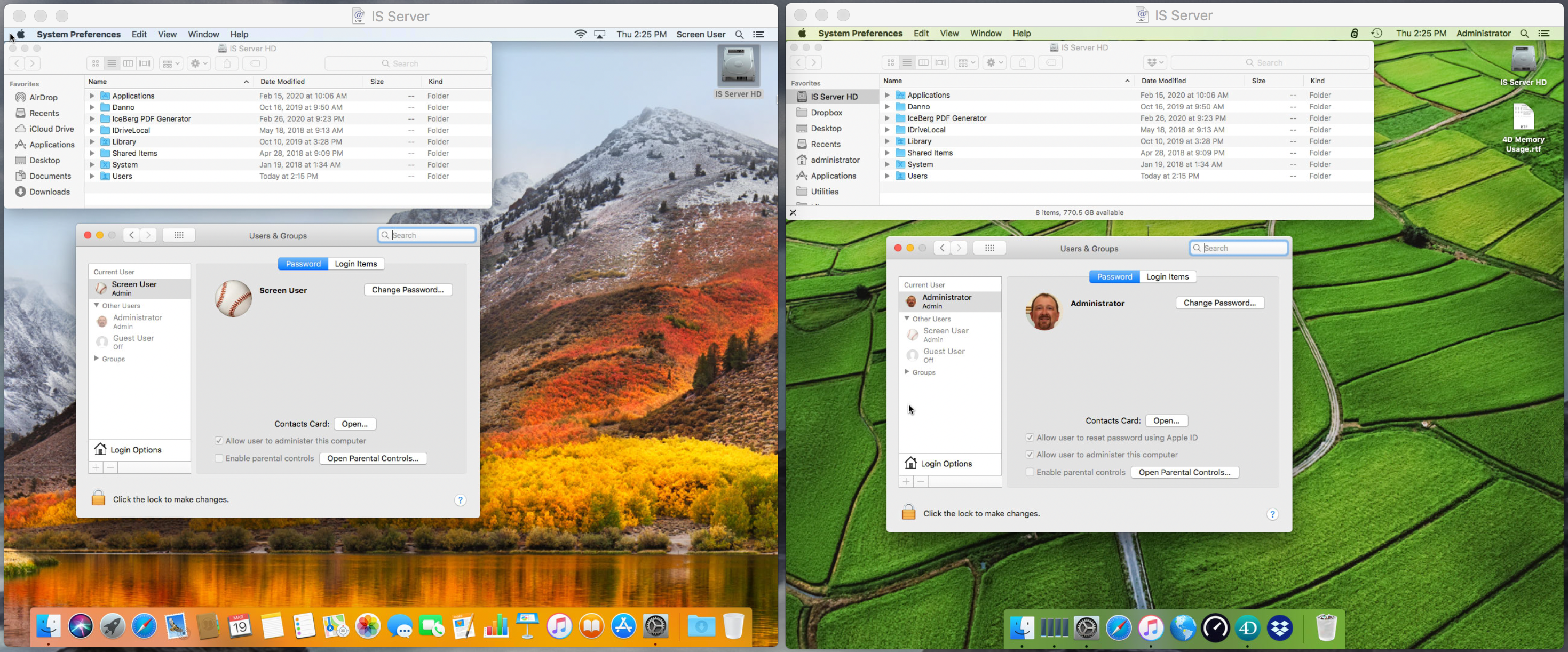
> Also, here are a couple of screenshots I took from my Mac Mini server running
> 10.13 with 2 Screen Sharing sessions active at the same time. Two users:
> “Administrator" and “Screen User” are configured. Just to show an example of
> how it works.
>
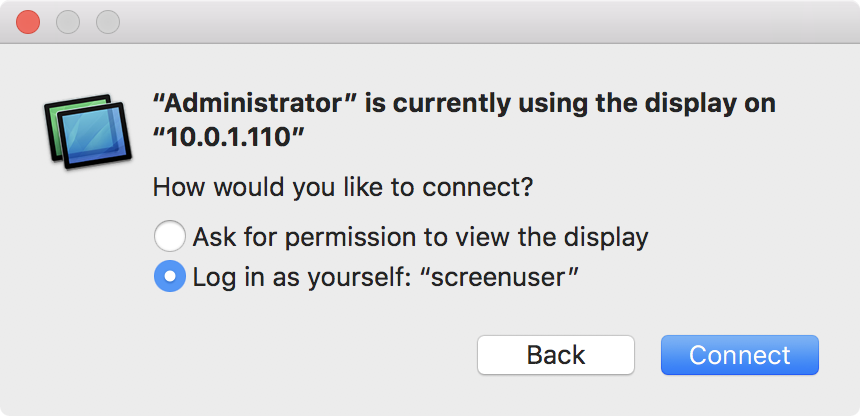
> When you connect to a Mac with Screen Sharing you have to specify a user name
> and password. You can get the dialog box below if you are trying to connect
> with an account that it already knows. Just select another account to log in
> again with a new Screen Sharing connection:
>
> https://dl.dropboxusercontent.com/s/0x3gvnasf57otz3/ScreenShare%20Connect%20Confirm.PNG
>
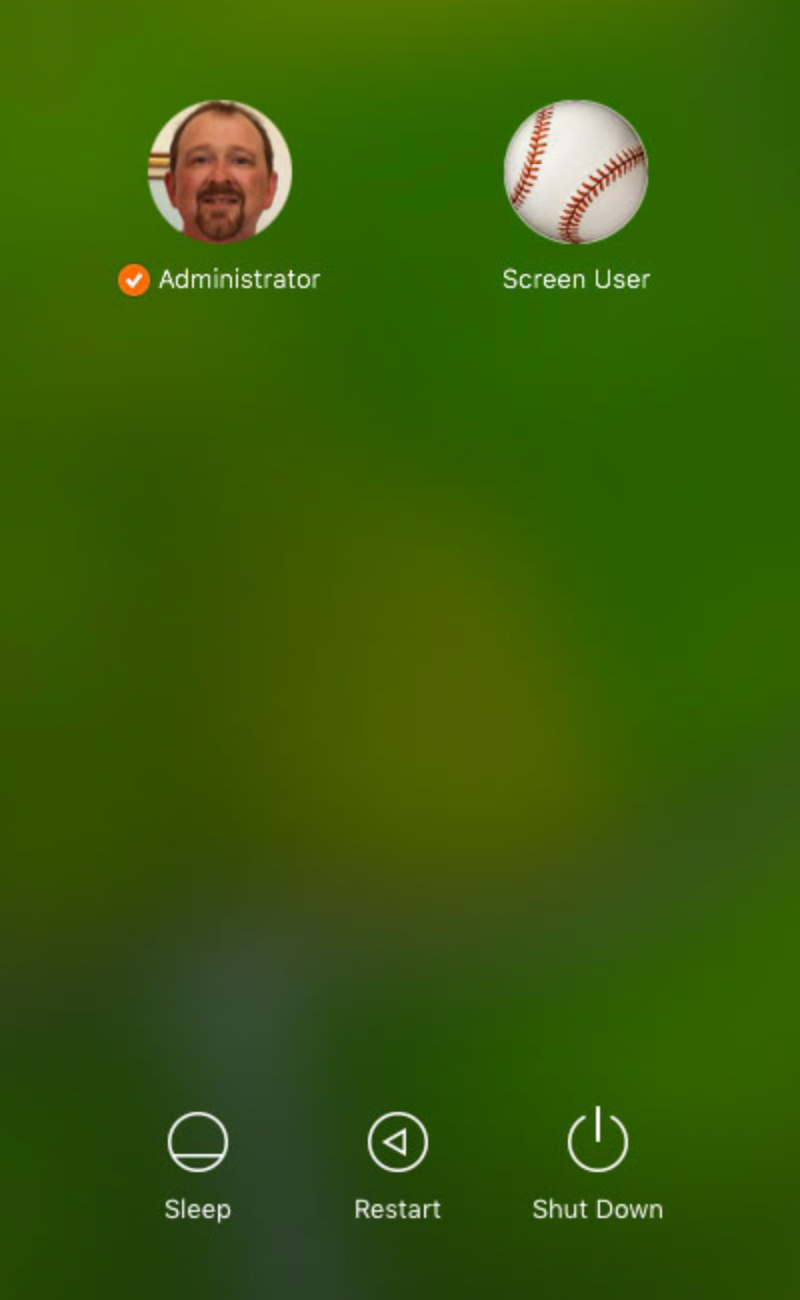
> Then you get the macOS login screen. Select the user account and enter the
> password. (You can save all this to the Keychain so you don’t have to double
> login every time.)
>
> https://dl.dropboxusercontent.com/s/tpsjwvzb7t96ql2/LoginScreen.PNG
>
> Here are the 2 sessions running side-by-side on my iMac Pro. Notice it is the
> same Mac Mini computer, but with two users. Each has it’s own Desktop, Dock
> and all that stuff.
>
> https://dl.dropboxusercontent.com/s/9x3xm5zpt1lgu2x/TwoUserScreenShare.PNG
>
> It is super easy to set this up and use. A lot easier than doing the same
> thing on Windows with Terminal Server and using RDC. But then you would
> expect that since it is a Macintosh… right? 😀
>
> Tim
>
> *****************************************
> Tim Nevels
> Innovative Solutions
> 785-749-3444
> [email protected]
> *****************************************
>
> **********************************************************************
> 4D Internet Users Group (4D iNUG)
> Archive:  http://lists.4d.com/archives.html
> Options: https://lists.4d.com/mailman/options/4d_tech
> Unsub:  mailto:[email protected]
> **********************************************************************

**********************************************************************
4D Internet Users Group (4D iNUG)
Archive:  http://lists.4d.com/archives.html
Options: https://lists.4d.com/mailman/options/4d_tech
Unsub:  mailto:[email protected]
**********************************************************************